Use your browser’s Print (Ctrl+P or ⌘P). Choose Landscape and turn on Background graphics.
American Security & AV logo
Step-by-step guide

Your new customer tools

Website enquiries, replying to customers, your customer list, the sales and service boards, and customer emails, one step at a time.
Prepared for the team at American Security & AV Systems · September 2026
Set up with you by

Native Builders
1 · Your menu
2 · New enquiries & replies
3 · Your customers
4 · The sales board
5 · Service & billing
6 · Changing the boards
7 · Emailing customers
8 · Your Mailchimp list
9 · Moving from Monday
10 · Every day & getting help
Before you start
American Security & AV logo
×
Native Builders

How to use this guide

Red circles
A red circle on a picture shows exactly where to click.
Numbers
The red numbers show the order. Do step 1, then 2, then 3.
Looks a bit different?
The system gets small updates. Look for the same words on the button and carry on.
Stuck?
Nothing here breaks anything. Stop, note what you see, and call us. Details are on the last page.
1 Menu2 Enquiries3 Customers4 Sales board5 Service6 Boards7 Email8 Mailchimp9 Monday10 Every day
2
American Security & AV logo
×
Native Builders
1
Part 1

Your menu

The four buttons on the left that you will use every day.
1 Menu2 Enquiries3 Customers4 Sales board5 Service6 Boards7 Email8 Mailchimp9 Monday10 Every day
Part start
3
Part 1 · Your menu
American Security & AV logo
×
Native Builders

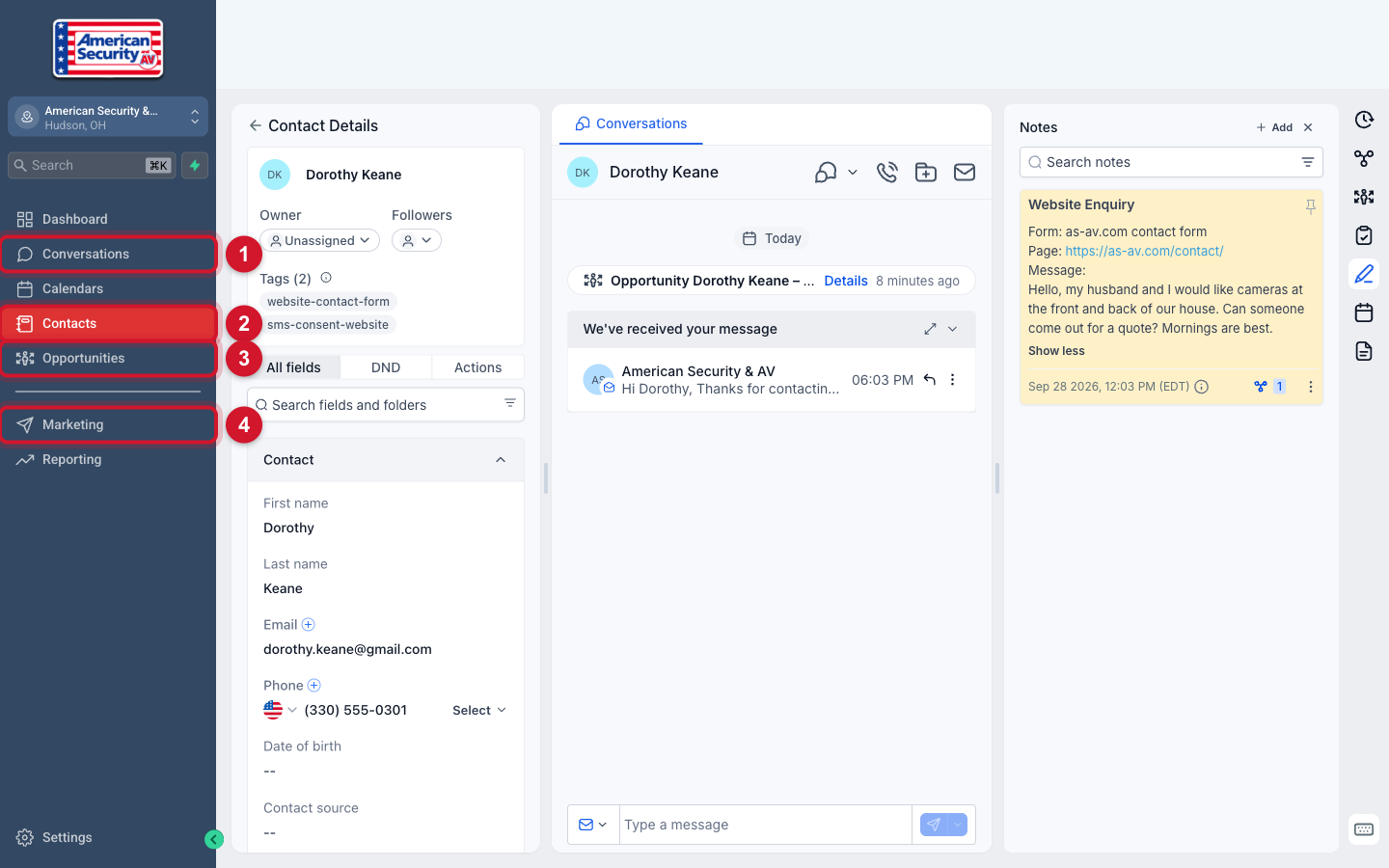
The four buttons you need

1
Conversations: messages from customers and your replies.
2
Contacts: every customer, with their details and notes.
3
Opportunities: the sales board and the service board.
4
Marketing: emails to many customers at once.
Good to know
Your screen may show a few more buttons. You can ignore them.
The four buttons you need
1 Menu2 Enquiries3 Customers4 Sales board5 Service6 Boards7 Email8 Mailchimp9 Monday10 Every day
Part start
4
American Security & AV logo
×
Native Builders
2
Part 2

New enquiries & replies

When someone fills in the form on as-av.com, it lands here. Read it, then answer it.
1 Menu2 Enquiries3 Customers4 Sales board5 Service6 Boards7 Email8 Mailchimp9 Monday10 Every day
Part start
5
Part 2 · New enquiries
American Security & AV logo
×
Native Builders

Find the new enquiry

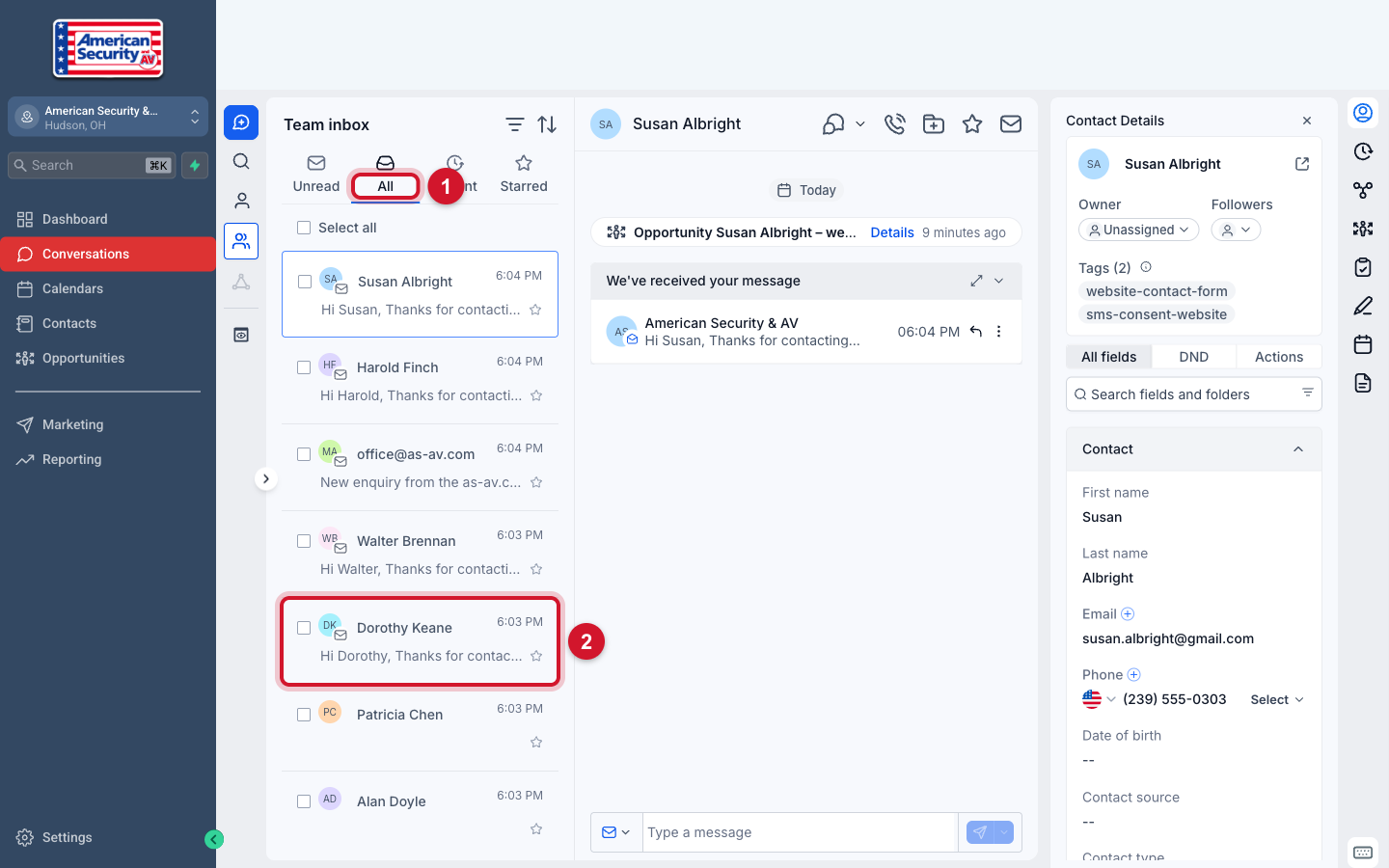
Click Conversations in the menu.
1
Click All so you see every conversation.
2
Click the customer’s name. Newest is at the top.
Good to know
You also get an email alert for every new website enquiry. Please reply here, not from Outlook, so the whole team can see the answer.
Find the new enquiry
1 Menu2 Enquiries3 Customers4 Sales board5 Service6 Boards7 Email8 Mailchimp9 Monday10 Every day
Step 1 of 7
6
Part 2 · New enquiries
American Security & AV logo
×
Native Builders

Read what they asked

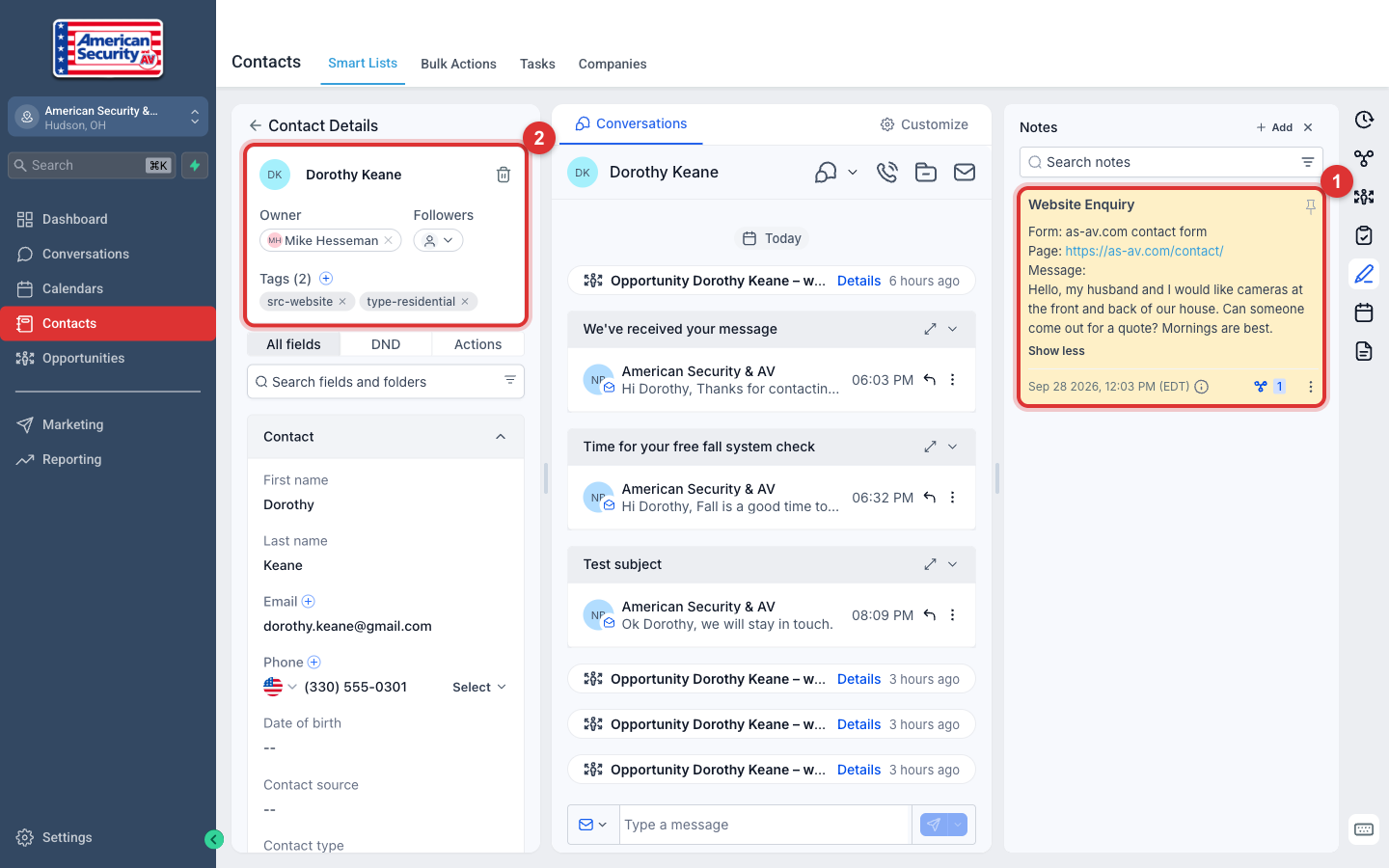
1
The yellow note is the customer’s message from the website.
2
Owner shows who is looking after this customer.
Good to know
The customer has already had an automatic “we got your message” email. Answer them within one business day.
Read what they asked
1 Menu2 Enquiries3 Customers4 Sales board5 Service6 Boards7 Email8 Mailchimp9 Monday10 Every day
Step 2 of 7
7
Part 2 · Replying
American Security & AV logo
×
Native Builders

Write your reply

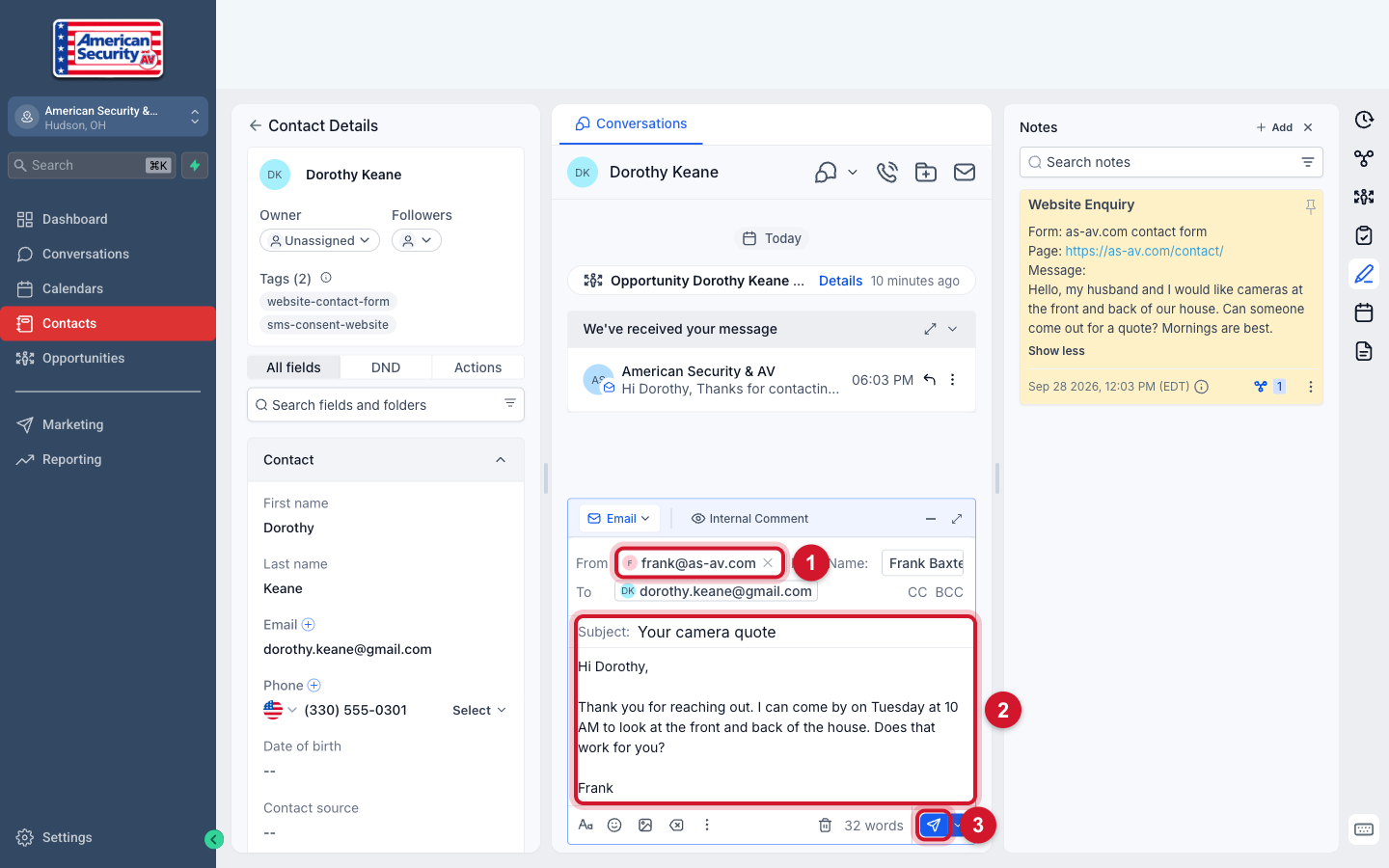
Click Type a message at the bottom.
1
From is your own email address. The customer sees it is from you.
2
Type a subject and your message.
3
Click the blue paper plane to send.
Good to know
When the customer answers, their reply appears in this same conversation.
Write your reply
1 Menu2 Enquiries3 Customers4 Sales board5 Service6 Boards7 Email8 Mailchimp9 Monday10 Every day
Step 3 of 7
8
Part 2 · Replying
American Security & AV logo
×
Native Builders

Every enquiry, the same five steps

1 Read it
Open the enquiry in Conversations and read the yellow note.
2 Give it an owner
Set Owner on the customer and on the job card (Part 4).
3 Reply
Answer the customer the same day if you can.
4 Move the card
Move the job to Contacted. A repair or billing question? Move it to Service & Billing (Part 5).
5 Plan the next step
Add a task with the day you will call or visit next.
Tip
If you called the customer instead, add a short note to their contact.
1 Menu2 Enquiries3 Customers4 Sales board5 Service6 Boards7 Email8 Mailchimp9 Monday10 Every day
Step 4 of 7
9
Part 2 · Follow-ups
American Security & AV logo
×
Native Builders

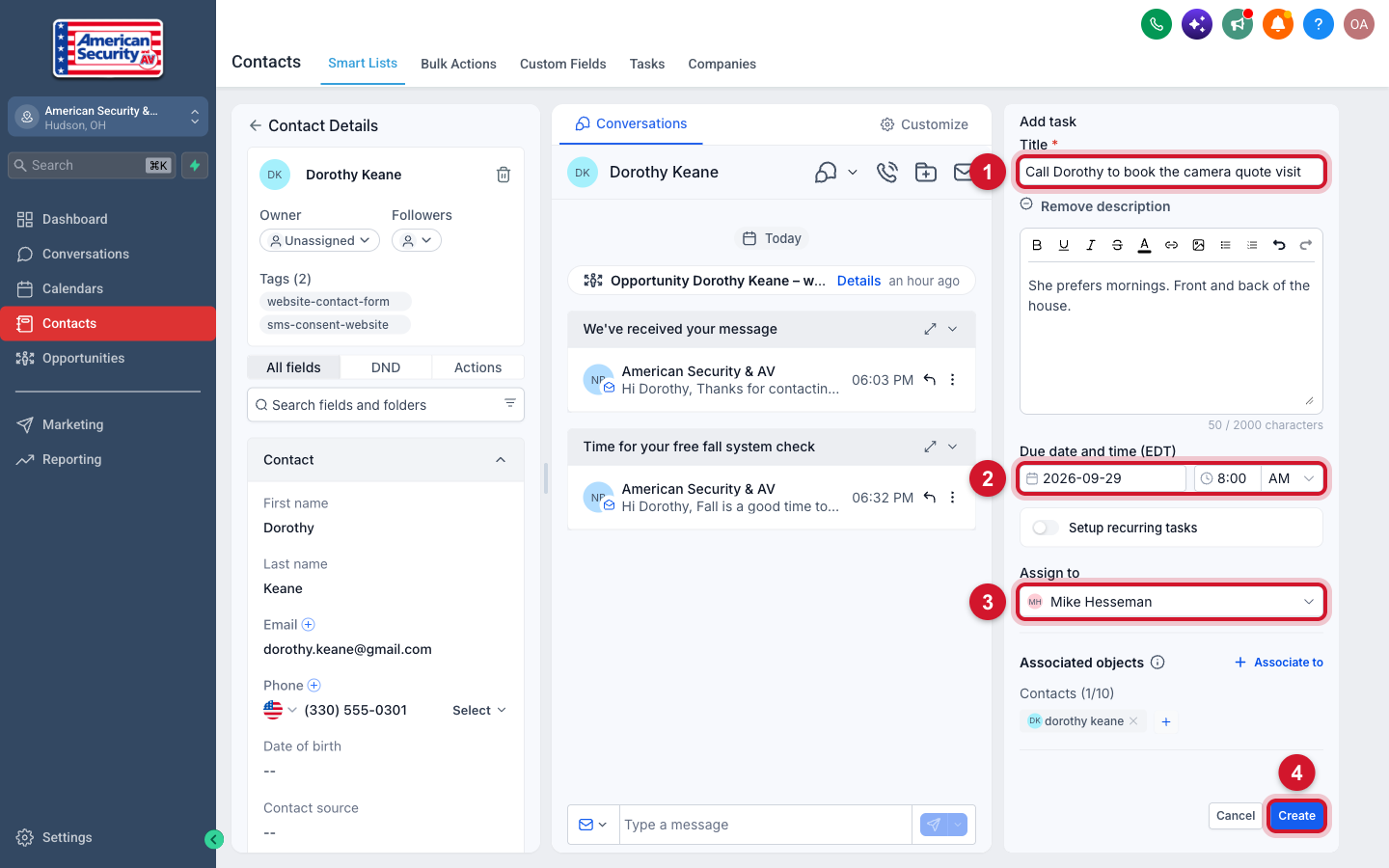
Set a reminder to call back

On the customer’s page, click the tick-in-a-box icon on the right, then Add task.
1
Write what to do, for example “Call Dorothy to book a visit”.
2
Pick the day and time.
3
Choose who should do it.
4
Click Create.
Good to know
A task is a reminder with a date. It stops a customer from being forgotten.
Set a reminder to call back
1 Menu2 Enquiries3 Customers4 Sales board5 Service6 Boards7 Email8 Mailchimp9 Monday10 Every day
Step 5 of 7
10
Part 2 · Follow-ups
American Security & AV logo
×
Native Builders

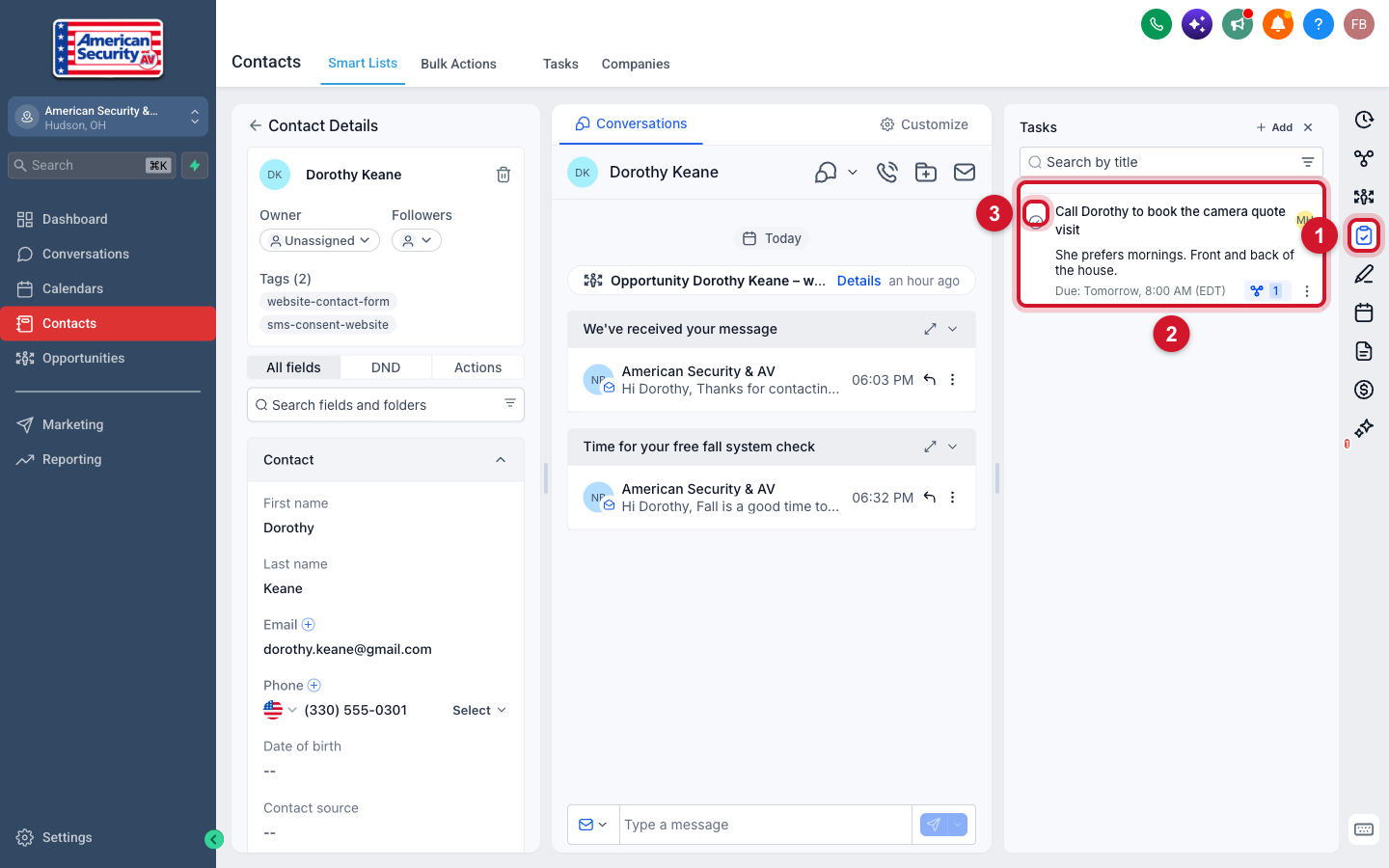
See it on the customer

1
The tick-in-a-box icon shows this customer’s tasks.
2
Your task, with who and when.
3
Done? Click the circle to tick it off.
See it on the customer
1 Menu2 Enquiries3 Customers4 Sales board5 Service6 Boards7 Email8 Mailchimp9 Monday10 Every day
Step 6 of 7
11
Part 2 · Follow-ups
American Security & AV logo
×
Native Builders

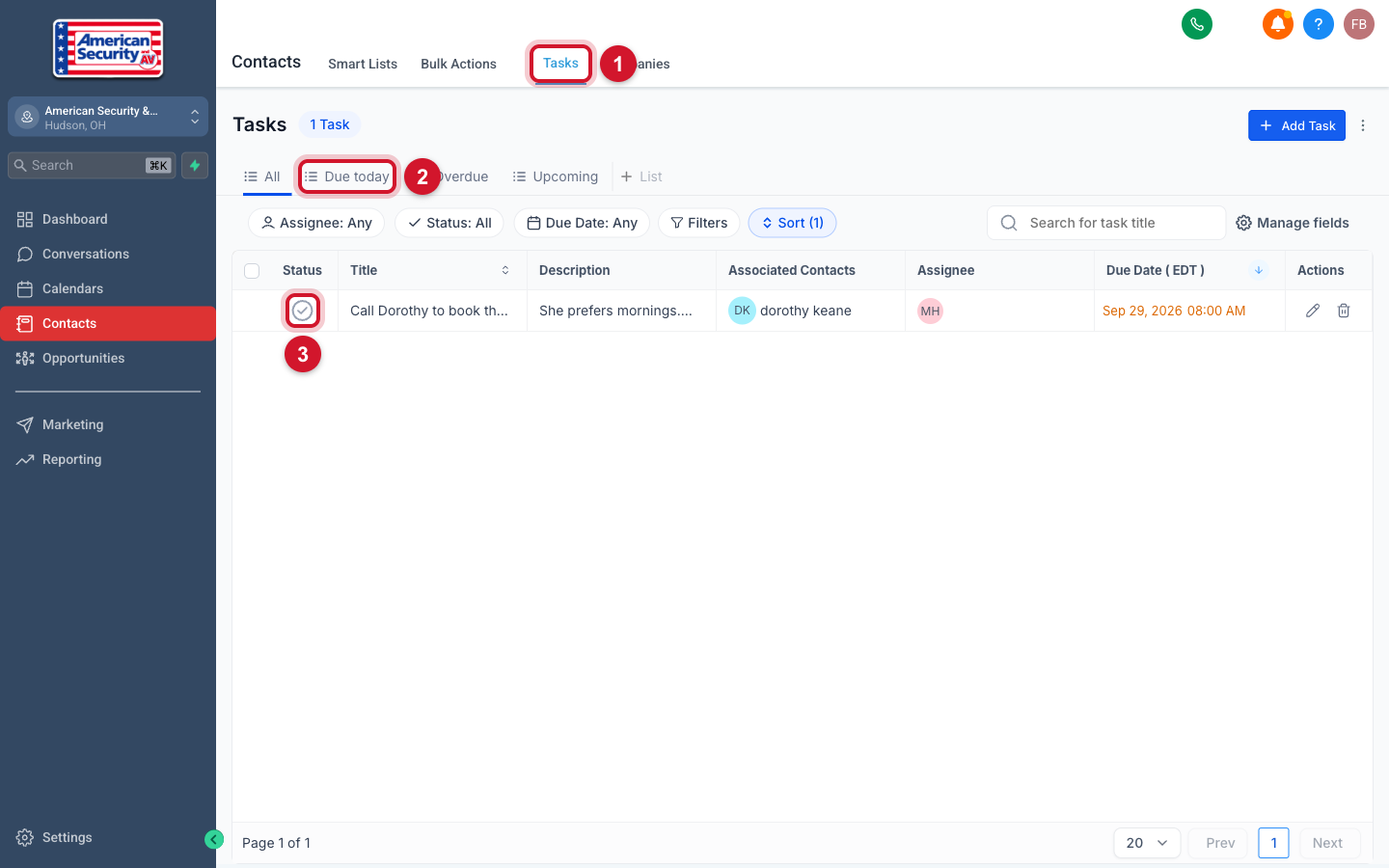
All your tasks in one place

Click Contacts in the menu.
1
Click Tasks at the top.
2
Click Due today to see what needs doing today.
3
Click the circle when a task is done.
Good to know
Start each day here, right after the new enquiries.
All your tasks in one place
1 Menu2 Enquiries3 Customers4 Sales board5 Service6 Boards7 Email8 Mailchimp9 Monday10 Every day
Step 7 of 7
12
American Security & AV logo
×
Native Builders
3
Part 3

Your customers

Find a customer, label customers, and keep lists you use often.
1 Menu2 Enquiries3 Customers4 Sales board5 Service6 Boards7 Email8 Mailchimp9 Monday10 Every day
Part start
13
Part 3 · Your customers
American Security & AV logo
×
Native Builders

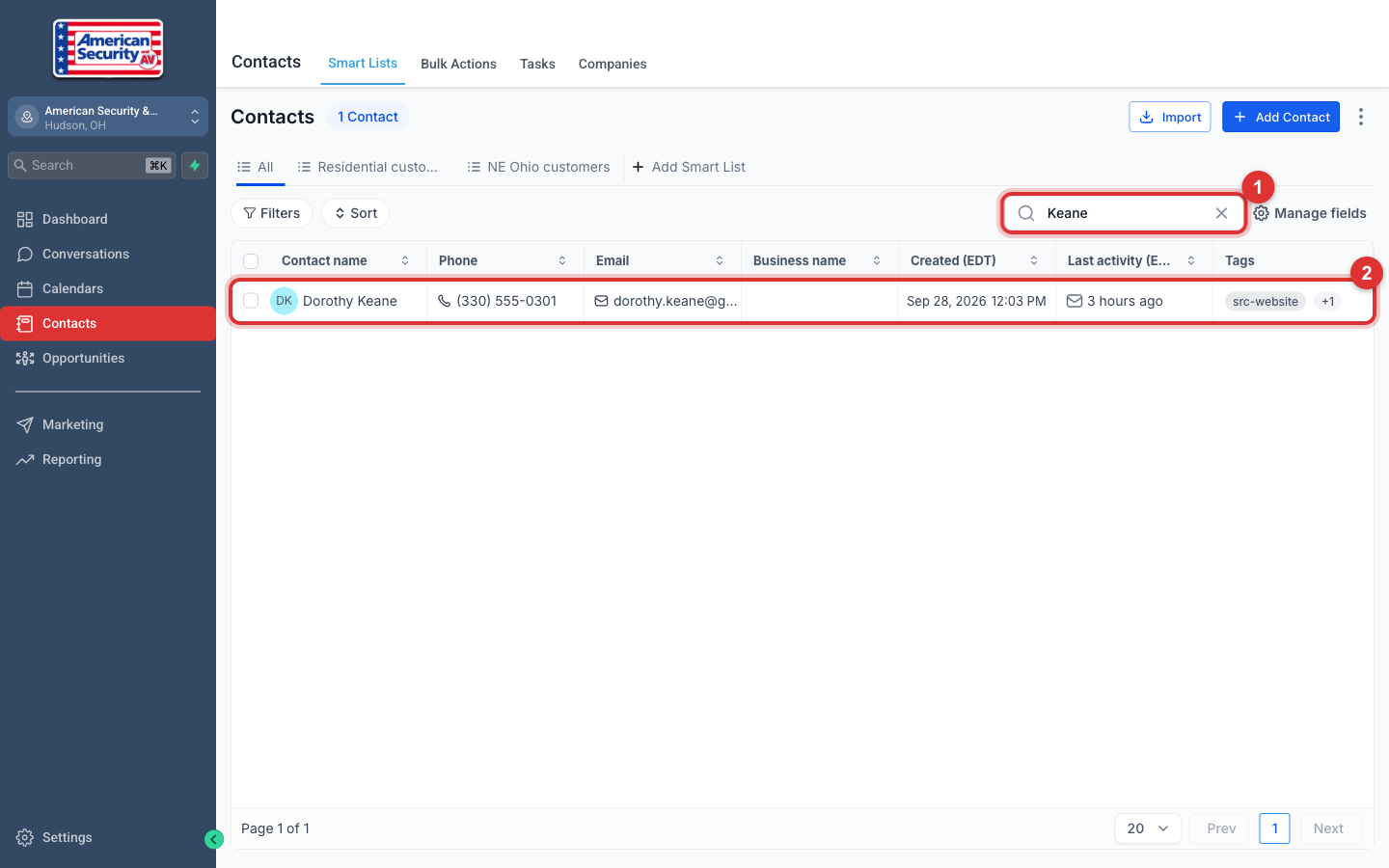
Find a customer

Click Contacts in the menu.
1
Type part of their name, email or phone in the search box.
2
Click the row to open the customer.
Find a customer
1 Menu2 Enquiries3 Customers4 Sales board5 Service6 Boards7 Email8 Mailchimp9 Monday10 Every day
Step 1 of 7
14
Part 3 · Labels (tags)
American Security & AV logo
×
Native Builders

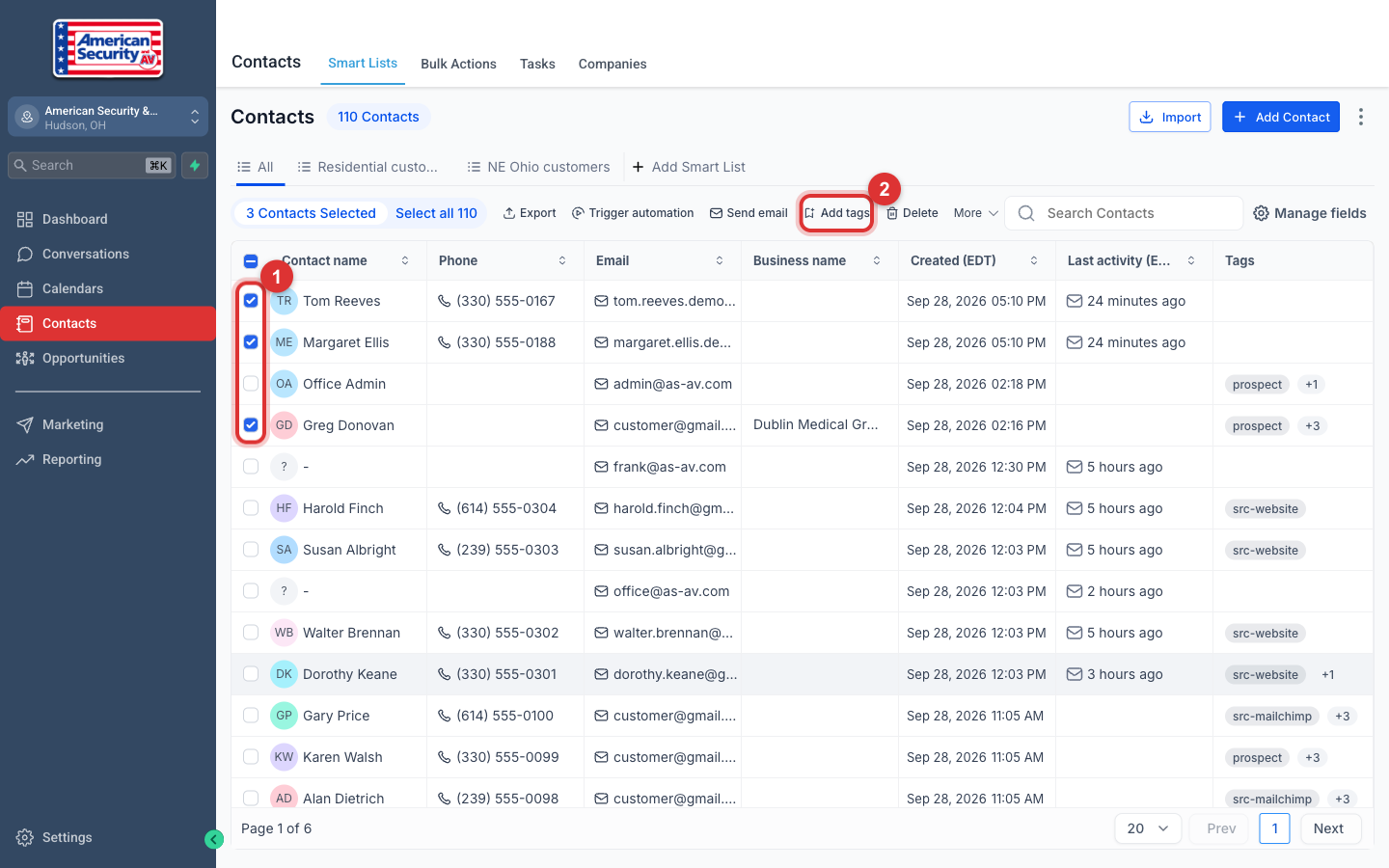
Label several customers at once

1
Tick the boxes next to the customers.
2
Click Add tags at the top.
Good to know
A tag is a label, like a sticky note, for example “type-residential” or “region-ne-ohio”. Tags decide who gets which emails.
Label several customers at once
1 Menu2 Enquiries3 Customers4 Sales board5 Service6 Boards7 Email8 Mailchimp9 Monday10 Every day
Step 2 of 7
15
Part 3 · Labels (tags)
American Security & AV logo
×
Native Builders

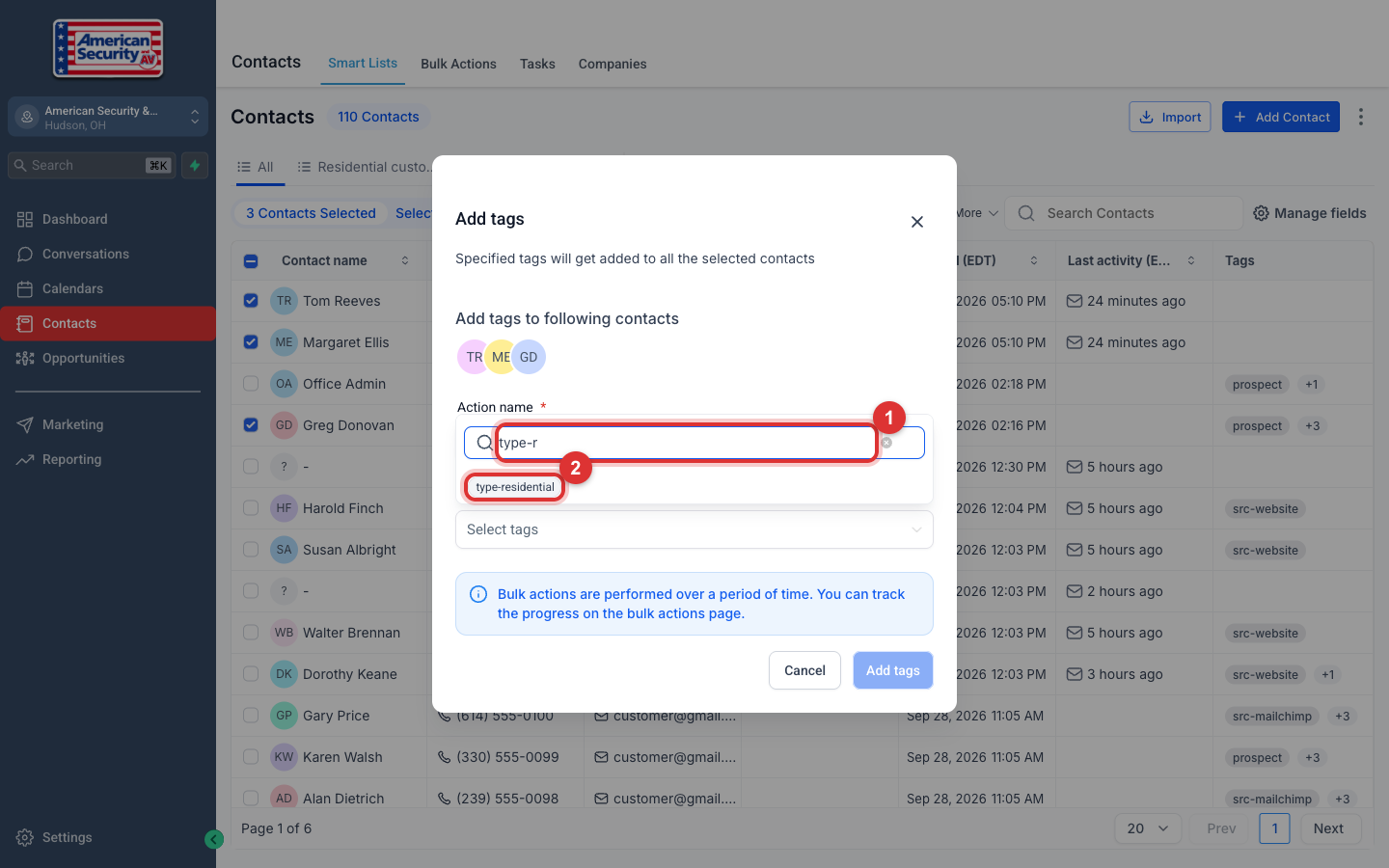
Pick the label

Type a short name for the job, like “Label as residential”, then click Select tags.
1
Type the first letters of the label.
2
Click the label.
Click Add tags.
Careful
Use the labels on the next page. Only Frank, Mike and Sharon can create new ones. Too many similar labels cause mistakes.
Pick the label
1 Menu2 Enquiries3 Customers4 Sales board5 Service6 Boards7 Email8 Mailchimp9 Monday10 Every day
Step 3 of 7
16
Part 3 · Labels (tags)
American Security & AV logo
×
Native Builders

The labels we use

Customer type
type-residentialtype-commercialtype-buildertype-municipal
Relationship
customer-existingcustomer-formerprospect
Interested in
svc-alarmsvc-camerassvc-access-controlsvc-firesvc-monitoringsvc-audio-videosvc-central-vac
Area
region-ne-ohioregion-central-ohioregion-sw-floridaregion-out-of-area
Came from
src-websitesrc-website-recoveredsrc-mailchimpsrc-referralsrc-buildersrc-phone
Added by itself
Every website enquiry gets src-website automatically. Add the others yourself.
1 Menu2 Enquiries3 Customers4 Sales board5 Service6 Boards7 Email8 Mailchimp9 Monday10 Every day
Step 4 of 7
17
Part 3 · Saved lists
American Security & AV logo
×
Native Builders

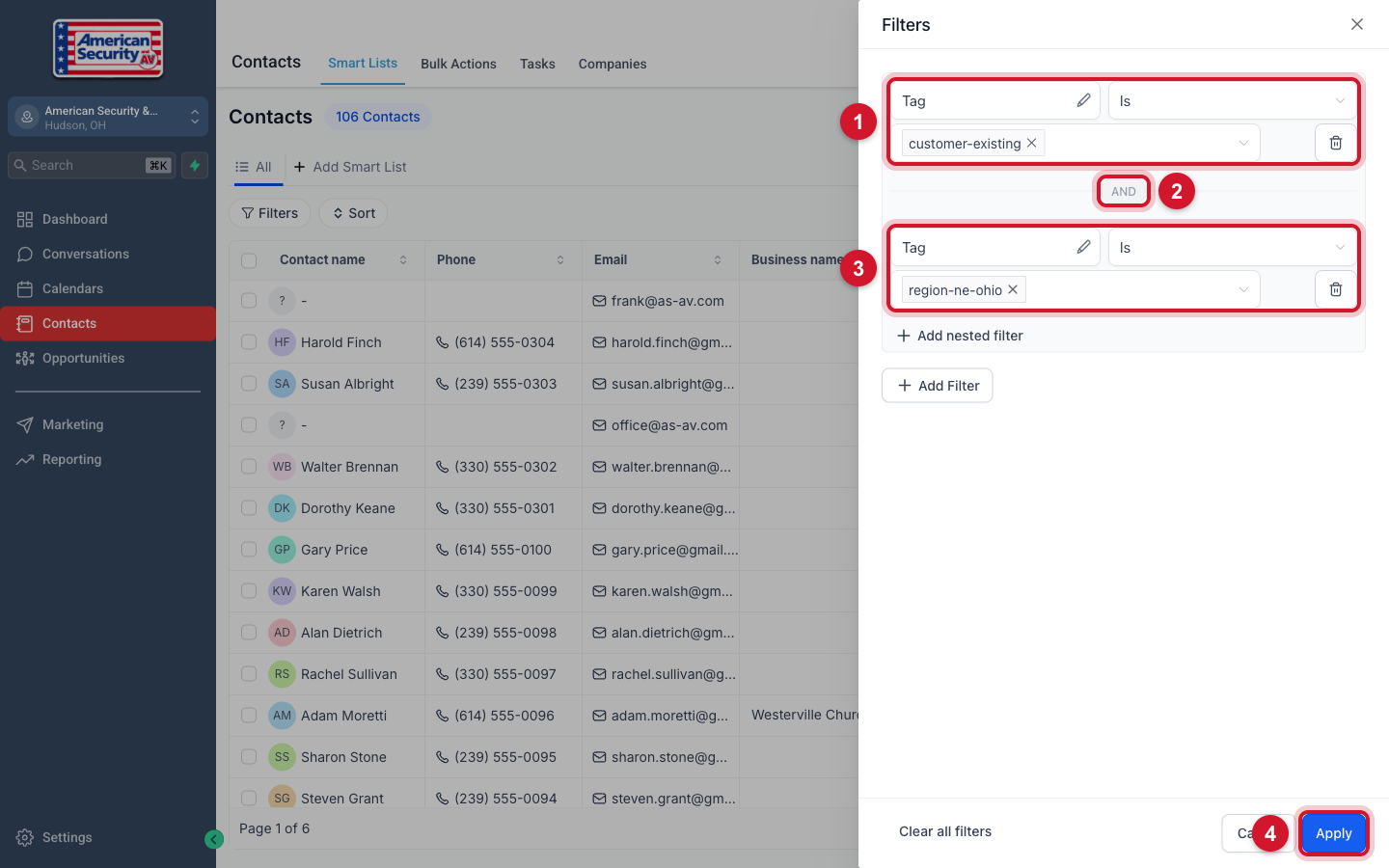
Make a list you use often

1
Click Filters, choose Tag, and pick the first label.
2
AND means the customer must have both labels.
3
Add the second label with Add nested filter.
4
Click Apply.
Good to know
“Add Filter” gives OR (either label). “Add nested filter” gives AND (both labels).
Make a list you use often
1 Menu2 Enquiries3 Customers4 Sales board5 Service6 Boards7 Email8 Mailchimp9 Monday10 Every day
Step 5 of 7
18
Part 3 · Saved lists
American Security & AV logo
×
Native Builders

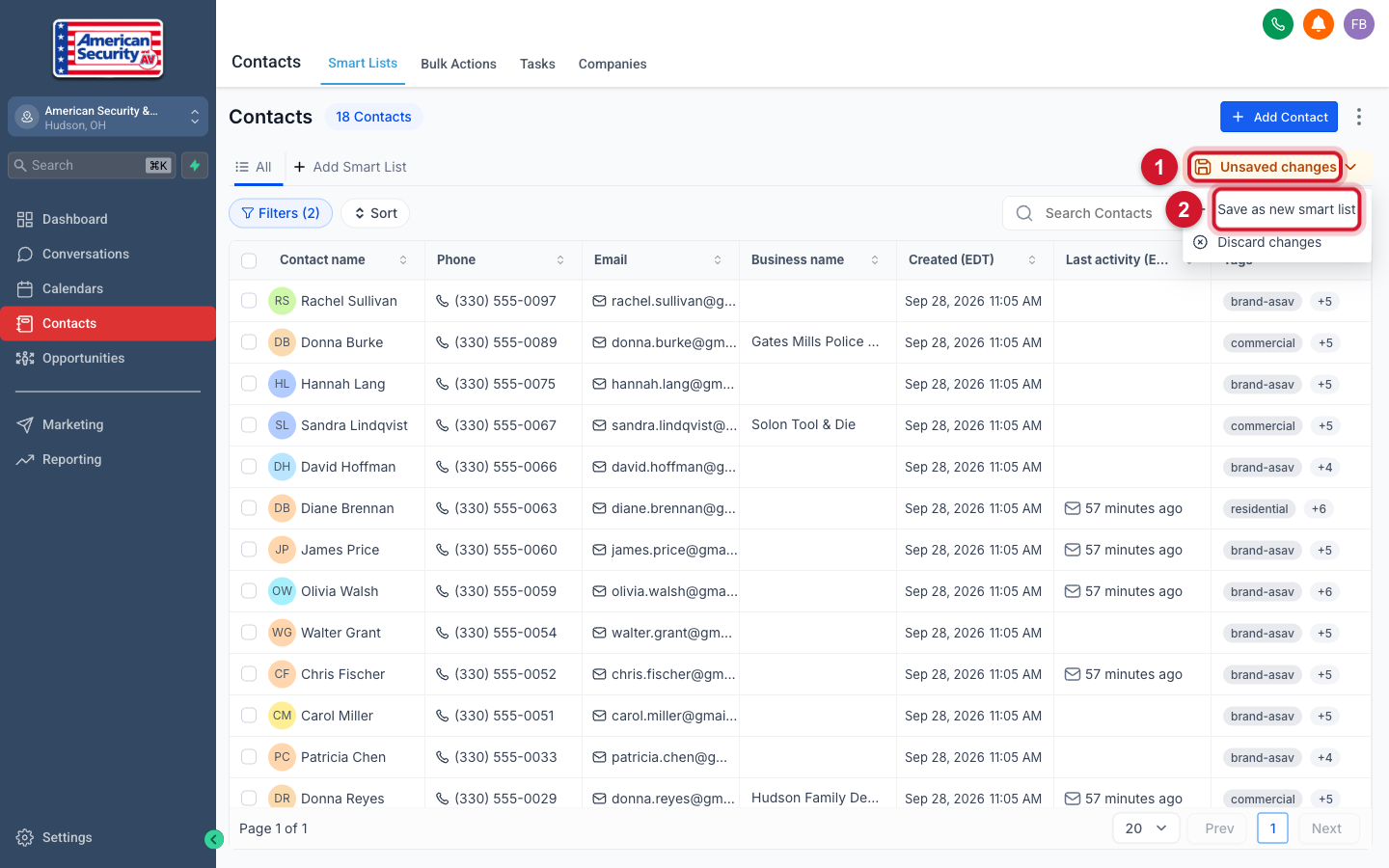
Save the list

1
Click the orange Unsaved changes button at the top right.
2
Click Save as new smart list.
Type a clear name, like NE Ohio customers, and click Create.
Careful
The name box may already say “New smart list”. Delete those words first, then type your own name.
Save the list
1 Menu2 Enquiries3 Customers4 Sales board5 Service6 Boards7 Email8 Mailchimp9 Monday10 Every day
Step 6 of 7
19
Part 3 · Saved lists
American Security & AV logo
×
Native Builders

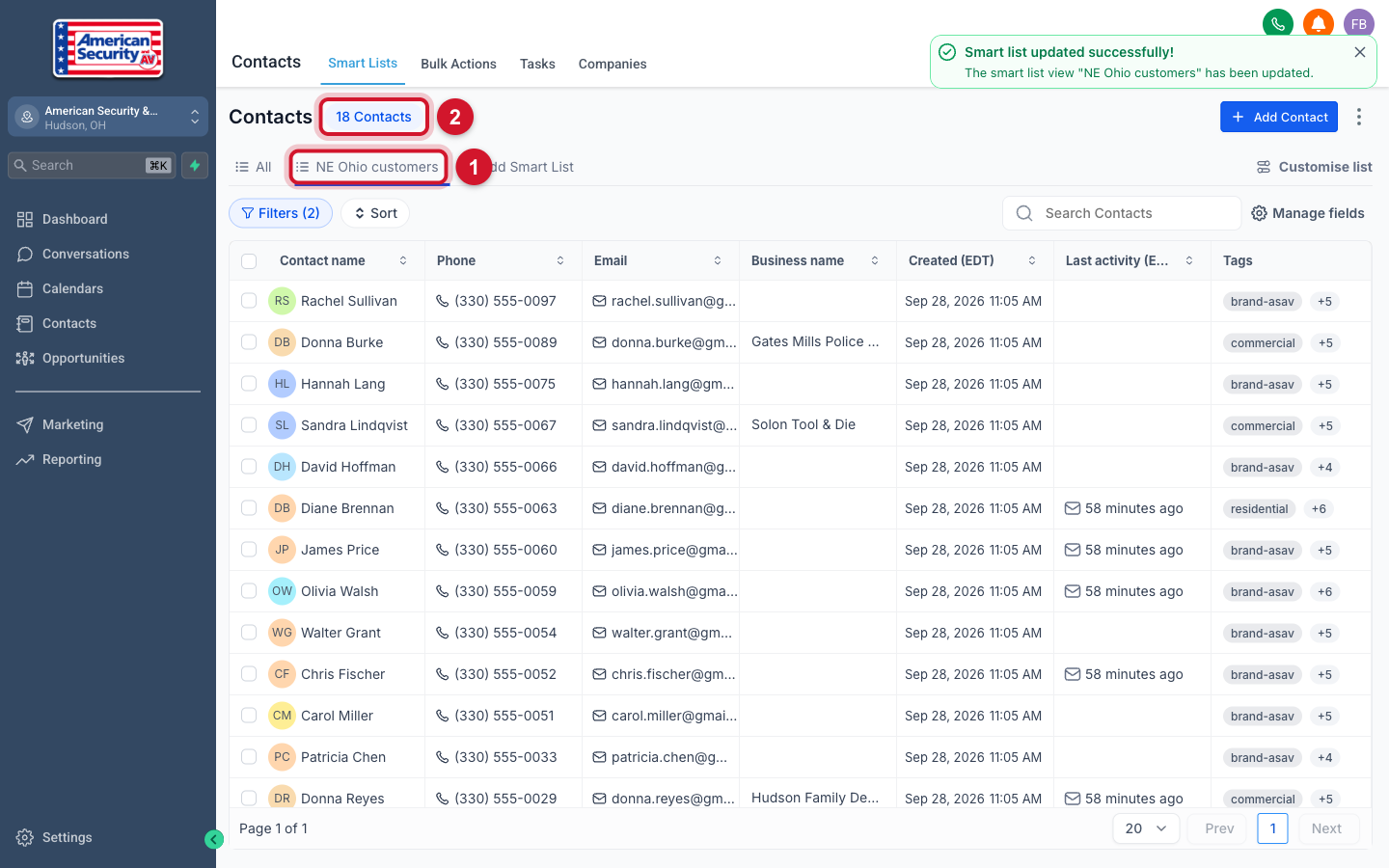
Your list, ready to use again

1
Your list now has its own tab.
2
The number shows how many customers are in it.
Good to know
Saved lists are yours. Colleagues do not see them unless you share them.
Your list, ready to use again
1 Menu2 Enquiries3 Customers4 Sales board5 Service6 Boards7 Email8 Mailchimp9 Monday10 Every day
Step 7 of 7
20
American Security & AV logo
×
Native Builders
4
Part 4

The sales board

Every job is a card. Open it to read the enquiry, move it along, and mark the result.
1 Menu2 Enquiries3 Customers4 Sales board5 Service6 Boards7 Email8 Mailchimp9 Monday10 Every day
Part start
21
Part 4 · The sales board
American Security & AV logo
×
Native Builders

Read the sales board

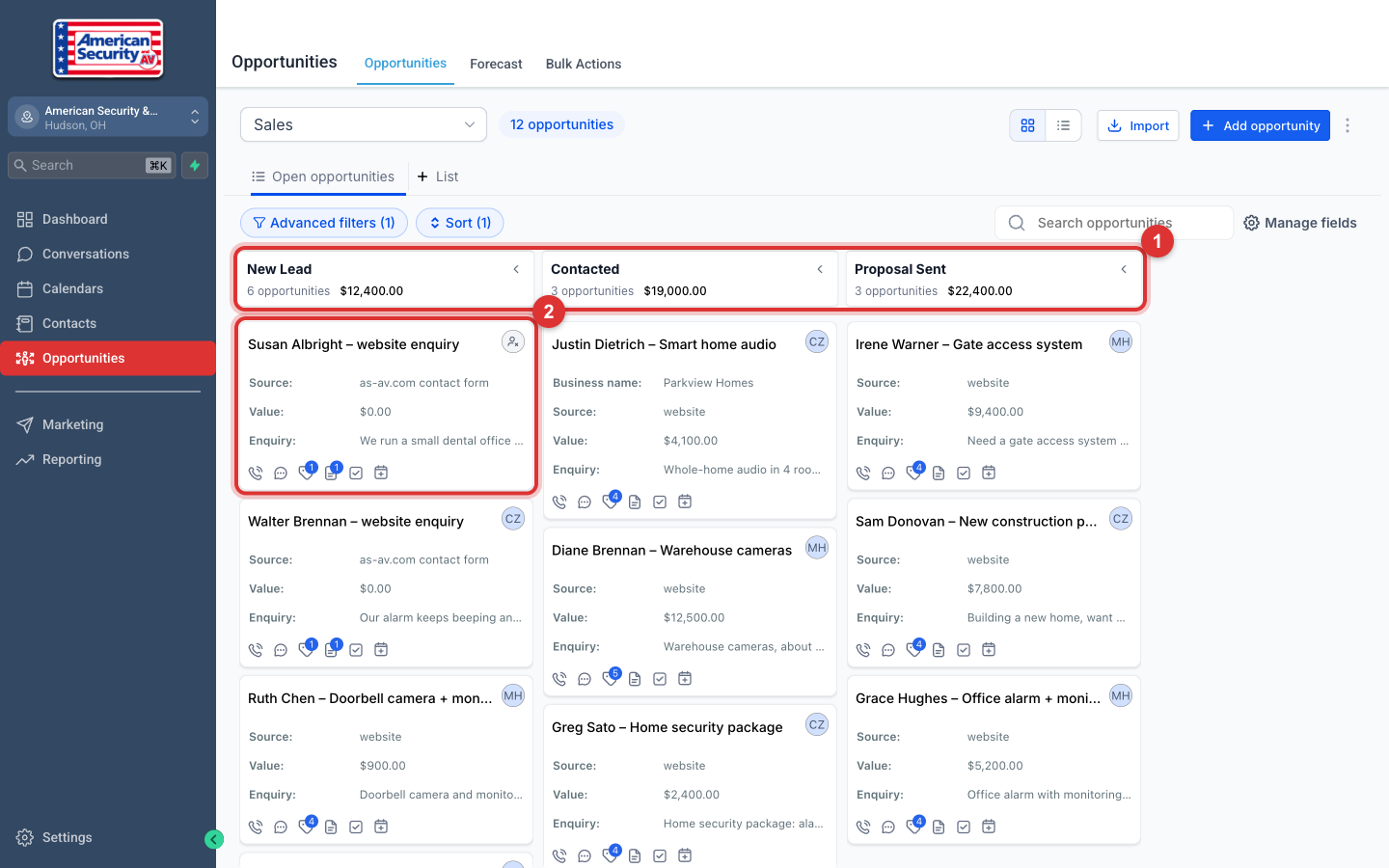
Click Opportunities in the menu.
1
Three columns: New Lead, Contacted, Proposal Sent.
2
Each card is one job. Enquiry shows what the customer asked for.
Good to know
New website enquiries arrive in New Lead by themselves.
Read the sales board
1 Menu2 Enquiries3 Customers4 Sales board5 Service6 Boards7 Email8 Mailchimp9 Monday10 Every day
Step 1 of 13
22
Part 4 · The sales board
American Security & AV logo
×
Native Builders

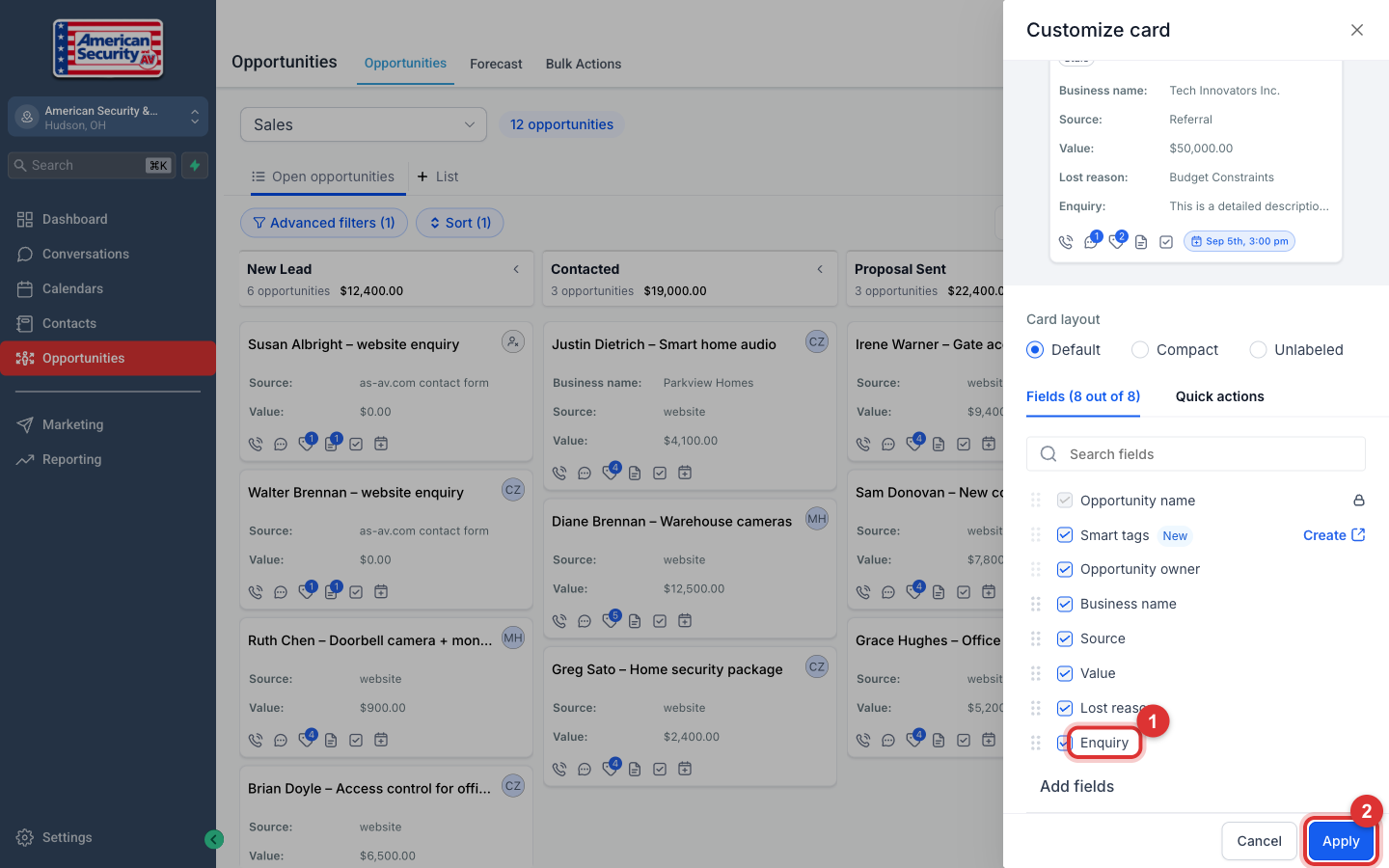
Show the enquiry on your cards

Click Manage fields at the top right of the board.
Search for Enquiry and tick it.
1
Enquiry is now in the list.
2
Click Apply.
Good to know
Do this once on each board (Sales, and Service & Billing). Each person does it on their own login.
Show the enquiry on your cards
1 Menu2 Enquiries3 Customers4 Sales board5 Service6 Boards7 Email8 Mailchimp9 Monday10 Every day
Step 2 of 13
23
Part 4 · Working a job
American Security & AV logo
×
Native Builders

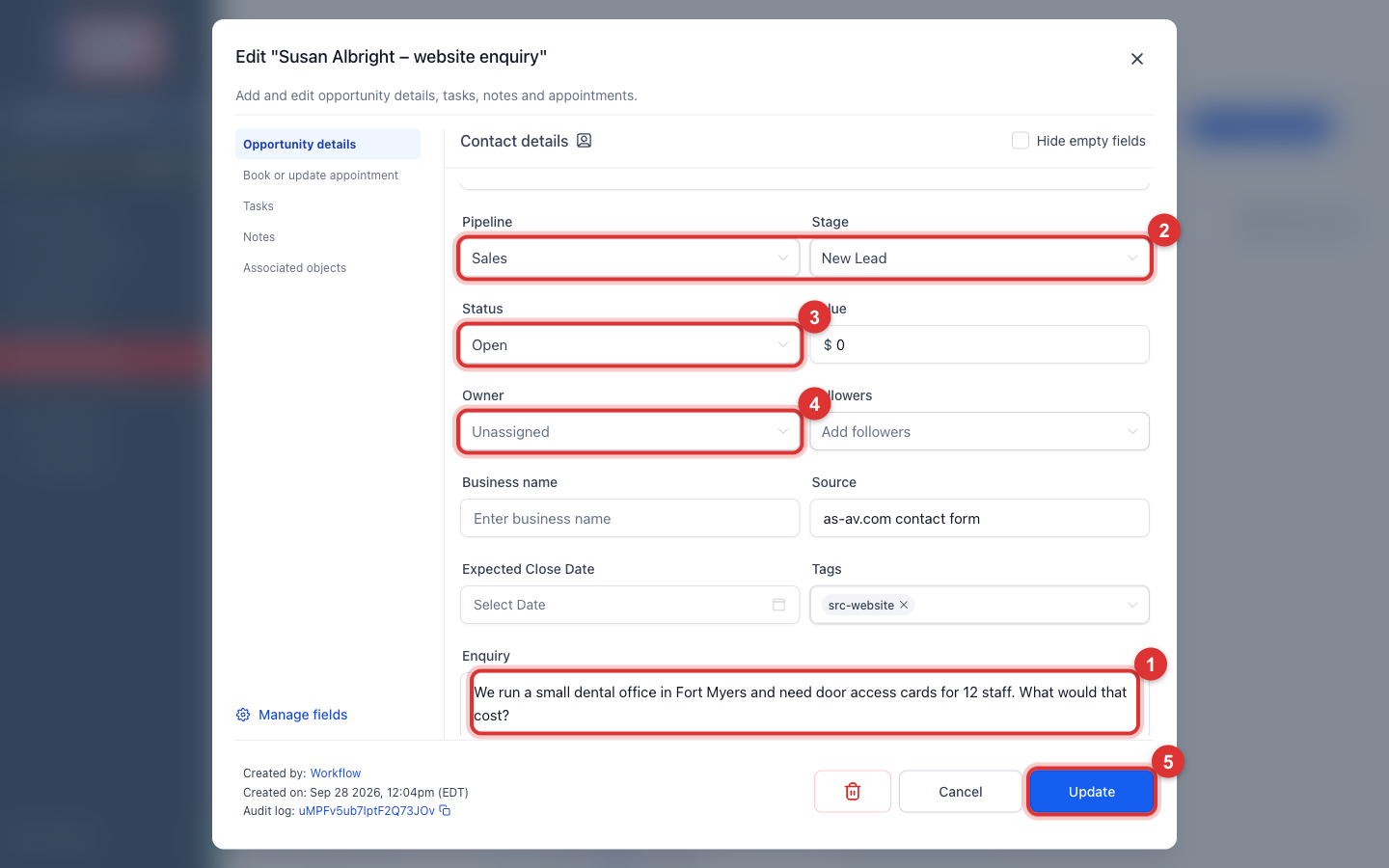
Open a job

Click a card, away from the name.
1
Enquiry: what they asked for.
2
Pipeline, Stage: board and column.
3
Status: Open, Won, Lost, Abandoned.
4
Owner: who handles it.
5
Click Update to save.
Good to know
Clicking the customer’s name opens their customer page instead.
Open a job
1 Menu2 Enquiries3 Customers4 Sales board5 Service6 Boards7 Email8 Mailchimp9 Monday10 Every day
Step 3 of 13
24
Part 4 · Working a job
American Security & AV logo
×
Native Builders

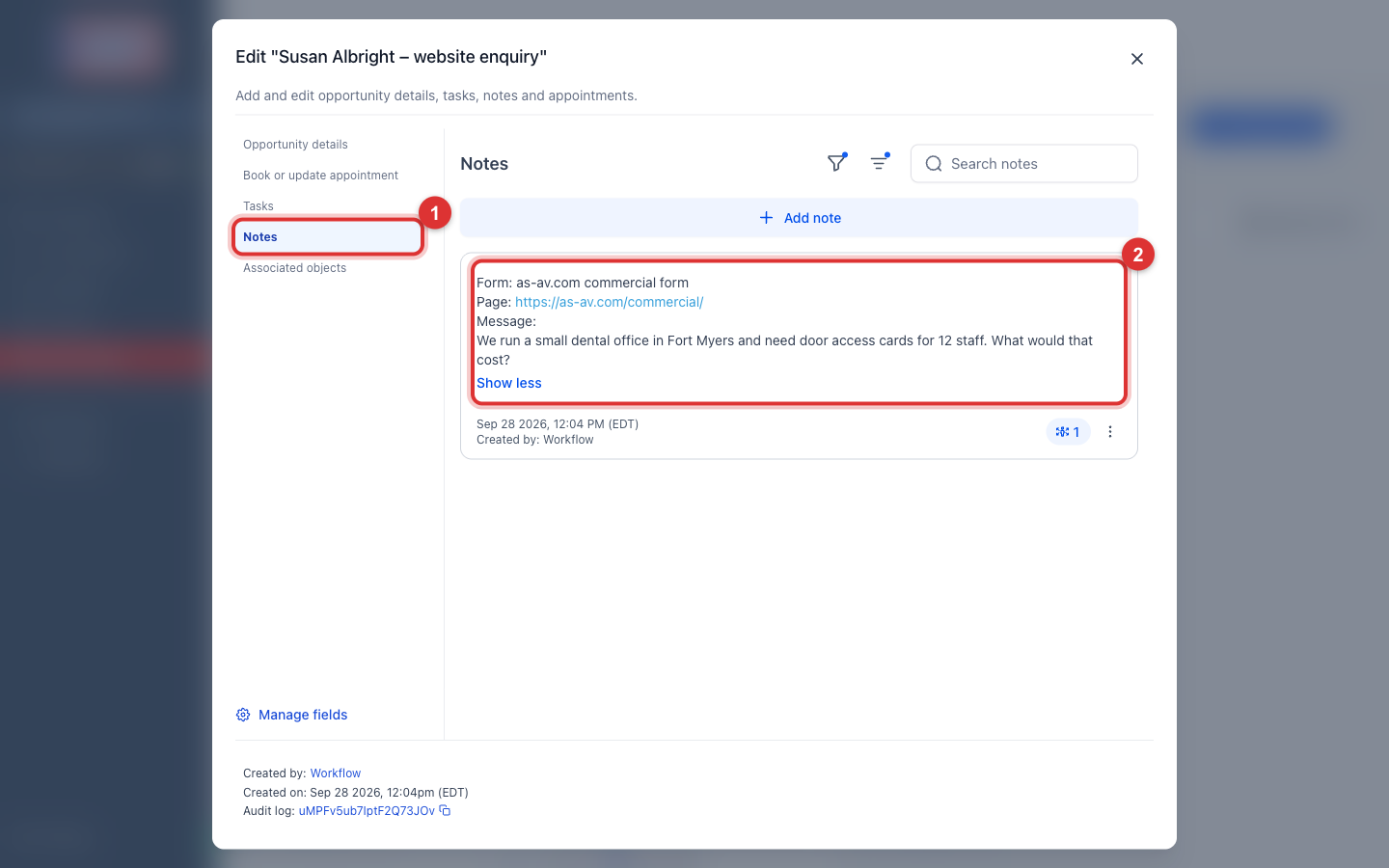
Read the notes

1
Click Notes on the left.
2
The customer’s website message is saved here, with the date.
Called the customer? Click Add note and write down what you agreed.
Read the notes
1 Menu2 Enquiries3 Customers4 Sales board5 Service6 Boards7 Email8 Mailchimp9 Monday10 Every day
Step 4 of 13
25
Part 4 · Working a job
American Security & AV logo
×
Native Builders

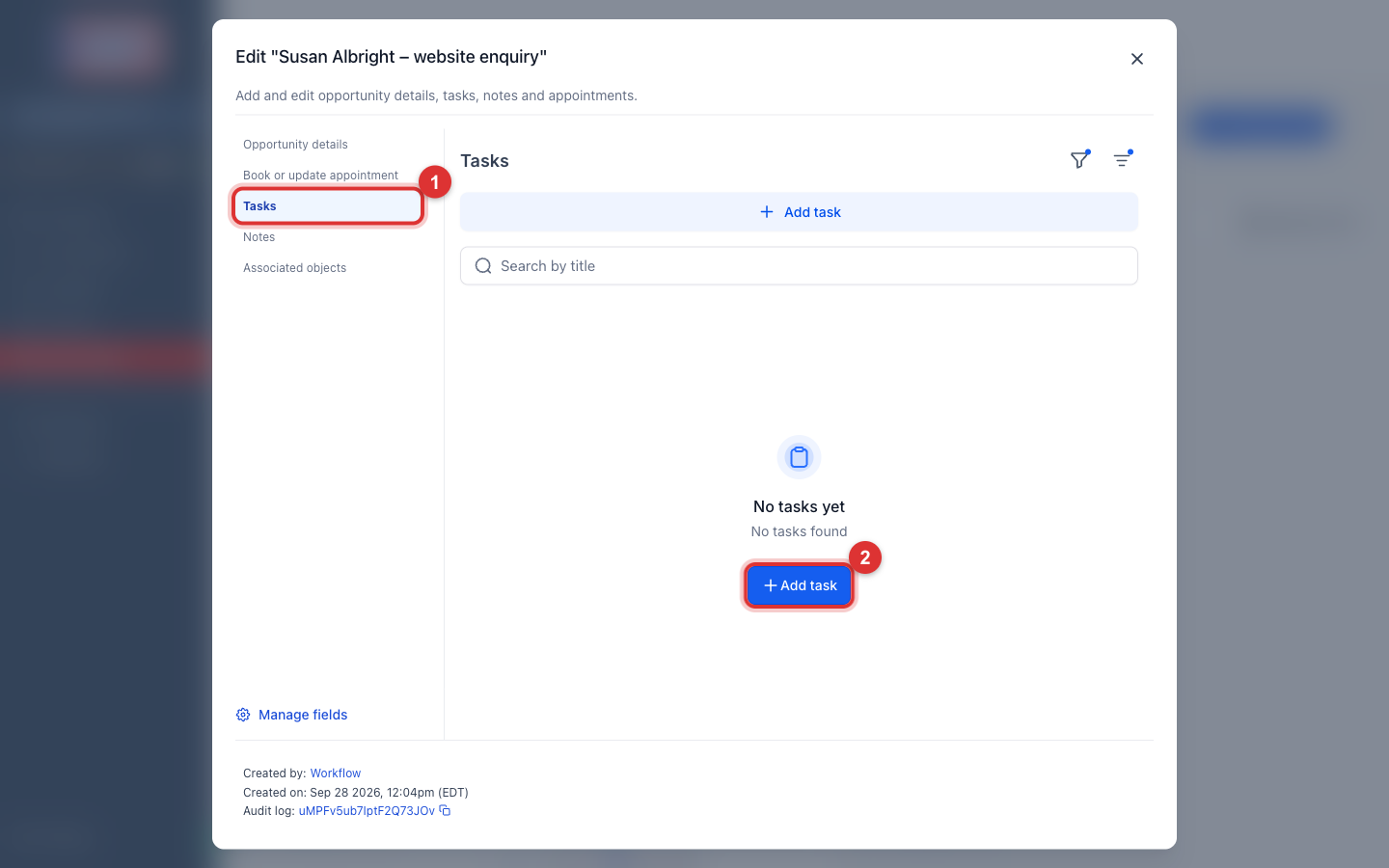
Plan the next step

1
Click Tasks on the left.
2
Click Add task. Write what to do, pick the day, and who does it.
Good to know
This is the same reminder as in Part 2. It shows under Contacts → Tasks too.
Plan the next step
1 Menu2 Enquiries3 Customers4 Sales board5 Service6 Boards7 Email8 Mailchimp9 Monday10 Every day
Step 5 of 13
26
Part 4 · The sales board
American Security & AV logo
×
Native Builders

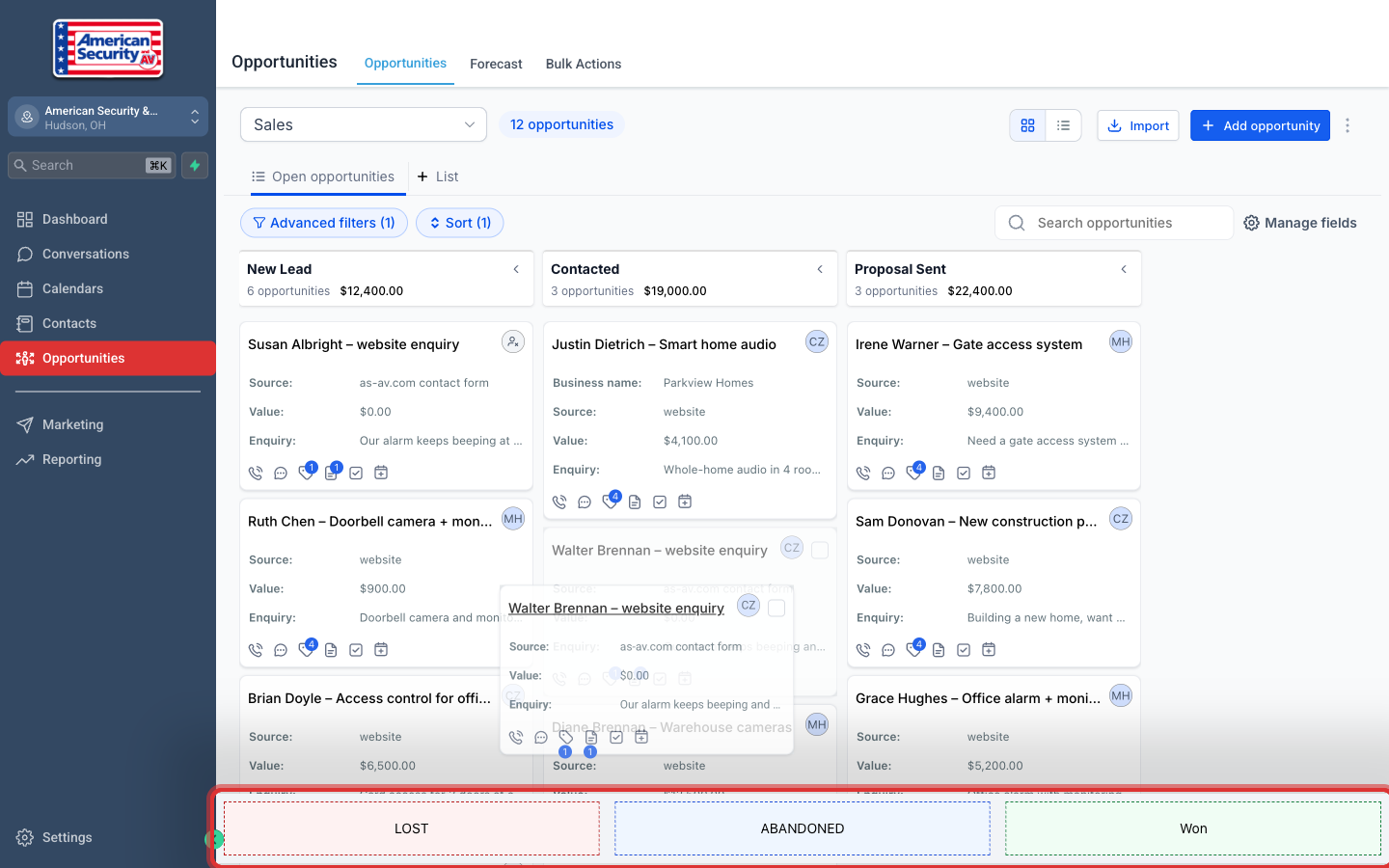
Move a job forward

Press and hold a card, then drag it to the next column.
When you hold a card, three boxes appear at the bottom: LOST, ABANDONED and Won.
Drop it on Won when the customer says yes, or on LOST when they say no.
Good to know
The column shows where the job is. Won or Lost is the final result and takes the card off the board. There is no “Closed” column.
Move a job forward
1 Menu2 Enquiries3 Customers4 Sales board5 Service6 Boards7 Email8 Mailchimp9 Monday10 Every day
Step 6 of 13
27
Part 4 · The sales board
American Security & AV logo
×
Native Builders

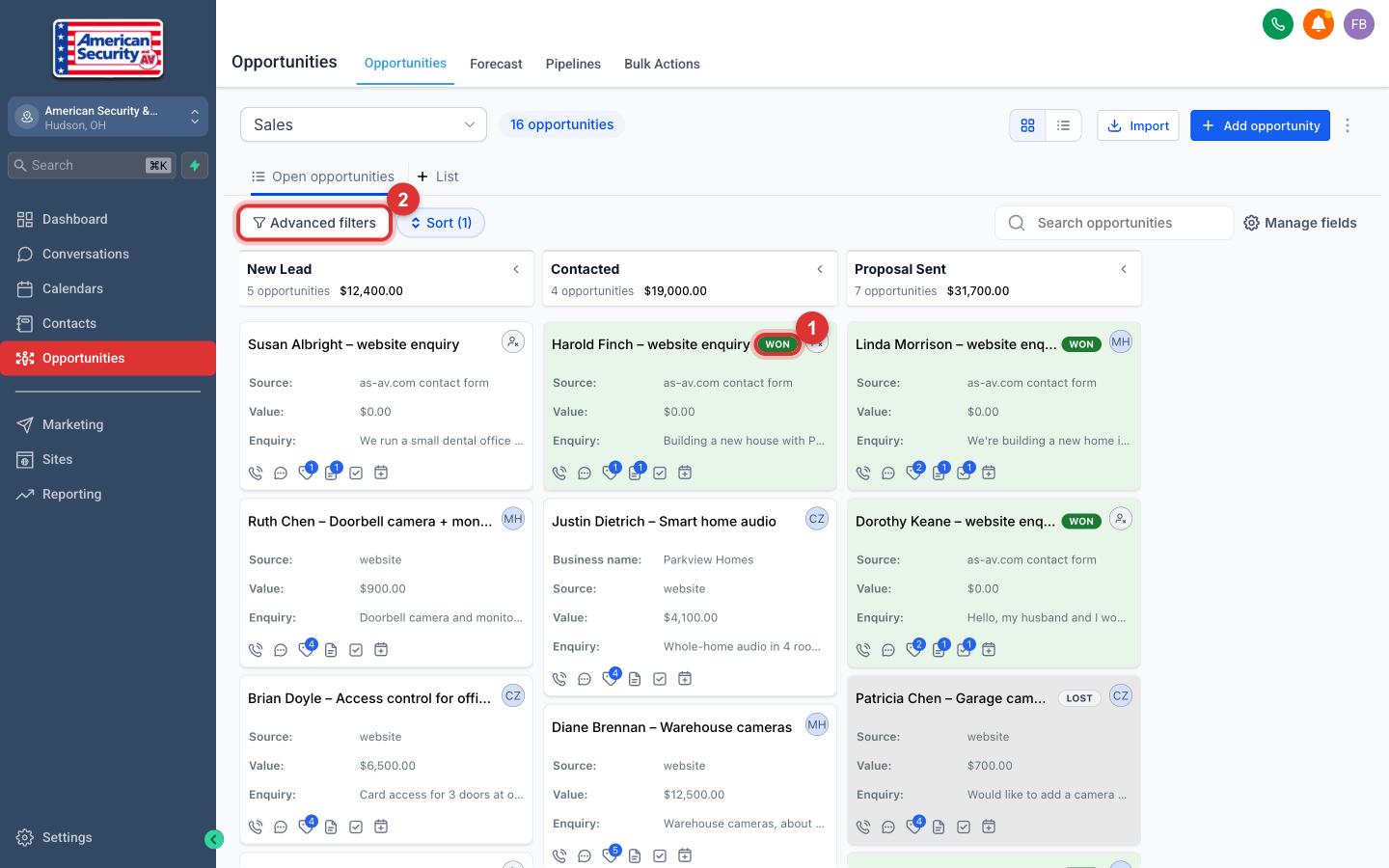
Finished jobs still on the board?

1
A WON or LOST label means the job is finished, yet it still shows.
2
Advanced filters has no number next to it. The board is showing every job.
Good to know
Normally the board shows only open jobs. If someone clicks Clear all in the filters, finished jobs come back and stay until the filter is put back. The next pages show how.
Finished jobs still on the board?
1 Menu2 Enquiries3 Customers4 Sales board5 Service6 Boards7 Email8 Mailchimp9 Monday10 Every day
Step 7 of 13
28
Part 4 · The sales board
American Security & AV logo
×
Native Builders

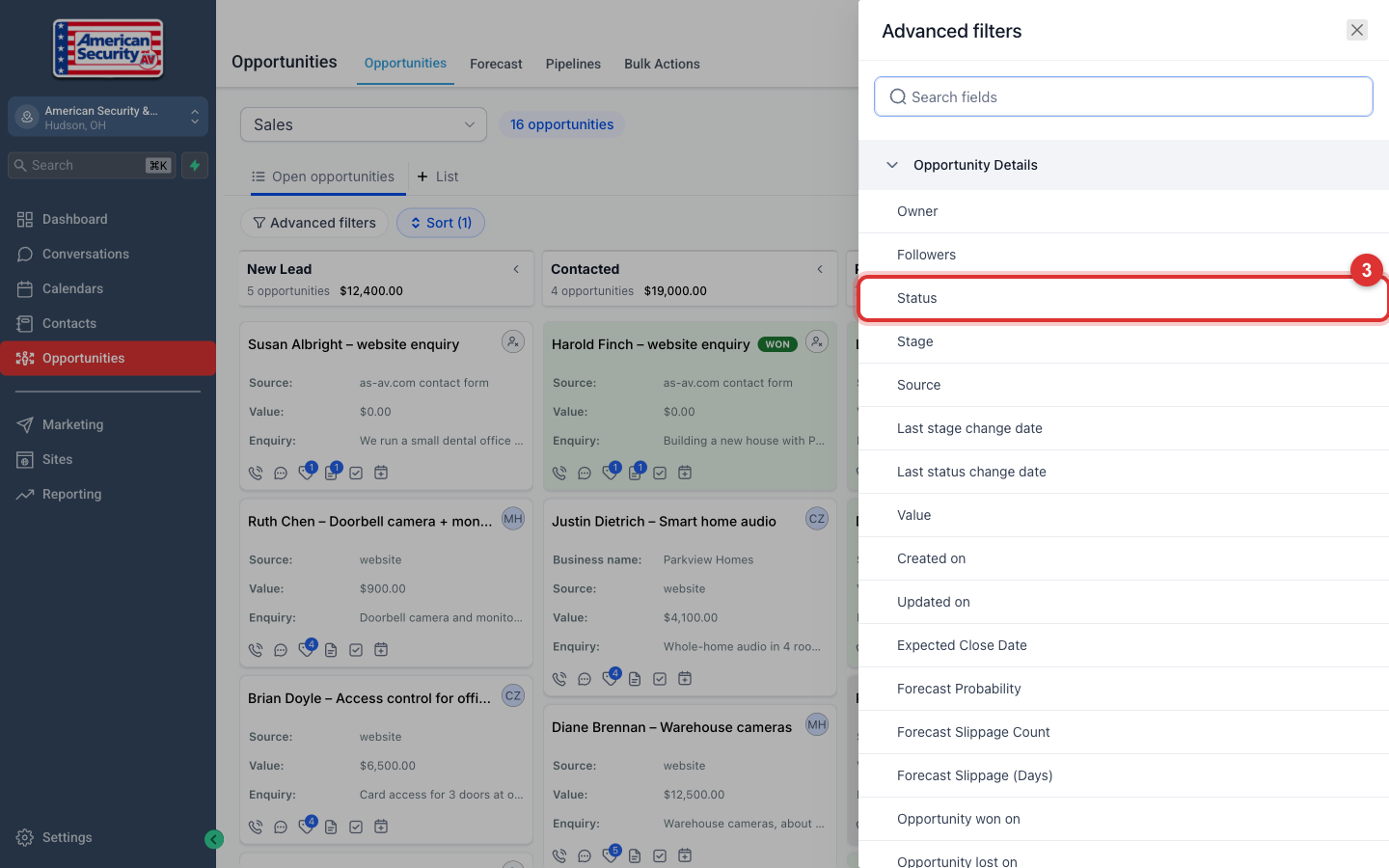
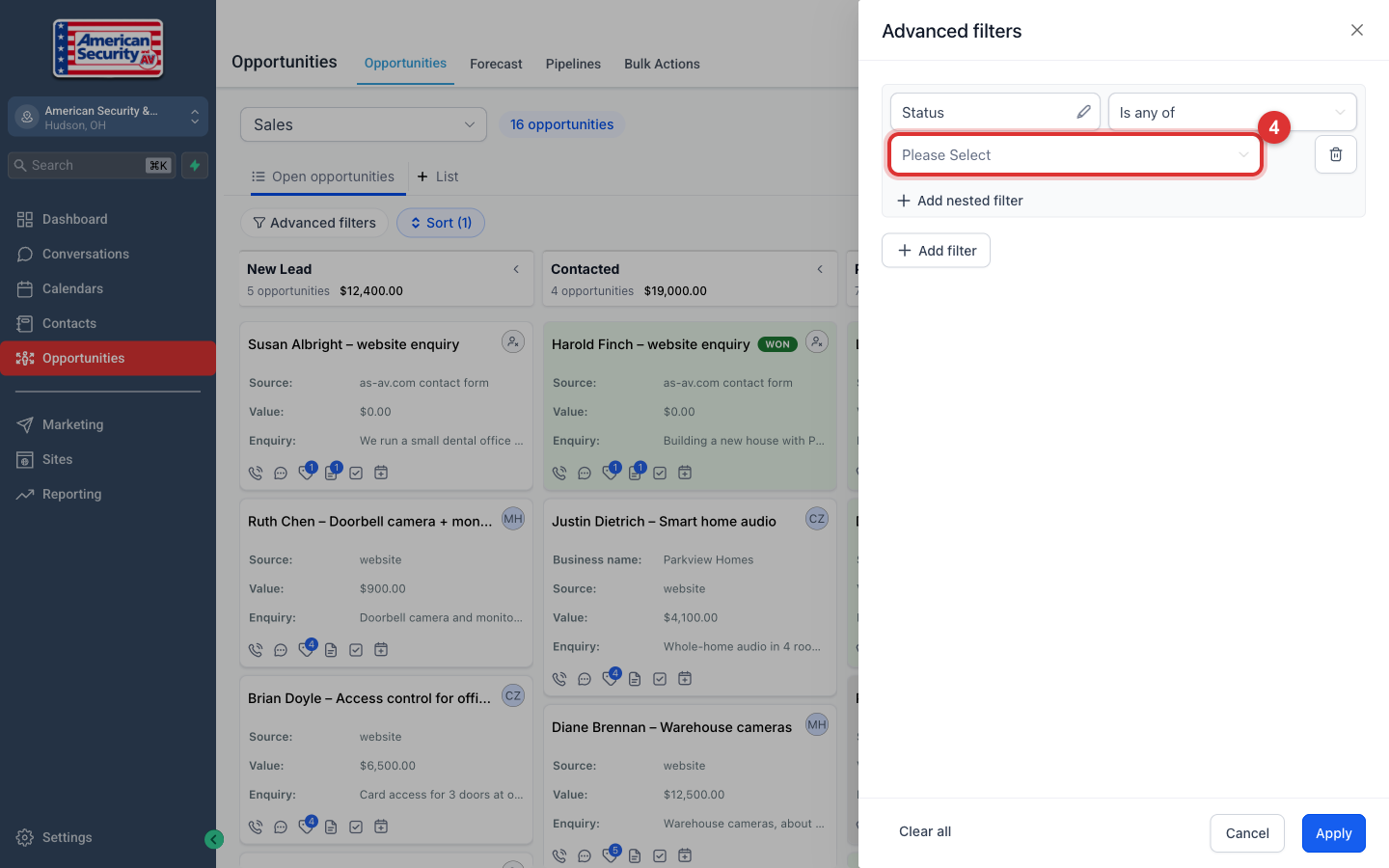
Put the filter back: Status

Click Advanced filters.
3
Click Status.
Put the filter back: Status
1 Menu2 Enquiries3 Customers4 Sales board5 Service6 Boards7 Email8 Mailchimp9 Monday10 Every day
Step 8 of 13
29
Part 4 · The sales board
American Security & AV logo
×
Native Builders

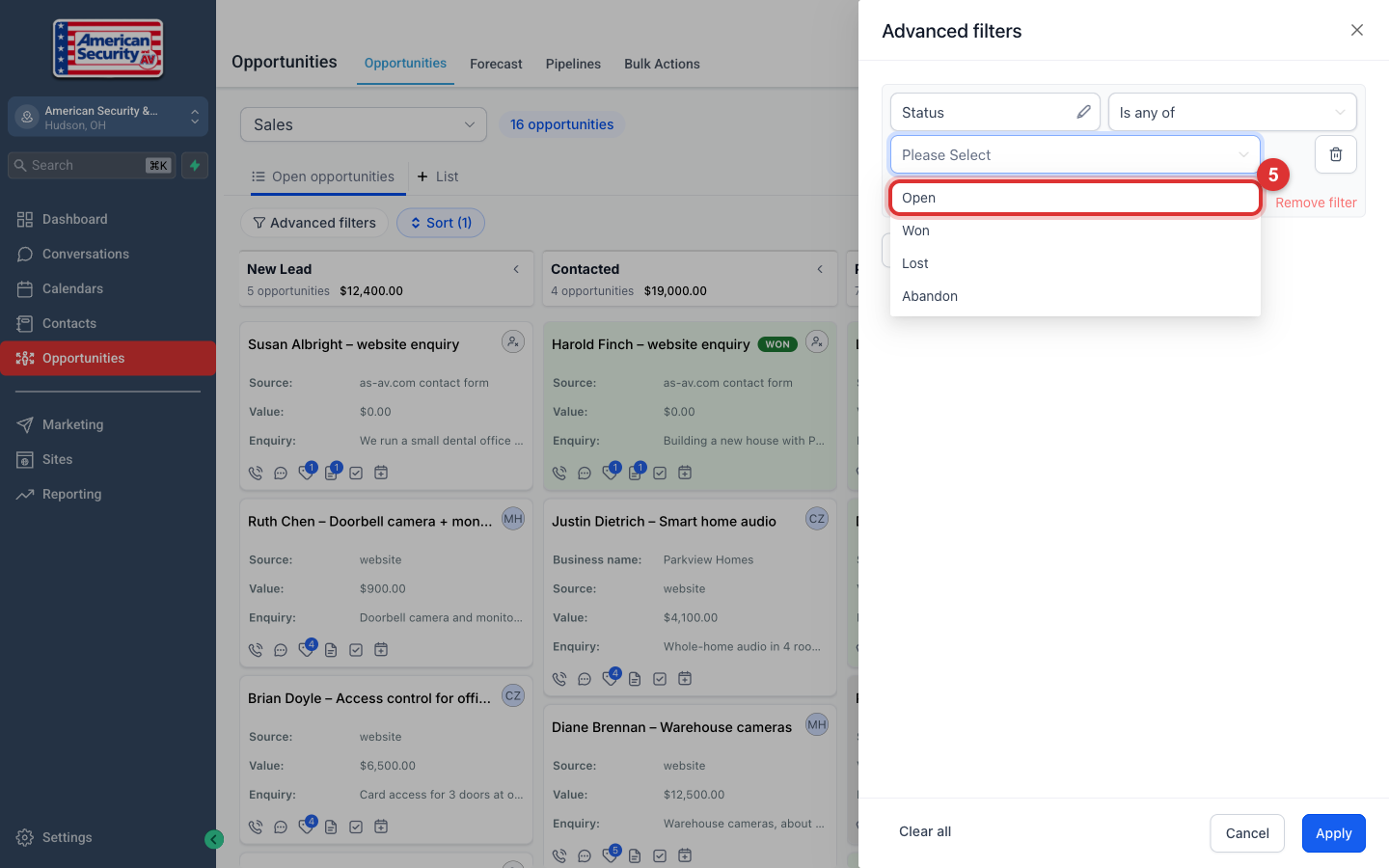
Choose which jobs to show

4
Click the box that says Please Select.
Choose which jobs to show
1 Menu2 Enquiries3 Customers4 Sales board5 Service6 Boards7 Email8 Mailchimp9 Monday10 Every day
Step 9 of 13
30
Part 4 · The sales board
American Security & AV logo
×
Native Builders

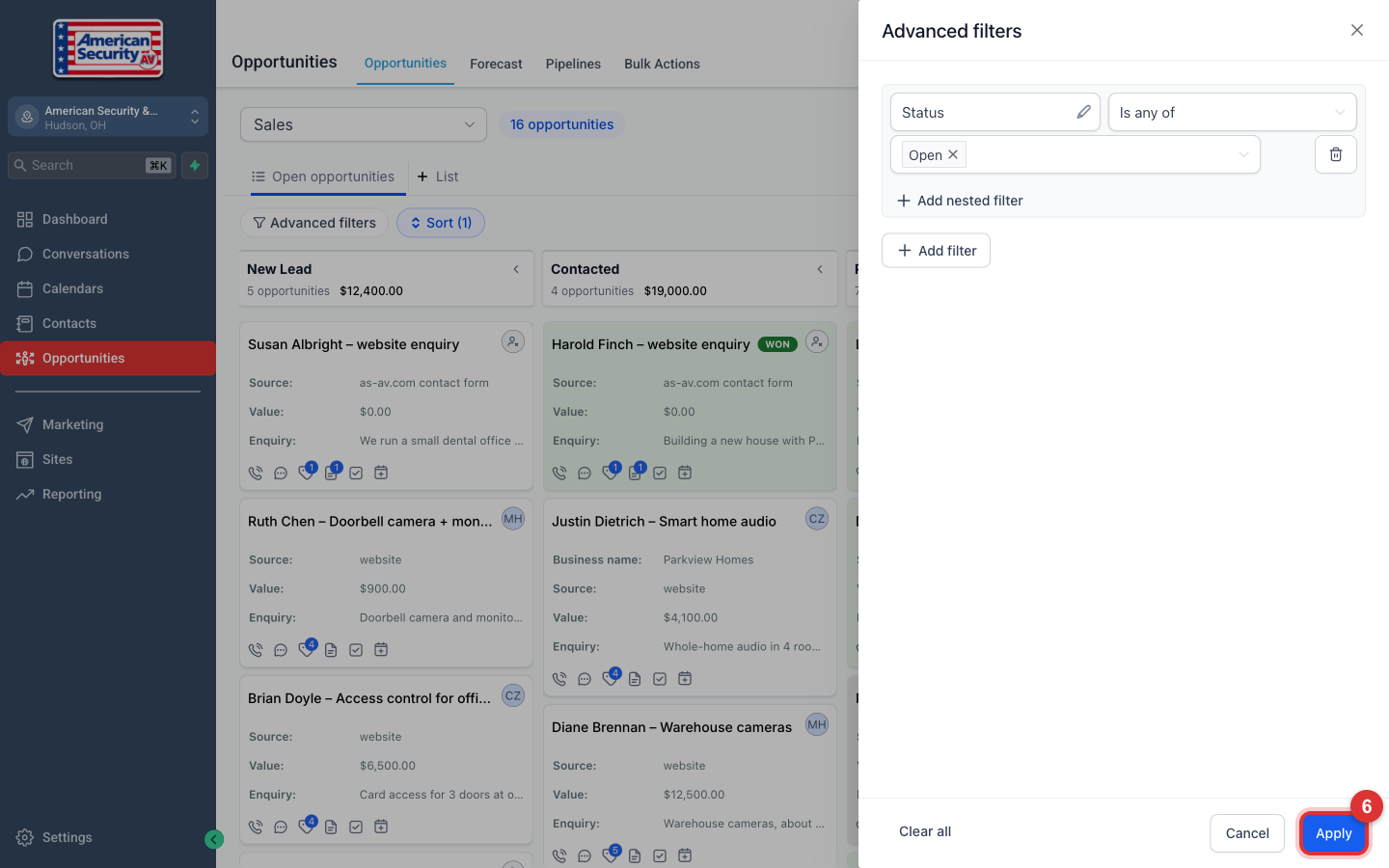
Pick Open

5
Click Open.
Good to know
Want to look at finished jobs instead? Pick Won or Lost here. Put Open back afterwards.
Pick Open
1 Menu2 Enquiries3 Customers4 Sales board5 Service6 Boards7 Email8 Mailchimp9 Monday10 Every day
Step 10 of 13
31
Part 4 · The sales board
American Security & AV logo
×
Native Builders

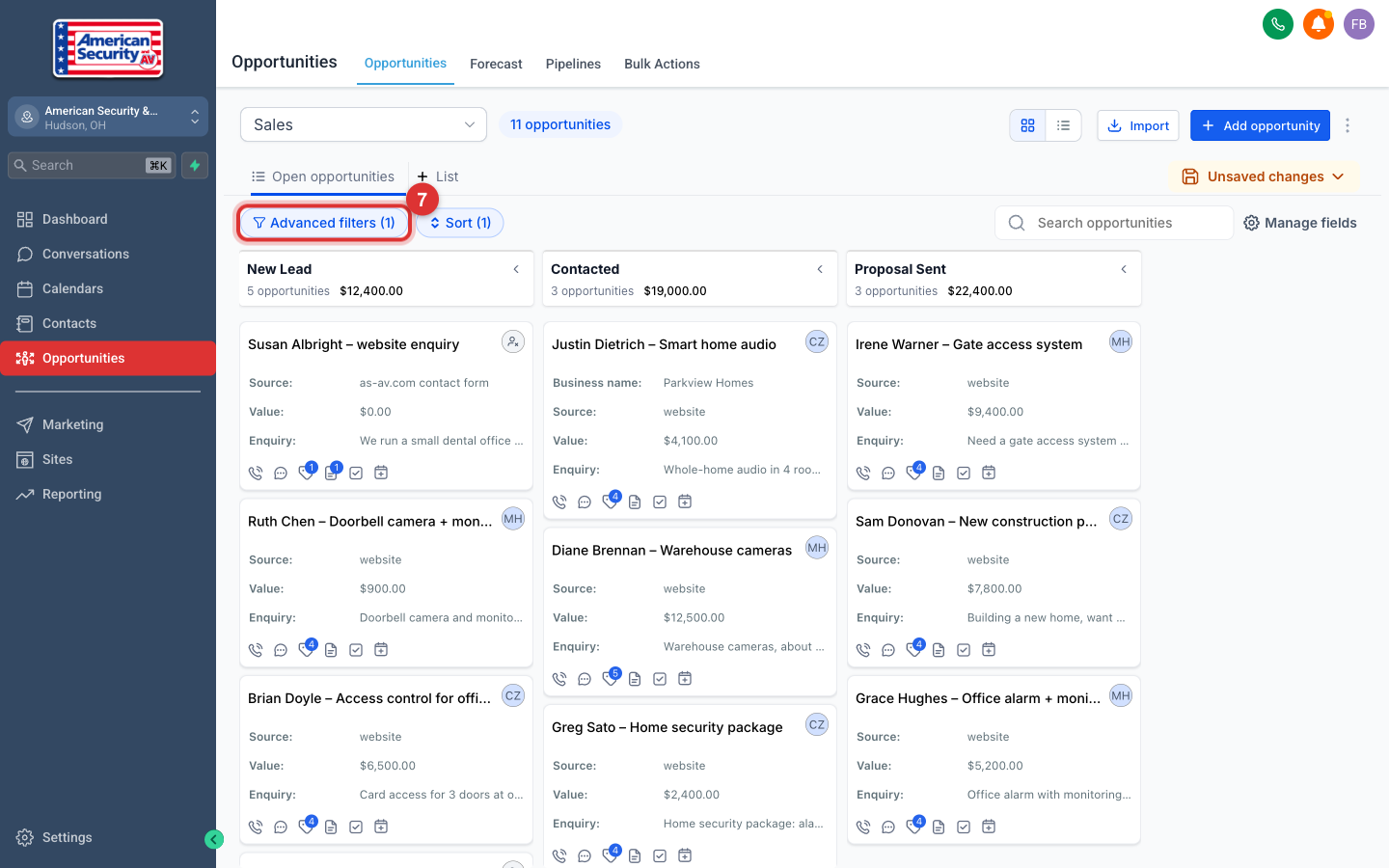
Apply the filter

The filter now reads Status · Is any of · Open.
6
Click Apply.
Apply the filter
1 Menu2 Enquiries3 Customers4 Sales board5 Service6 Boards7 Email8 Mailchimp9 Monday10 Every day
Step 11 of 13
32
Part 4 · The sales board
American Security & AV logo
×
Native Builders

Only open jobs again

7
Advanced filters (1) means the filter is on. The finished jobs are gone from the board.
They are not deleted. Mark a job Won or Lost and it leaves the board.
Good to know
An orange Unsaved changes button may appear. Ignore it: the filter stays, even after you close the CRM. Do not click Clear all.
Only open jobs again
1 Menu2 Enquiries3 Customers4 Sales board5 Service6 Boards7 Email8 Mailchimp9 Monday10 Every day
Step 12 of 13
33
Part 4 · The sales board
American Security & AV logo
×
Native Builders

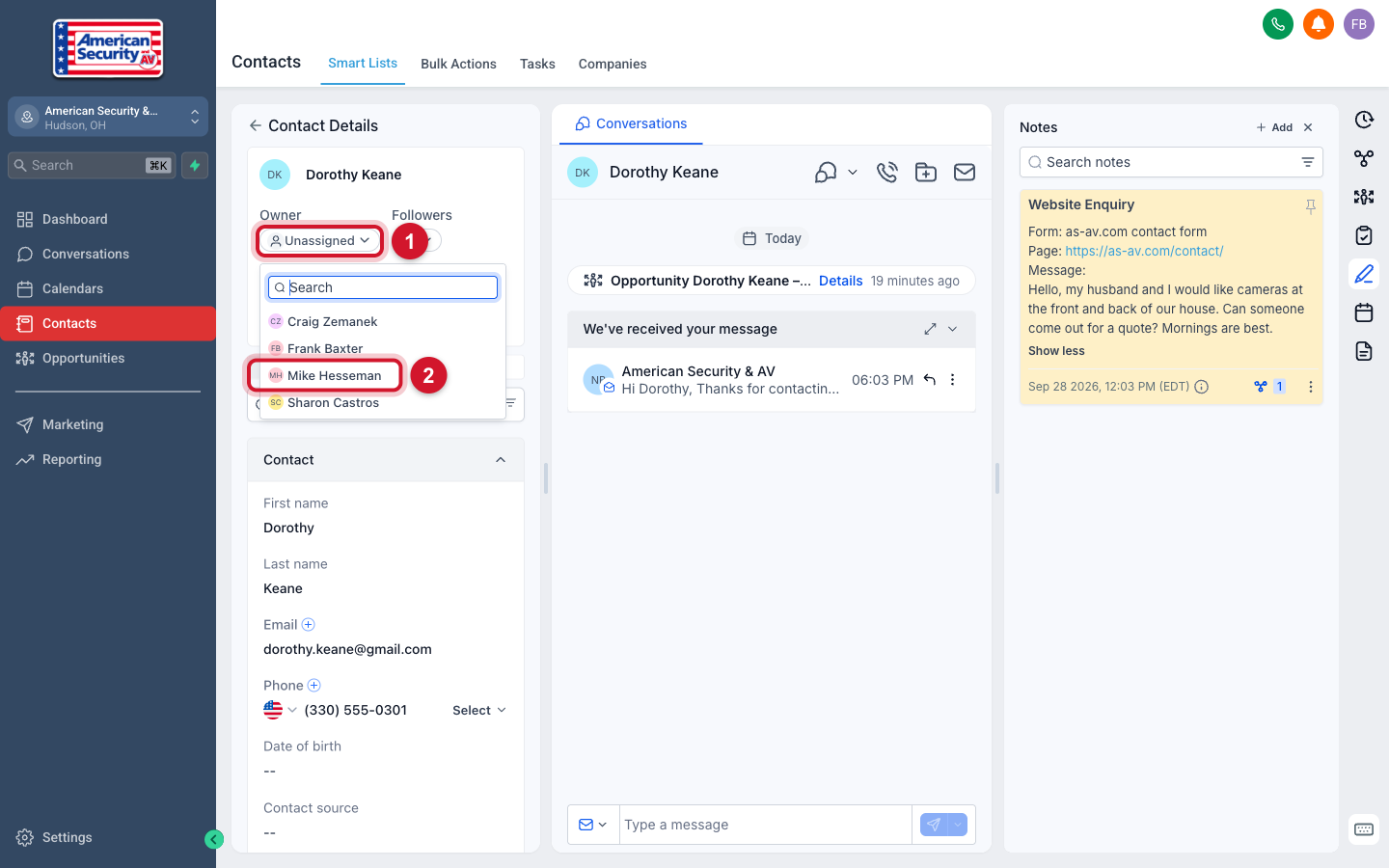
Give a lead to a salesperson

1
On the customer’s page, click Owner.
2
Click the salesperson’s name.
Then open the job card and set the same Owner there too (see “Open a job”).
Careful
Salespeople only see the customers and jobs given to them. Set the owner in both places, or they will not see it.
Give a lead to a salesperson
1 Menu2 Enquiries3 Customers4 Sales board5 Service6 Boards7 Email8 Mailchimp9 Monday10 Every day
Step 13 of 13
34
American Security & AV logo
×
Native Builders
5
Part 5

Service & billing

Repairs, billing questions and complaints get their own board, so the sales board stays about sales.
1 Menu2 Enquiries3 Customers4 Sales board5 Service6 Boards7 Email8 Mailchimp9 Monday10 Every day
Part start
35
Part 5 · Service & billing
American Security & AV logo
×
Native Builders

What goes on this board

Goes here
Repairs and service calls, billing questions, refunds and complaints.
Stays in Sales
New systems, upgrades and quotes.
New request
Just arrived. Nobody has looked at it yet.
In progress
Someone is on it: a call is booked or a technician is going out.
Waiting on customer
We asked the customer something and are waiting for the answer.
Resolved
Done. Leave the card here. Do not mark it Won or Lost.
1 Menu2 Enquiries3 Customers4 Sales board5 Service6 Boards7 Email8 Mailchimp9 Monday10 Every day
Step 1 of 4
36
Part 5 · Service & billing
American Security & AV logo
×
Native Builders

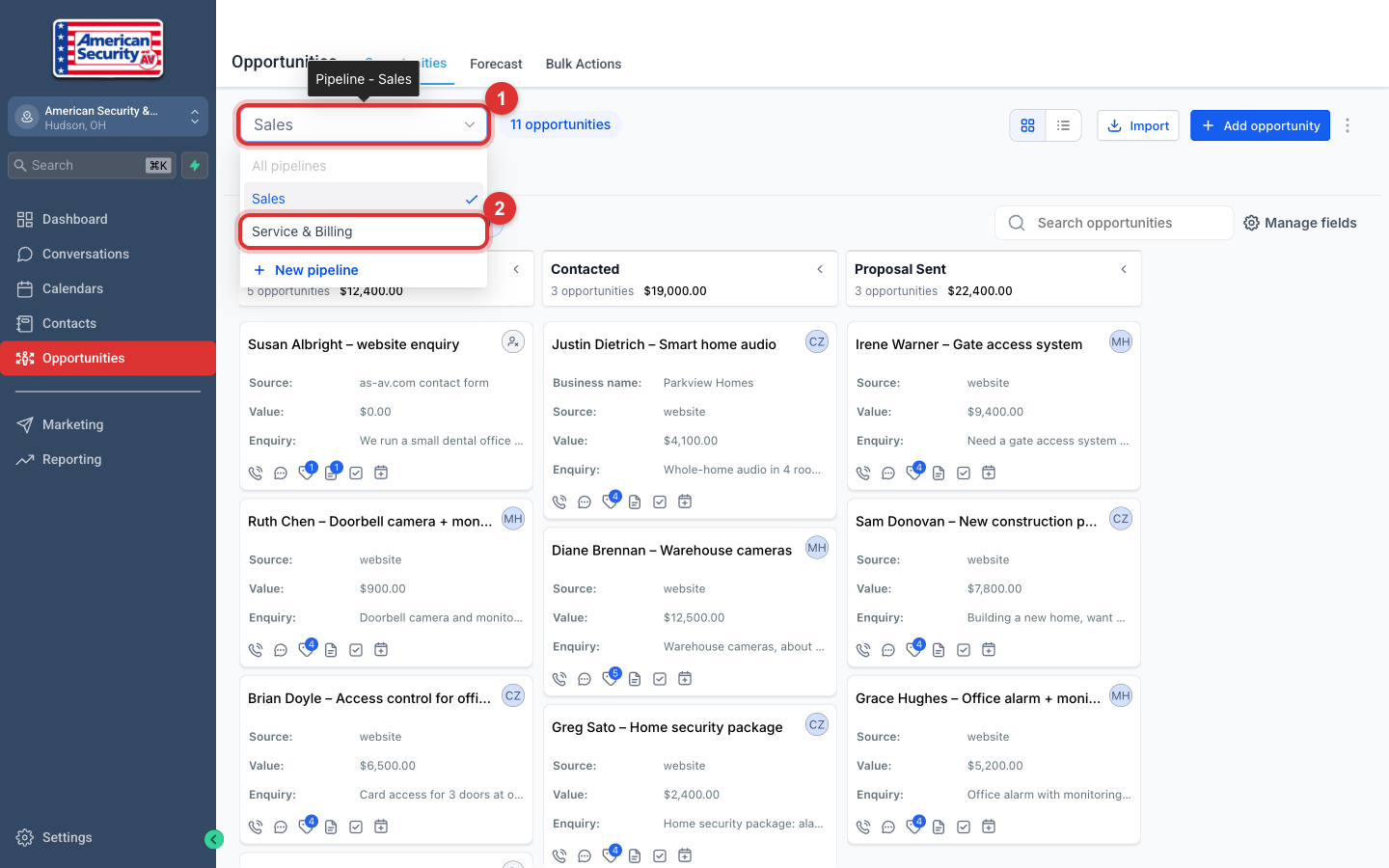
Open the service board

Click Opportunities in the menu.
1
Click the board name at the top left. It says Sales.
2
Click Service & Billing.
Good to know
Switch back to Sales the same way.
Open the service board
1 Menu2 Enquiries3 Customers4 Sales board5 Service6 Boards7 Email8 Mailchimp9 Monday10 Every day
Step 2 of 4
37
Part 5 · Service & billing
American Security & AV logo
×
Native Builders

Move a request from Sales

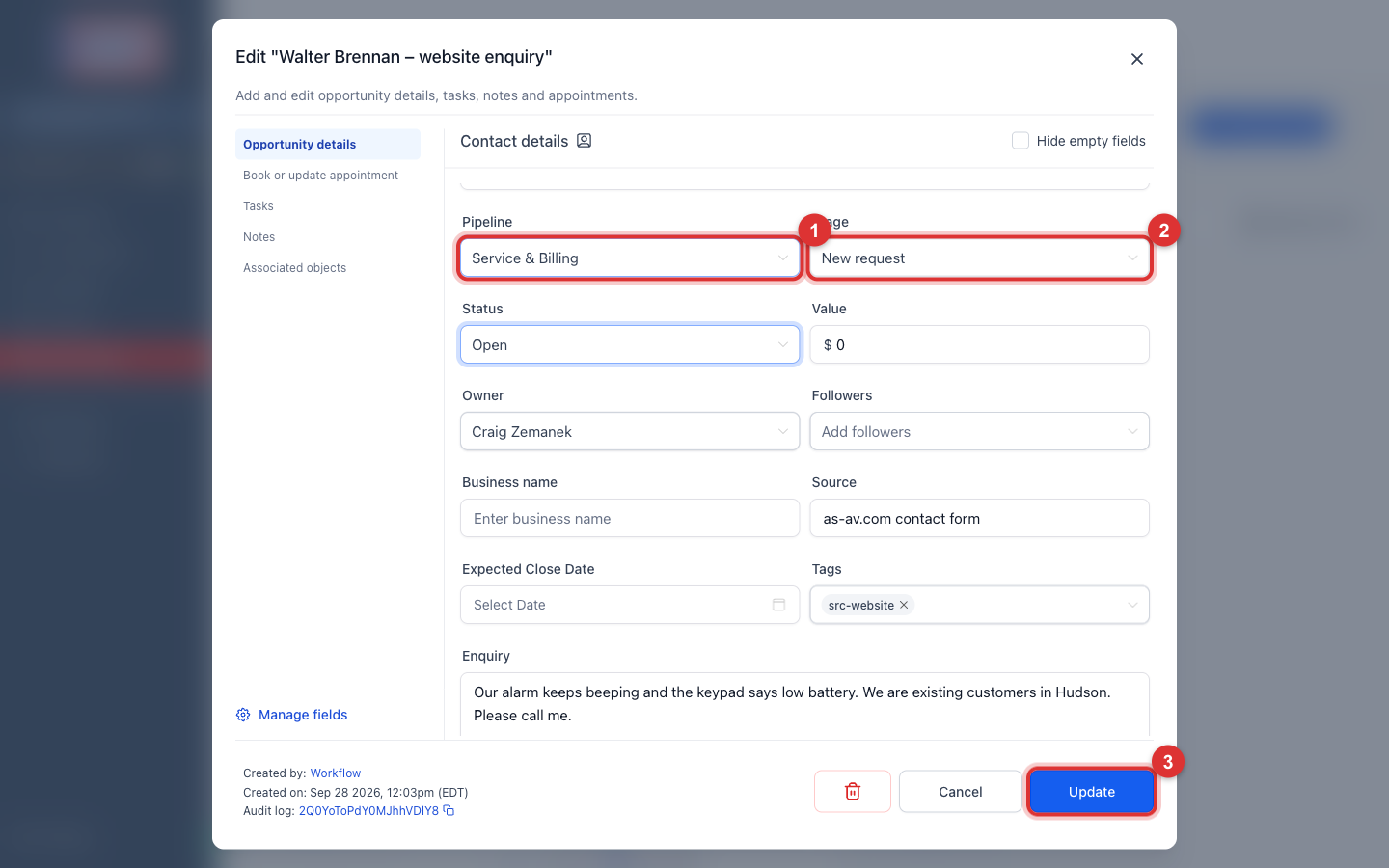
Website enquiries always arrive on the Sales board. Open the card.
1
Set Pipeline to Service & Billing.
2
Stage changes to New request.
3
Click Update.
Good to know
The card keeps its enquiry, notes and tasks. The customer’s messages stay in Conversations.
Move a request from Sales
1 Menu2 Enquiries3 Customers4 Sales board5 Service6 Boards7 Email8 Mailchimp9 Monday10 Every day
Step 3 of 4
38
Part 5 · Service & billing
American Security & AV logo
×
Native Builders

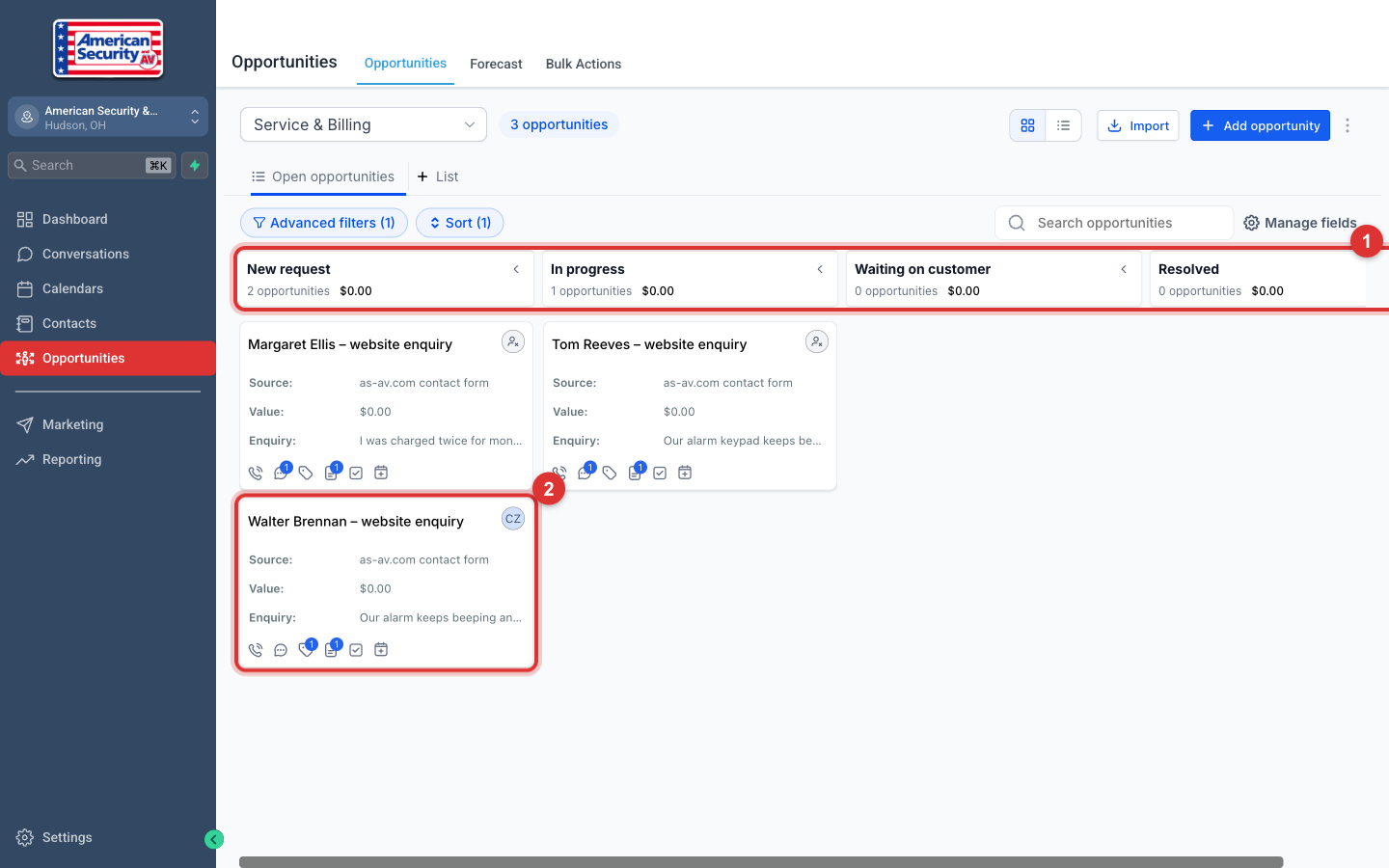
Work the service board

1
Four columns: New request, In progress, Waiting on customer, Resolved.
2
Open a card to read the Enquiry and notes. Drag it along as the job moves.
Good to know
Reply to the customer from Conversations, like any other message (Part 2).
Work the service board
1 Menu2 Enquiries3 Customers4 Sales board5 Service6 Boards7 Email8 Mailchimp9 Monday10 Every day
Step 4 of 4
39
American Security & AV logo
×
Native Builders
6
Part 6

Changing the boards

Add a column, rename or remove one, or start a new board. Frank and Mike can do this.
1 Menu2 Enquiries3 Customers4 Sales board5 Service6 Boards7 Email8 Mailchimp9 Monday10 Every day
Part start
40
Part 6 · Changing the boards
American Security & AV logo
×
Native Builders

Open the board settings

1
Click Opportunities in the menu.
2
Click Pipelines at the top. You see every board.
3
Create pipeline starts a brand-new board. See “Create a new board” at the end of this part.
Good to know
Only Frank and Mike see the Pipelines tab. A change shows for everyone straight away.
Open the board settings
1 Menu2 Enquiries3 Customers4 Sales board5 Service6 Boards7 Email8 Mailchimp9 Monday10 Every day
Step 1 of 8
41
Part 6 · Changing the boards
American Security & AV logo
×
Native Builders

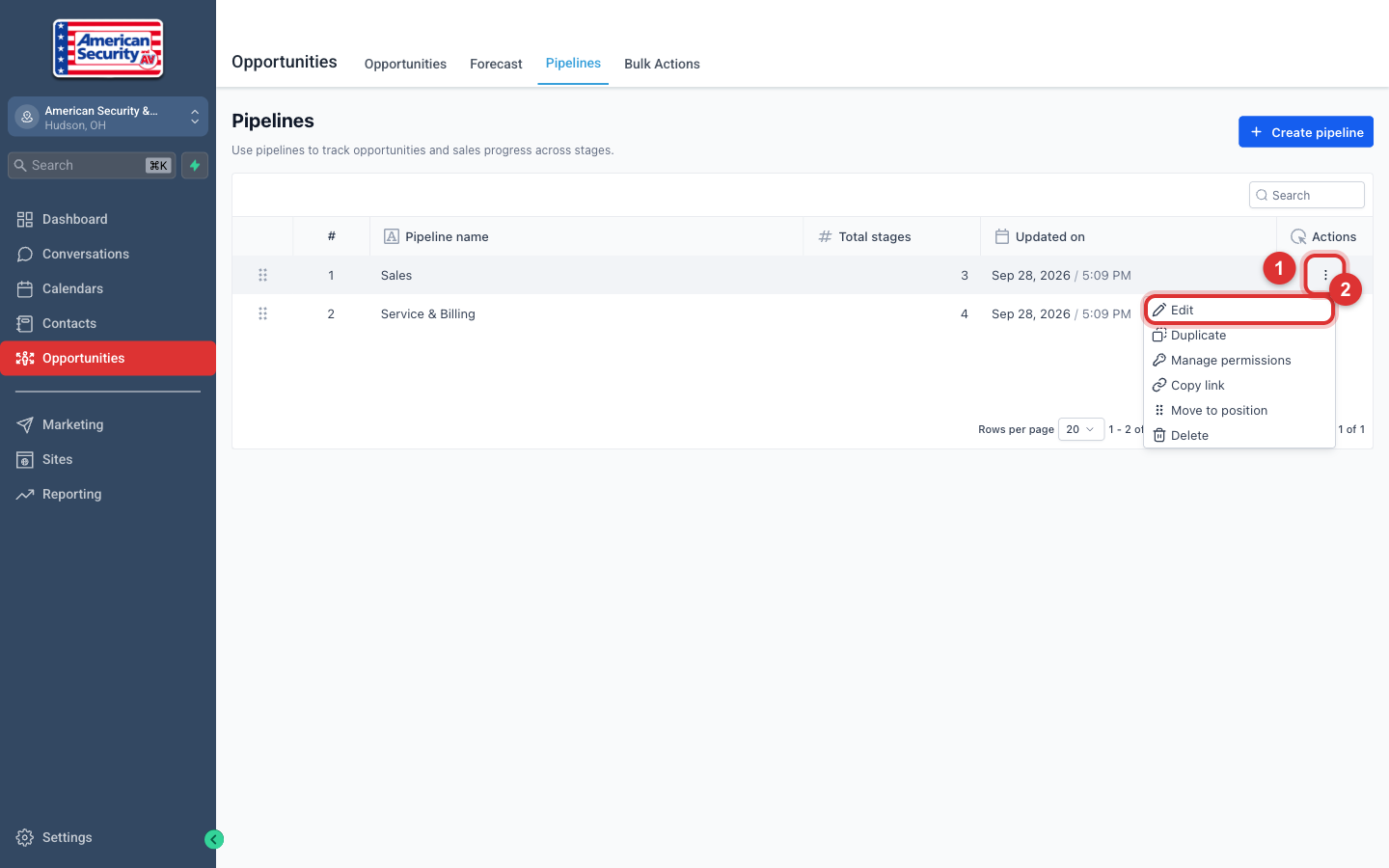
Open the board you want to change

1
Click the three dots at the end of the board’s row, for example Sales.
2
Click Edit.
Good to know
GHL calls a column a stage. Same thing.
Open the board you want to change
1 Menu2 Enquiries3 Customers4 Sales board5 Service6 Boards7 Email8 Mailchimp9 Monday10 Every day
Step 2 of 8
42
Part 6 · Changing the boards
American Security & AV logo
×
Native Builders

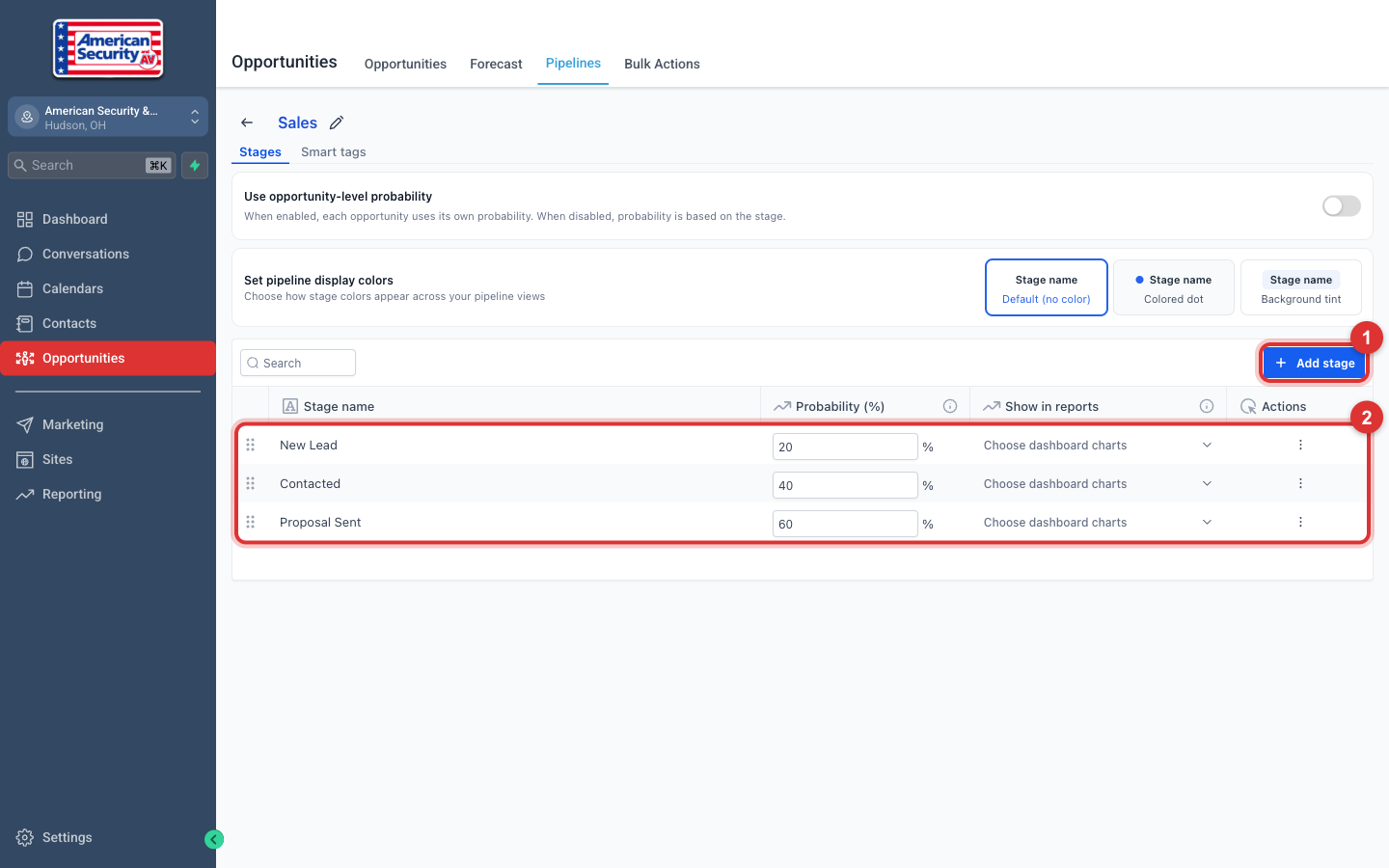
Add a column

1
Click Add stage.
2
These are the board’s columns. Top of the list is the left of the board.
Add a column
1 Menu2 Enquiries3 Customers4 Sales board5 Service6 Boards7 Email8 Mailchimp9 Monday10 Every day
Step 3 of 8
43
Part 6 · Changing the boards
American Security & AV logo
×
Native Builders

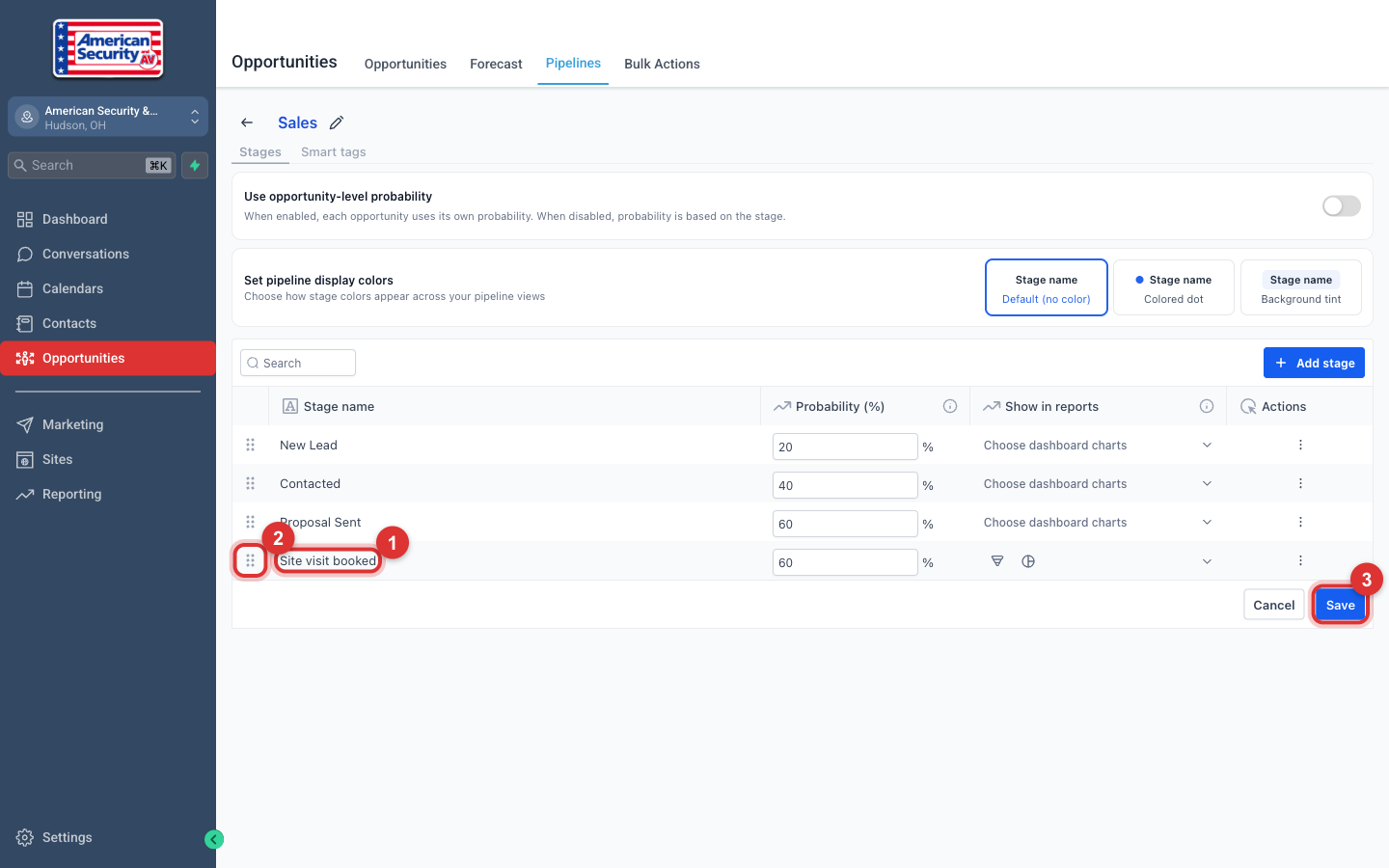
Name it and save

1
Type the column name, then click outside the box.
2
To move it, drag the dots on the left up or down.
3
Click Save.
Good to know
Save stays grey until you click outside the name box. To rename a column, click its name, type, and click Save.
Name it and save
1 Menu2 Enquiries3 Customers4 Sales board5 Service6 Boards7 Email8 Mailchimp9 Monday10 Every day
Step 4 of 8
44
Part 6 · Changing the boards
American Security & AV logo
×
Native Builders

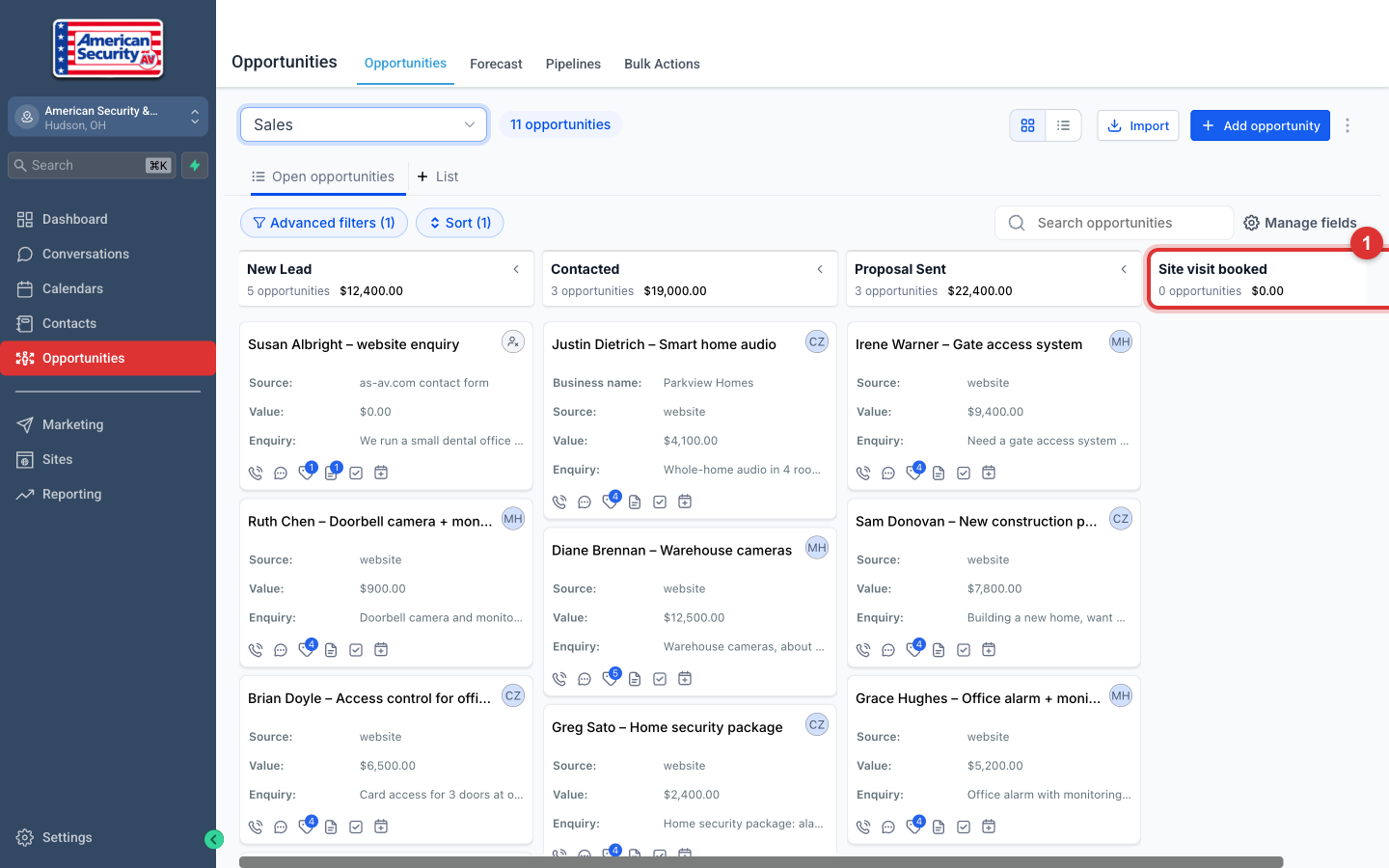
Your new column on the board

Go back to Opportunities.
1
The new column is on the board, ready to use. Drag cards into it as usual.
Good to know
Keep columns few and clear. Four or five is plenty.
Your new column on the board
1 Menu2 Enquiries3 Customers4 Sales board5 Service6 Boards7 Email8 Mailchimp9 Monday10 Every day
Step 5 of 8
45
Part 6 · Changing the boards
American Security & AV logo
×
Native Builders

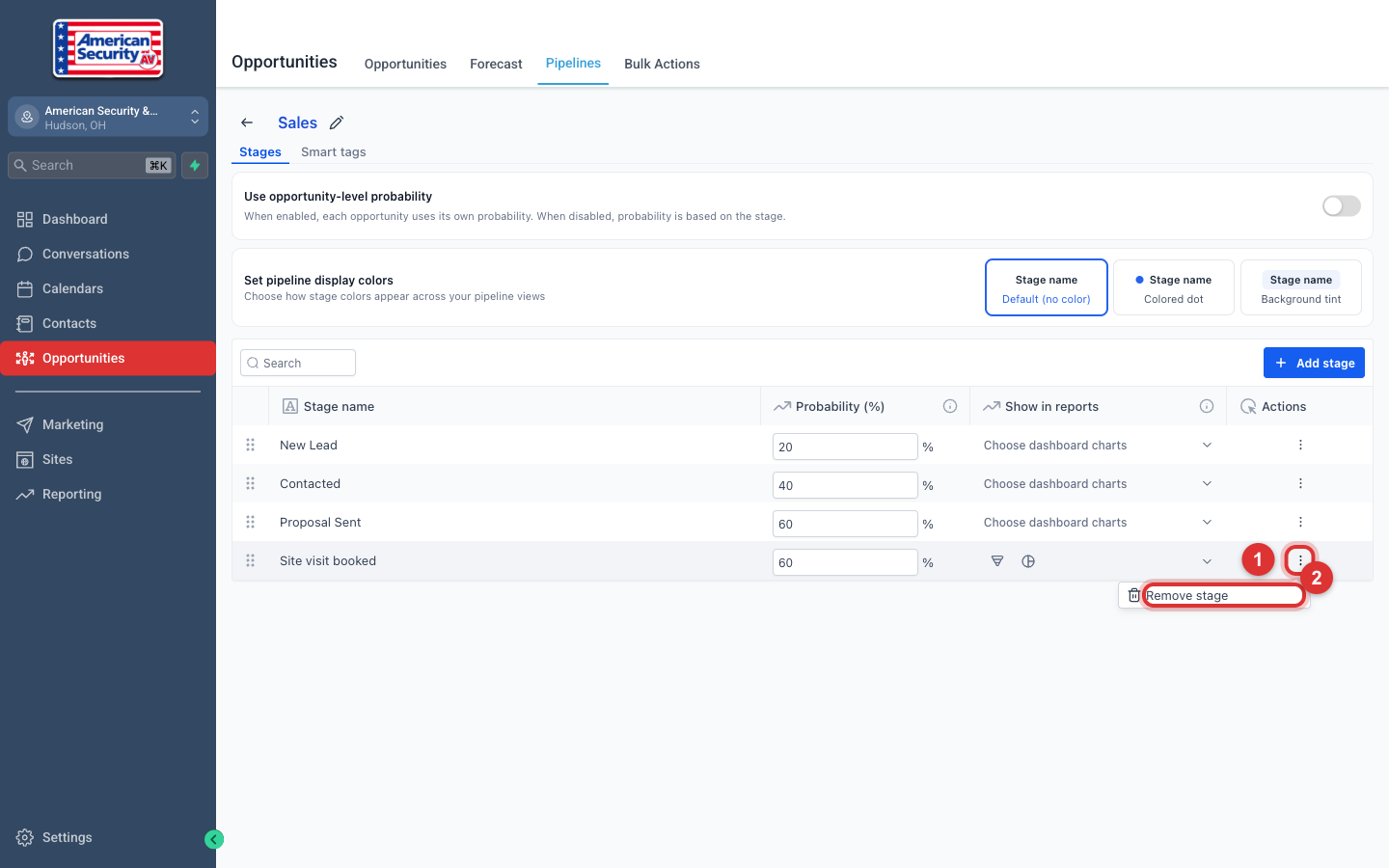
Remove a column

First drag every card out of that column on the board.
1
In the column list, click the three dots at the end of its row.
2
Click Remove stage, then click Save.
Careful
Never rename or remove New Lead on the Sales board. New website enquiries arrive there.
Remove a column
1 Menu2 Enquiries3 Customers4 Sales board5 Service6 Boards7 Email8 Mailchimp9 Monday10 Every day
Step 6 of 8
46
Part 6 · A new board
American Security & AV logo
×
Native Builders

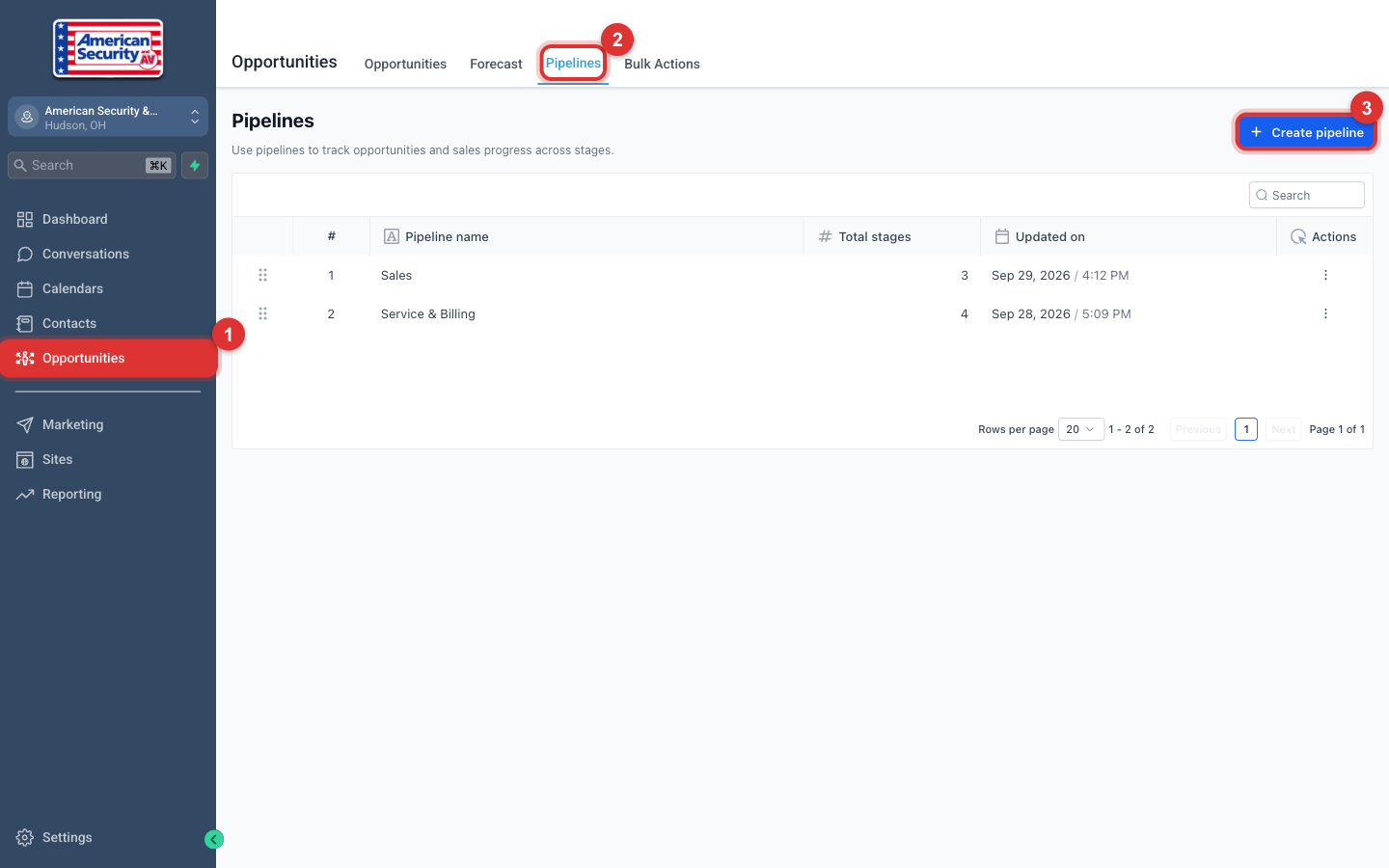
Create a new board: start

1
Click Opportunities in the menu.
2
Click Pipelines at the top.
3
Click the blue Create pipeline button. A form opens (next page).
Good to know
Only Frank and Mike can create boards.
Create a new board: start
1 Menu2 Enquiries3 Customers4 Sales board5 Service6 Boards7 Email8 Mailchimp9 Monday10 Every day
Step 7 of 8
47
Part 6 · A new board
American Security & AV logo
×
Native Builders

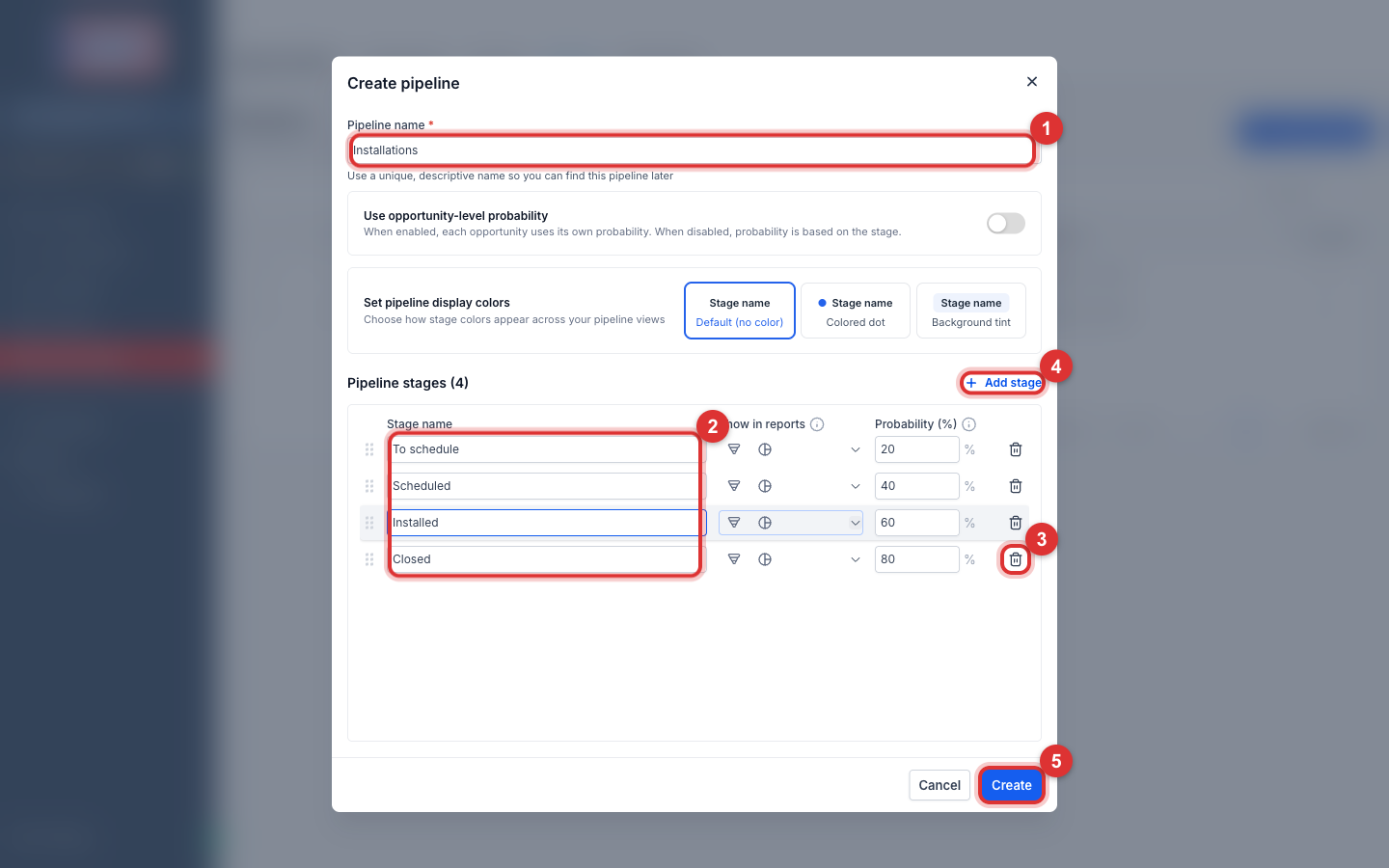
Create a new board: fill it in

1
Type the board’s name.
2
Type a name in each column box.
3
The bin removes a column, like “Closed”.
4
Add stage adds a column.
5
Click Create.
Good to know
The new board is in the board switcher at the top left of Opportunities.
Create a new board: fill it in
1 Menu2 Enquiries3 Customers4 Sales board5 Service6 Boards7 Email8 Mailchimp9 Monday10 Every day
Step 8 of 8
48
American Security & AV logo
×
Native Builders
7
Part 7

Emailing customers

Send one email to many customers: a service reminder, news or an offer.
1 Menu2 Enquiries3 Customers4 Sales board5 Service6 Boards7 Email8 Mailchimp9 Monday10 Every day
Part start
49
Part 7 · Emailing customers
American Security & AV logo
×
Native Builders

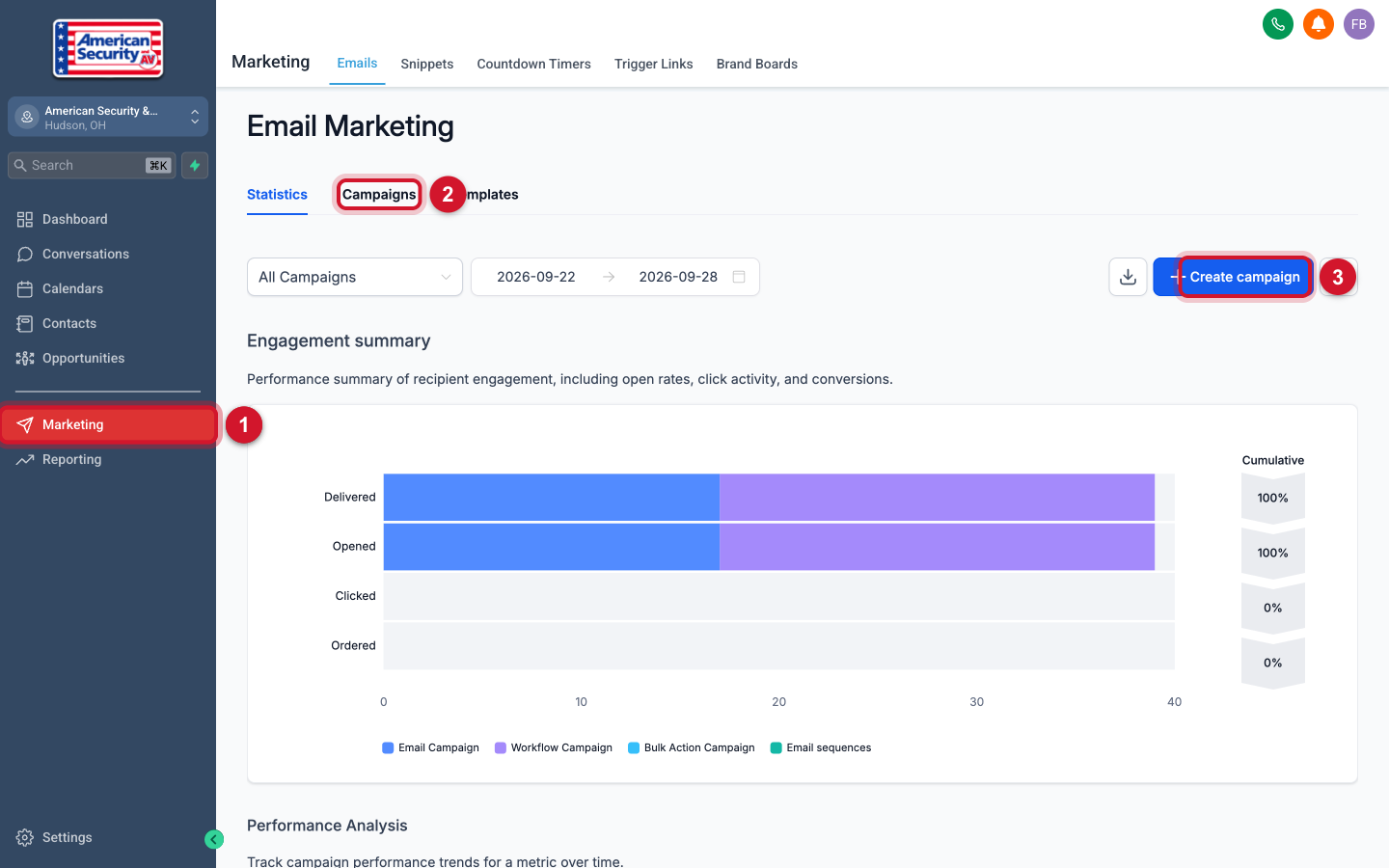
Start a new email

1
Click Marketing in the menu.
2
Click Campaigns.
3
Click Create campaign.
Start a new email
1 Menu2 Enquiries3 Customers4 Sales board5 Service6 Boards7 Email8 Mailchimp9 Monday10 Every day
Step 1 of 9
50
Part 7 · Emailing customers
American Security & AV logo
×
Native Builders

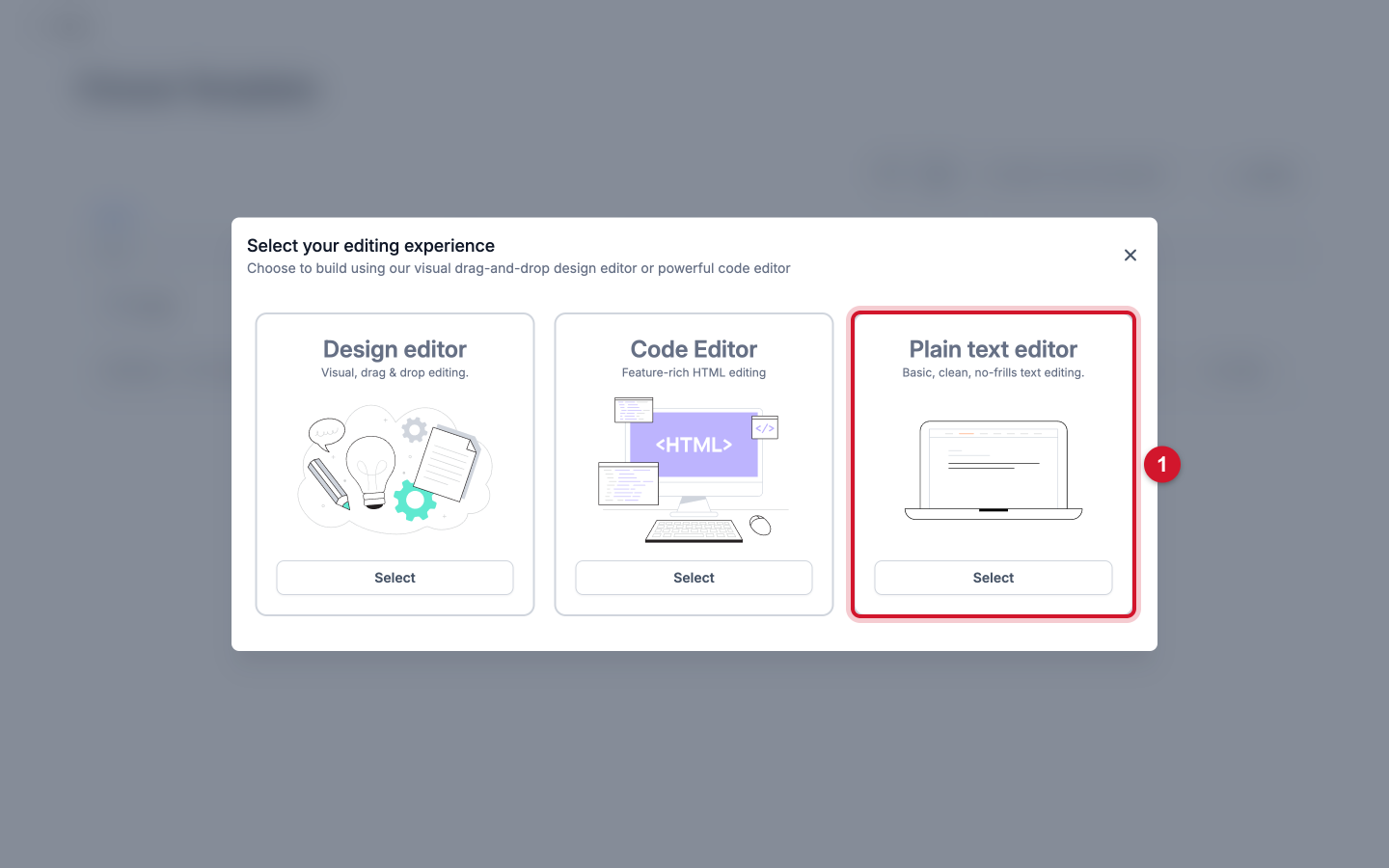
Choose the simple editor

In the menu, choose Your Templates, then Blank.
1
Choose Plain text editor and click Select.
Good to know
Plain emails look personal and are less likely to land in spam.
Choose the simple editor
1 Menu2 Enquiries3 Customers4 Sales board5 Service6 Boards7 Email8 Mailchimp9 Monday10 Every day
Step 2 of 9
51
Part 7 · Emailing customers
American Security & AV logo
×
Native Builders

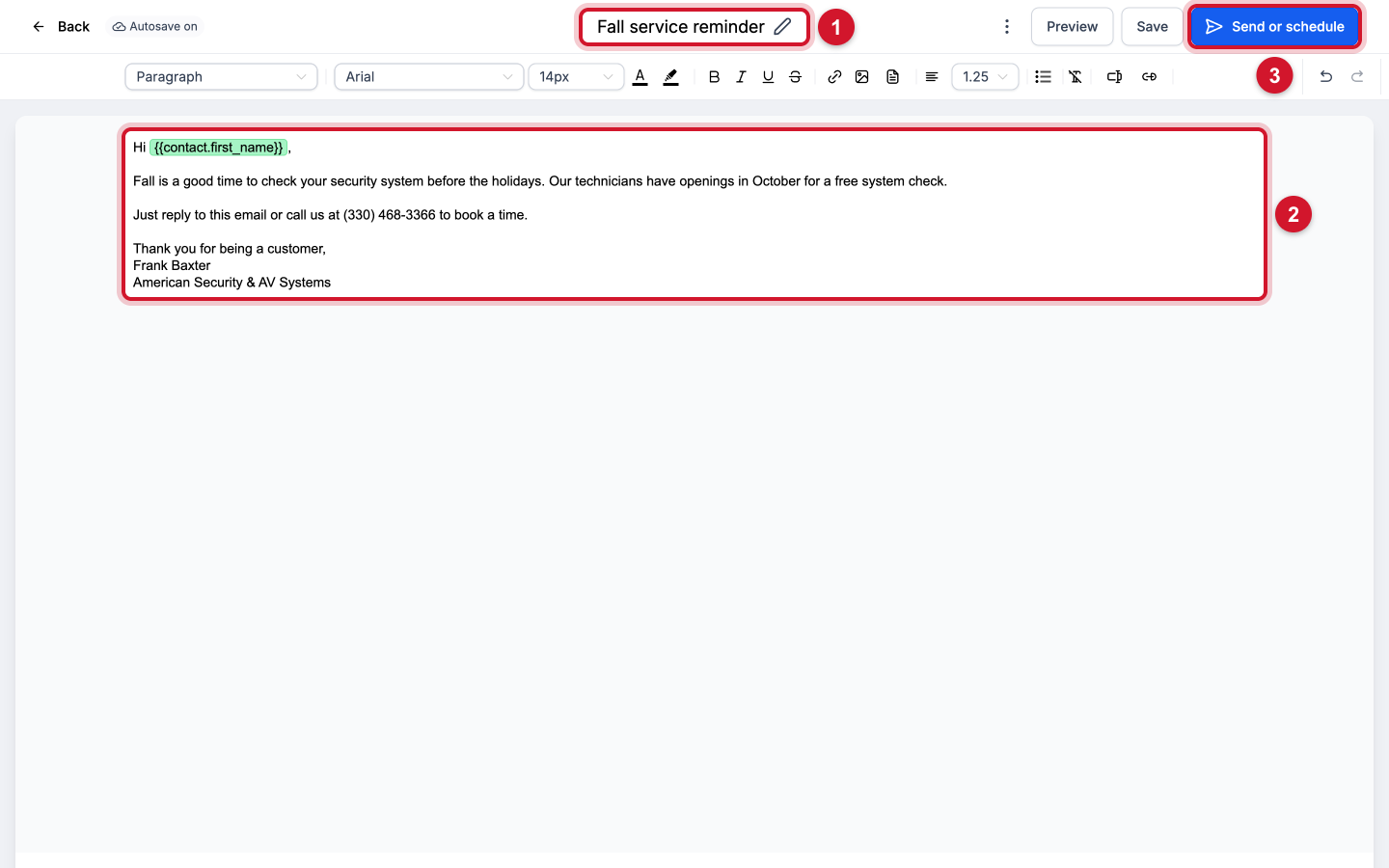
Write the email

1
Click the pencil and give the email a name only you see.
2
Type your message.
3
Click Send or schedule.
Good to know
The grey name box after “Hi” puts in each customer’s own first name. If a name is missing, it writes “there” instead.
Write the email
1 Menu2 Enquiries3 Customers4 Sales board5 Service6 Boards7 Email8 Mailchimp9 Monday10 Every day
Step 3 of 9
52
Part 7 · Emailing customers
American Security & AV logo
×
Native Builders

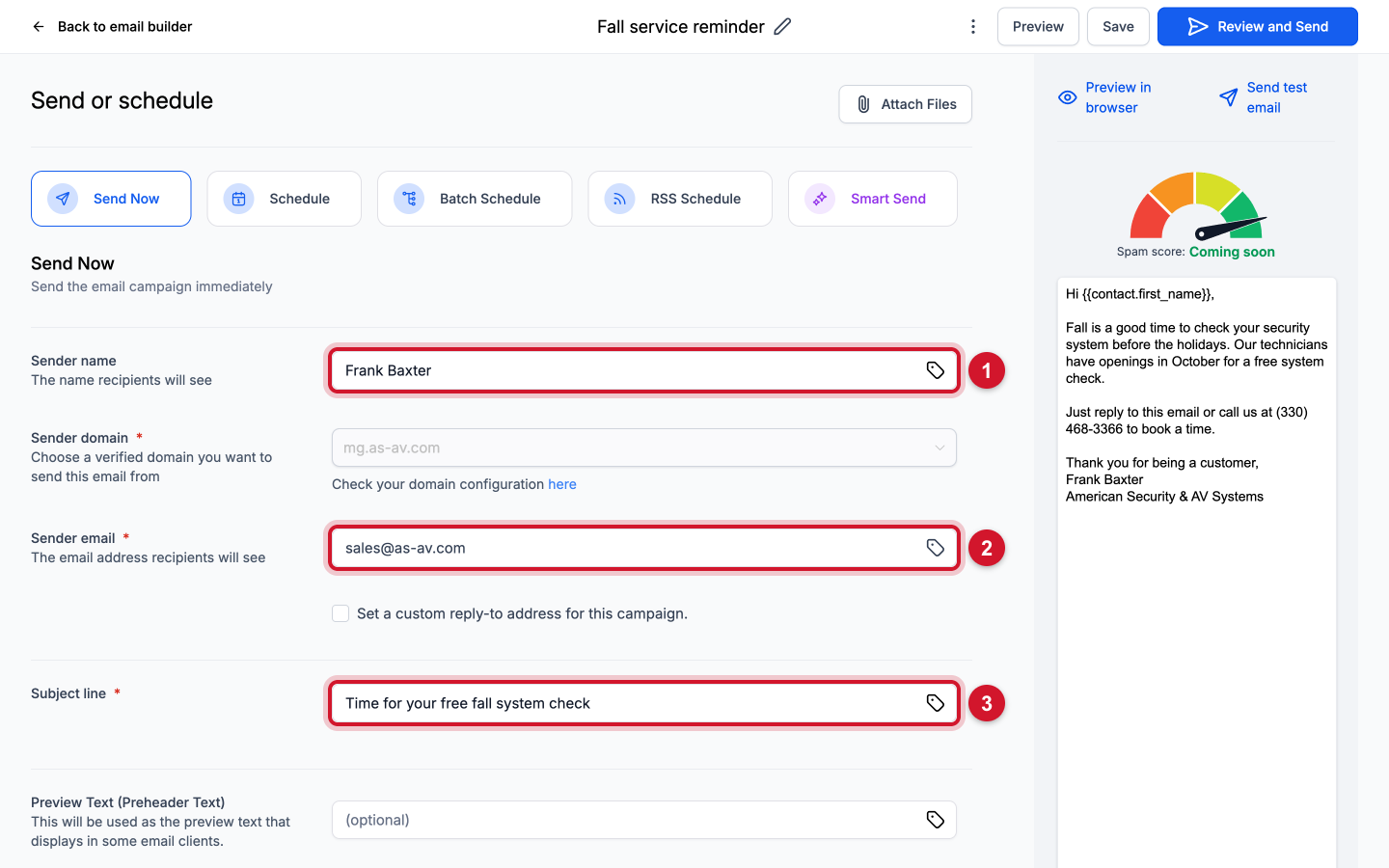
Who it is from and the subject

1
Sender name: your name, or the company name.
2
Sender email: sales@as-av.com.
3
Subject line: short and clear.
Who it is from and the subject
1 Menu2 Enquiries3 Customers4 Sales board5 Service6 Boards7 Email8 Mailchimp9 Monday10 Every day
Step 4 of 9
53
Part 7 · Who gets the email
American Security & AV logo
×
Native Builders

Five ways to choose who gets it

Contacts
Pick customers one by one. Good for a handful of people.
Smart list
Use a list you saved, like “NE Ohio customers”.
Tags
Everyone with any of the labels you choose (one label is enough).
Pre-built segments
Ready-made groups, like customers who opened recent emails.
Build segments
Combine rules: customers with both labels (AND).
Not sure?
Use a saved list. It is the safest choice.
1 Menu2 Enquiries3 Customers4 Sales board5 Service6 Boards7 Email8 Mailchimp9 Monday10 Every day
Step 5 of 9
54
Part 7 · Who gets the email
American Security & AV logo
×
Native Builders

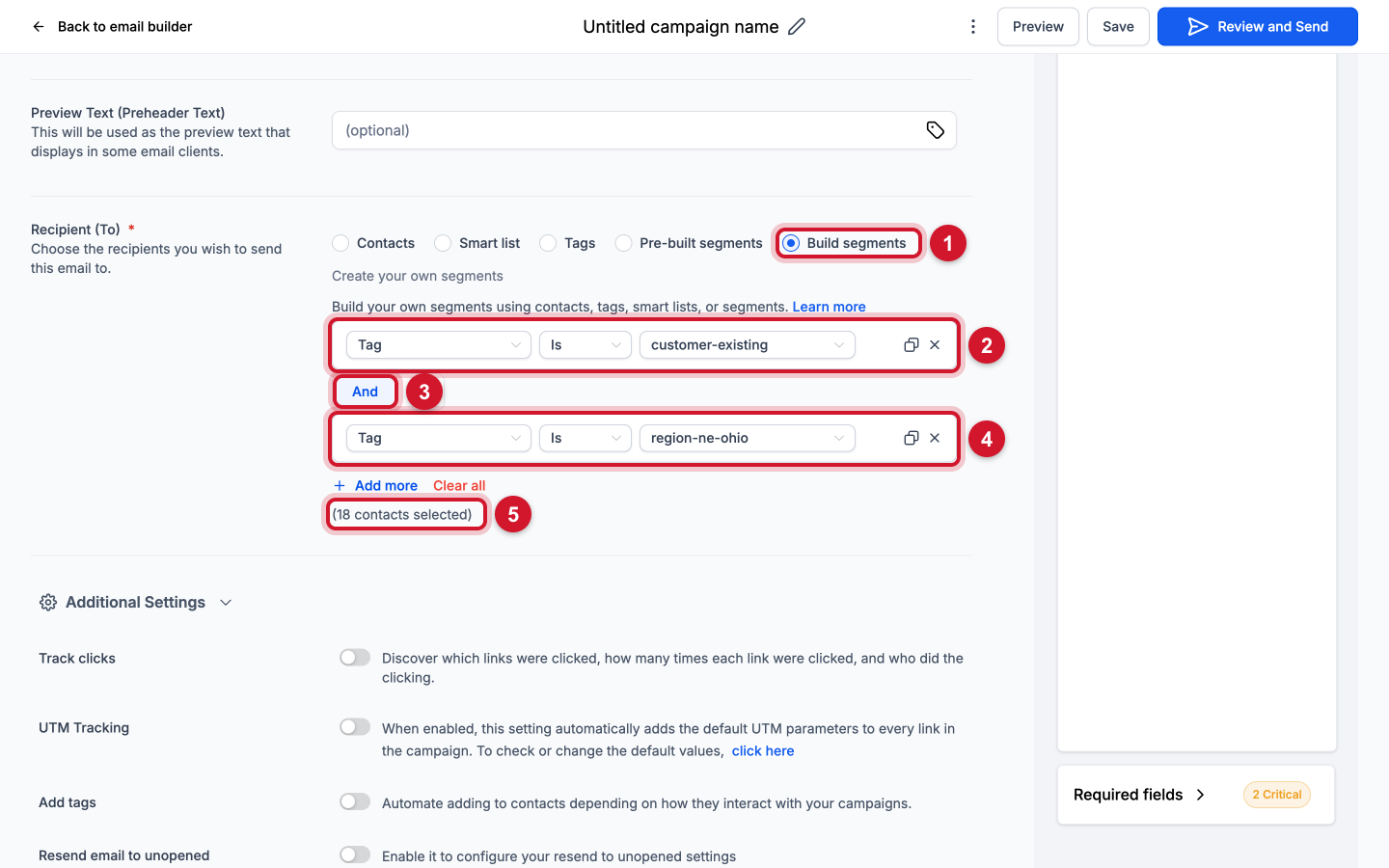
Customers with both labels

1
Choose Build segments.
2
First rule: Tag is customer-existing.
3
Keep And selected.
4
Second rule: Tag is region-ne-ohio.
5
Check the number of contacts before you send.
Customers with both labels
1 Menu2 Enquiries3 Customers4 Sales board5 Service6 Boards7 Email8 Mailchimp9 Monday10 Every day
Step 6 of 9
55
Part 7 · Who gets the email
American Security & AV logo
×
Native Builders

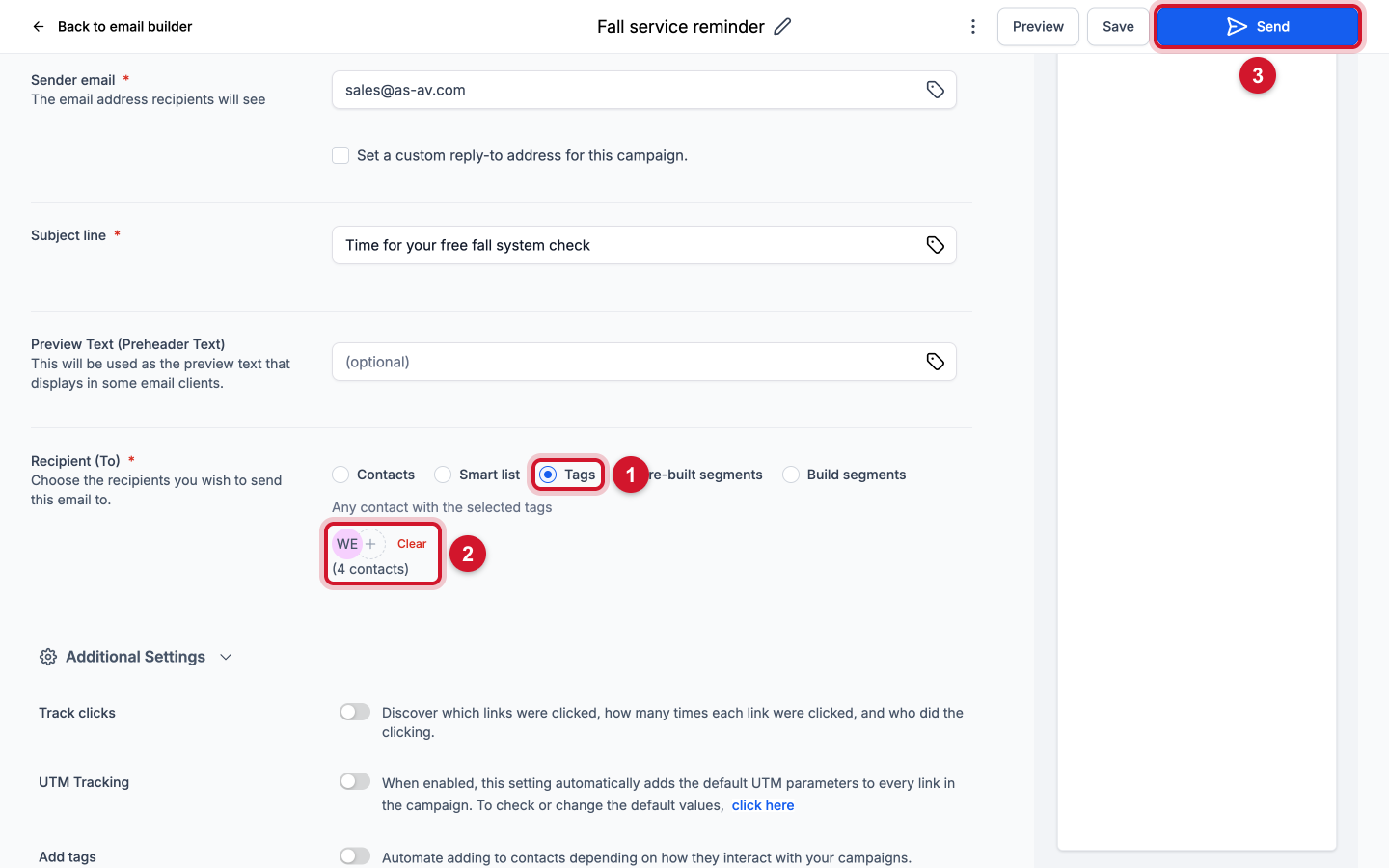
Check before you send

1
Make sure the right option is chosen.
2
Look at the number of contacts. Does it make sense?
3
Send sends the email straight away.
Careful
There is no “Are you sure?” question. Once you click Send, the emails go out. Always send yourself a test first.
Check before you send
1 Menu2 Enquiries3 Customers4 Sales board5 Service6 Boards7 Email8 Mailchimp9 Monday10 Every day
Step 7 of 9
56
Part 7 · Emailing customers
American Security & AV logo
×
Native Builders

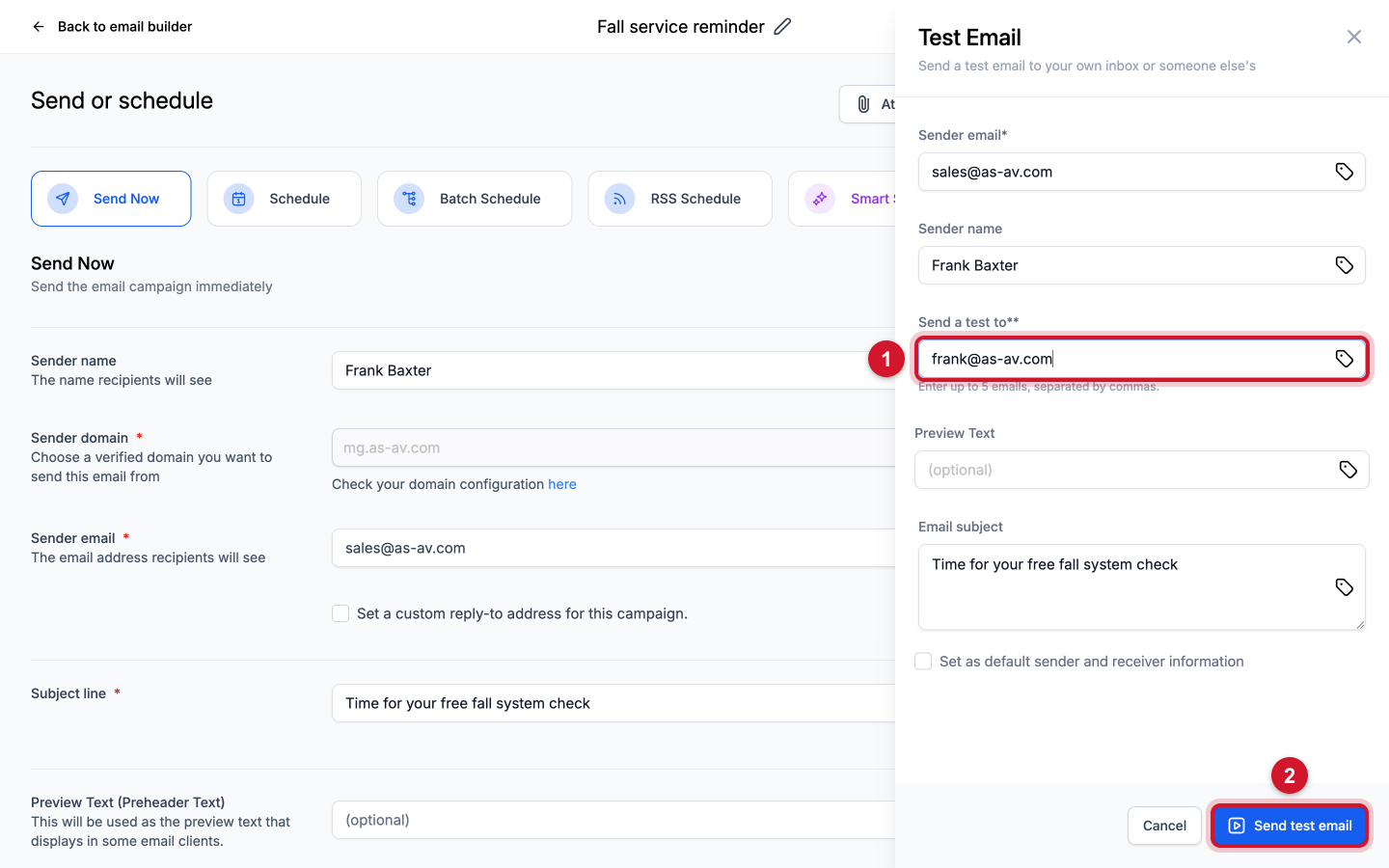
Send yourself a test first

Click Send test email on the right.
1
Type your own email address.
2
Click Send test email and check it on your computer and phone.
Good to know
In a test email the “unsubscribe” link does not work. That is normal.
Send yourself a test first
1 Menu2 Enquiries3 Customers4 Sales board5 Service6 Boards7 Email8 Mailchimp9 Monday10 Every day
Step 8 of 9
57
Part 7 · Emailing customers
American Security & AV logo
×
Native Builders

See that it went out

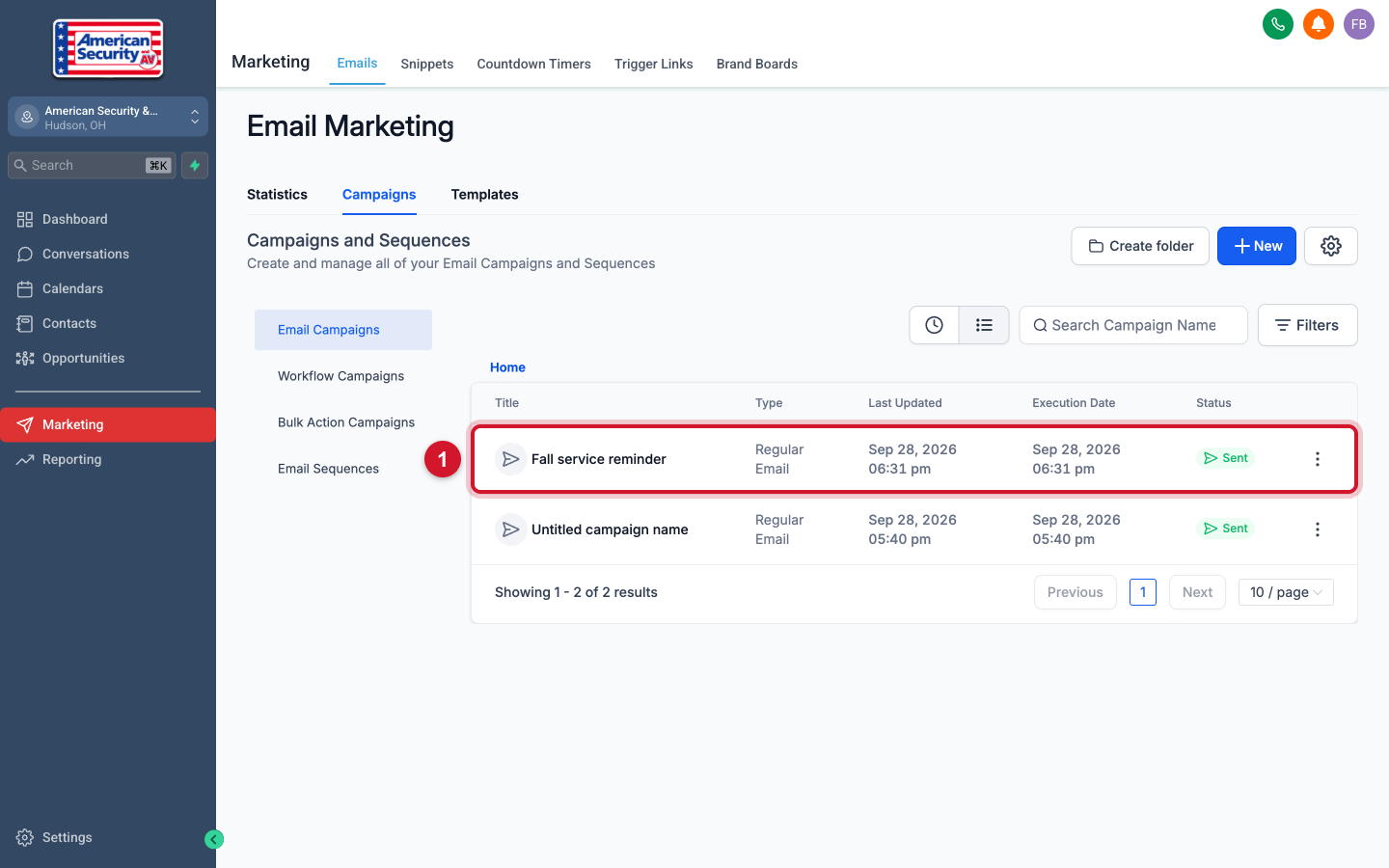
Go back to Marketing → Campaigns.
1
Your email shows Sent, with the date and time.
Good to know
Customers who click “unsubscribe” are removed from future emails automatically.
See that it went out
1 Menu2 Enquiries3 Customers4 Sales board5 Service6 Boards7 Email8 Mailchimp9 Monday10 Every day
Step 9 of 9
58
American Security & AV logo
×
Native Builders
8
Part 8

Your Mailchimp list

Bring your existing customers over from Mailchimp, once, so you can email them from here.
1 Menu2 Enquiries3 Customers4 Sales board5 Service6 Boards7 Email8 Mailchimp9 Monday10 Every day
Part start
59
Part 8 · Out of Mailchimp
American Security & AV logo
×
Native Builders

Export your list from Mailchimp

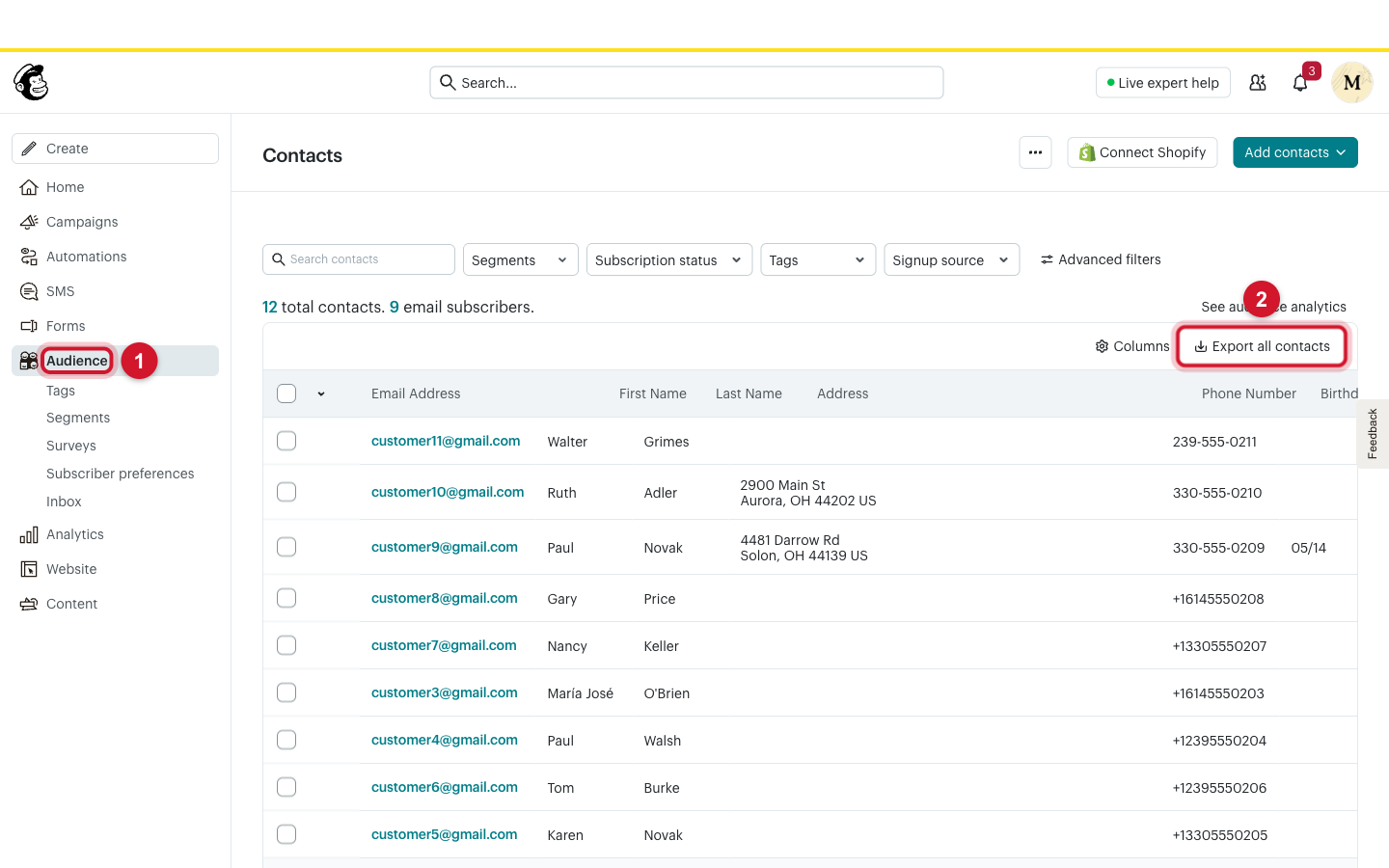
Log in to Mailchimp.
1
Click Audience in the menu on the left.
2
Click Export all contacts above the list.
Export your list from Mailchimp
1 Menu2 Enquiries3 Customers4 Sales board5 Service6 Boards7 Email8 Mailchimp9 Monday10 Every day
Step 1 of 10
60
Part 8 · Out of Mailchimp
American Security & AV logo
×
Native Builders

Confirm the export

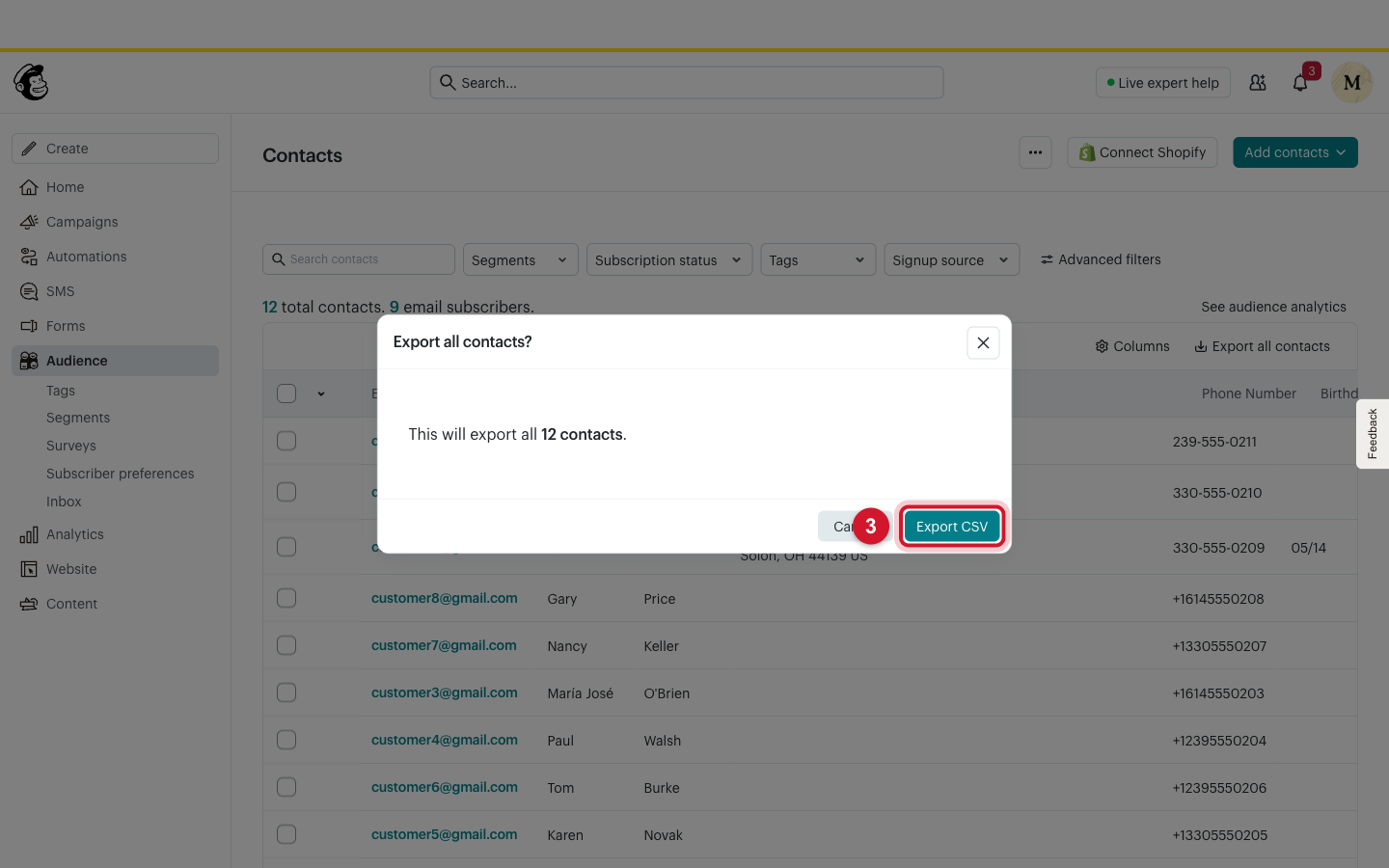
3
Click Export CSV.
Good to know
This exports everyone, including people who unsubscribed. That is what we want: we mark them so they never get emails.
Confirm the export
1 Menu2 Enquiries3 Customers4 Sales board5 Service6 Boards7 Email8 Mailchimp9 Monday10 Every day
Step 2 of 10
61
Part 8 · Out of Mailchimp
American Security & AV logo
×
Native Builders

Send the file to us

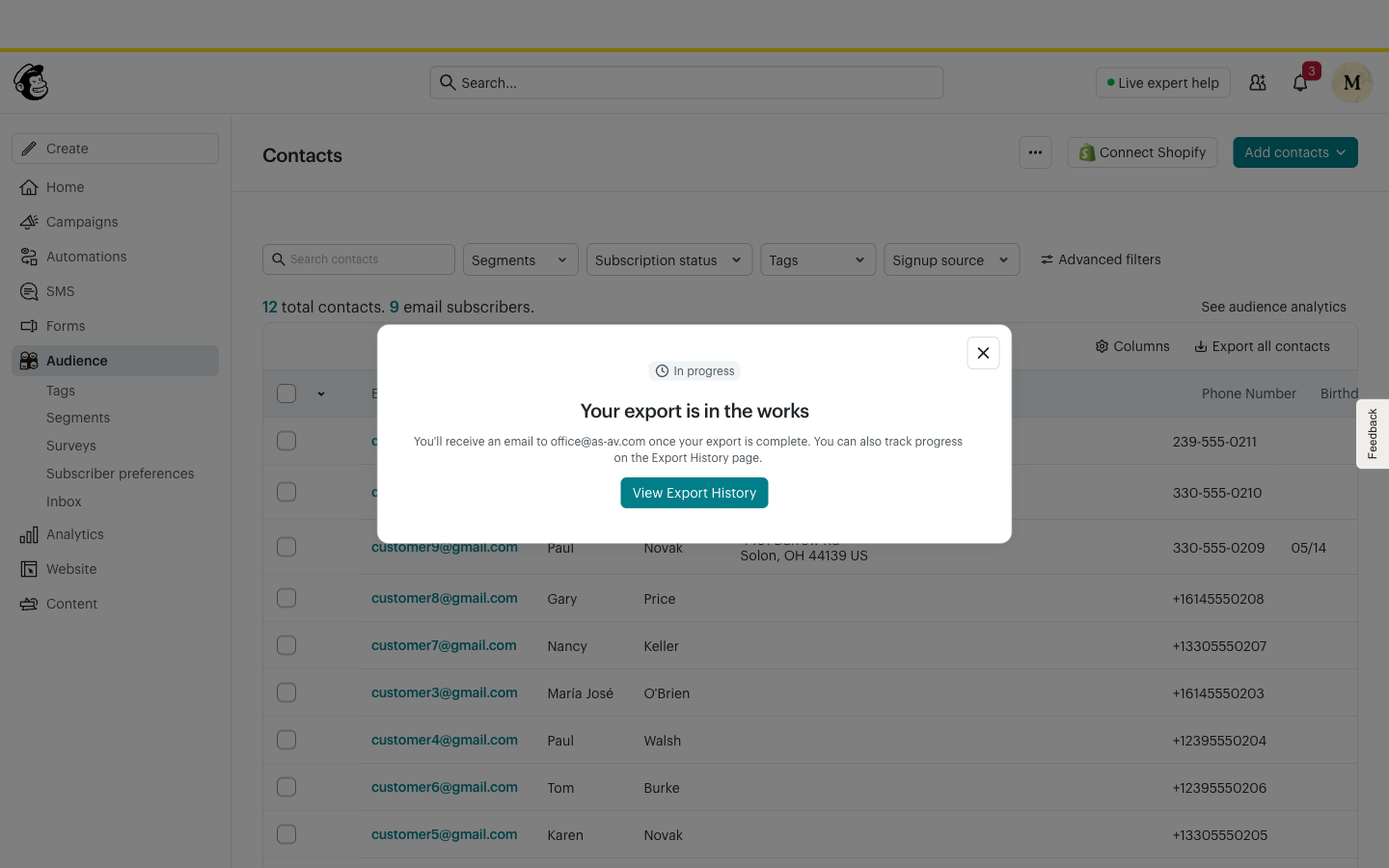
Mailchimp emails you when the file is ready (a ZIP file).
Forward that email to martin@nativebuilders.ai.
We tidy it and send back one file, ready to import on the next pages.
Good to know
We fix labels and phone numbers, and protect people who unsubscribed. Everyone we import gets the label src-mailchimp.
Send the file to us
1 Menu2 Enquiries3 Customers4 Sales board5 Service6 Boards7 Email8 Mailchimp9 Monday10 Every day
Step 3 of 10
62
Part 8 · Importing
American Security & AV logo
×
Native Builders

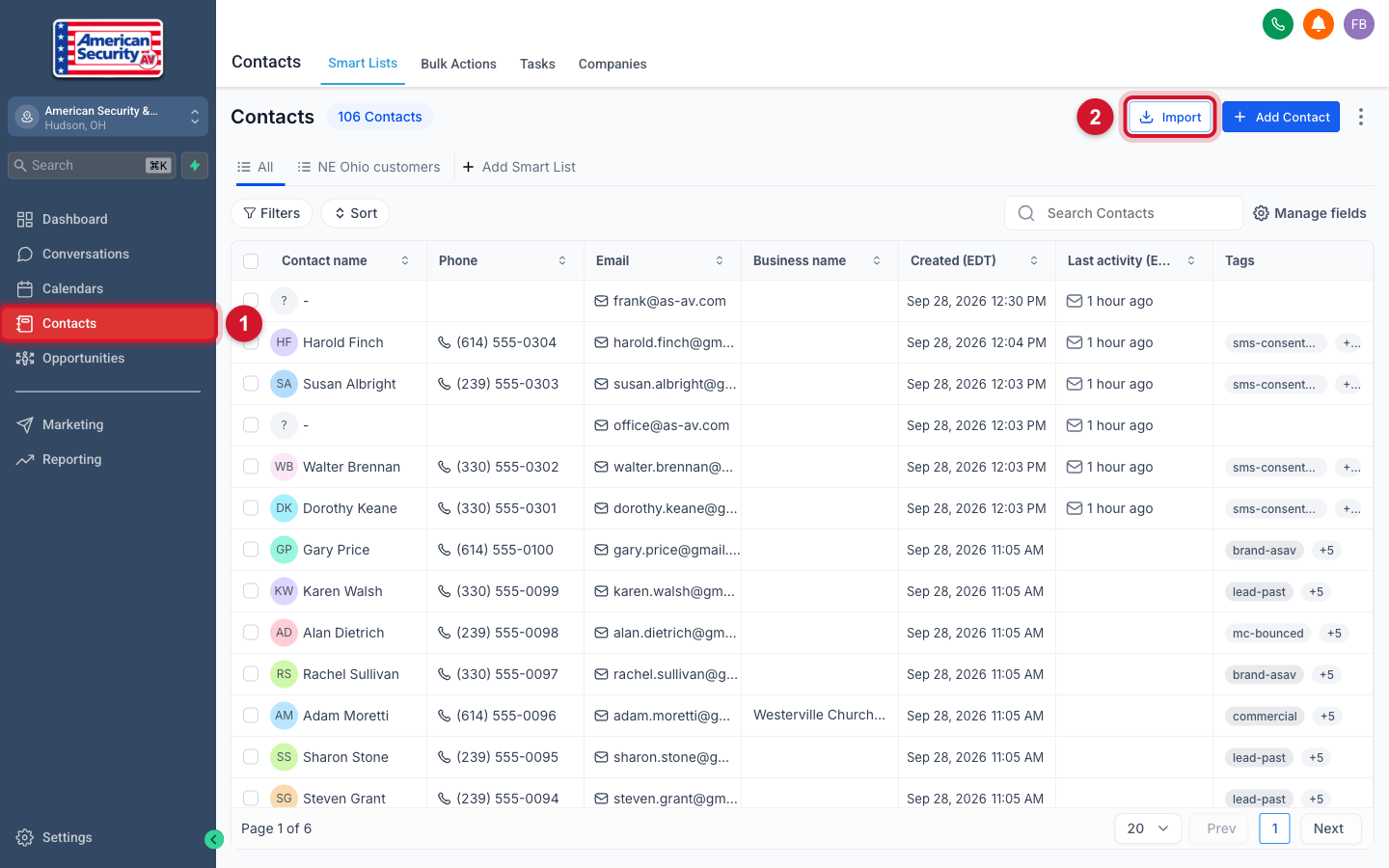
Open the import

1
Click Contacts in the menu.
2
Click Import at the top right.
Good to know
Only Frank and Mike have the Import button.
Open the import
1 Menu2 Enquiries3 Customers4 Sales board5 Service6 Boards7 Email8 Mailchimp9 Monday10 Every day
Step 4 of 10
63
Part 8 · Importing
American Security & AV logo
×
Native Builders

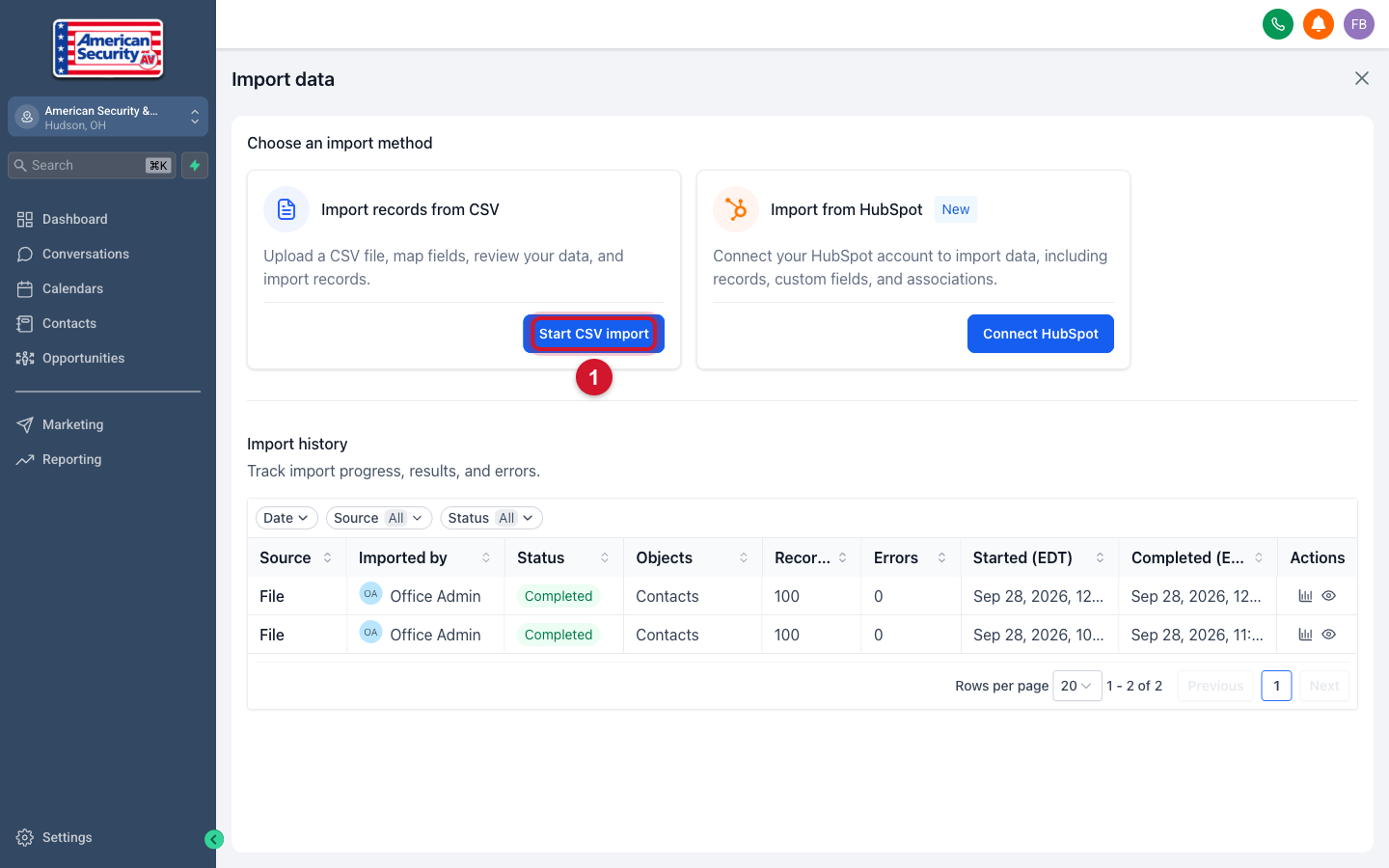
Choose a file import

1
Click Start CSV import.
Good to know
The list below shows earlier imports and whether they finished.
Choose a file import
1 Menu2 Enquiries3 Customers4 Sales board5 Service6 Boards7 Email8 Mailchimp9 Monday10 Every day
Step 5 of 10
64
Part 8 · Importing
American Security & AV logo
×
Native Builders

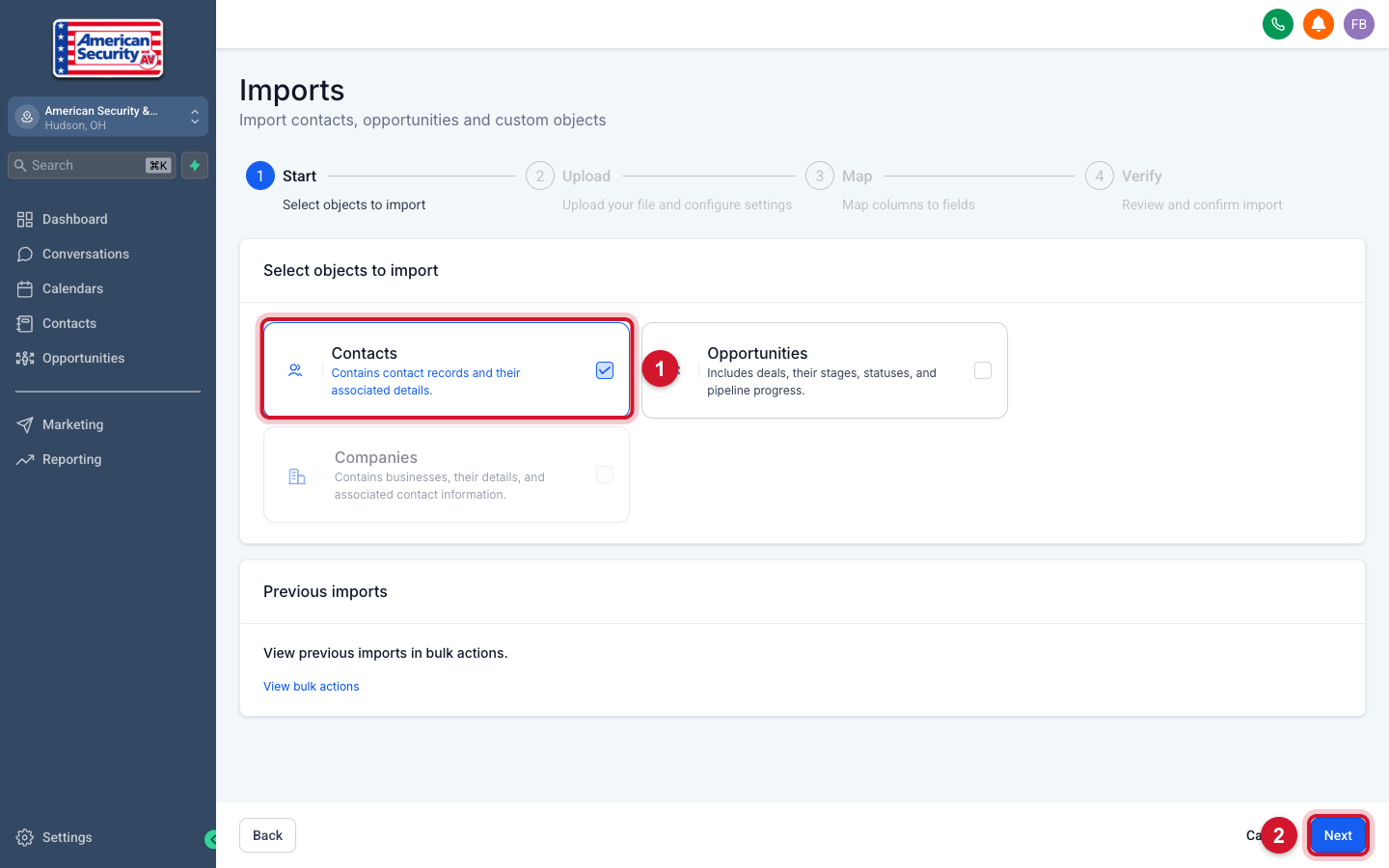
Import customers

1
Leave Contacts ticked.
2
Click Next.
Import customers
1 Menu2 Enquiries3 Customers4 Sales board5 Service6 Boards7 Email8 Mailchimp9 Monday10 Every day
Step 6 of 10
65
Part 8 · Importing
American Security & AV logo
×
Native Builders

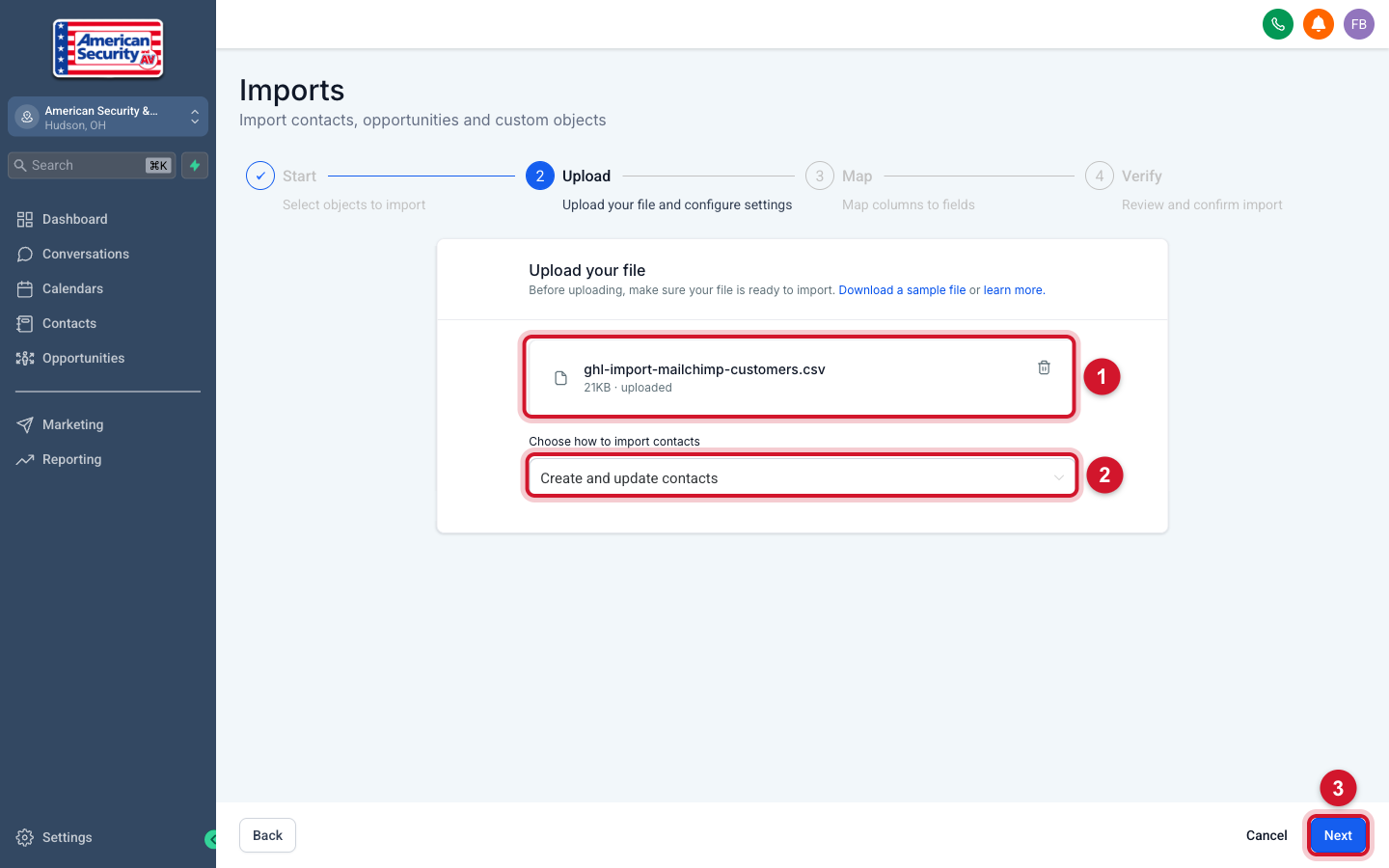
Add the file we sent you

1
Click the box and choose the file we sent you.
2
Keep Create and update contacts.
3
Click Next.
Good to know
“Create and update” adds new customers and updates the ones you already have. Nobody is doubled.
Add the file we sent you
1 Menu2 Enquiries3 Customers4 Sales board5 Service6 Boards7 Email8 Mailchimp9 Monday10 Every day
Step 7 of 10
66
Part 8 · Importing
American Security & AV logo
×
Native Builders

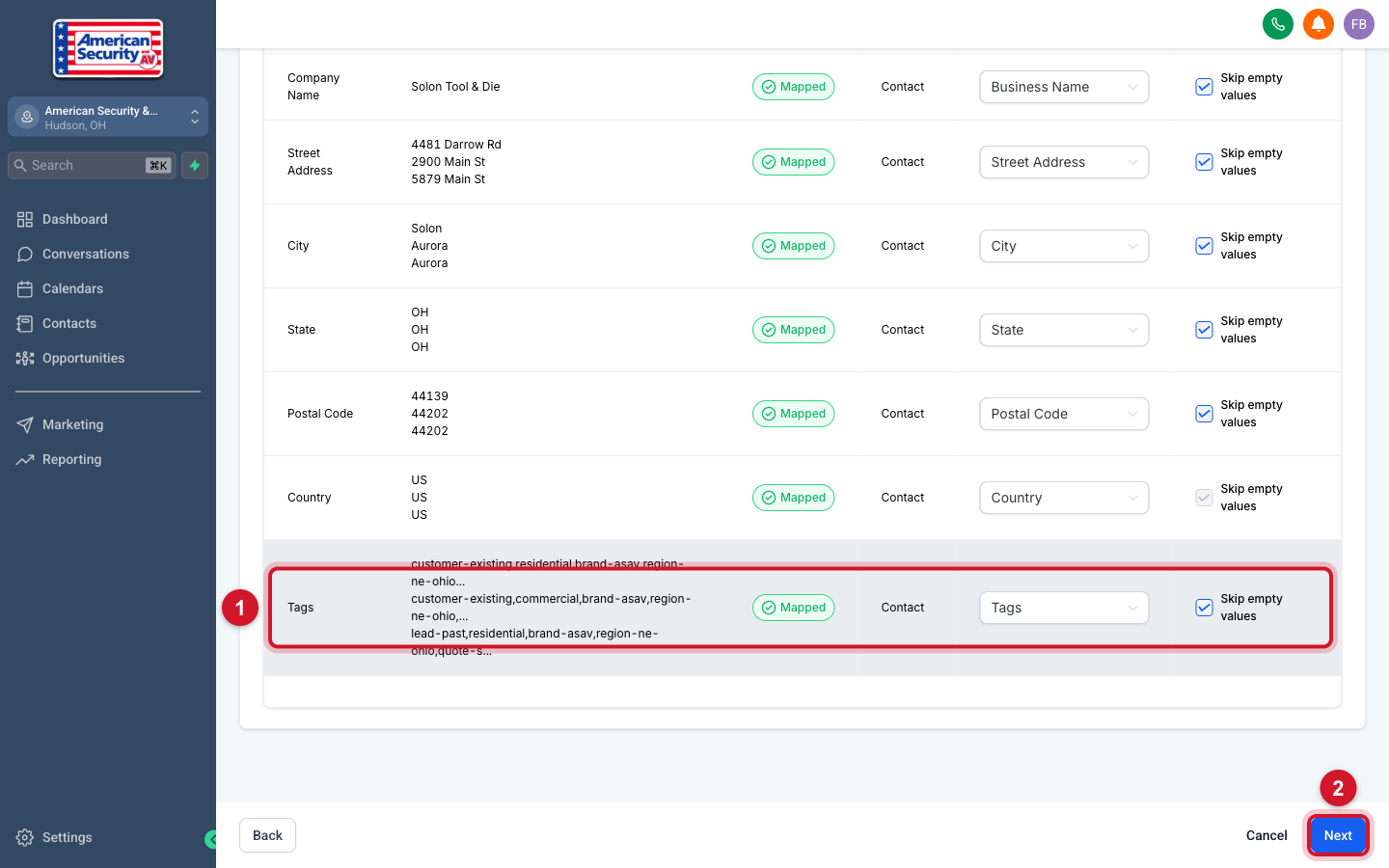
Check the columns

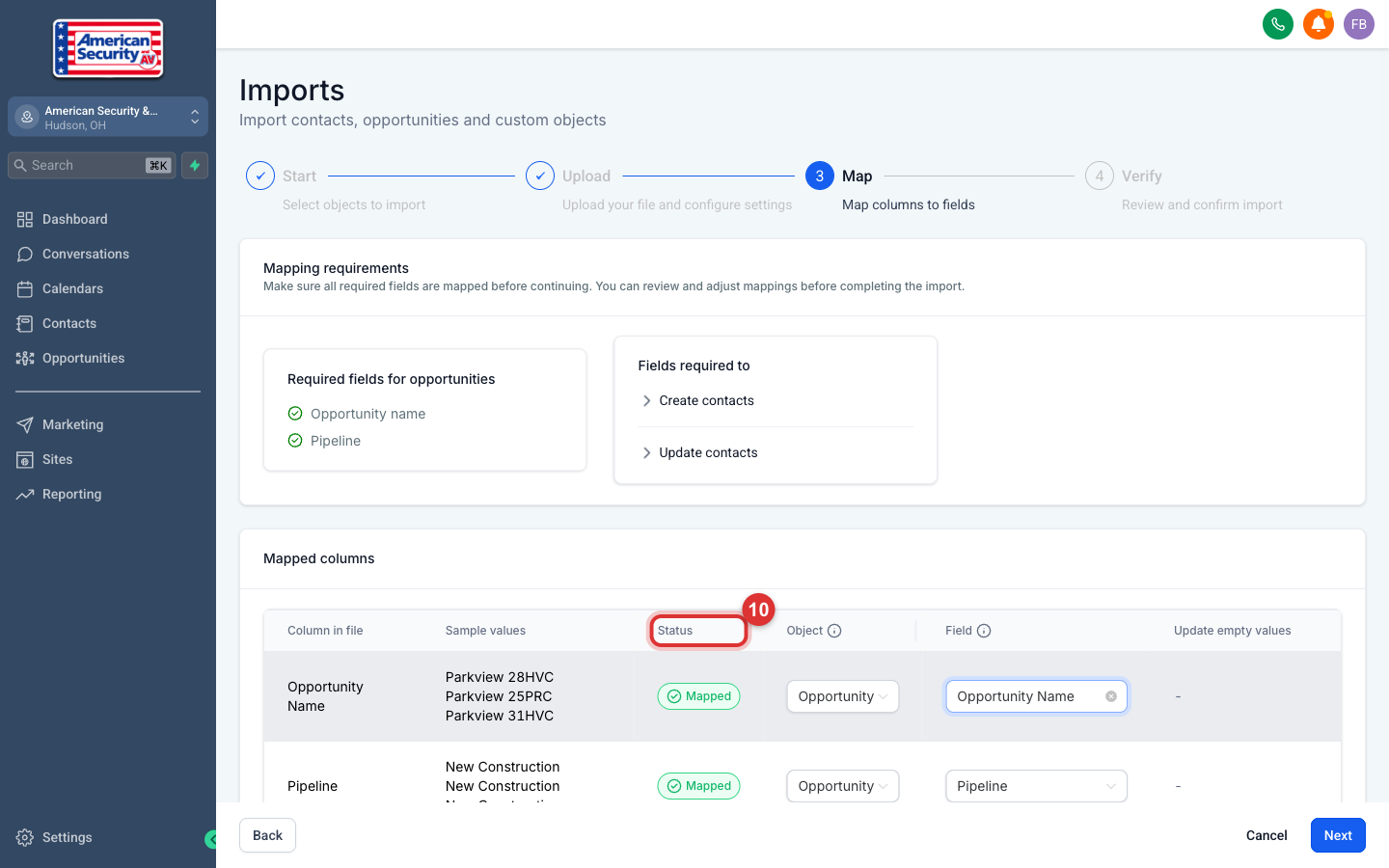
Every row should say Mapped in green.
1
Scroll down and check Tags is mapped to Tags.
2
Click Next.
Careful
If something is not green, stop and call us.
Check the columns
1 Menu2 Enquiries3 Customers4 Sales board5 Service6 Boards7 Email8 Mailchimp9 Monday10 Every day
Step 8 of 10
67
Part 8 · Importing
American Security & AV logo
×
Native Builders

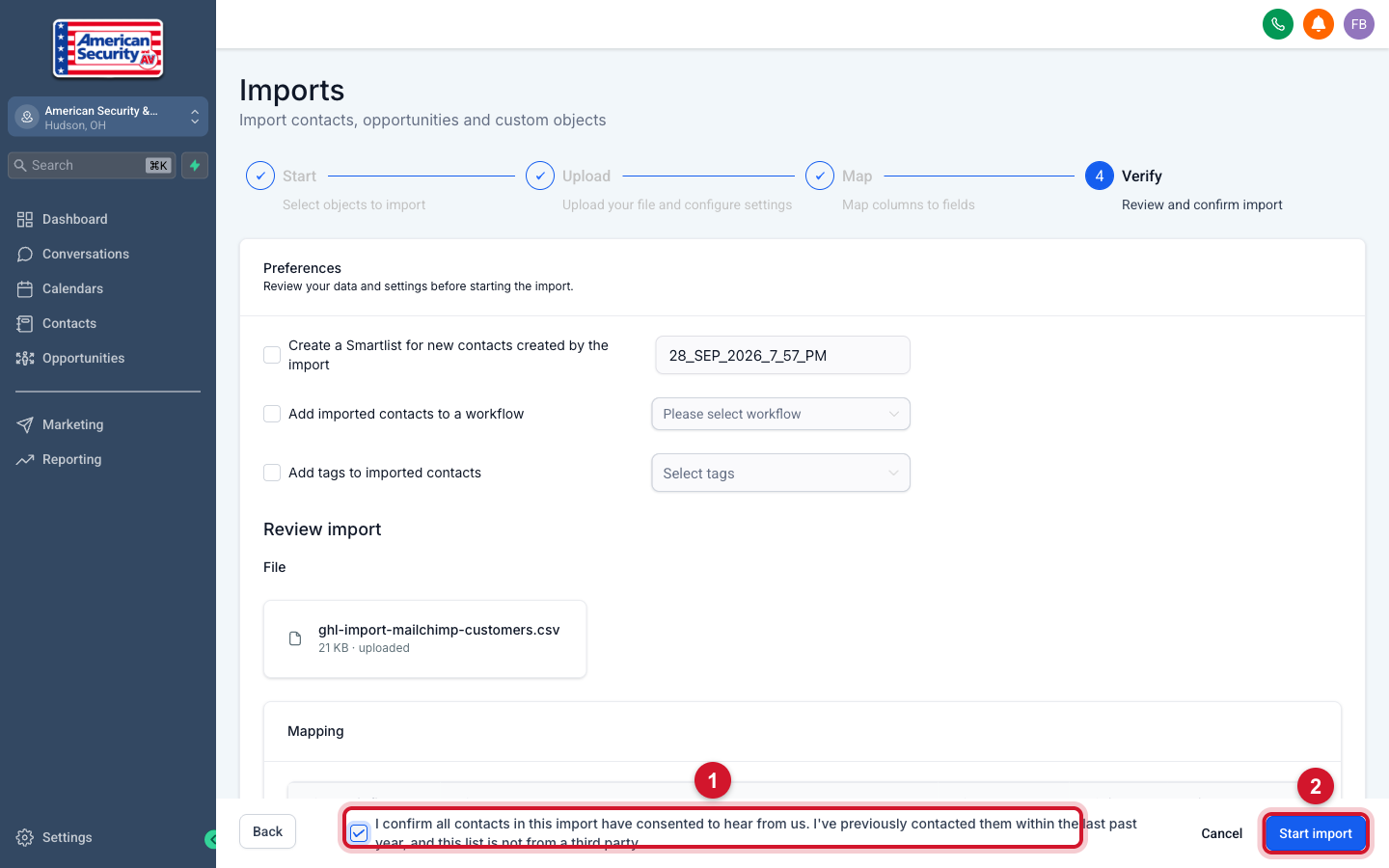
Confirm and start

1
Tick the box only if these are people you have done business with, not a bought list.
2
Click Start import.
Confirm and start
1 Menu2 Enquiries3 Customers4 Sales board5 Service6 Boards7 Email8 Mailchimp9 Monday10 Every day
Step 9 of 10
68
Part 8 · Importing
American Security & AV logo
×
Native Builders

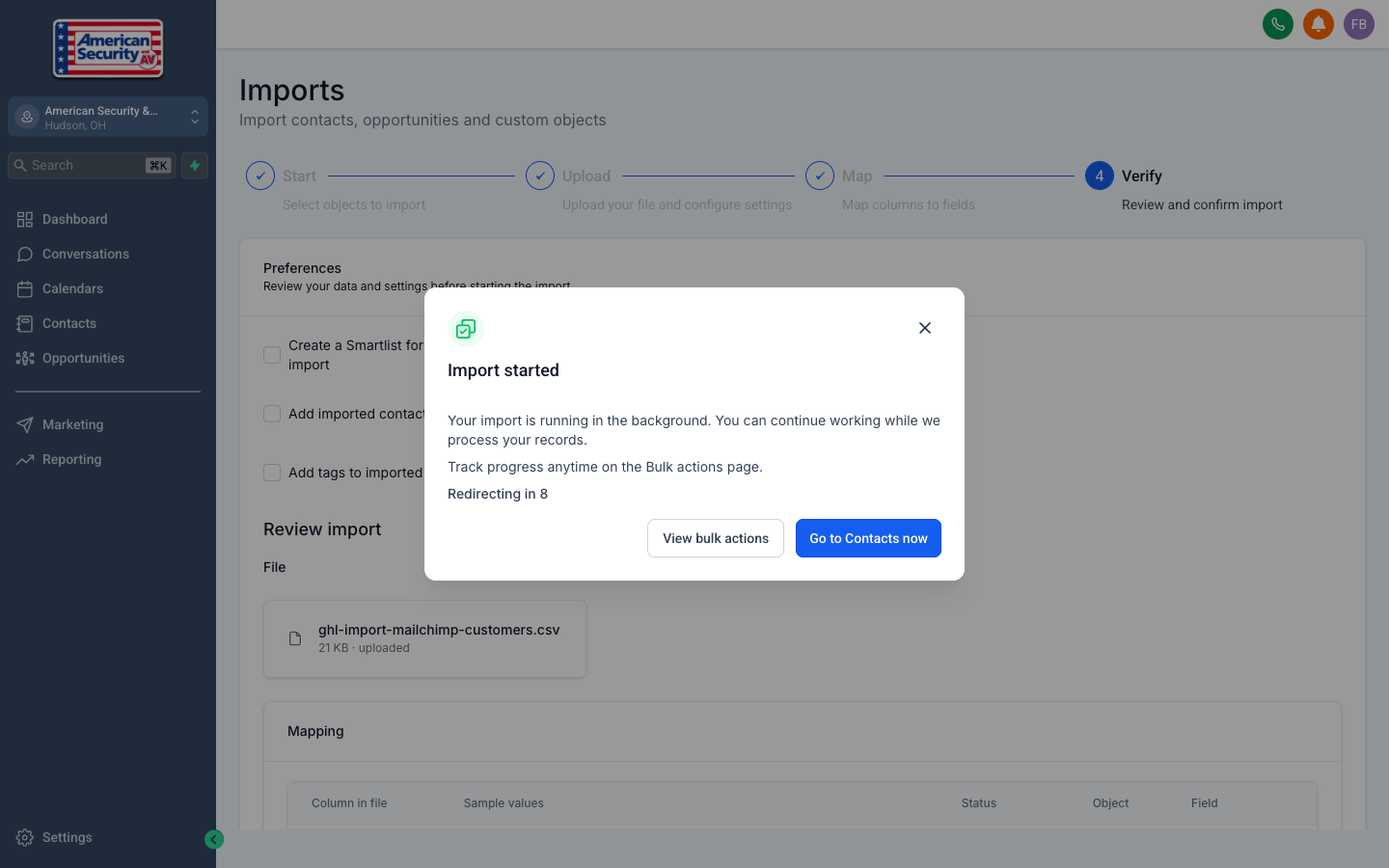
Wait for it to finish

The import runs in the background. You can keep working.
Big lists can take a while, sometimes up to an hour.
Then check Contacts: the number at the top goes up.
Good to know
Do not import the same file twice while the first one is still running.
Wait for it to finish
1 Menu2 Enquiries3 Customers4 Sales board5 Service6 Boards7 Email8 Mailchimp9 Monday10 Every day
Step 10 of 10
69
American Security & AV logo
×
Native Builders
9
Part 9

Moving from Monday

Bring your Monday boards into the CRM: the jobs, and the prints that go with them.
1 Menu2 Enquiries3 Customers4 Sales board5 Service6 Boards7 Email8 Mailchimp9 Monday10 Every day
Part start
70
Part 9 · Moving from Monday
American Security & AV logo
×
Native Builders

The whole move, in six steps

1 · Get your Monday file
Download your board from Monday. Pages A and B show two ways.
2 · Set up the CRM once
Add a Prints field, and a CRM board with the same columns as your Monday groups.
3 · Convert the file
Our converter page turns the Monday file into a file the CRM can read.
4 · Import the jobs
One import brings in every job and its customer.
5 · Add the prints
Attach the drawings to each job. This part is done one job at a time.
6 · Check the board
Every job in the right column, with its prints.
1 Menu2 Enquiries3 Customers4 Sales board5 Service6 Boards7 Email8 Mailchimp9 Monday10 Every day
Step 1 of 62
71
Part 9 · Moving from Monday
American Security & AV logo
×
Native Builders

Which Monday download to use

A · One board to Excel
The jobs only, no drawings. Anyone can do it, and it is ready at once.
B · Everything, with prints
All boards and all drawings. Only a Monday admin (Frank) can do it. Monday emails a link, usually within a few hours.
C · Prints for one job
Open one job in Monday and download its drawings. Handy for a few jobs, or if you did A.
Our advice
Ask Frank to do B. The converter then sorts every drawing into a folder per job for you.
1 Menu2 Enquiries3 Customers4 Sales board5 Service6 Boards7 Email8 Mailchimp9 Monday10 Every day
Step 2 of 62
72
Part 9 · A · One board to Excel
American Security & AV logo
×
Native Builders

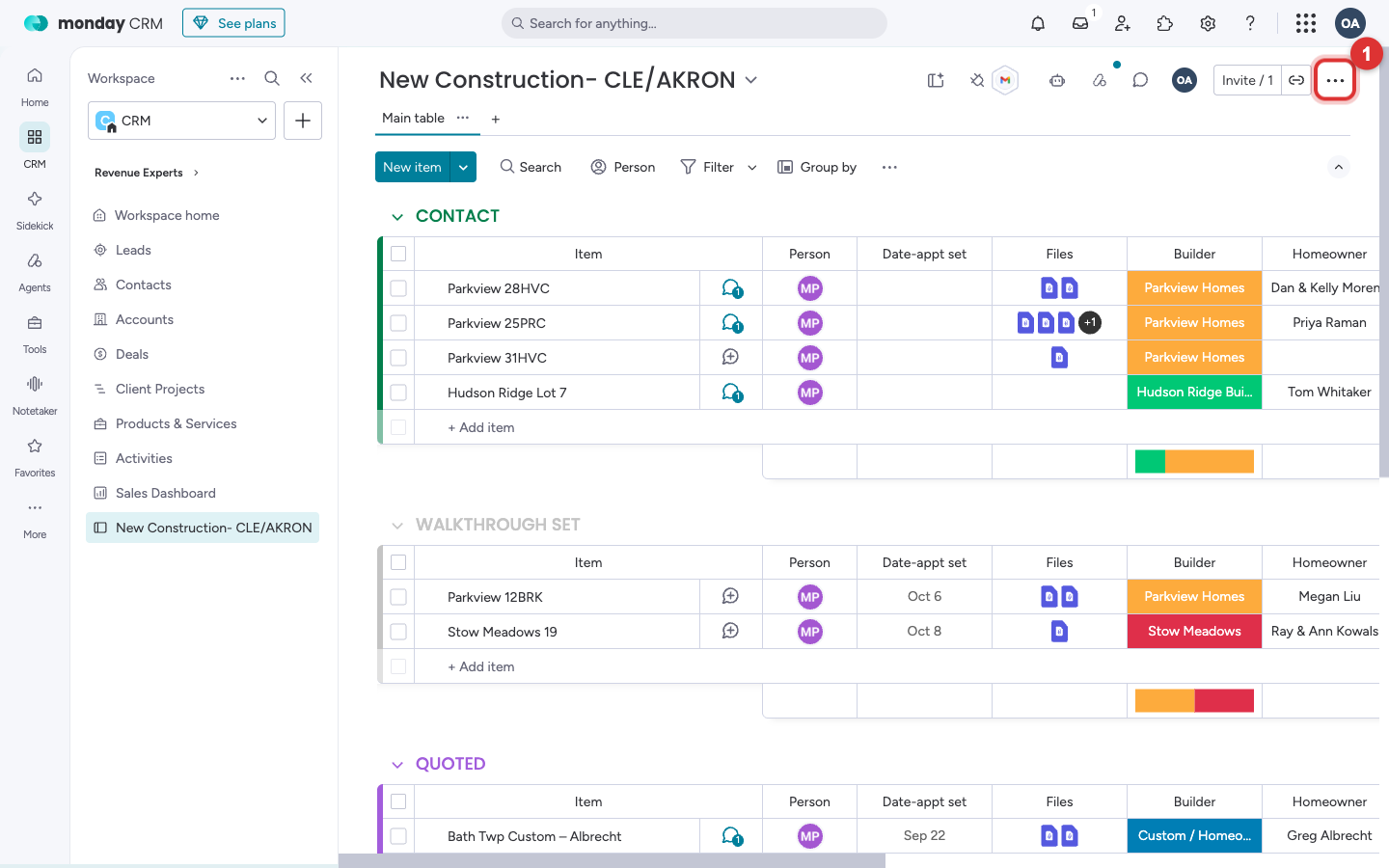
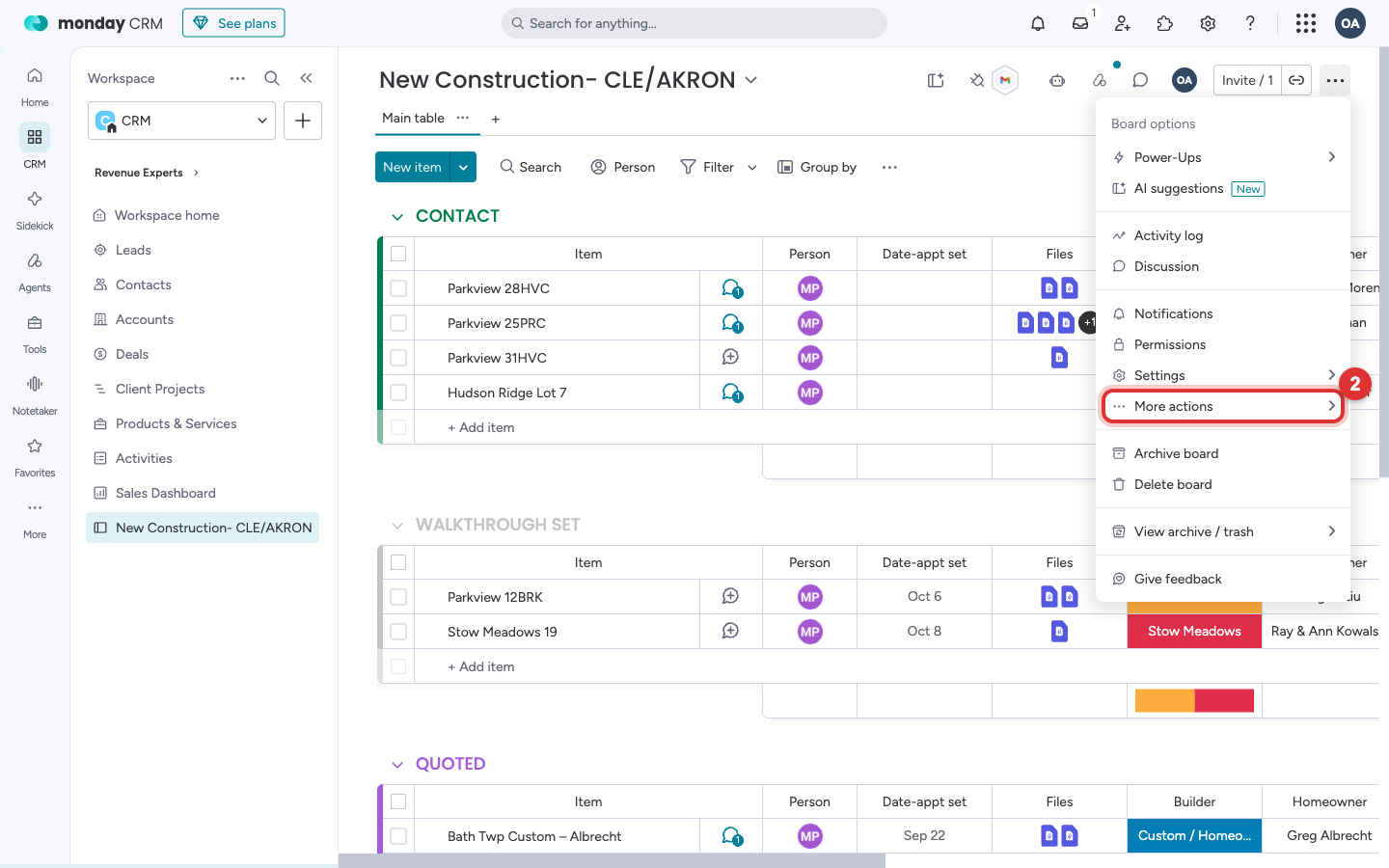
Open the board menu in Monday

Open the board you want to move in Monday.
1
Click the three dots at the top right of the board.
Good to know
Do this once for each board you want to move.
Open the board menu in Monday
1 Menu2 Enquiries3 Customers4 Sales board5 Service6 Boards7 Email8 Mailchimp9 Monday10 Every day
Step 3 of 62
73
Part 9 · A · One board to Excel
American Security & AV logo
×
Native Builders

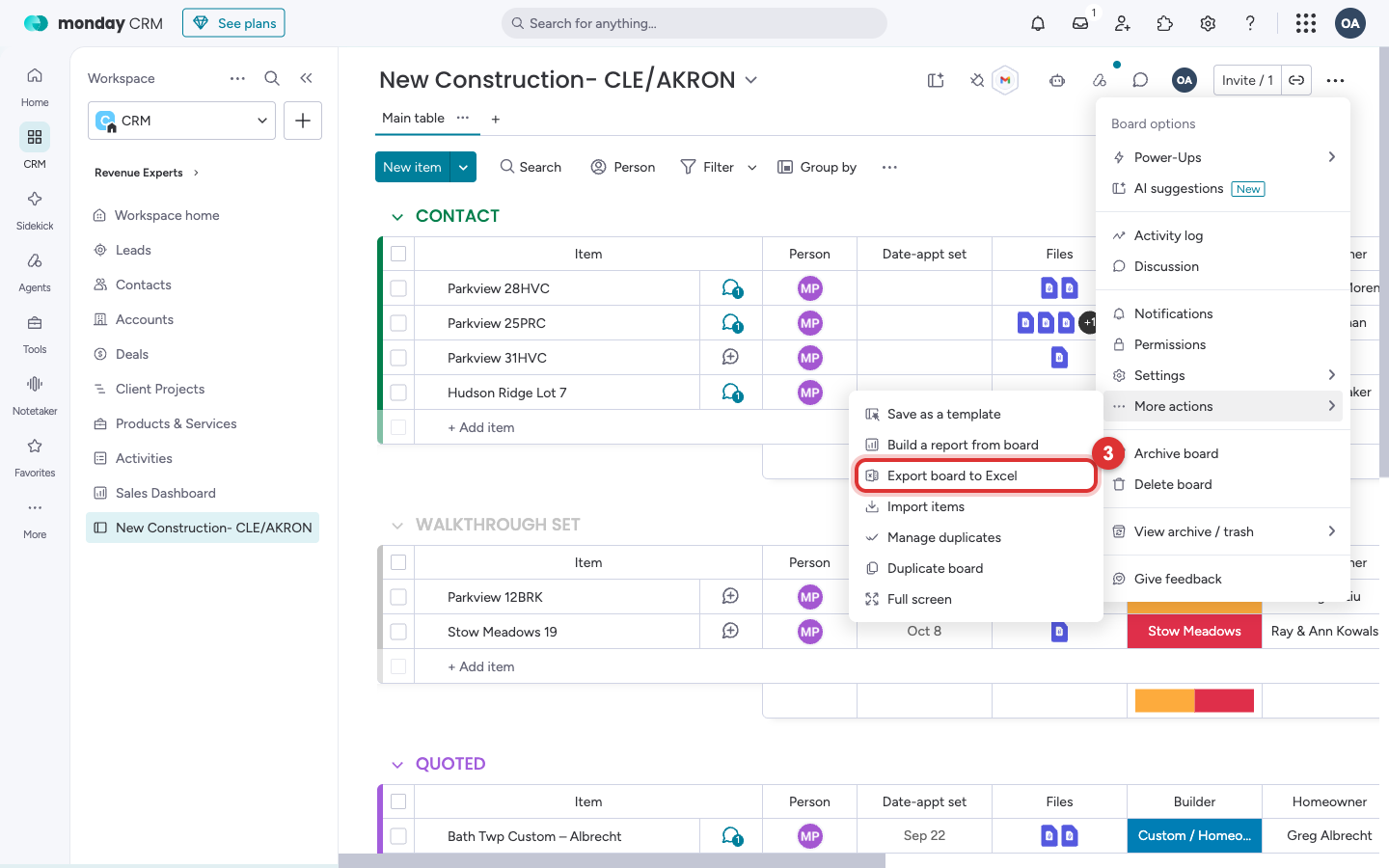
More actions

2
Point at More actions. A second menu opens.
More actions
1 Menu2 Enquiries3 Customers4 Sales board5 Service6 Boards7 Email8 Mailchimp9 Monday10 Every day
Step 4 of 62
74
Part 9 · A · One board to Excel
American Security & AV logo
×
Native Builders

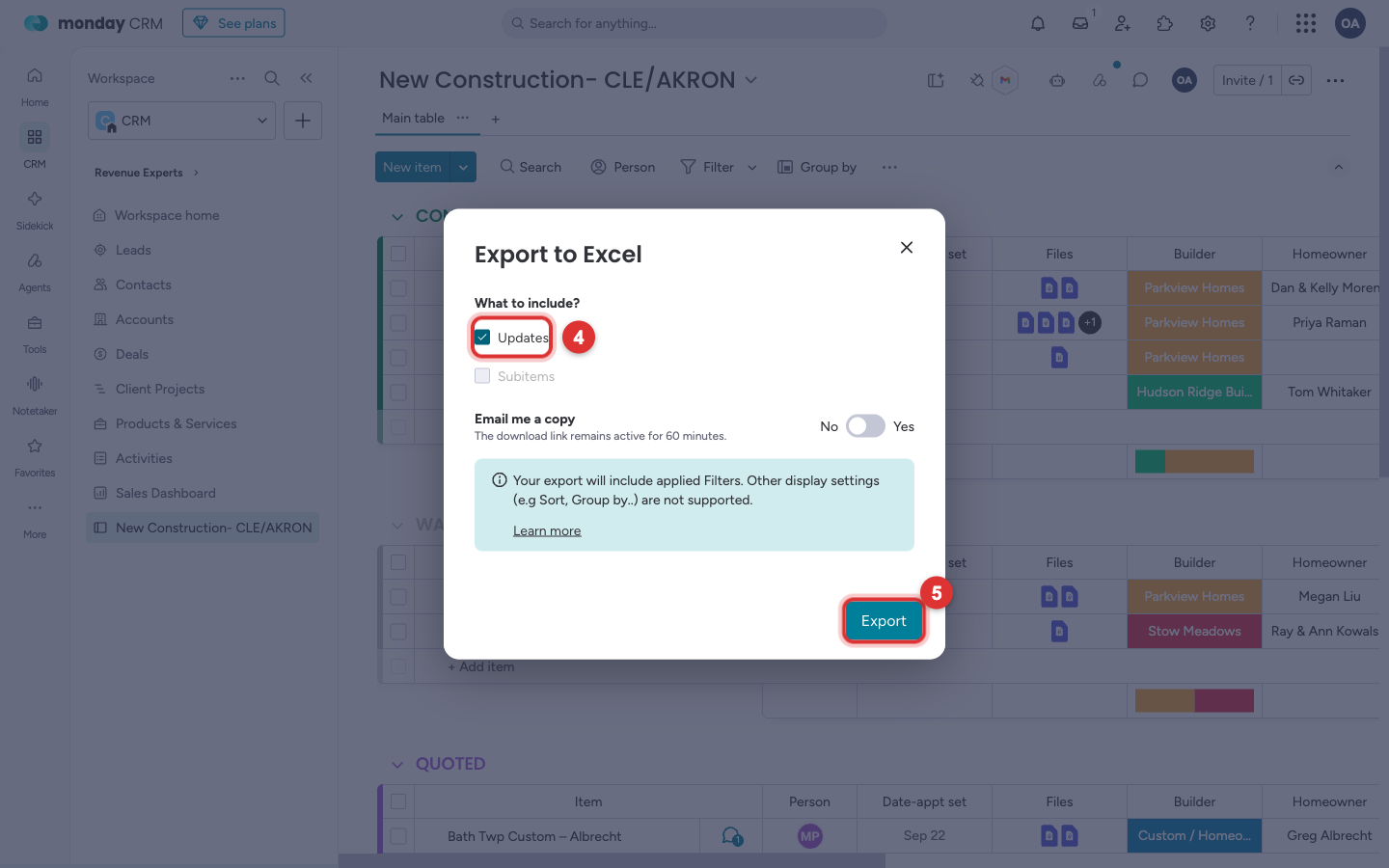
Export board to Excel

3
Click Export board to Excel.
Export board to Excel
1 Menu2 Enquiries3 Customers4 Sales board5 Service6 Boards7 Email8 Mailchimp9 Monday10 Every day
Step 5 of 62
75
Part 9 · A · One board to Excel
American Security & AV logo
×
Native Builders

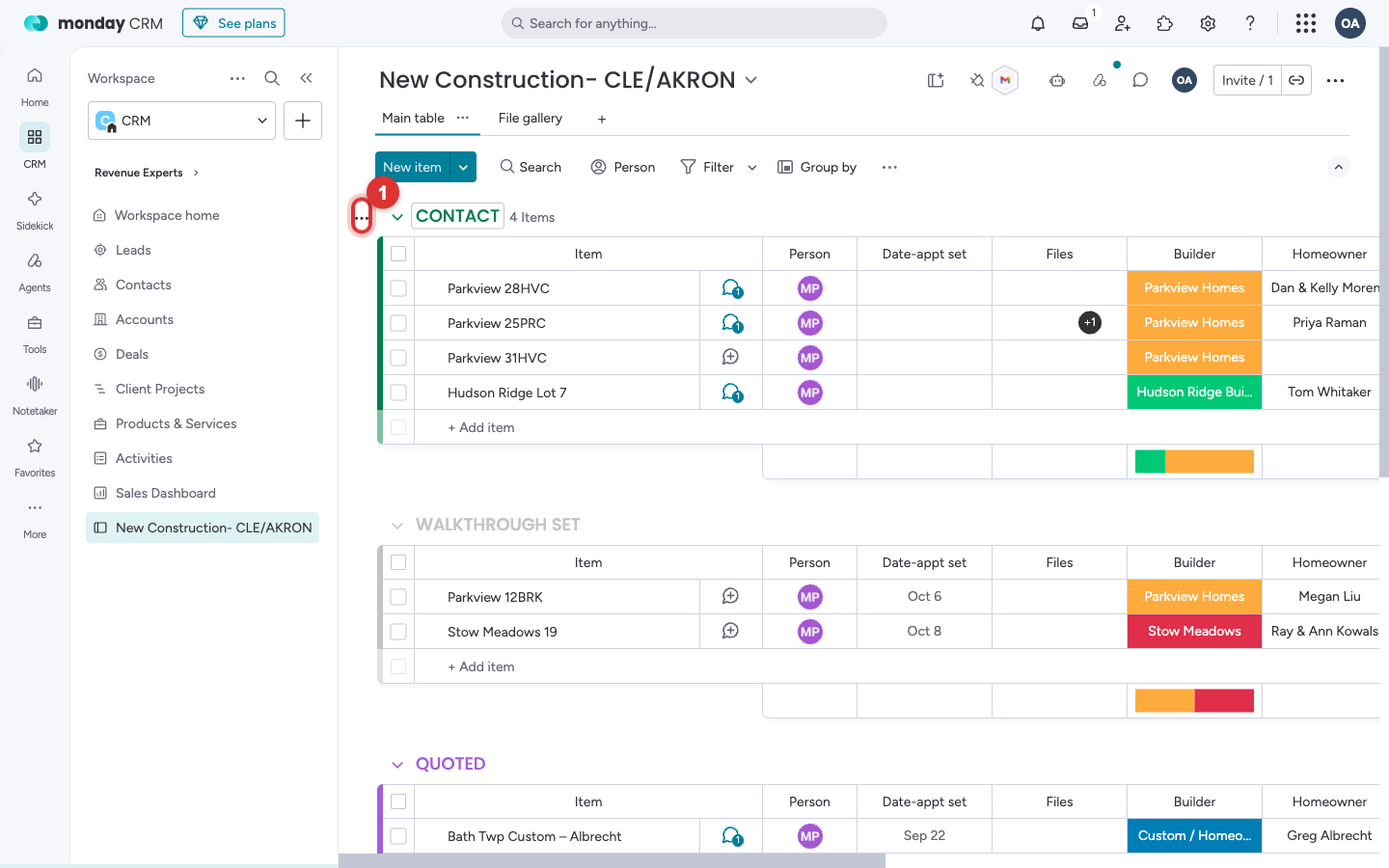
Include the notes and export

4
Tick Updates so your notes come along.
5
Click Export.
Good to know
The file goes to your Downloads folder. Its name starts with the board name.
Include the notes and export
1 Menu2 Enquiries3 Customers4 Sales board5 Service6 Boards7 Email8 Mailchimp9 Monday10 Every day
Step 6 of 62
76
Part 9 · A · One board to Excel
American Security & AV logo
×
Native Builders

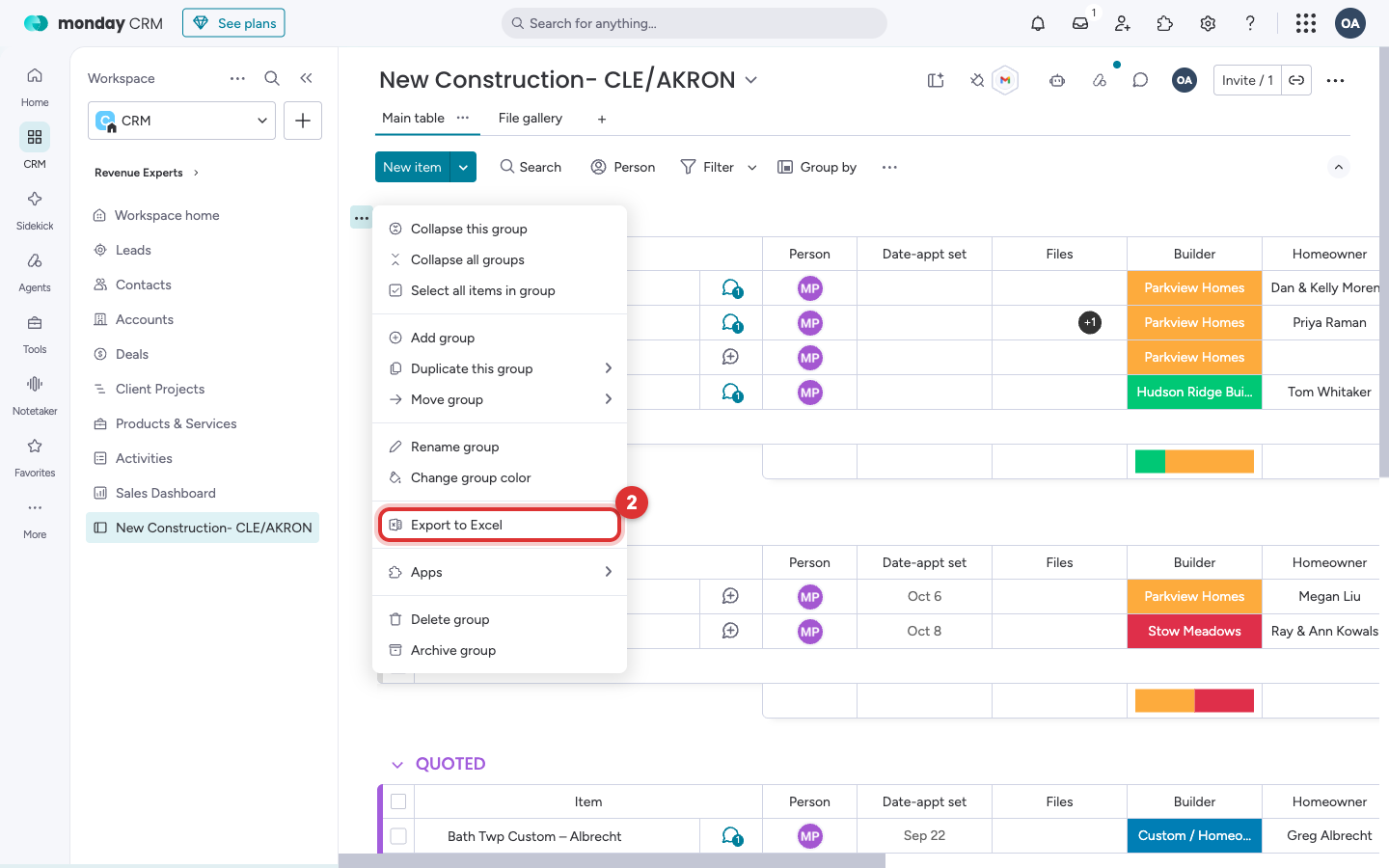
Only one group? Use its menu

1
Point at the group name, then click its three dots.
Good to know
Only need part of a board? Export a single group instead of the whole board.
Only one group? Use its menu
1 Menu2 Enquiries3 Customers4 Sales board5 Service6 Boards7 Email8 Mailchimp9 Monday10 Every day
Step 7 of 62
77
Part 9 · A · One board to Excel
American Security & AV logo
×
Native Builders

Export the group

2
Click Export to Excel.
Export the group
1 Menu2 Enquiries3 Customers4 Sales board5 Service6 Boards7 Email8 Mailchimp9 Monday10 Every day
Step 8 of 62
78
Part 9 · B · Everything, with prints (admin)
American Security & AV logo
×
Native Builders

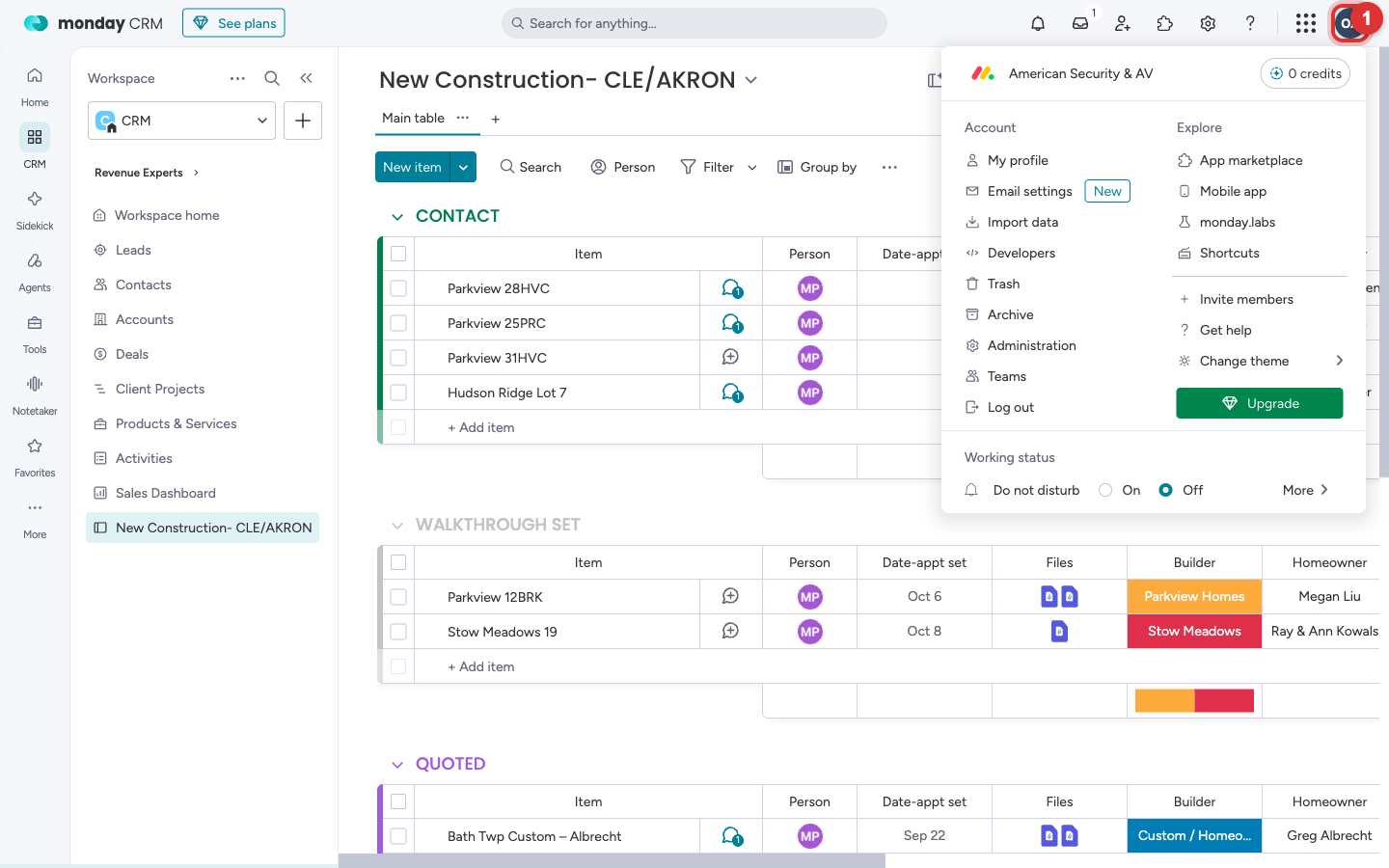
Open your Monday menu

1
Click your picture at the top right of Monday.
Good to know
Only a Monday admin sees the next option. At AS&AV that is most likely Frank.
Open your Monday menu
1 Menu2 Enquiries3 Customers4 Sales board5 Service6 Boards7 Email8 Mailchimp9 Monday10 Every day
Step 9 of 62
79
Part 9 · B · Everything, with prints (admin)
American Security & AV logo
×
Native Builders

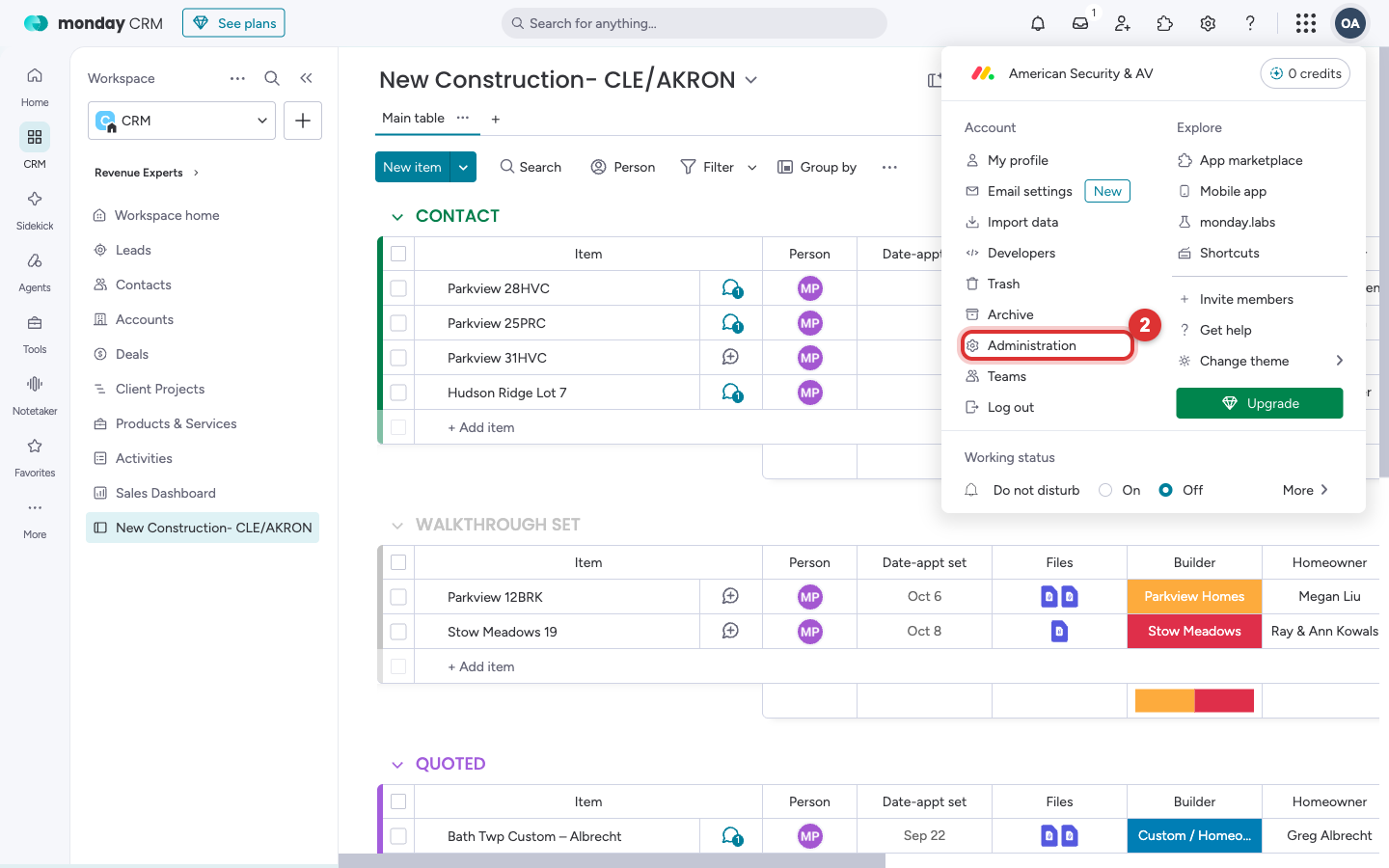
Administration

2
Click Administration.
Administration
1 Menu2 Enquiries3 Customers4 Sales board5 Service6 Boards7 Email8 Mailchimp9 Monday10 Every day
Step 10 of 62
80
Part 9 · B · Everything, with prints (admin)
American Security & AV logo
×
Native Builders

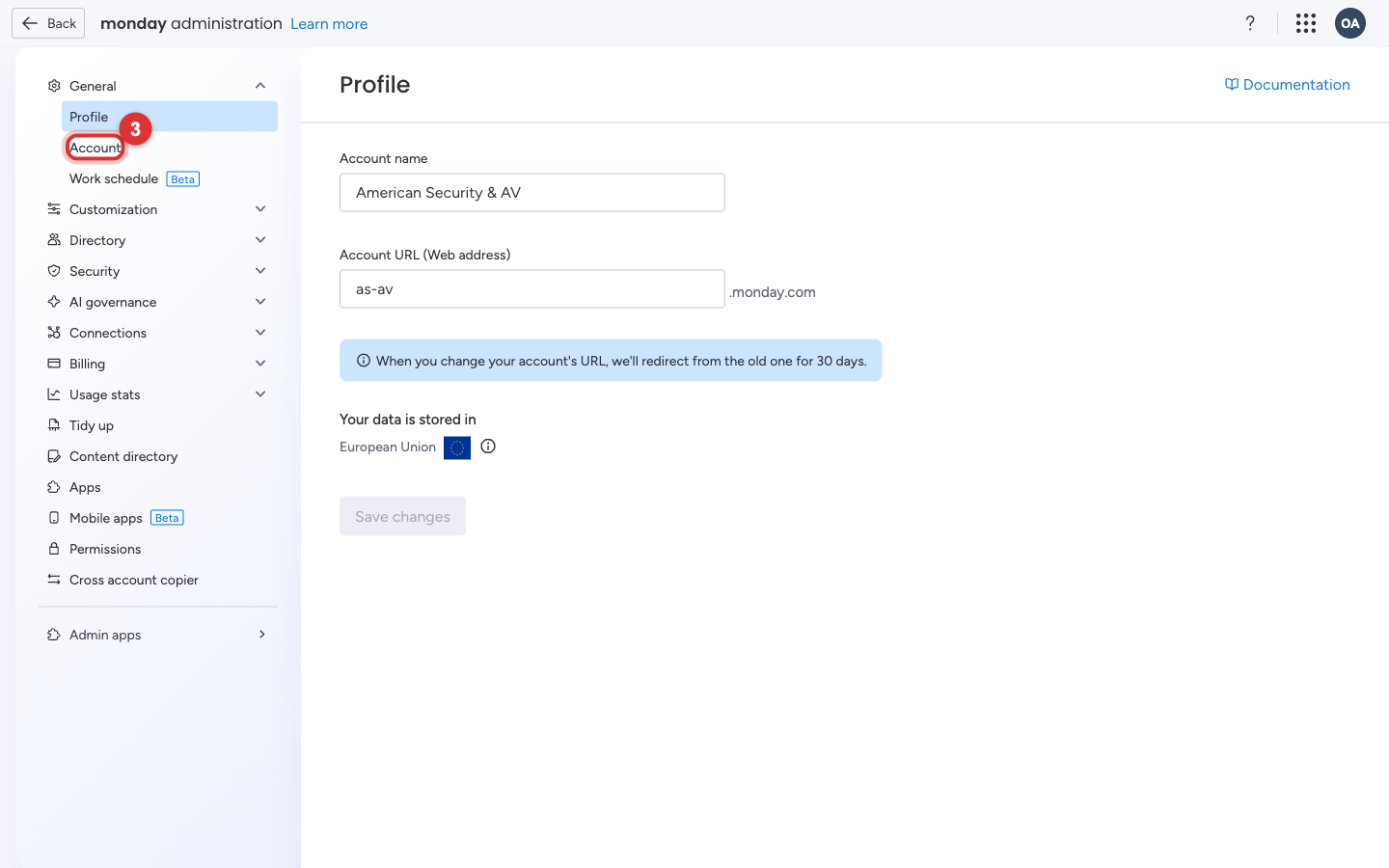
Open Account

3
Under General, click Account.
Open Account
1 Menu2 Enquiries3 Customers4 Sales board5 Service6 Boards7 Email8 Mailchimp9 Monday10 Every day
Step 11 of 62
81
Part 9 · B · Everything, with prints (admin)
American Security & AV logo
×
Native Builders

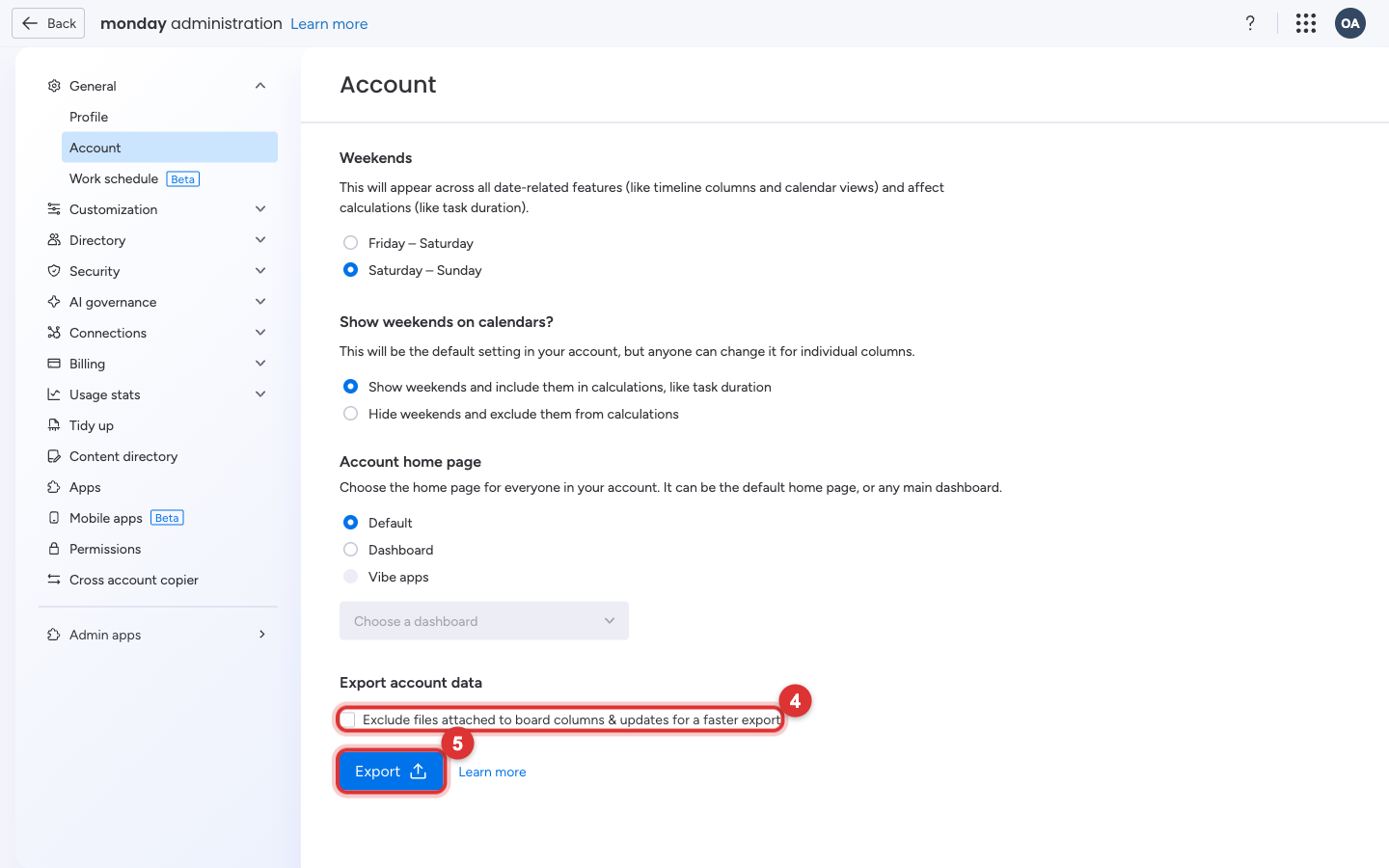
Export everything

Scroll to the bottom, to Export account data.
4
Leave this box empty. Ticking it would leave out the drawings.
5
Click Export.
Careful
Monday allows this once a day. Every Monday admin gets a note that an export was made.
Export everything
1 Menu2 Enquiries3 Customers4 Sales board5 Service6 Boards7 Email8 Mailchimp9 Monday10 Every day
Step 12 of 62
82
Part 9 · B · Everything, with prints (admin)
American Security & AV logo
×
Native Builders

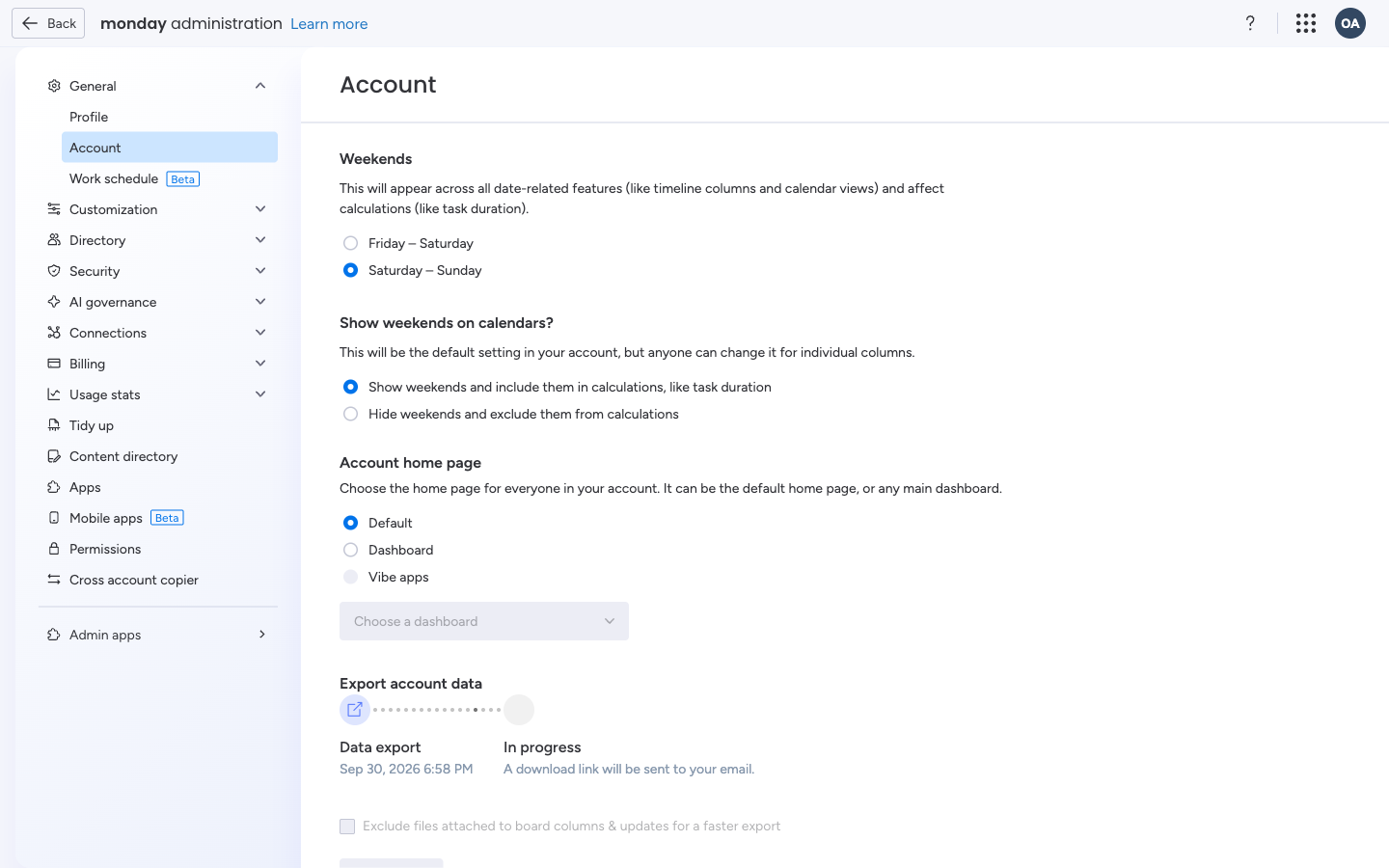
Now wait for the email

Monday shows In progress.
You can close Monday and carry on with your day.
Good to know
It can take up to 24 hours. Usually it is much quicker.
Now wait for the email
1 Menu2 Enquiries3 Customers4 Sales board5 Service6 Boards7 Email8 Mailchimp9 Monday10 Every day
Step 13 of 62
83
Part 9 · B · Everything, with prints (admin)
American Security & AV logo
×
Native Builders

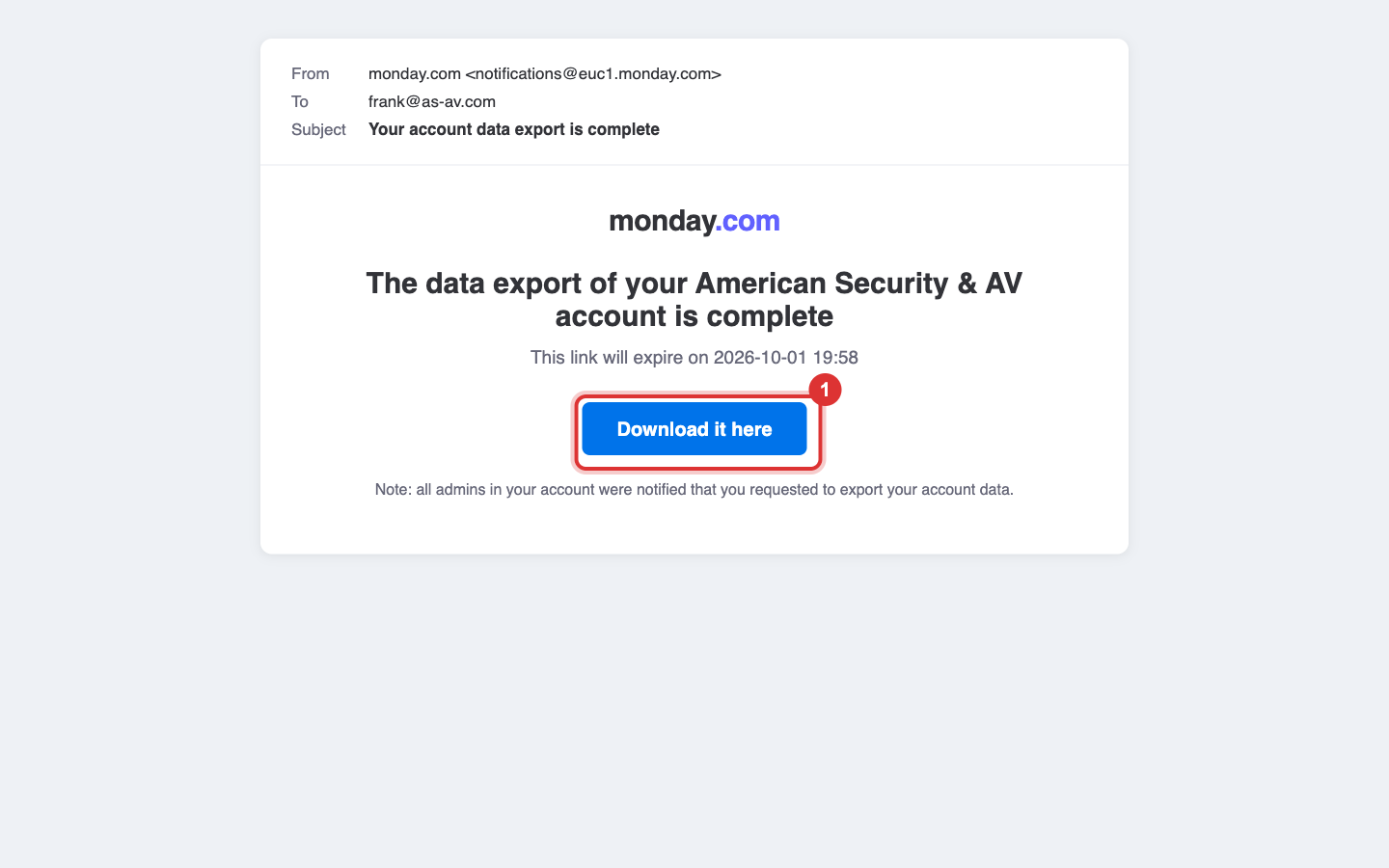
Download it from the email

Look for an email from monday.com: Your account data export is complete.
1
Click Download it here. A .zip file lands in your Downloads.
Careful
The link works for one day only. If it has expired, run the export again.
Download it from the email
1 Menu2 Enquiries3 Customers4 Sales board5 Service6 Boards7 Email8 Mailchimp9 Monday10 Every day
Step 14 of 62
84
Part 9 · C · Prints for one job
American Security & AV logo
×
Native Builders

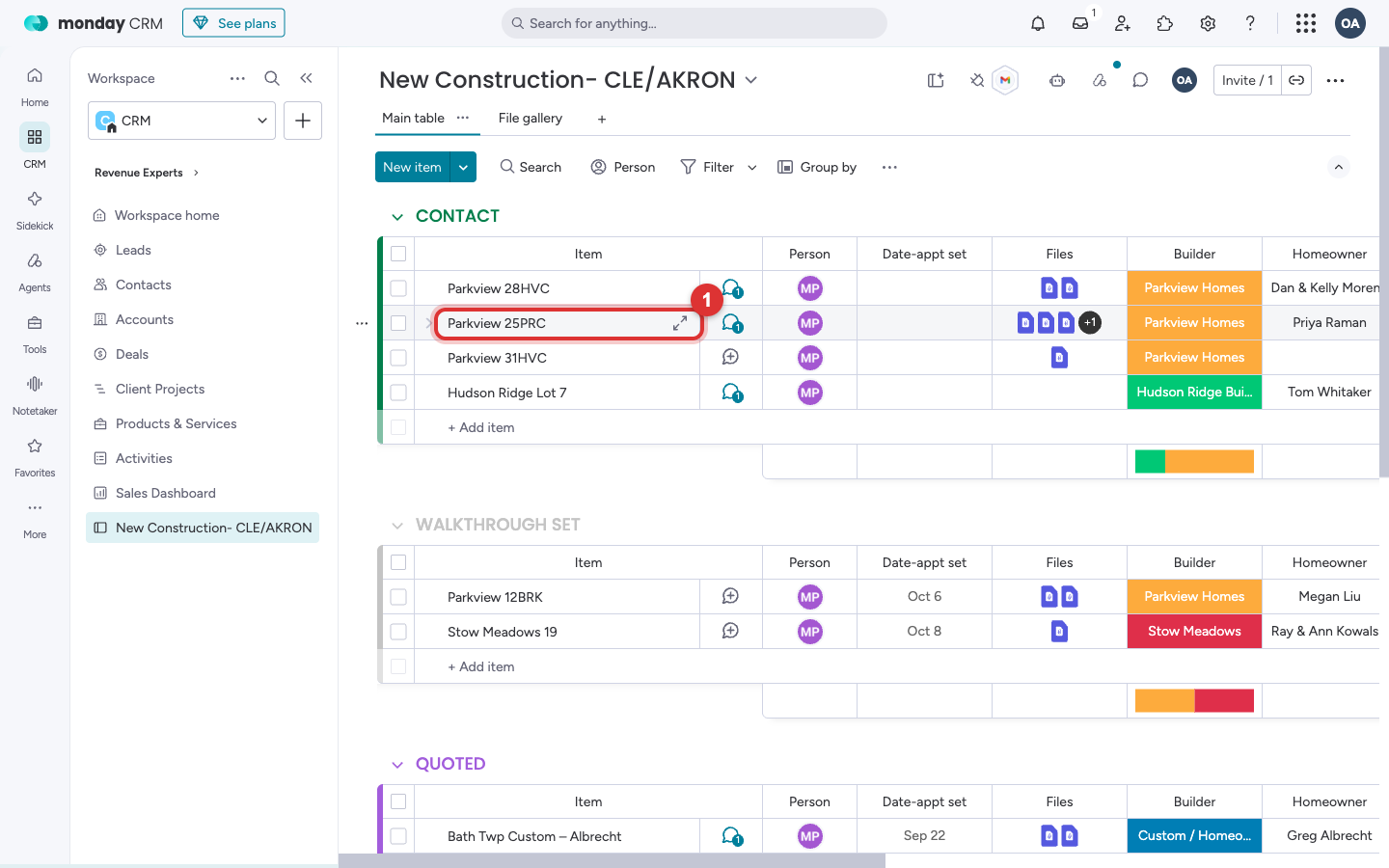
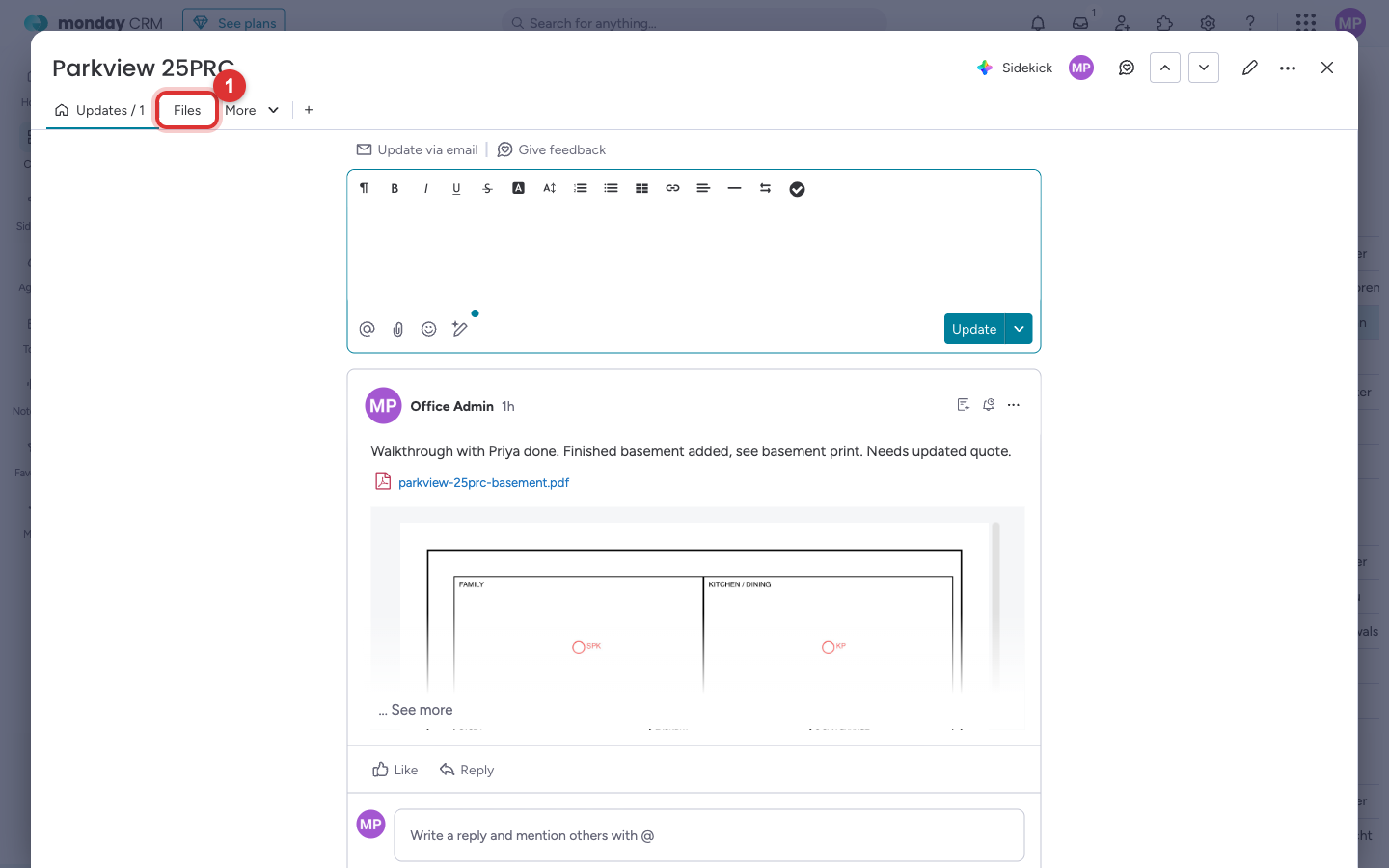
Open the job in Monday

1
Click the job’s name (for example Parkview 25PRC).
Open the job in Monday
1 Menu2 Enquiries3 Customers4 Sales board5 Service6 Boards7 Email8 Mailchimp9 Monday10 Every day
Step 15 of 62
85
Part 9 · C · Prints for one job
American Security & AV logo
×
Native Builders

Open its Files

1
Click Files at the top of the job.
Good to know
Click the word Files itself, not the three dots next to it.
Open its Files
1 Menu2 Enquiries3 Customers4 Sales board5 Service6 Boards7 Email8 Mailchimp9 Monday10 Every day
Step 16 of 62
86
Part 9 · C · Prints for one job
American Security & AV logo
×
Native Builders

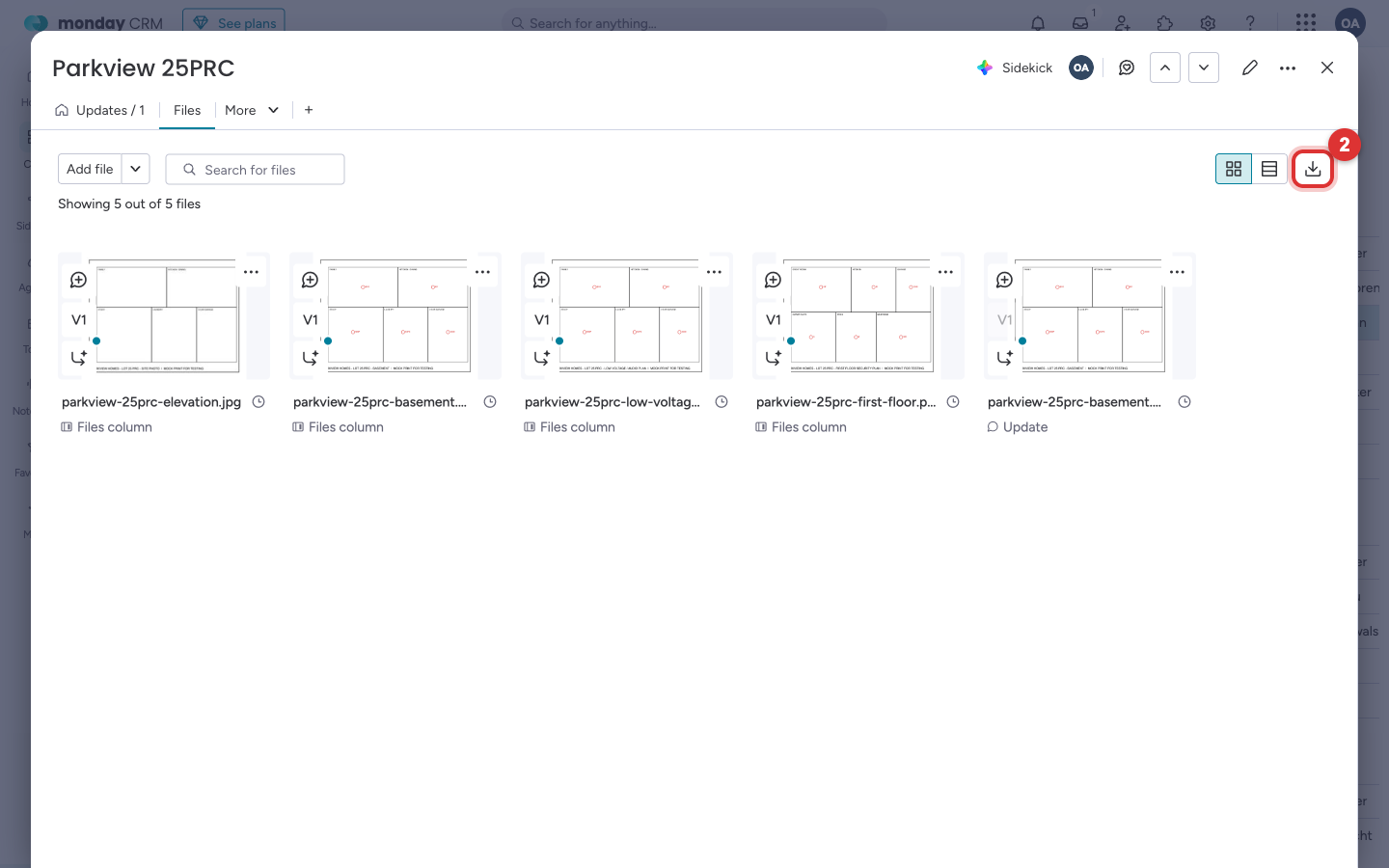
Download all its drawings

You see every drawing for this job, including ones attached to notes.
2
Click the download arrow. All of them arrive in one .zip file.
Good to know
Open the .zip file (double-click it) to get a folder with the drawings inside.
Download all its drawings
1 Menu2 Enquiries3 Customers4 Sales board5 Service6 Boards7 Email8 Mailchimp9 Monday10 Every day
Step 17 of 62
87
Part 9 · Set up the CRM (once)
American Security & AV logo
×
Native Builders

Set up the CRM first

The Prints field
A place on every job for its drawings. Make it once; every board gets it, now and later.
The board
A CRM board whose columns have exactly the names of your Monday groups. See Part 6 · Create a new board.
Other Monday columns
Want a Monday column like Builder kept? Make a field for it the same way as Prints, but choose Single line instead of File upload.
Who can do this
Frank and Mike.
1 Menu2 Enquiries3 Customers4 Sales board5 Service6 Boards7 Email8 Mailchimp9 Monday10 Every day
Step 18 of 62
88
Part 9 · Set up the CRM (once)
American Security & AV logo
×
Native Builders

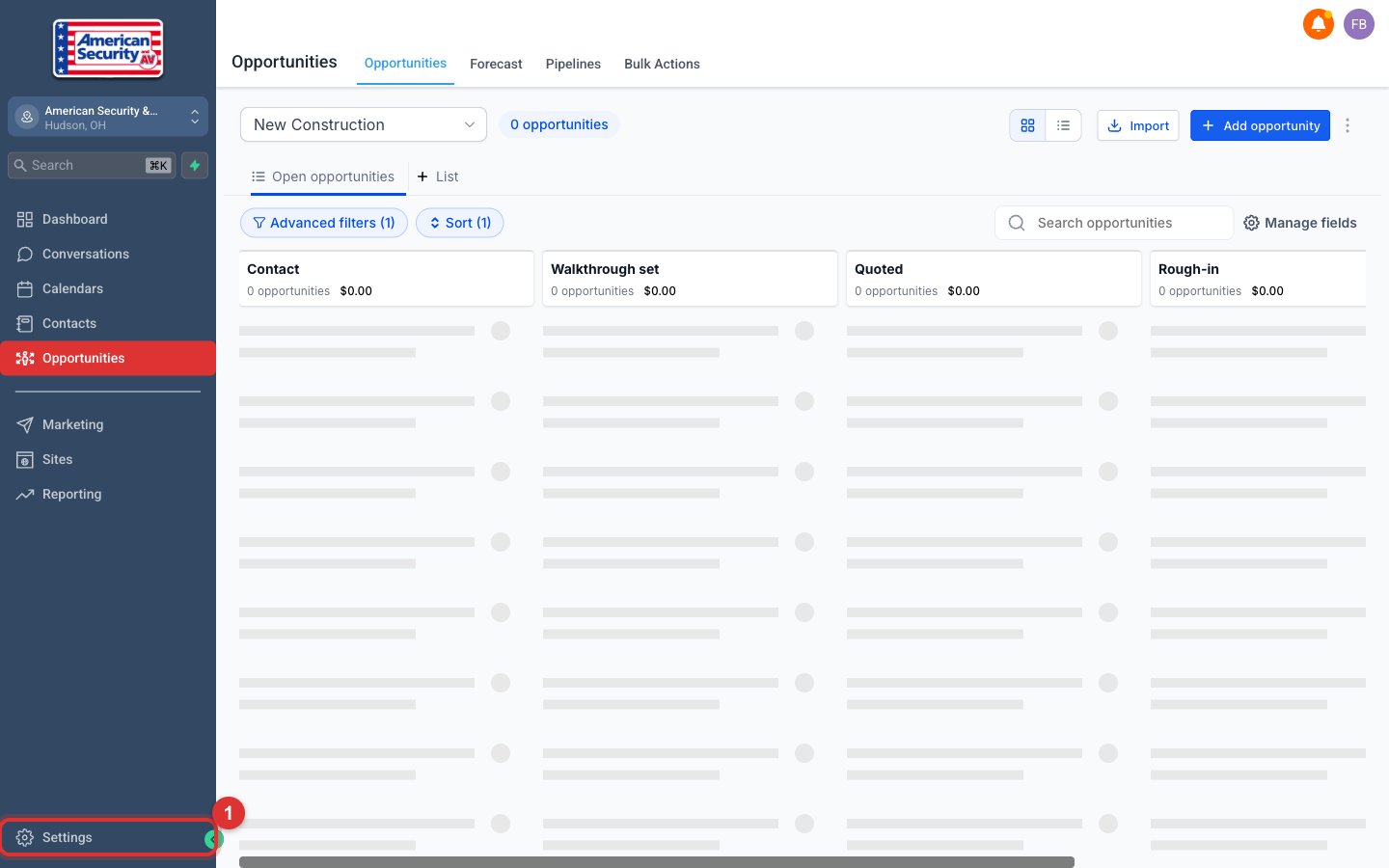
Open Settings

1
Click Settings at the bottom of the menu.
Open Settings
1 Menu2 Enquiries3 Customers4 Sales board5 Service6 Boards7 Email8 Mailchimp9 Monday10 Every day
Step 19 of 62
89
Part 9 · Set up the CRM (once)
American Security & AV logo
×
Native Builders

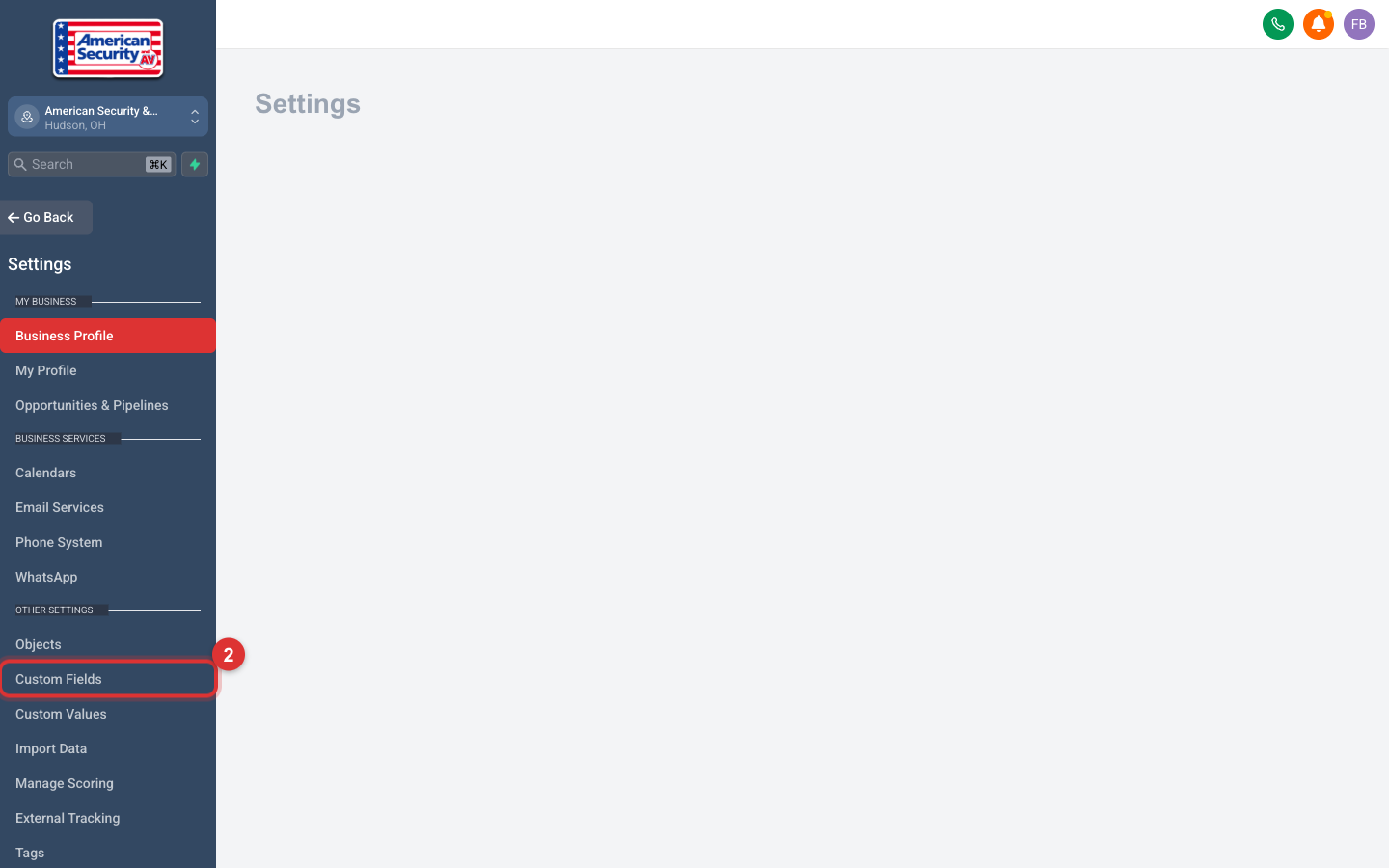
Custom Fields

2
Click Custom Fields.
Custom Fields
1 Menu2 Enquiries3 Customers4 Sales board5 Service6 Boards7 Email8 Mailchimp9 Monday10 Every day
Step 20 of 62
90
Part 9 · Set up the CRM (once)
American Security & AV logo
×
Native Builders

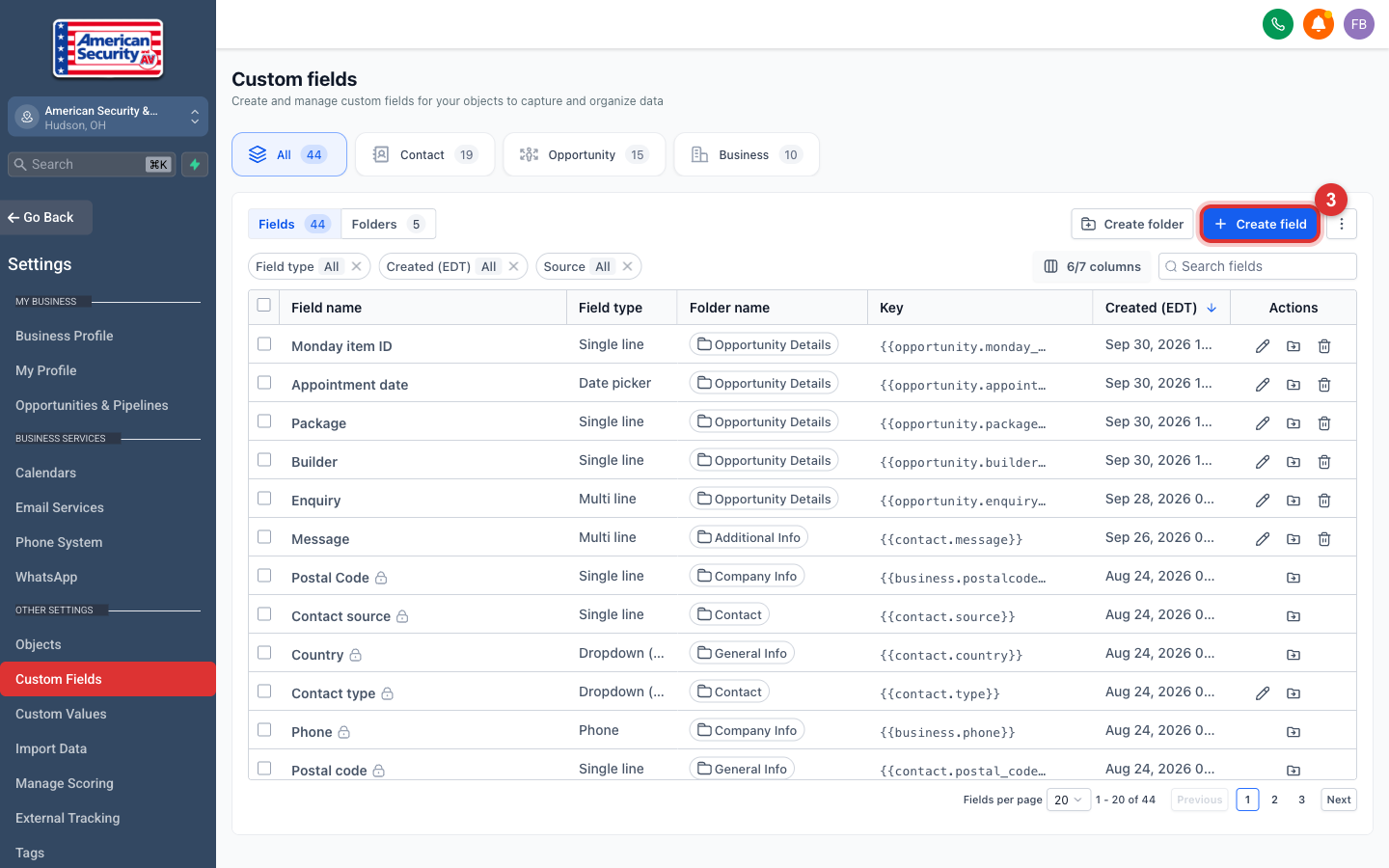
Create a field

3
Click Create field.
Create a field
1 Menu2 Enquiries3 Customers4 Sales board5 Service6 Boards7 Email8 Mailchimp9 Monday10 Every day
Step 21 of 62
91
Part 9 · Set up the CRM (once)
American Security & AV logo
×
Native Builders

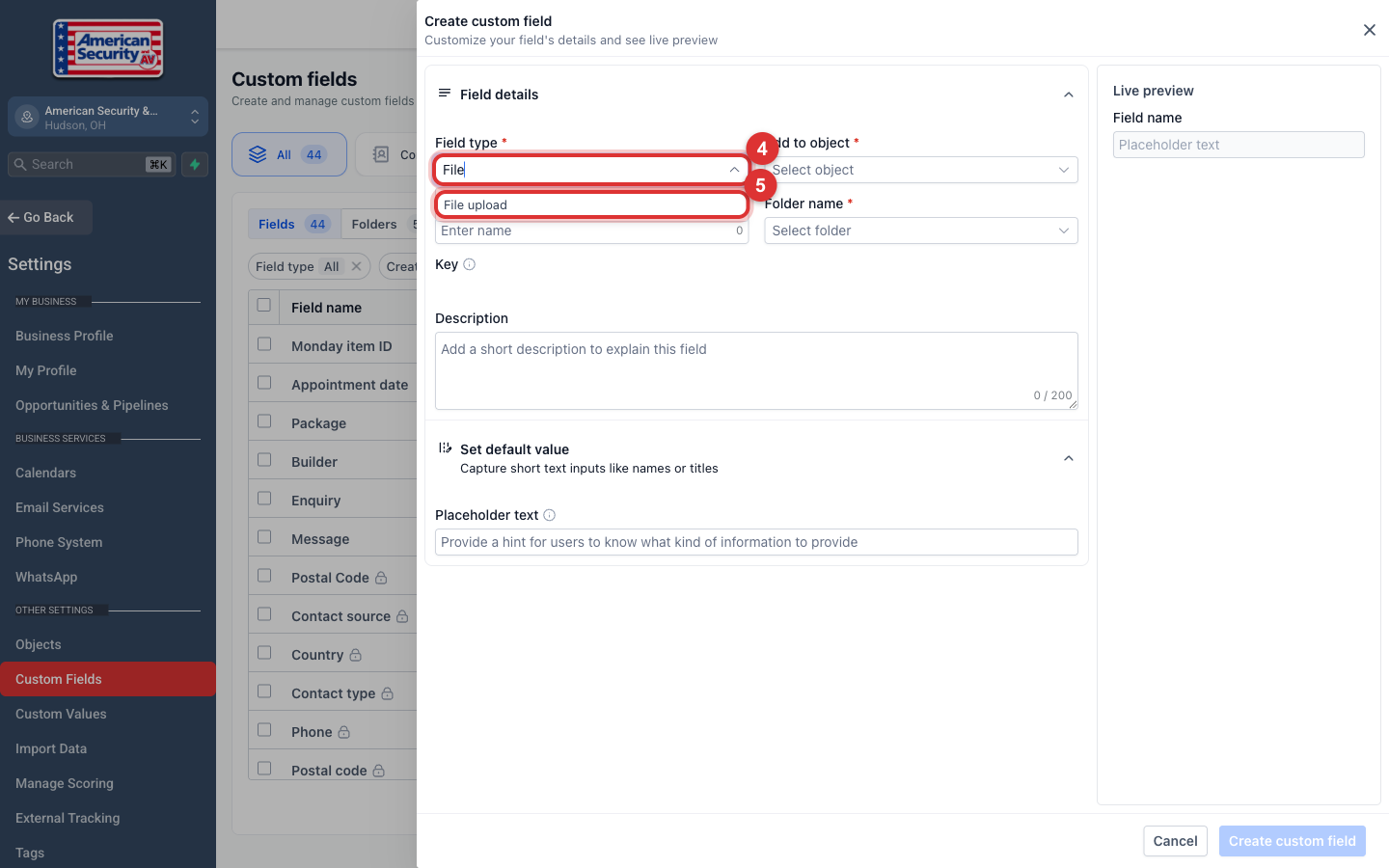
Choose File upload

4
Click Field type and type File.
5
Click File upload.
Choose File upload
1 Menu2 Enquiries3 Customers4 Sales board5 Service6 Boards7 Email8 Mailchimp9 Monday10 Every day
Step 22 of 62
92
Part 9 · Set up the CRM (once)
American Security & AV logo
×
Native Builders

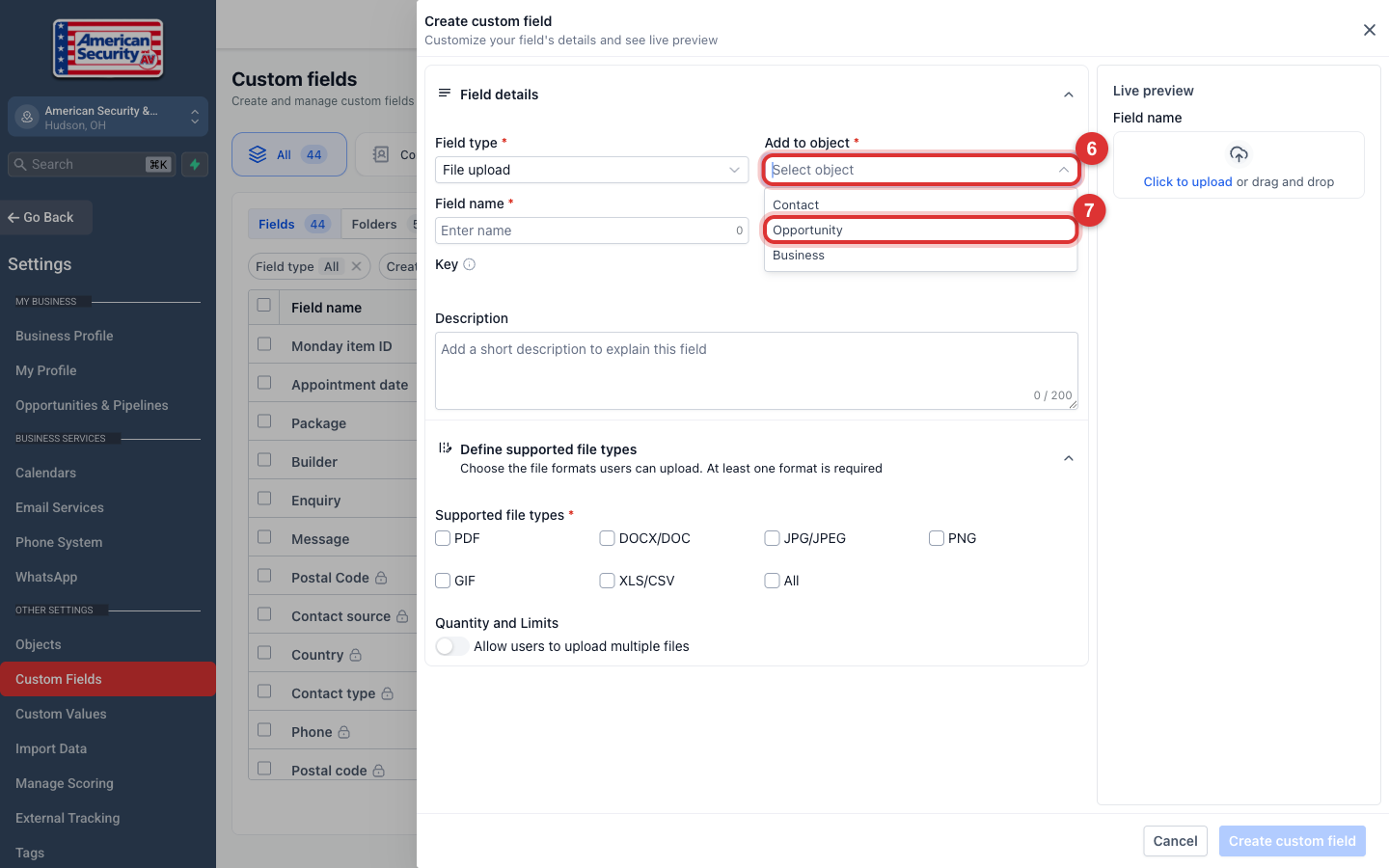
Put it on jobs

6
Click Add to object.
7
Click Opportunity. (Opportunity means a job.)
Put it on jobs
1 Menu2 Enquiries3 Customers4 Sales board5 Service6 Boards7 Email8 Mailchimp9 Monday10 Every day
Step 23 of 62
93
Part 9 · Set up the CRM (once)
American Security & AV logo
×
Native Builders

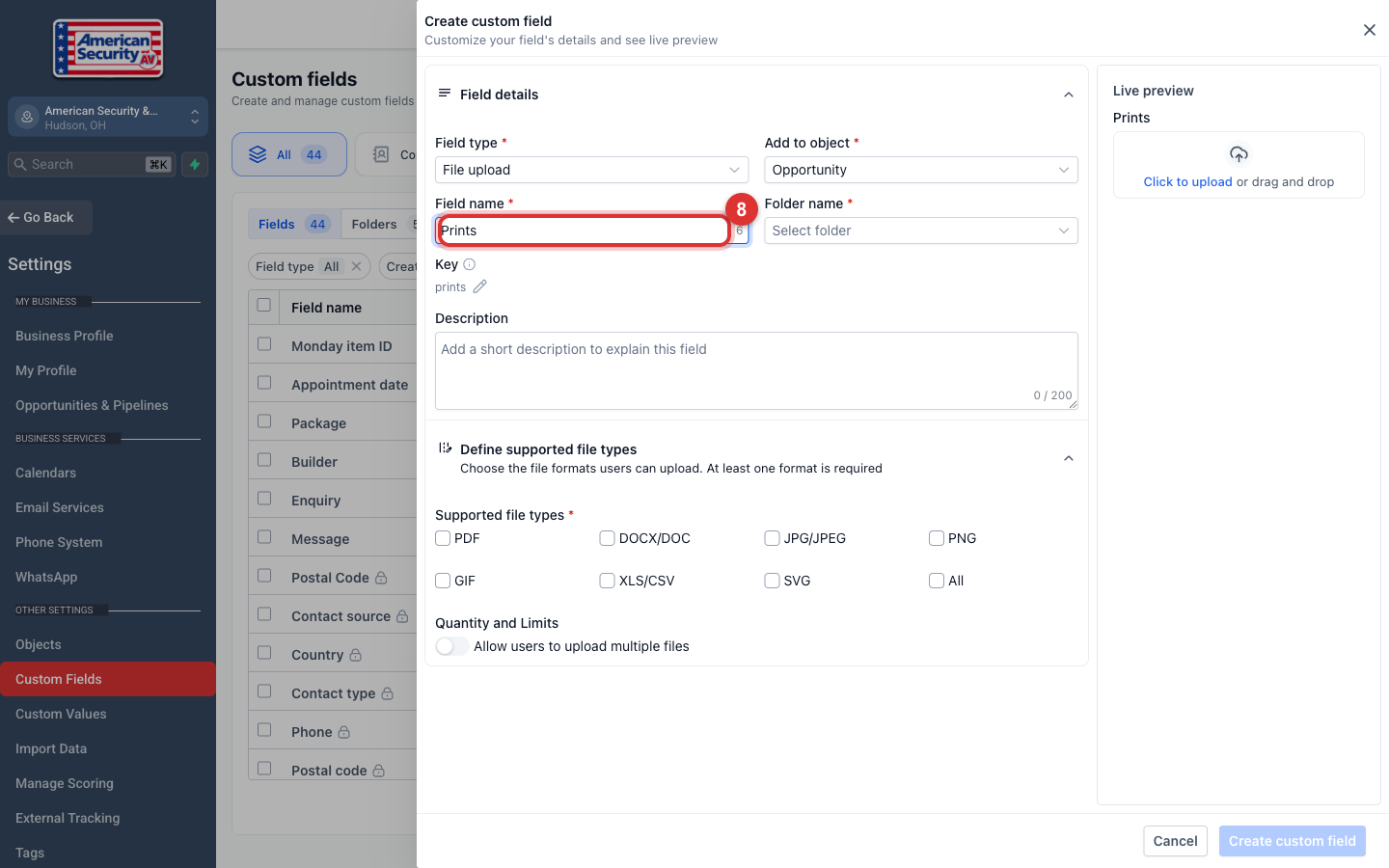
Name it Prints

8
Type Prints as the Field name.
Name it Prints
1 Menu2 Enquiries3 Customers4 Sales board5 Service6 Boards7 Email8 Mailchimp9 Monday10 Every day
Step 24 of 62
94
Part 9 · Set up the CRM (once)
American Security & AV logo
×
Native Builders

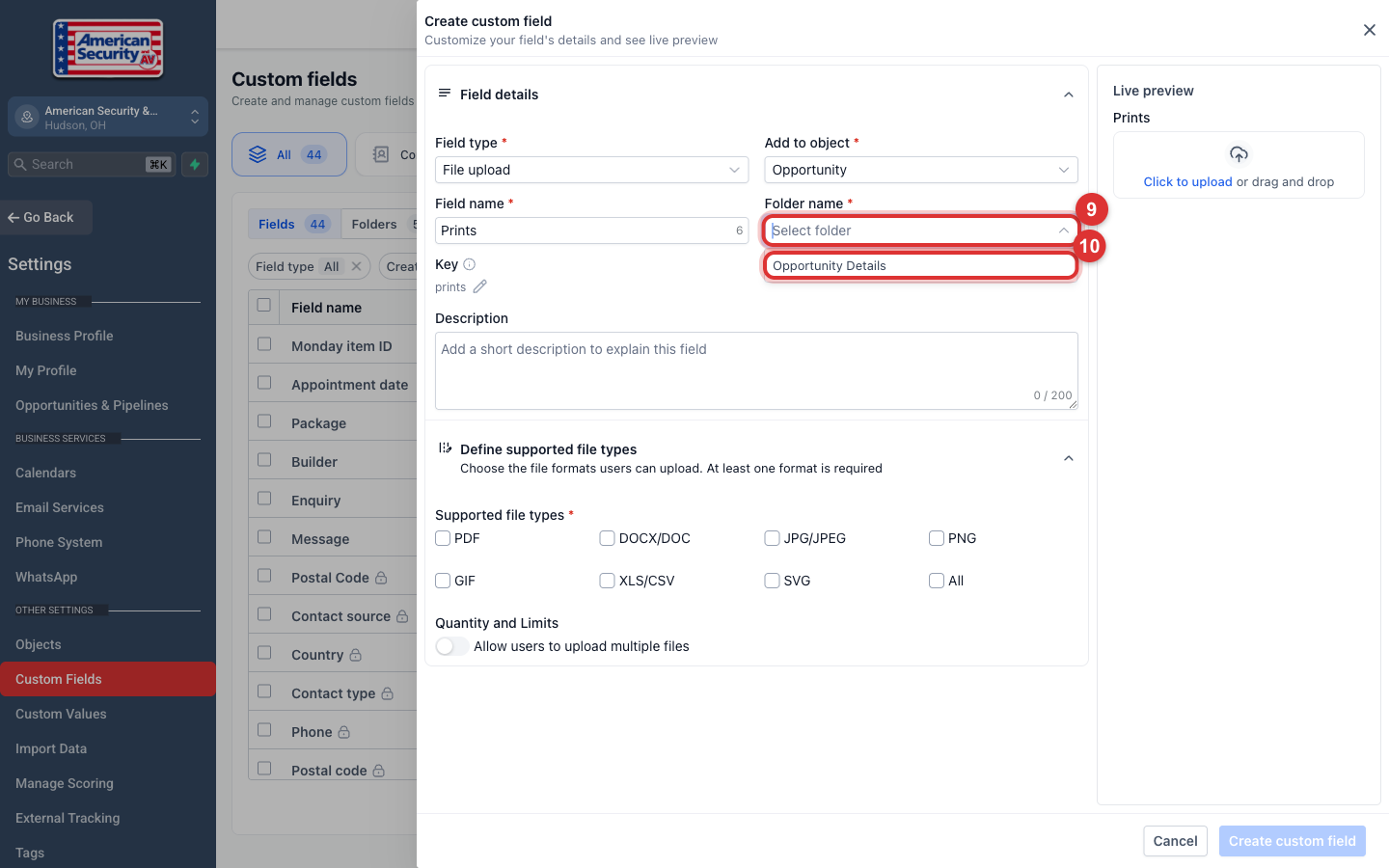
Choose the folder

9
Click Folder name.
10
Click Opportunity Details.
Choose the folder
1 Menu2 Enquiries3 Customers4 Sales board5 Service6 Boards7 Email8 Mailchimp9 Monday10 Every day
Step 25 of 62
95
Part 9 · Set up the CRM (once)
American Security & AV logo
×
Native Builders

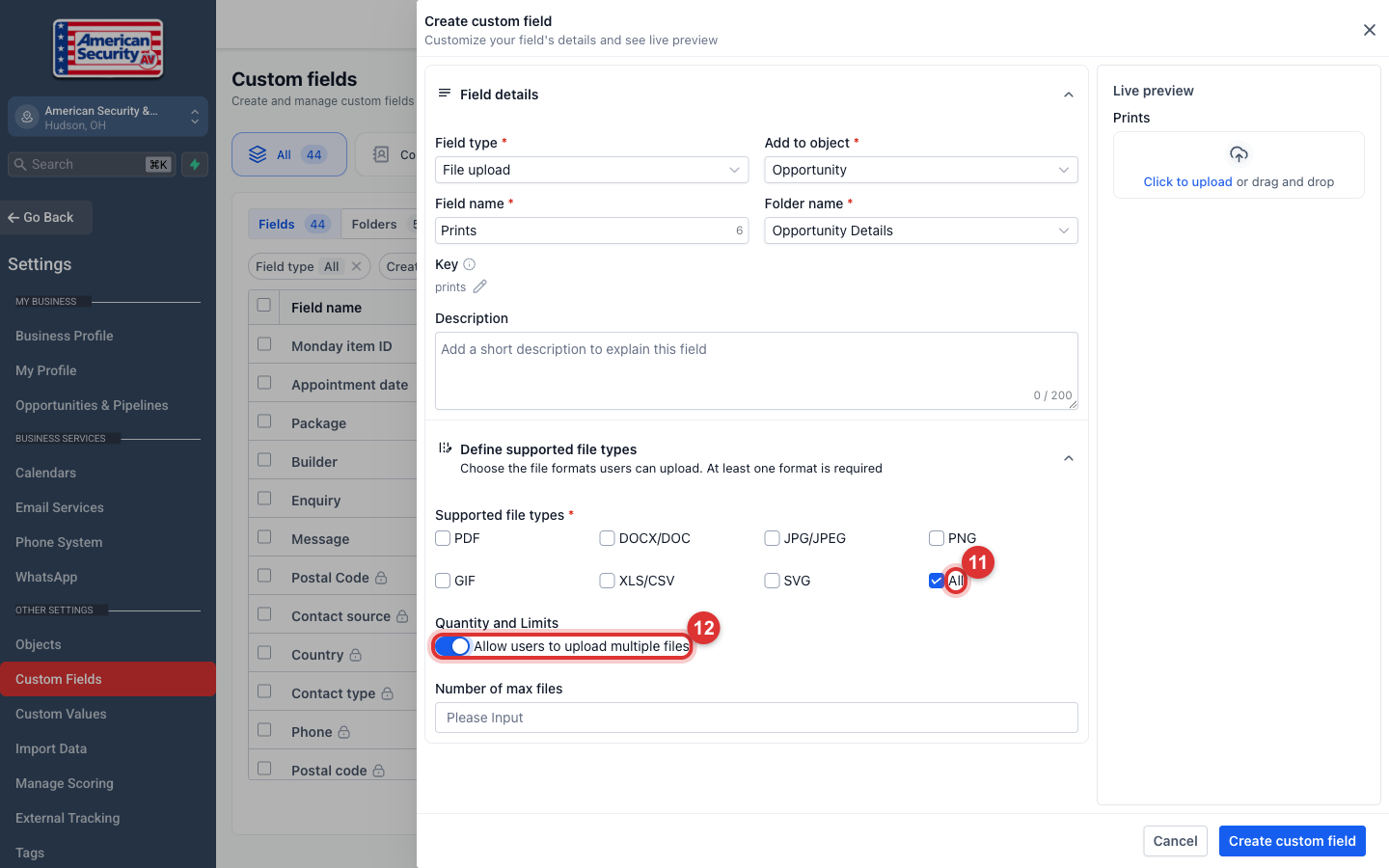
Allow all files, and many of them

11
Tick All (PDF drawings, photos, everything).
12
Switch on Allow users to upload multiple files.
Allow all files, and many of them
1 Menu2 Enquiries3 Customers4 Sales board5 Service6 Boards7 Email8 Mailchimp9 Monday10 Every day
Step 26 of 62
96
Part 9 · Set up the CRM (once)
American Security & AV logo
×
Native Builders

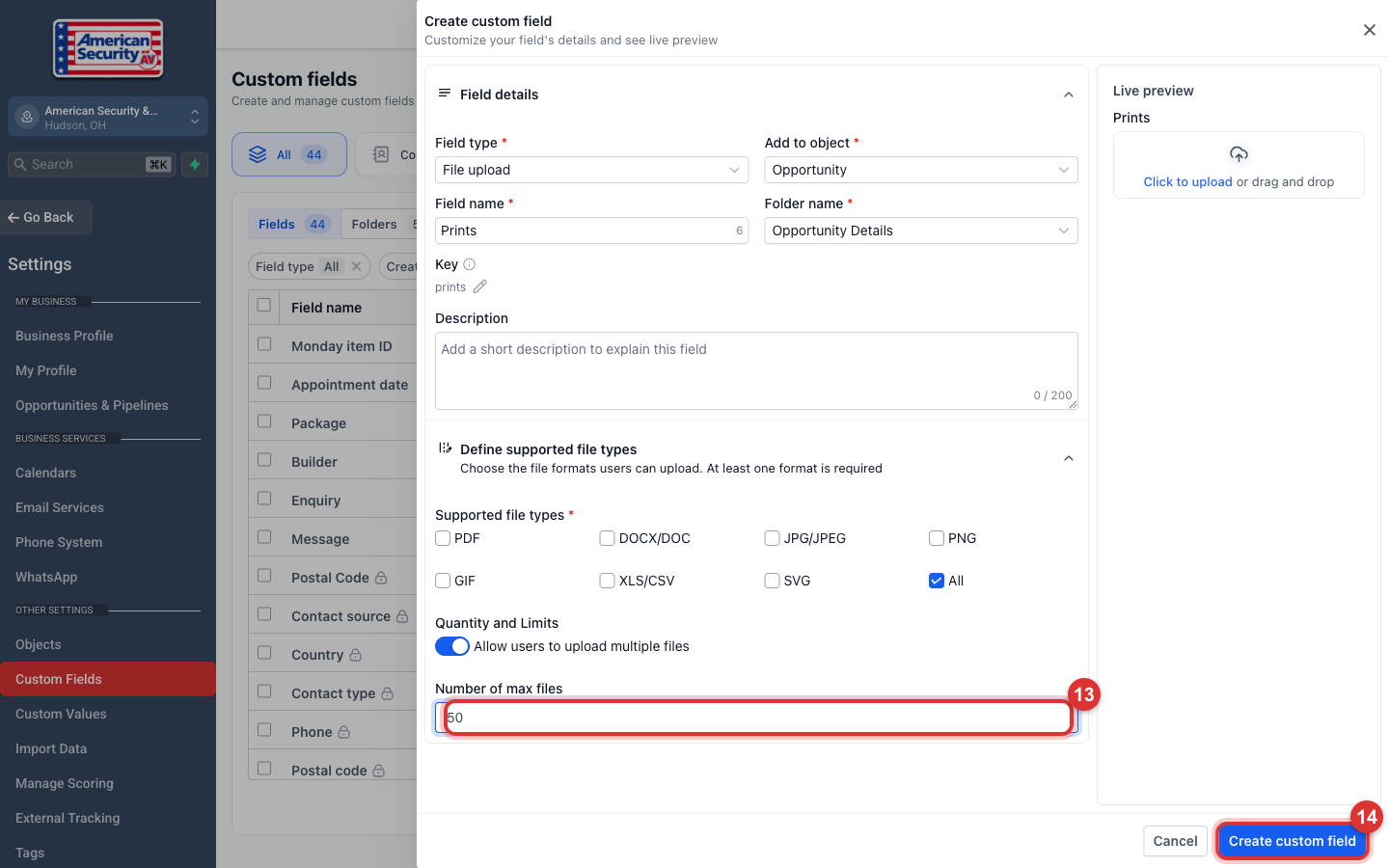
Set the limit and create it

13
Type 50 as the most files per job.
14
Click Create custom field.
Set the limit and create it
1 Menu2 Enquiries3 Customers4 Sales board5 Service6 Boards7 Email8 Mailchimp9 Monday10 Every day
Step 27 of 62
97
Part 9 · Set up the CRM (once)
American Security & AV logo
×
Native Builders

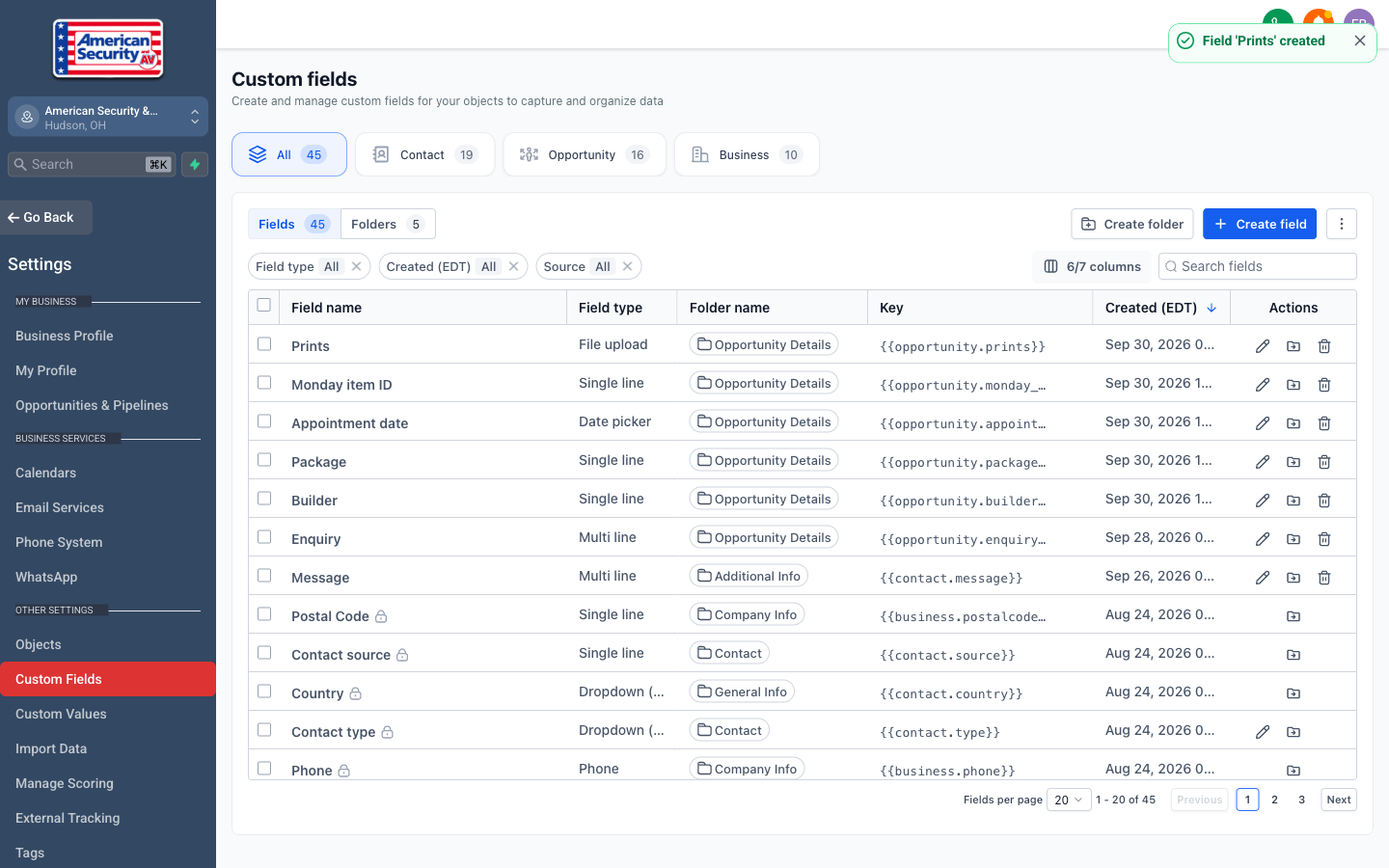
Done: Prints is ready

A green message says Field ‘Prints’ created.
Prints is now at the top of the list.
Good to know
You only ever do this once. New boards get the Prints field automatically.
Done: Prints is ready
1 Menu2 Enquiries3 Customers4 Sales board5 Service6 Boards7 Email8 Mailchimp9 Monday10 Every day
Step 28 of 62
98
Part 9 · Convert the Monday file
American Security & AV logo
×
Native Builders

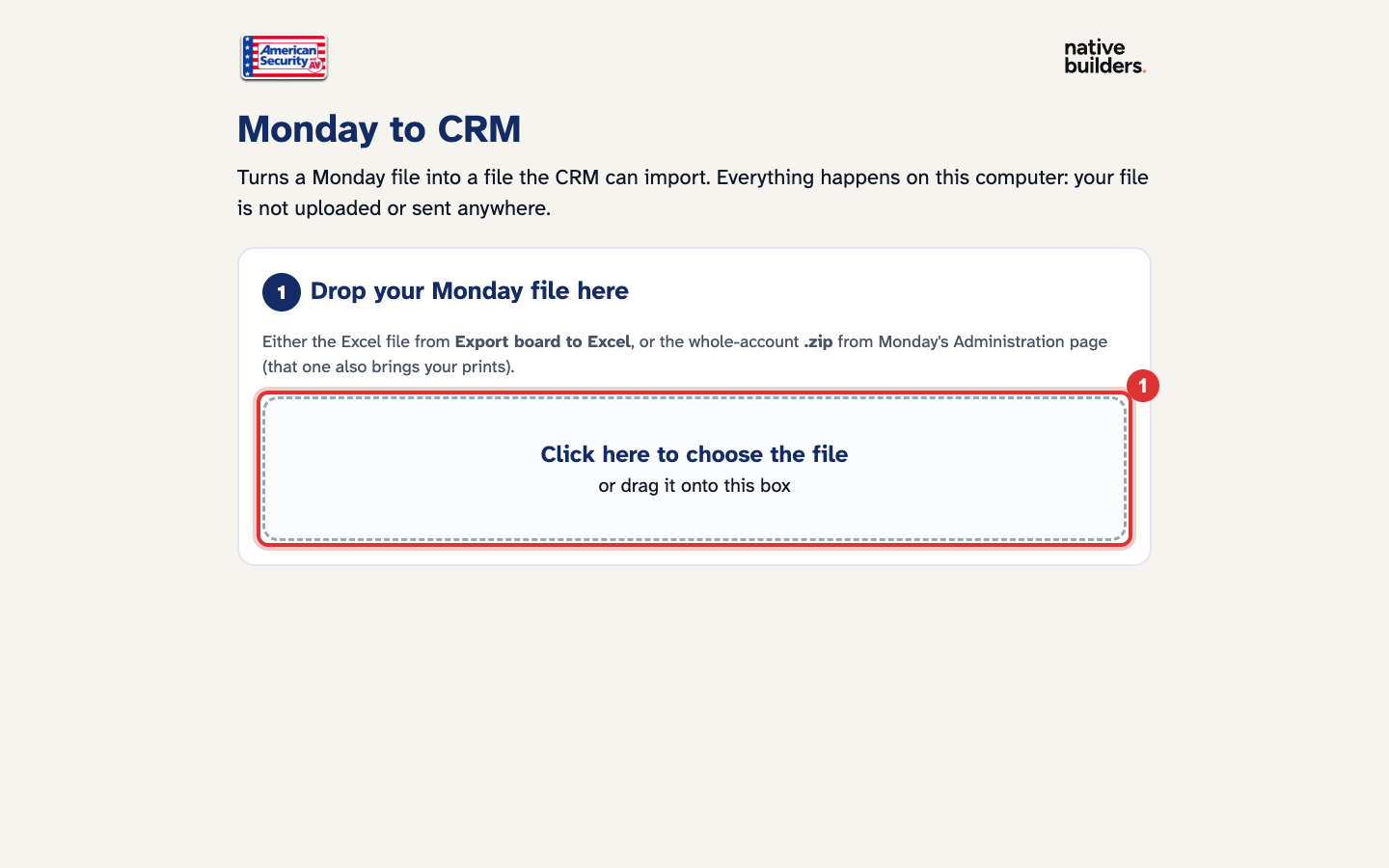
Open the converter and add the file

Go to guide.as-av.nativebuilders.ai/converter.html.
1
Click the box and choose your Monday file: the Excel file (A) or the .zip file (B).
Good to know
Your file stays on your computer. Nothing is uploaded or sent to anyone.
Open the converter and add the file
1 Menu2 Enquiries3 Customers4 Sales board5 Service6 Boards7 Email8 Mailchimp9 Monday10 Every day
Step 29 of 62
99
Part 9 · Convert the Monday file
American Security & AV logo
×
Native Builders

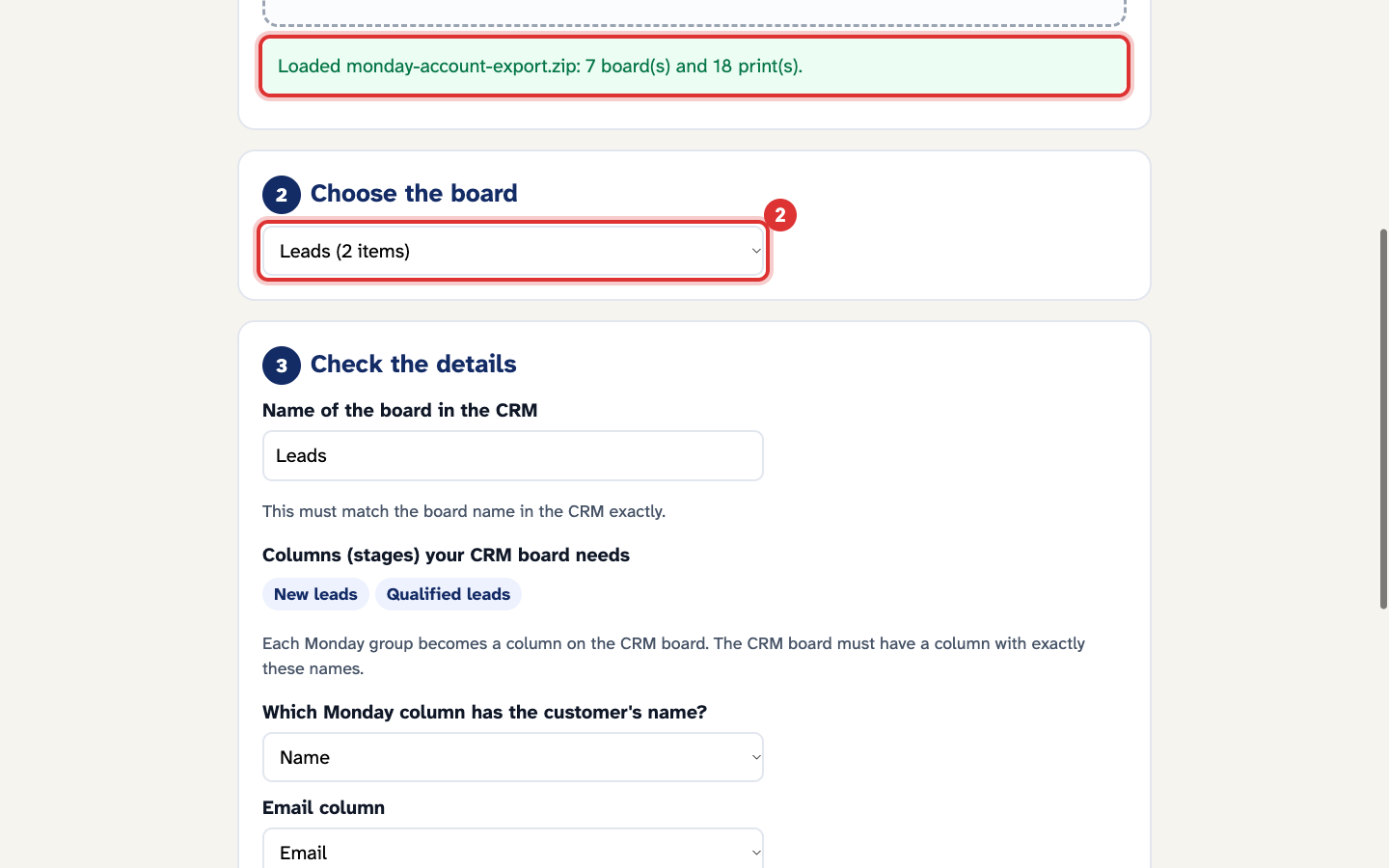
Choose the board

A green line says the file was read.
2
Only for the .zip file: pick the board you want to move from the list.
Choose the board
1 Menu2 Enquiries3 Customers4 Sales board5 Service6 Boards7 Email8 Mailchimp9 Monday10 Every day
Step 30 of 62
100
Part 9 · Convert the Monday file
American Security & AV logo
×
Native Builders

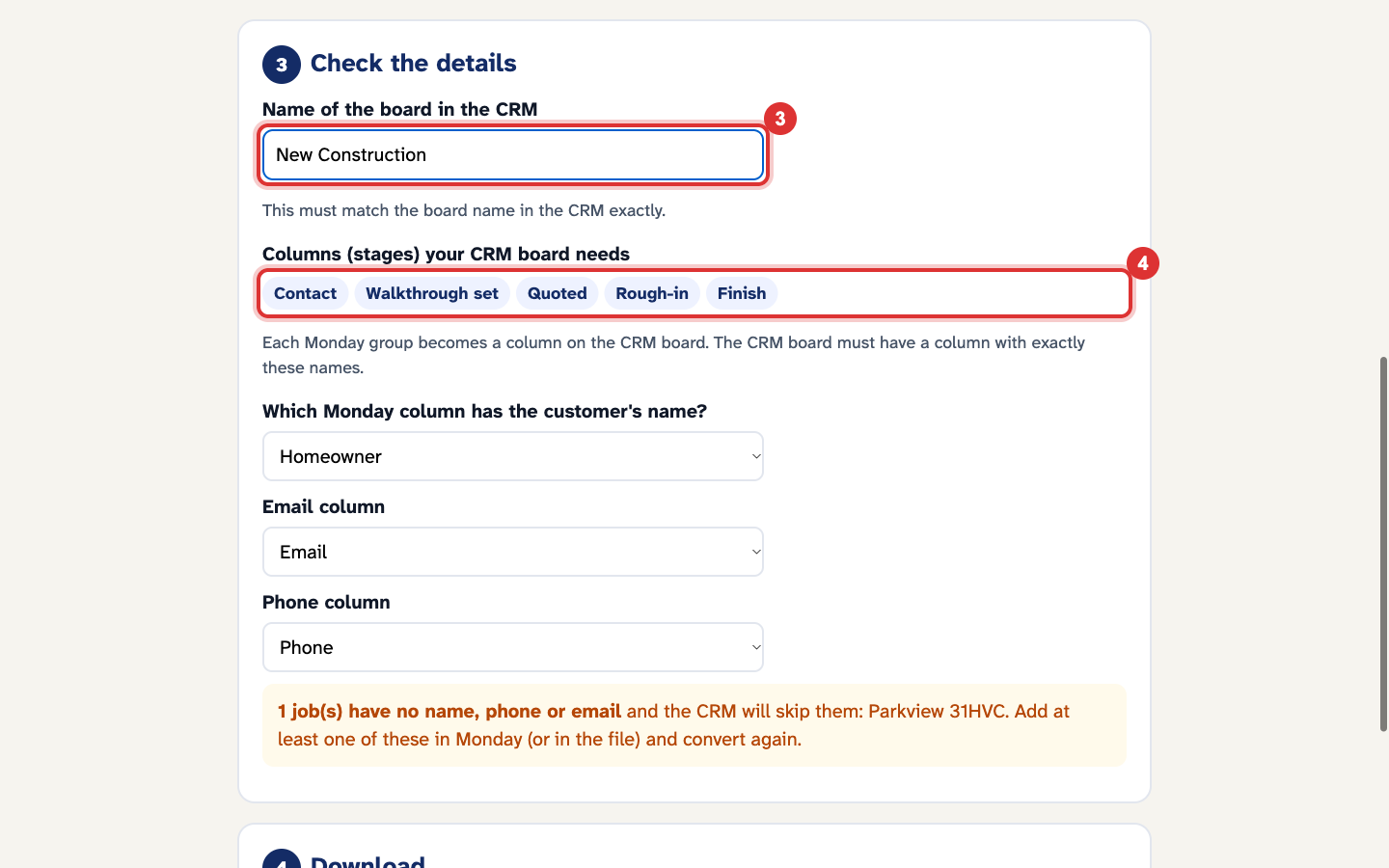
Check the board name and columns

3
Type the name of your board as it is in the CRM, for example New Construction.
4
These are the columns your CRM board needs, with exactly these names.
Careful
If a column is missing or spelled differently on the CRM board, those jobs will not import.
Check the board name and columns
1 Menu2 Enquiries3 Customers4 Sales board5 Service6 Boards7 Email8 Mailchimp9 Monday10 Every day
Step 31 of 62
101
Part 9 · Convert the Monday file
American Security & AV logo
×
Native Builders

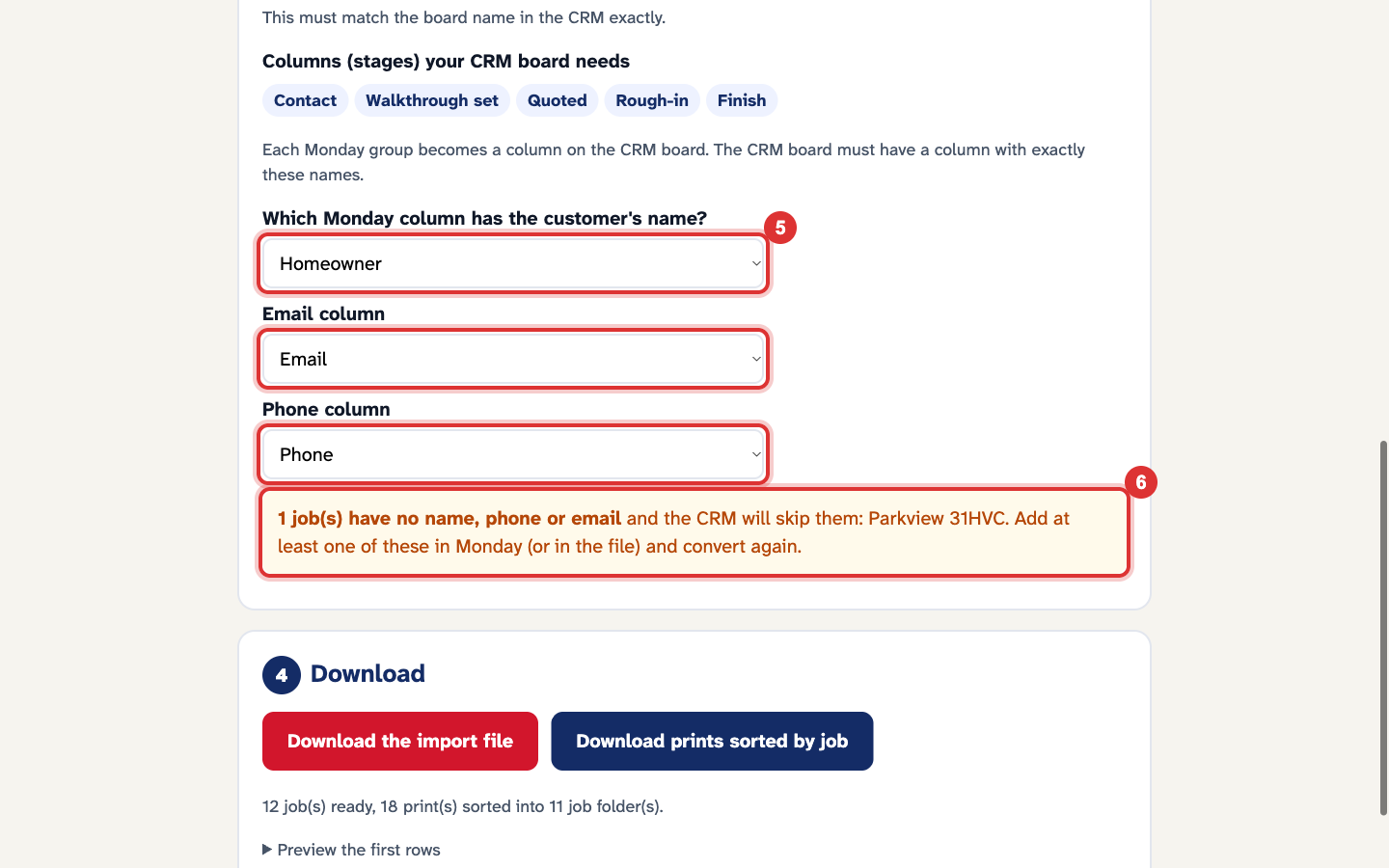
Check who the customer is

5
These are filled in for you. Change them only if they point at the wrong Monday column.
6
Read any warning. A job with no name, phone or email is skipped by the CRM.
Check who the customer is
1 Menu2 Enquiries3 Customers4 Sales board5 Service6 Boards7 Email8 Mailchimp9 Monday10 Every day
Step 32 of 62
102
Part 9 · Convert the Monday file
American Security & AV logo
×
Native Builders

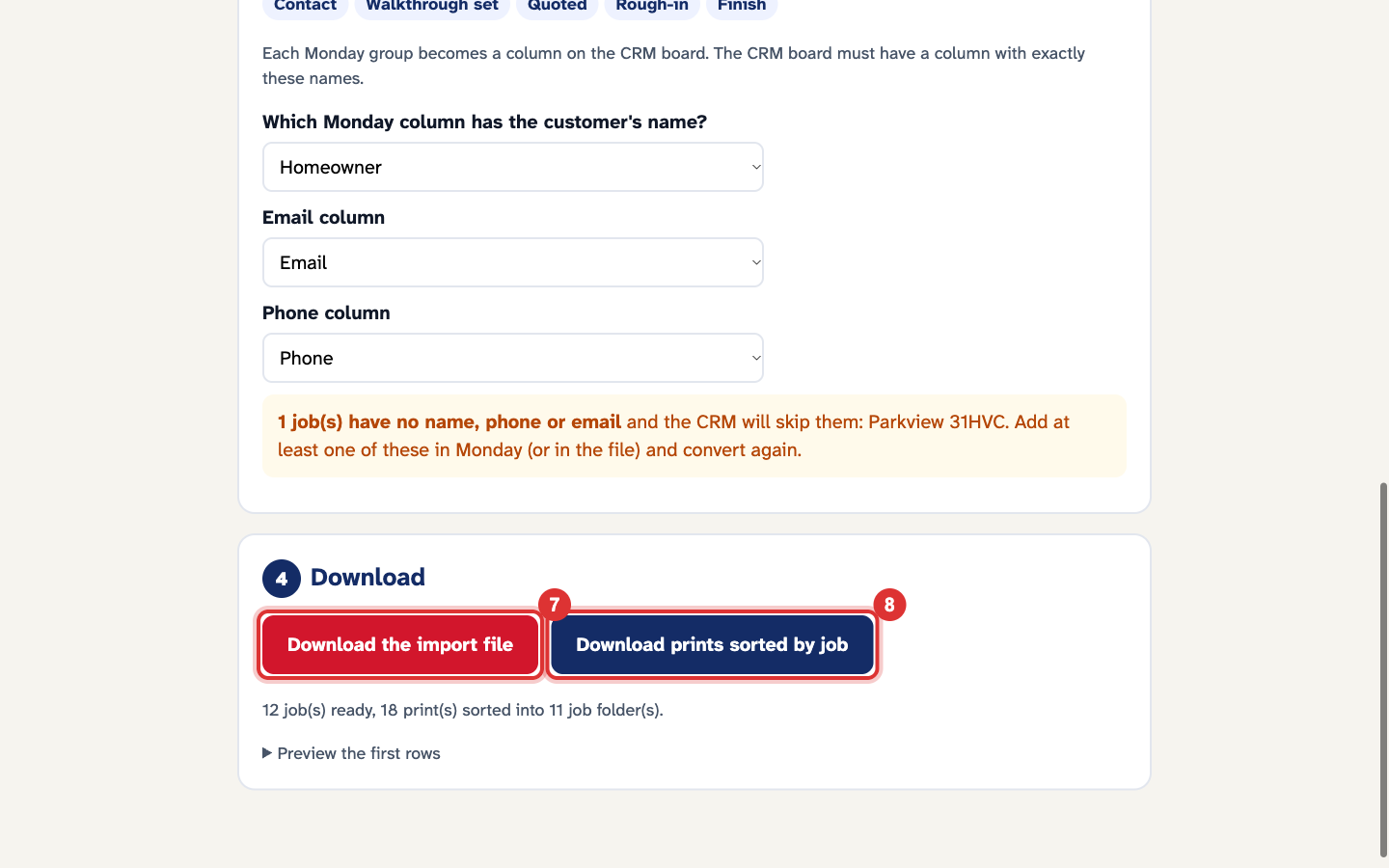
Download the results

7
Download the import file. You need this for the import.
8
Only for the .zip: Download prints sorted by job. A folder for every job, with its drawings inside.
Good to know
Open the prints .zip (double-click). Keep that folder open for step 5.
Download the results
1 Menu2 Enquiries3 Customers4 Sales board5 Service6 Boards7 Email8 Mailchimp9 Monday10 Every day
Step 33 of 62
103
Part 9 · Import the jobs
American Security & AV logo
×
Native Builders

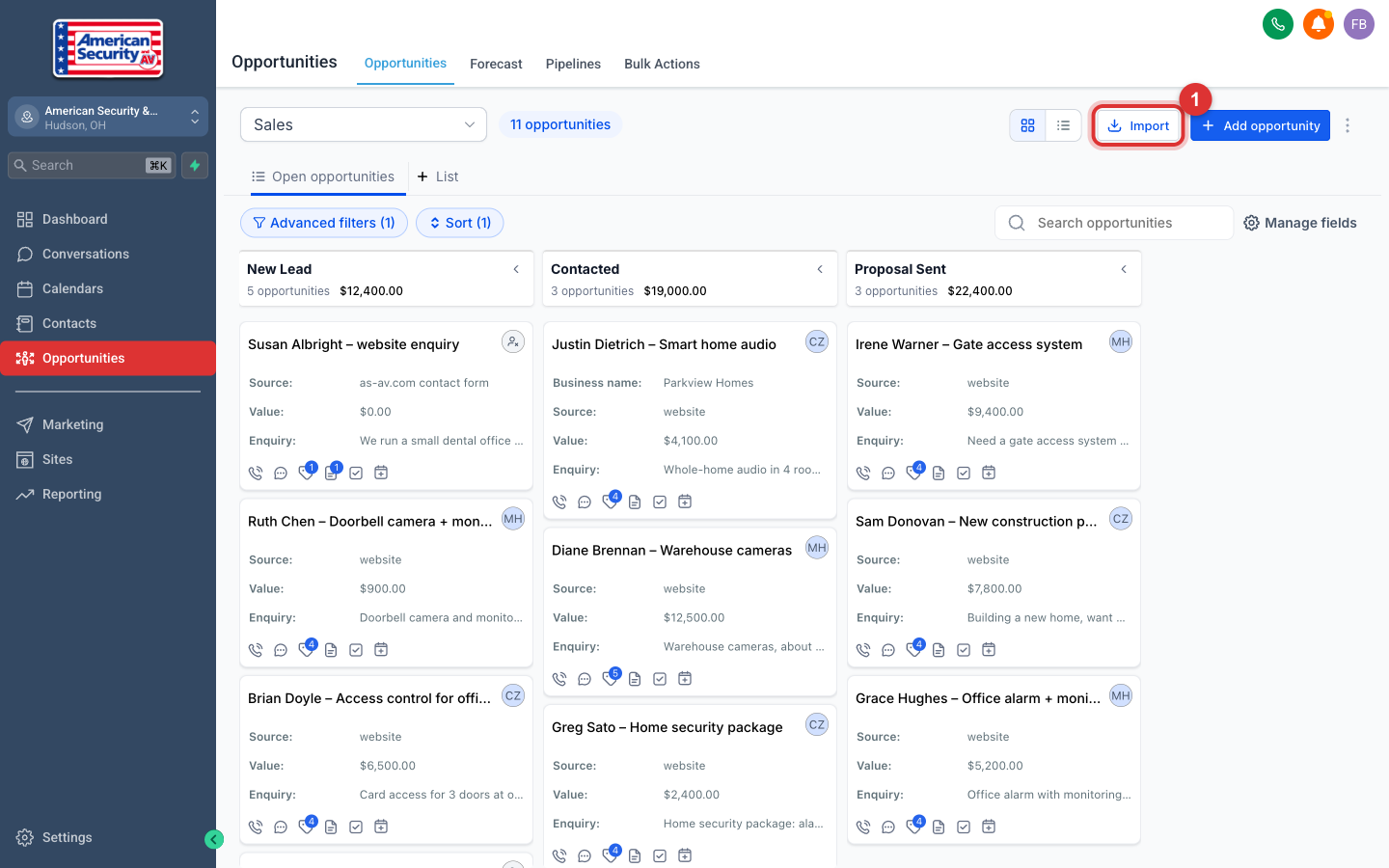
Open the import

Click Opportunities in the menu.
1
Click Import at the top right.
Open the import
1 Menu2 Enquiries3 Customers4 Sales board5 Service6 Boards7 Email8 Mailchimp9 Monday10 Every day
Step 34 of 62
104
Part 9 · Import the jobs
American Security & AV logo
×
Native Builders

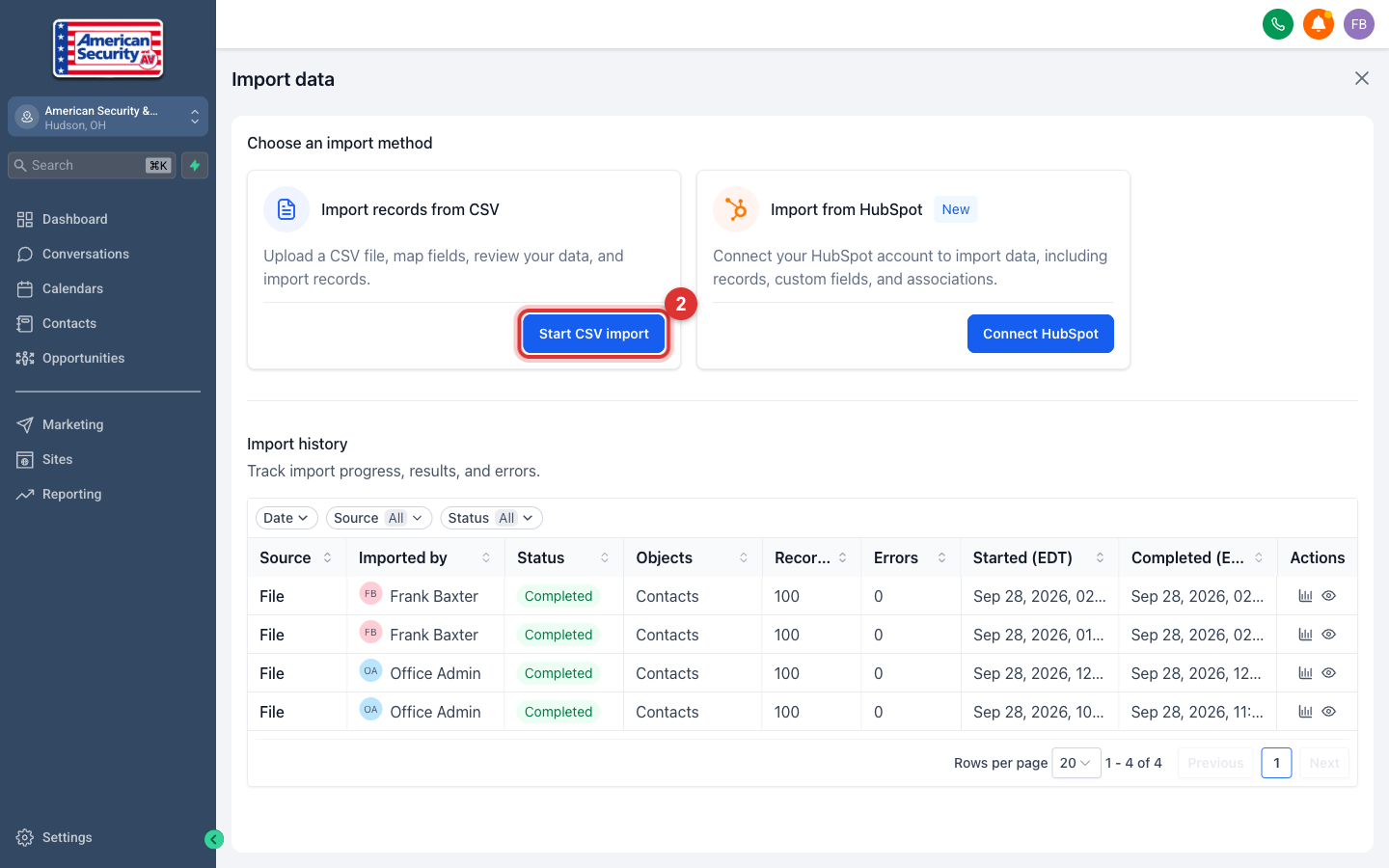
Start a file import

2
Click Start CSV import.
Start a file import
1 Menu2 Enquiries3 Customers4 Sales board5 Service6 Boards7 Email8 Mailchimp9 Monday10 Every day
Step 35 of 62
105
Part 9 · Import the jobs
American Security & AV logo
×
Native Builders

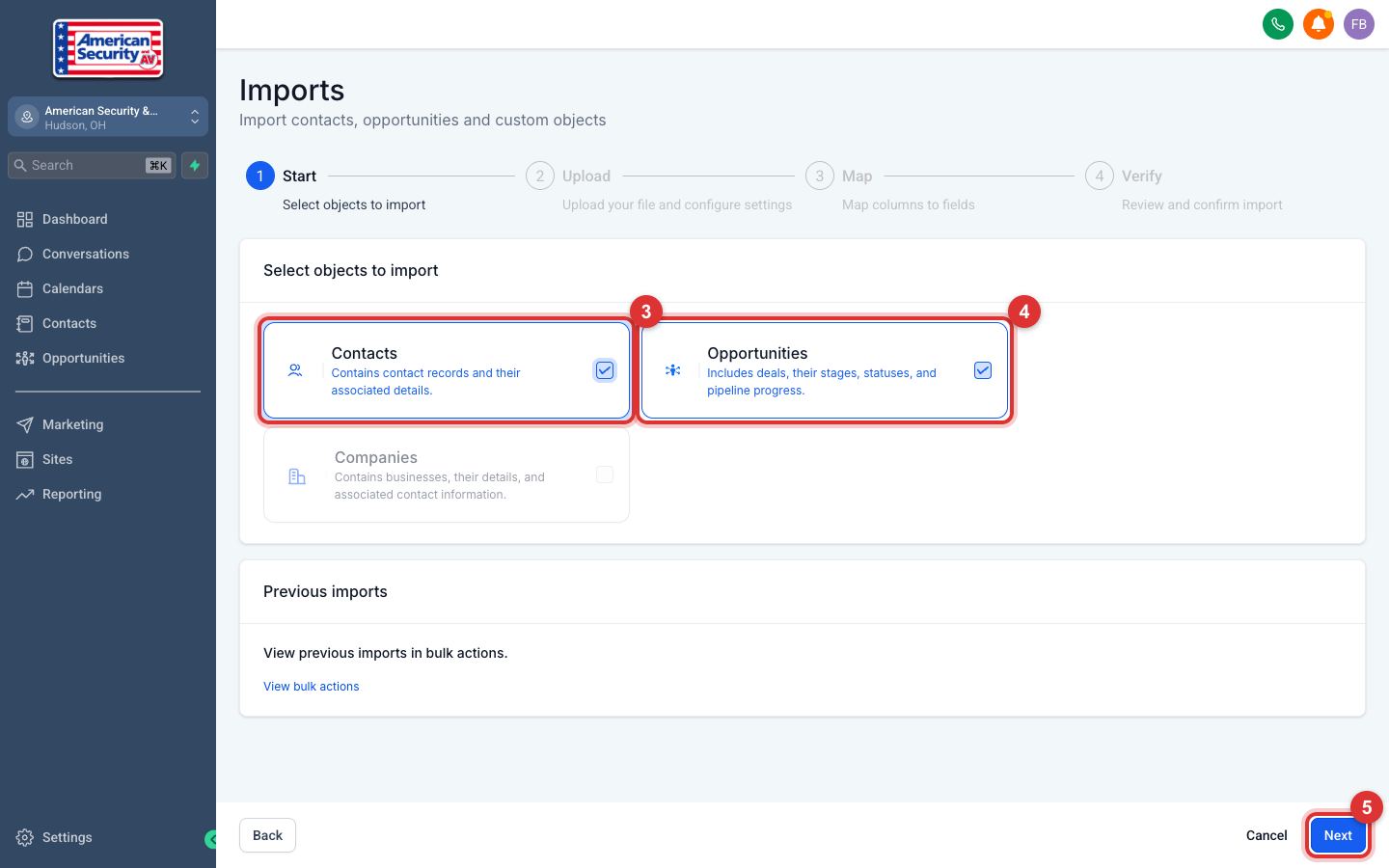
Import jobs and customers

3
Tick Contacts.
4
Keep Opportunities ticked.
5
Click Next.
Import jobs and customers
1 Menu2 Enquiries3 Customers4 Sales board5 Service6 Boards7 Email8 Mailchimp9 Monday10 Every day
Step 36 of 62
106
Part 9 · Import the jobs
American Security & AV logo
×
Native Builders

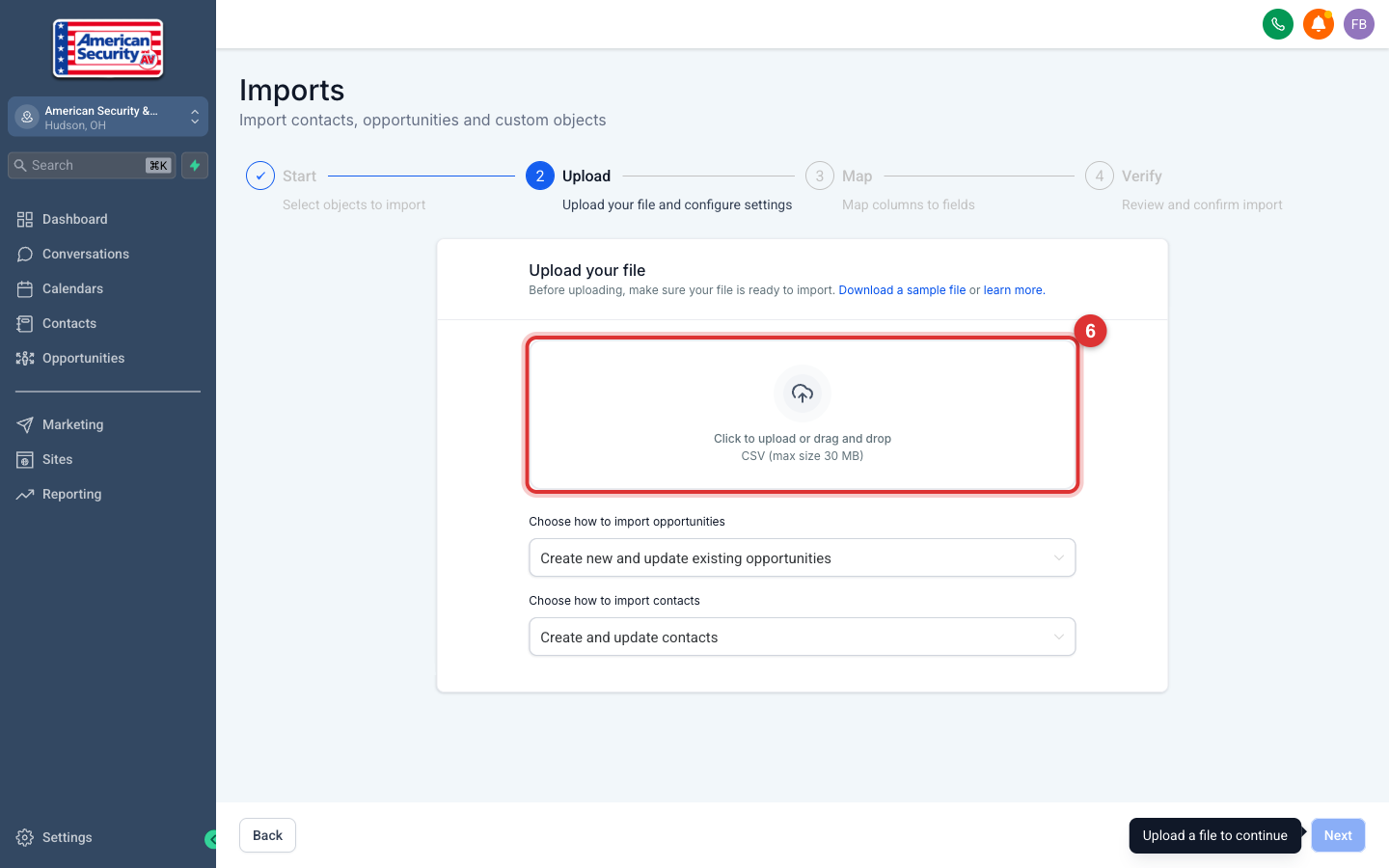
Add the import file

6
Click the box and choose the import file from the converter.
Add the import file
1 Menu2 Enquiries3 Customers4 Sales board5 Service6 Boards7 Email8 Mailchimp9 Monday10 Every day
Step 37 of 62
107
Part 9 · Import the jobs
American Security & AV logo
×
Native Builders

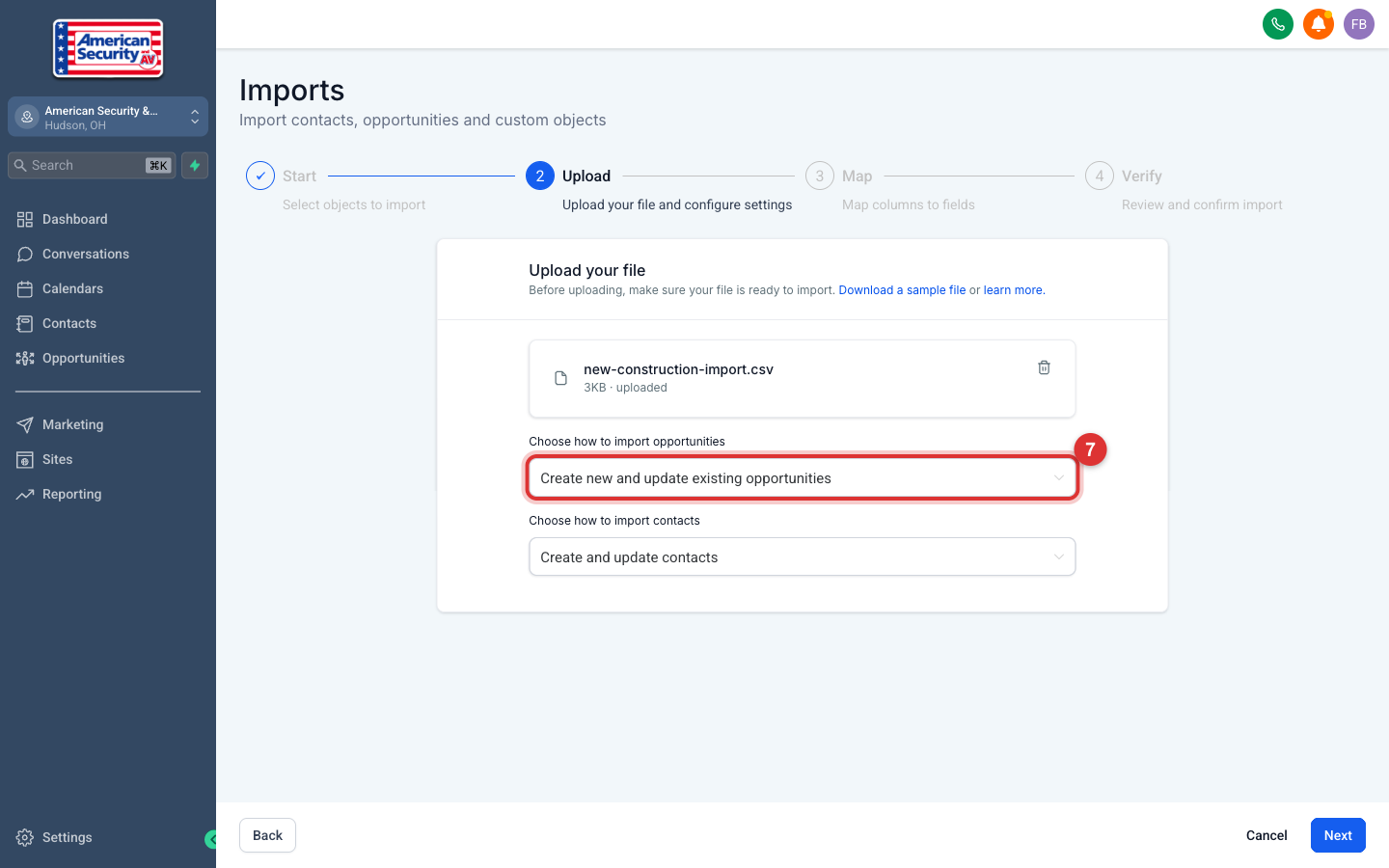
Change this setting

7
Click this box. It starts on Create new and update existing opportunities.
Careful
If you leave it as it is, the Next button stays grey on the next page.
Change this setting
1 Menu2 Enquiries3 Customers4 Sales board5 Service6 Boards7 Email8 Mailchimp9 Monday10 Every day
Step 38 of 62
108
Part 9 · Import the jobs
American Security & AV logo
×
Native Builders

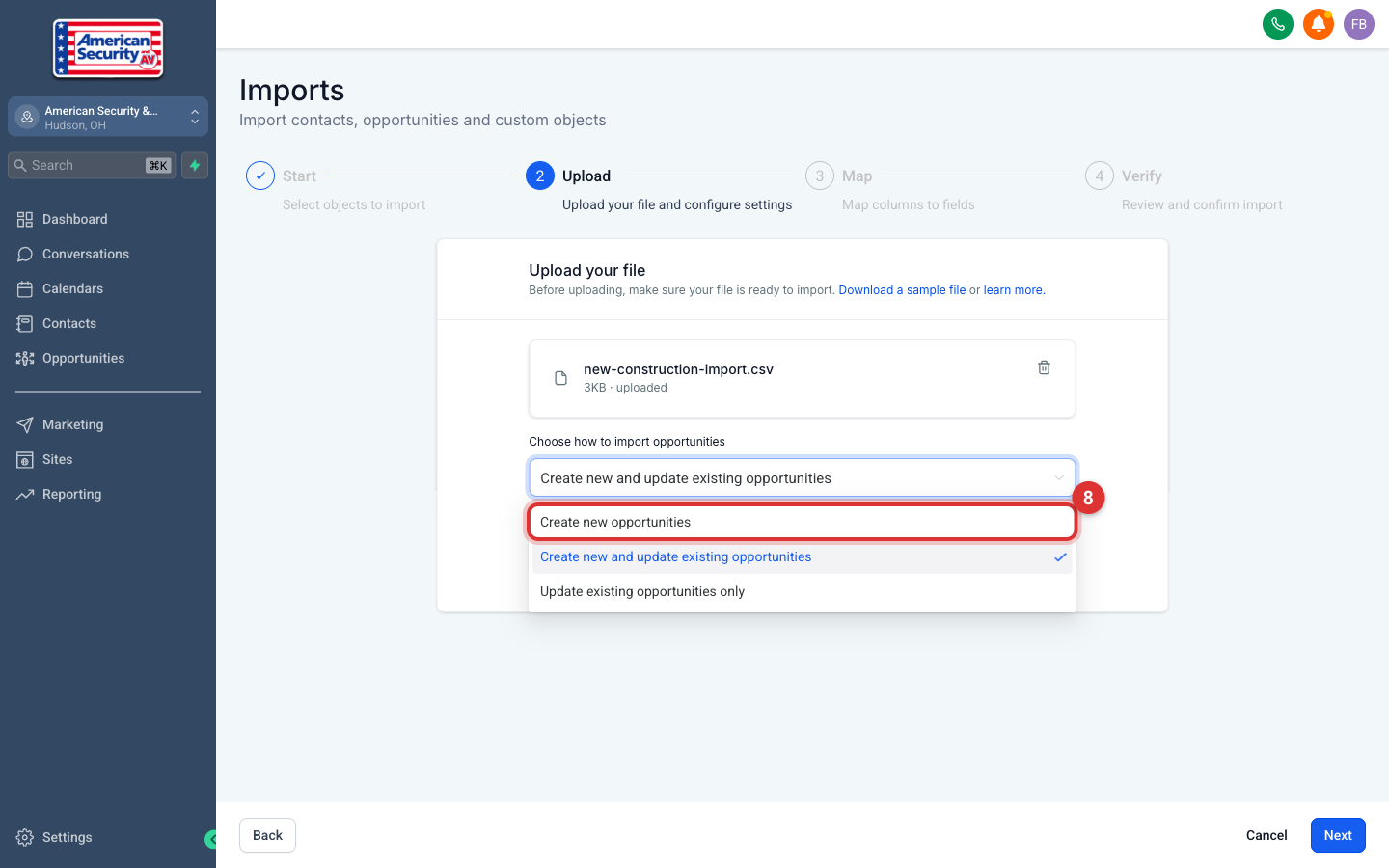
Create new jobs

8
Click Create new opportunities.
Create new jobs
1 Menu2 Enquiries3 Customers4 Sales board5 Service6 Boards7 Email8 Mailchimp9 Monday10 Every day
Step 39 of 62
109
Part 9 · Import the jobs
American Security & AV logo
×
Native Builders

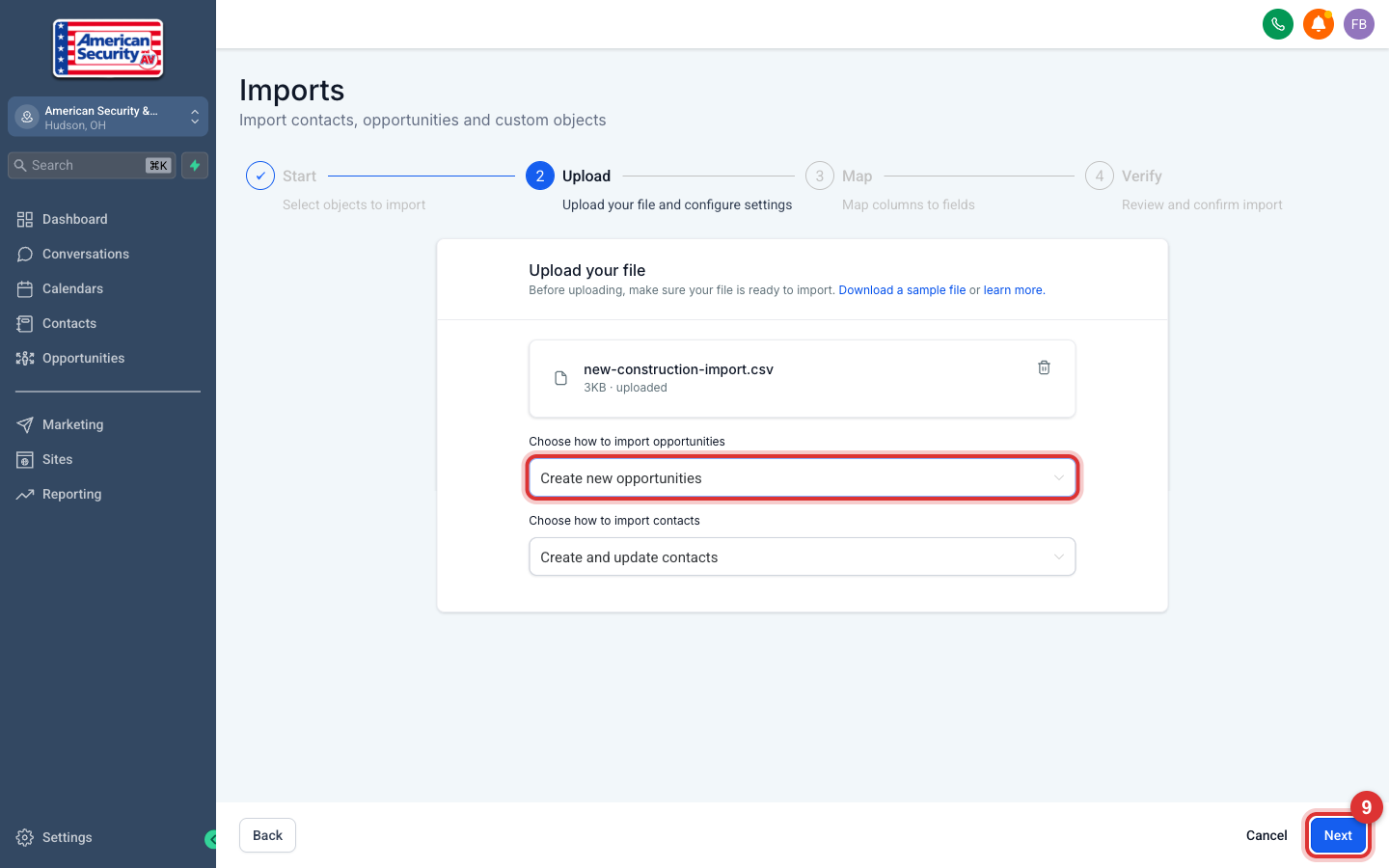
Go on

The box now says Create new opportunities.
9
Click Next.
Go on
1 Menu2 Enquiries3 Customers4 Sales board5 Service6 Boards7 Email8 Mailchimp9 Monday10 Every day
Step 40 of 62
110
Part 9 · Import the jobs
American Security & AV logo
×
Native Builders

Check the columns

10
Scroll down. Rows should say Mapped in green.
Check the columns
1 Menu2 Enquiries3 Customers4 Sales board5 Service6 Boards7 Email8 Mailchimp9 Monday10 Every day
Step 41 of 62
111
Part 9 · Import the jobs
American Security & AV logo
×
Native Builders

Columns the CRM has no field for

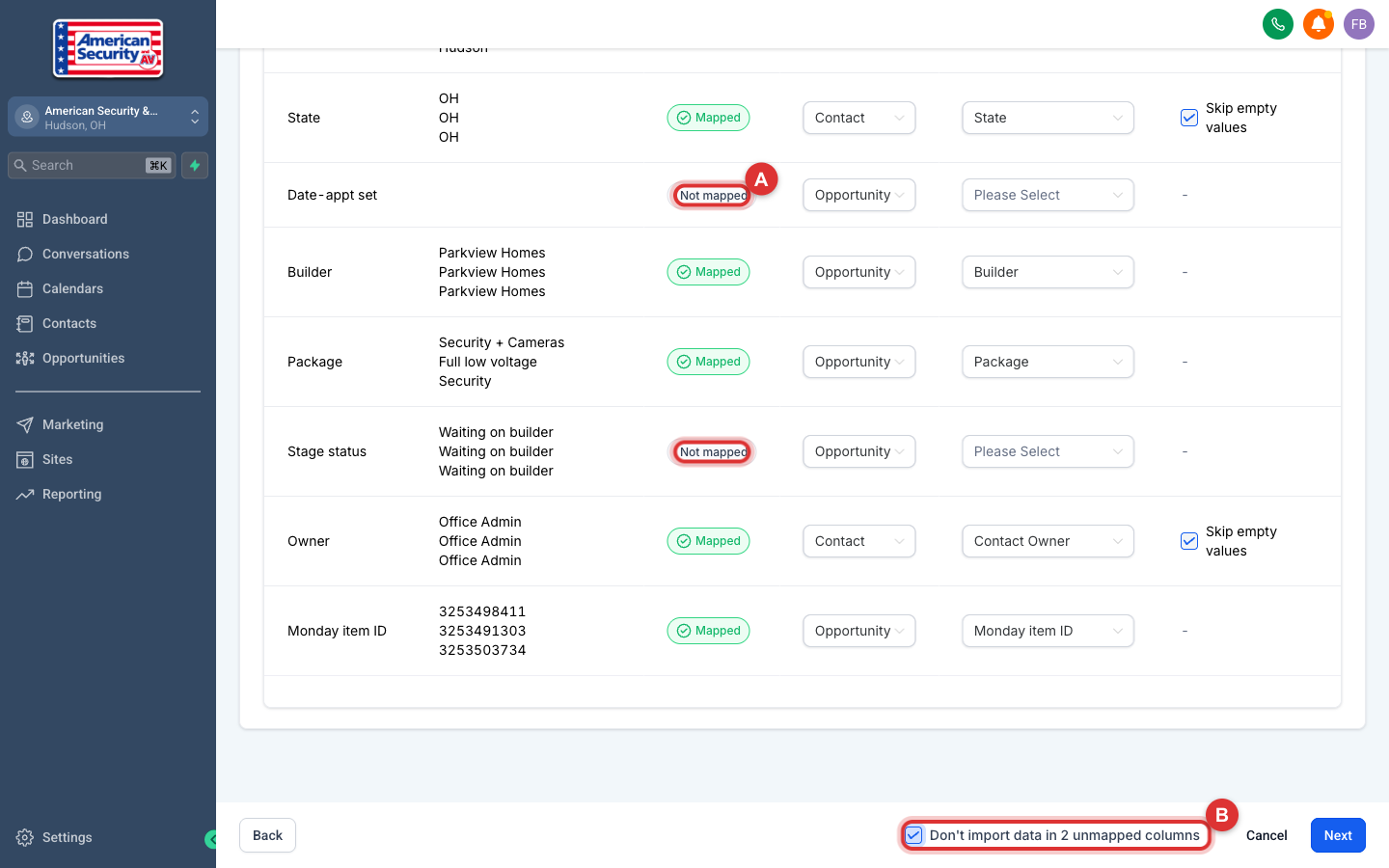
A
A Monday column with no field in the CRM says Not mapped.
B
Tick Don’t import data in … unmapped columns to skip them.
Good to know
Nothing is lost: the Notes column keeps every Monday column as a note on the customer. Want one as its own field? Stop, make a field for it (see “Set up the CRM”), and start again.
Columns the CRM has no field for
1 Menu2 Enquiries3 Customers4 Sales board5 Service6 Boards7 Email8 Mailchimp9 Monday10 Every day
Step 42 of 62
112
Part 9 · Import the jobs
American Security & AV logo
×
Native Builders

Set the job owner

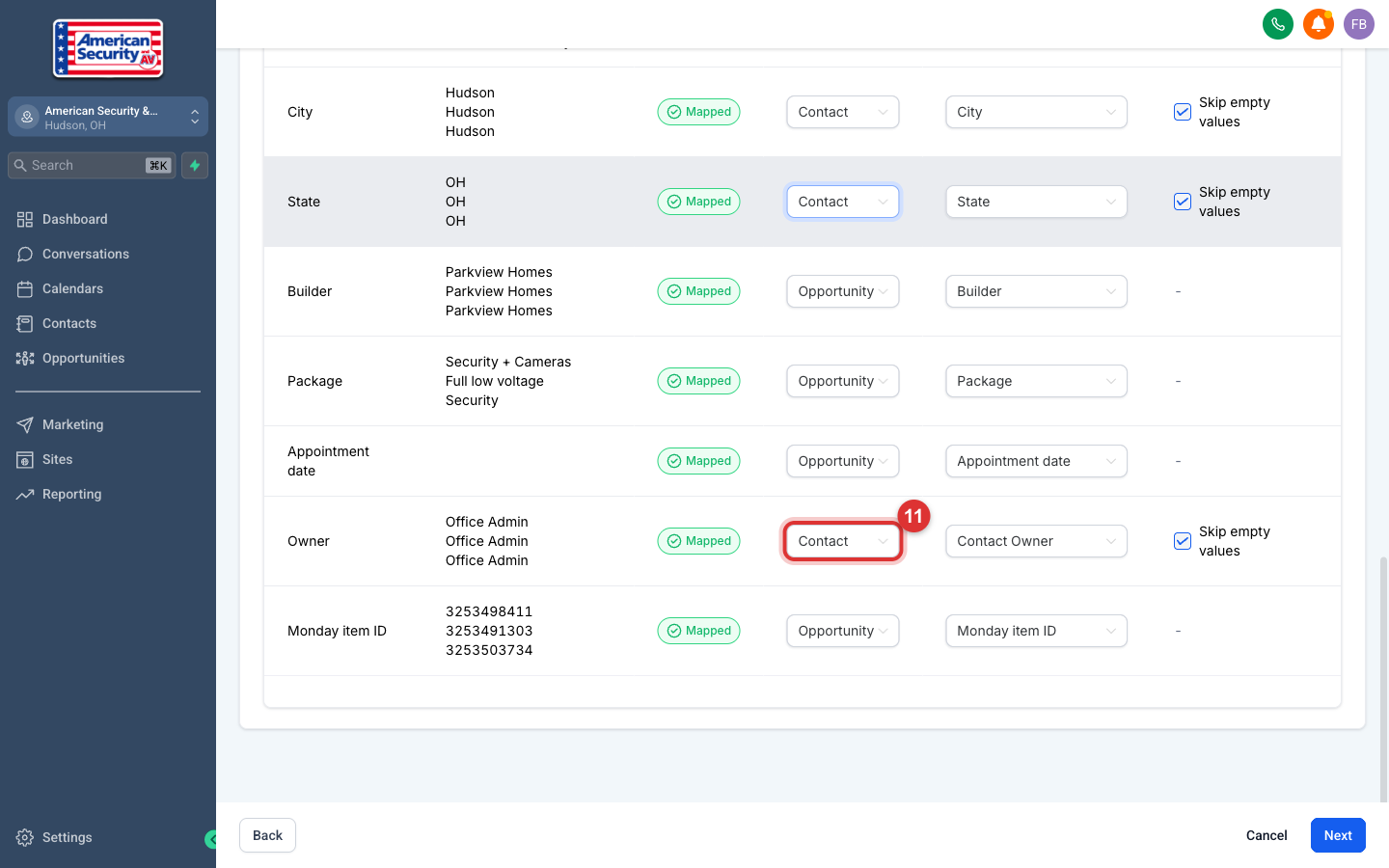
Find the Owner row. It starts on Contact.
11
Click the box that says Contact.
Set the job owner
1 Menu2 Enquiries3 Customers4 Sales board5 Service6 Boards7 Email8 Mailchimp9 Monday10 Every day
Step 43 of 62
113
Part 9 · Import the jobs
American Security & AV logo
×
Native Builders

Owner of the job

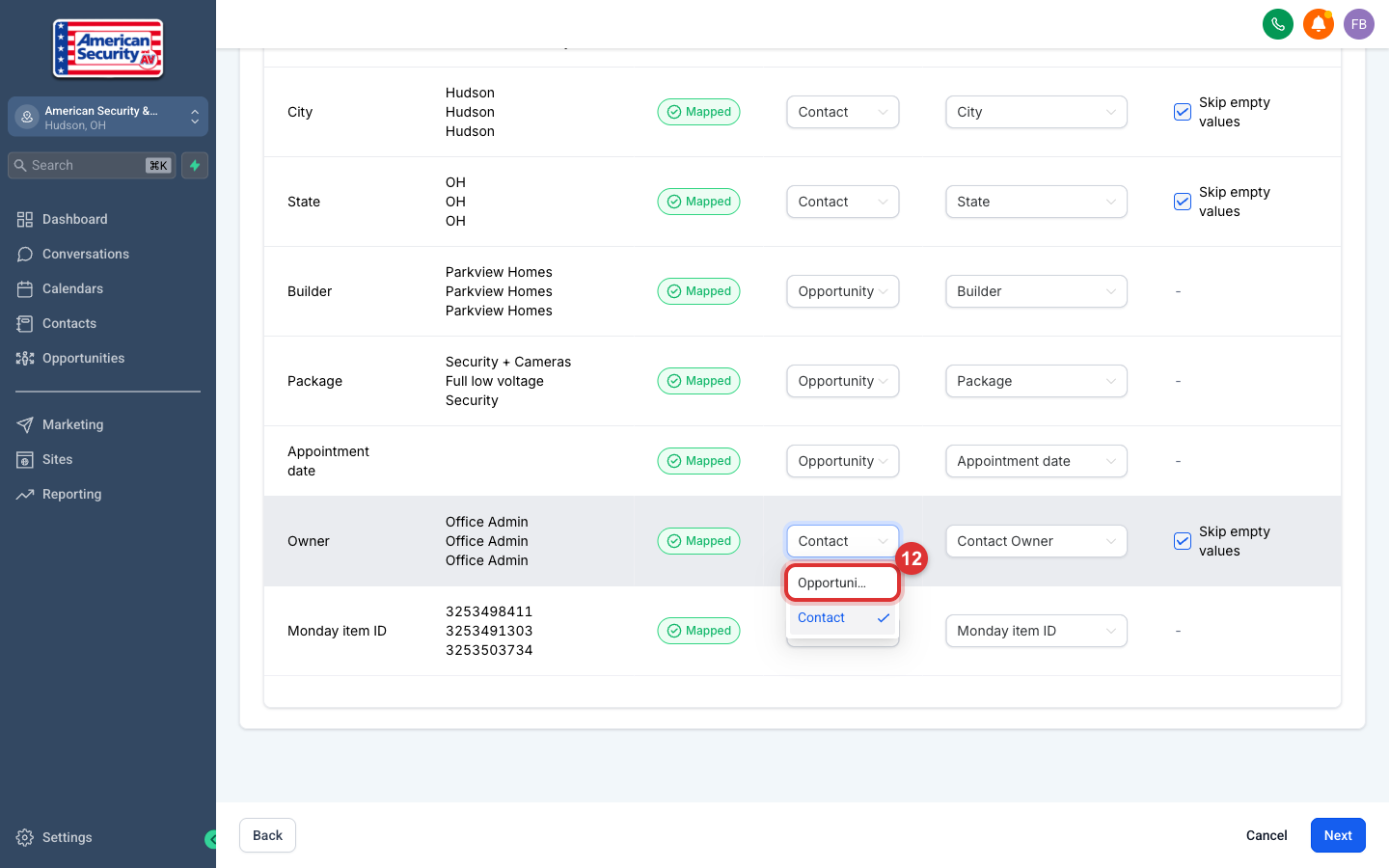
12
Click Opportunity.
Owner of the job
1 Menu2 Enquiries3 Customers4 Sales board5 Service6 Boards7 Email8 Mailchimp9 Monday10 Every day
Step 44 of 62
114
Part 9 · Import the jobs
American Security & AV logo
×
Native Builders

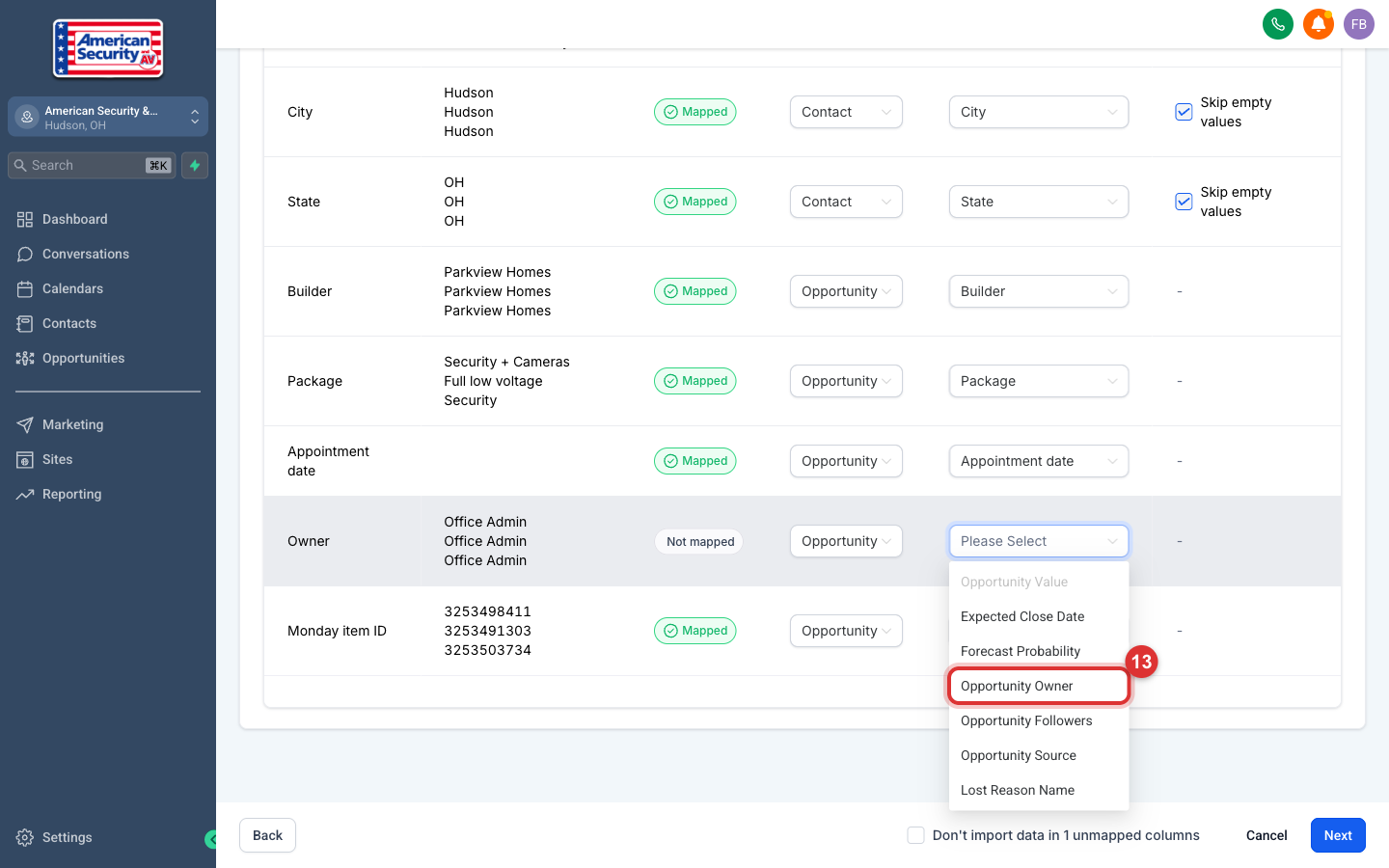
Choose Opportunity Owner

13
Click Opportunity Owner.
Choose Opportunity Owner
1 Menu2 Enquiries3 Customers4 Sales board5 Service6 Boards7 Email8 Mailchimp9 Monday10 Every day
Step 45 of 62
115
Part 9 · Import the jobs
American Security & AV logo
×
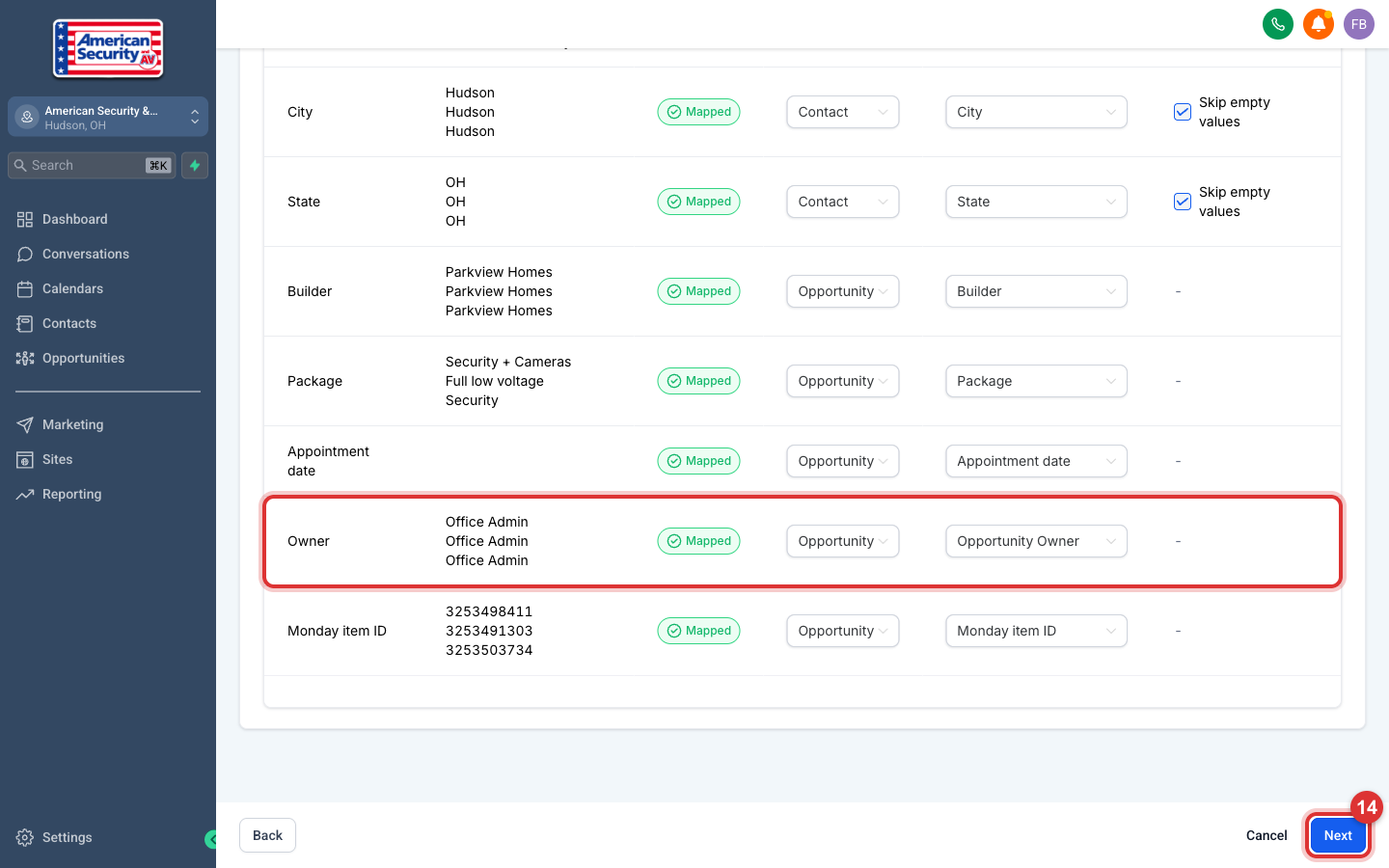
Native Builders

Owner is set

The Owner row now says Opportunity Owner.
14
Click Next.
Good to know
The name in Monday must match a CRM user exactly (for example Frank Baxter). A job whose name does not match comes in with no owner. The converter lists the names it found.
Owner is set
1 Menu2 Enquiries3 Customers4 Sales board5 Service6 Boards7 Email8 Mailchimp9 Monday10 Every day
Step 46 of 62
116
Part 9 · Import the jobs
American Security & AV logo
×
Native Builders

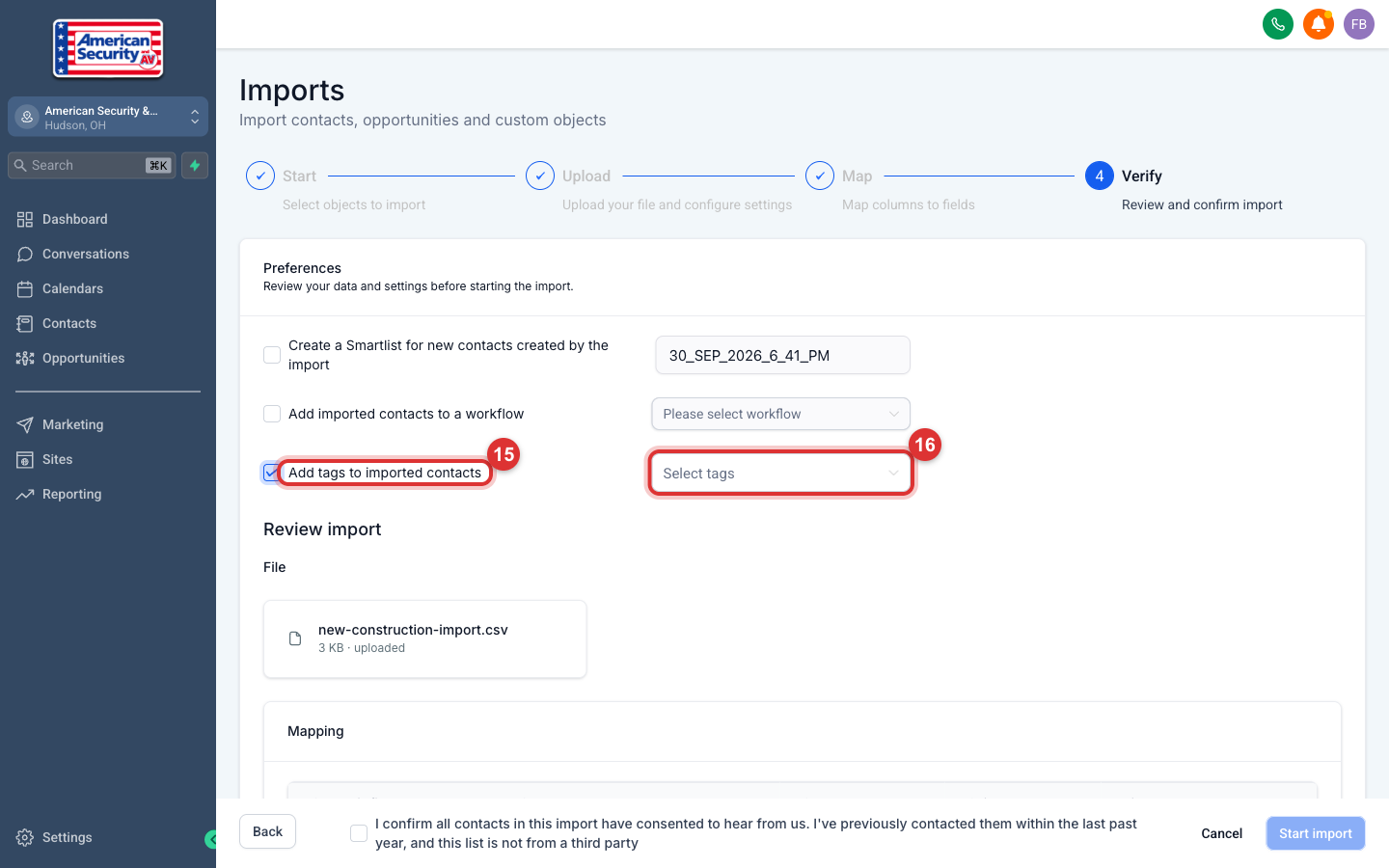
Label the new customers

15
Tick Add tags to imported contacts.
16
Click Select tags.
Label the new customers
1 Menu2 Enquiries3 Customers4 Sales board5 Service6 Boards7 Email8 Mailchimp9 Monday10 Every day
Step 47 of 62
117
Part 9 · Import the jobs
American Security & AV logo
×
Native Builders

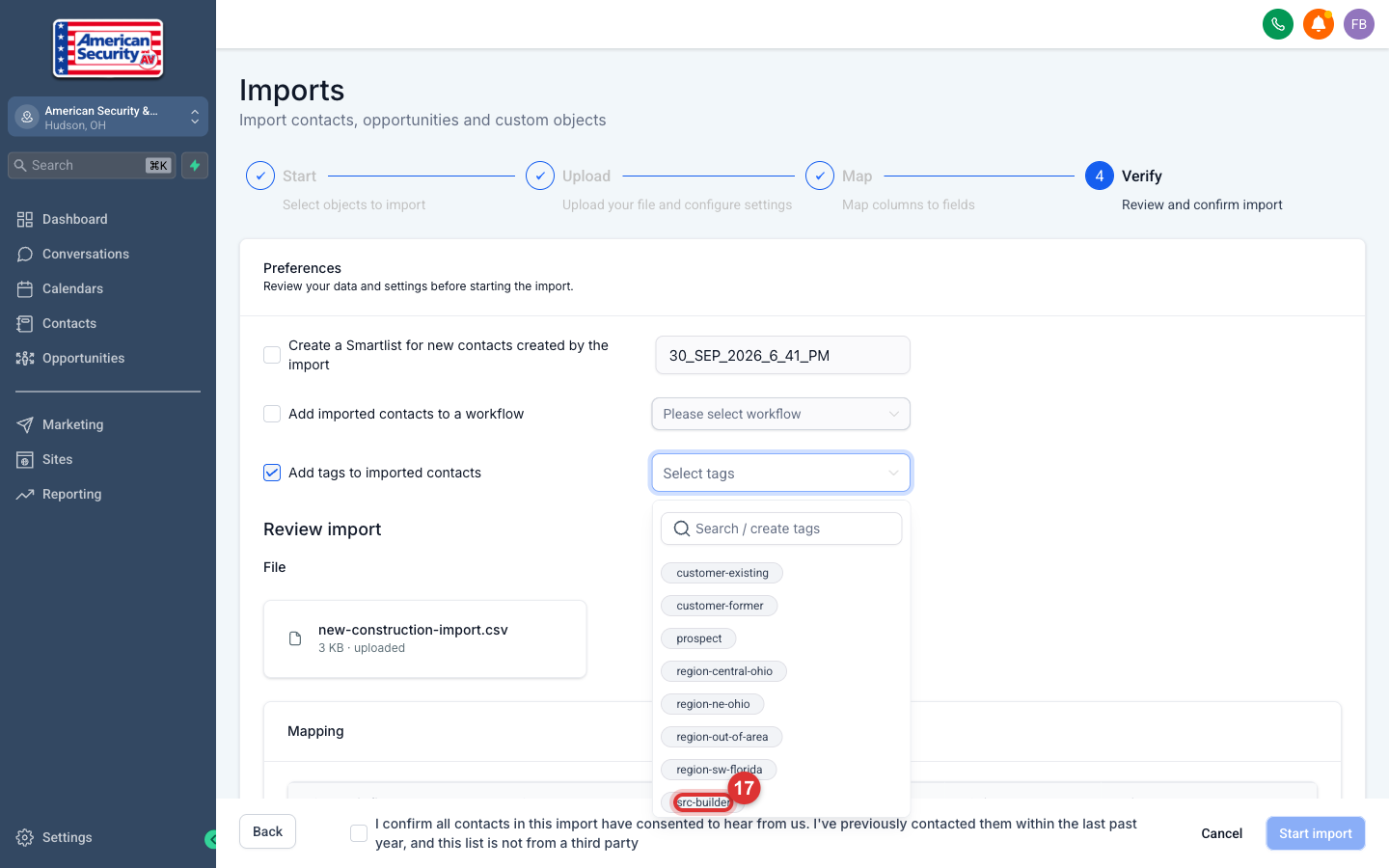
Pick the label

17
Click src-builder for builder jobs (or the label that fits).
Pick the label
1 Menu2 Enquiries3 Customers4 Sales board5 Service6 Boards7 Email8 Mailchimp9 Monday10 Every day
Step 48 of 62
118
Part 9 · Import the jobs
American Security & AV logo
×
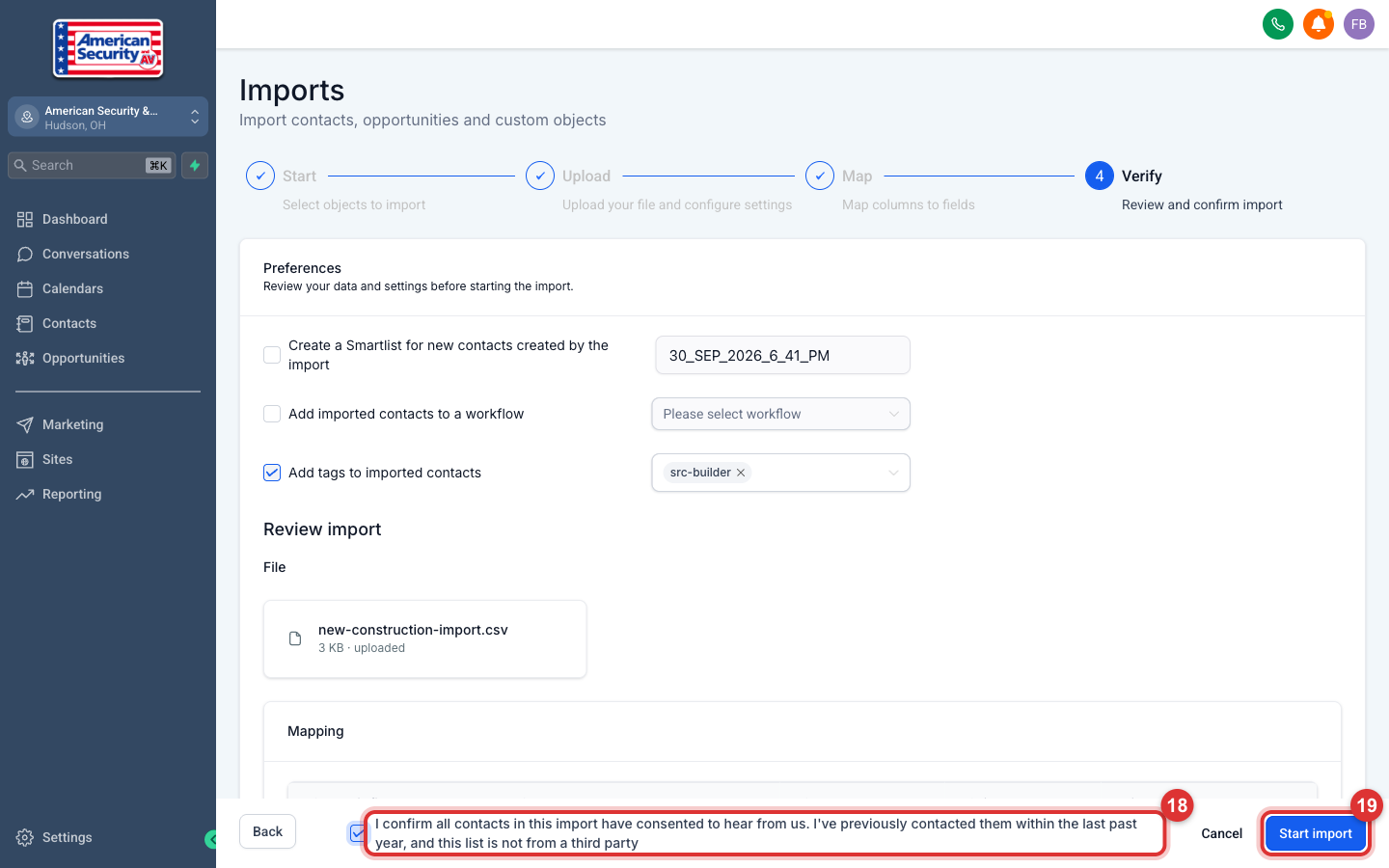
Native Builders

Confirm and start

18
Tick the box. These are your own customers.
19
Click Start import.
Confirm and start
1 Menu2 Enquiries3 Customers4 Sales board5 Service6 Boards7 Email8 Mailchimp9 Monday10 Every day
Step 49 of 62
119
Part 9 · Import the jobs
American Security & AV logo
×
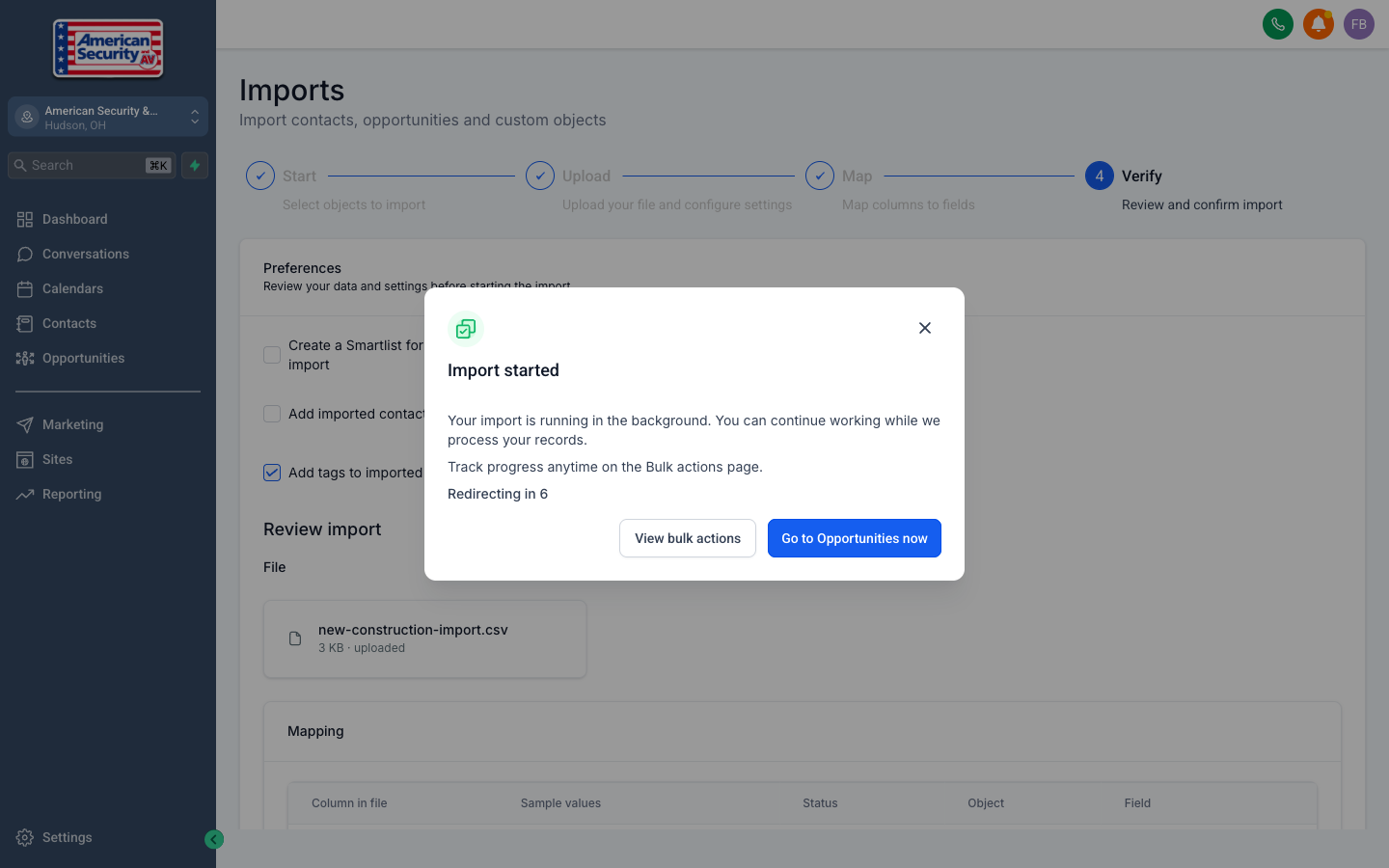
Native Builders

The import is running

Click Go to Opportunities now, or wait a few seconds.
A board of a few dozen jobs takes a few minutes.
The import is running
1 Menu2 Enquiries3 Customers4 Sales board5 Service6 Boards7 Email8 Mailchimp9 Monday10 Every day
Step 50 of 62
120
Part 9 · Import the jobs
American Security & AV logo
×
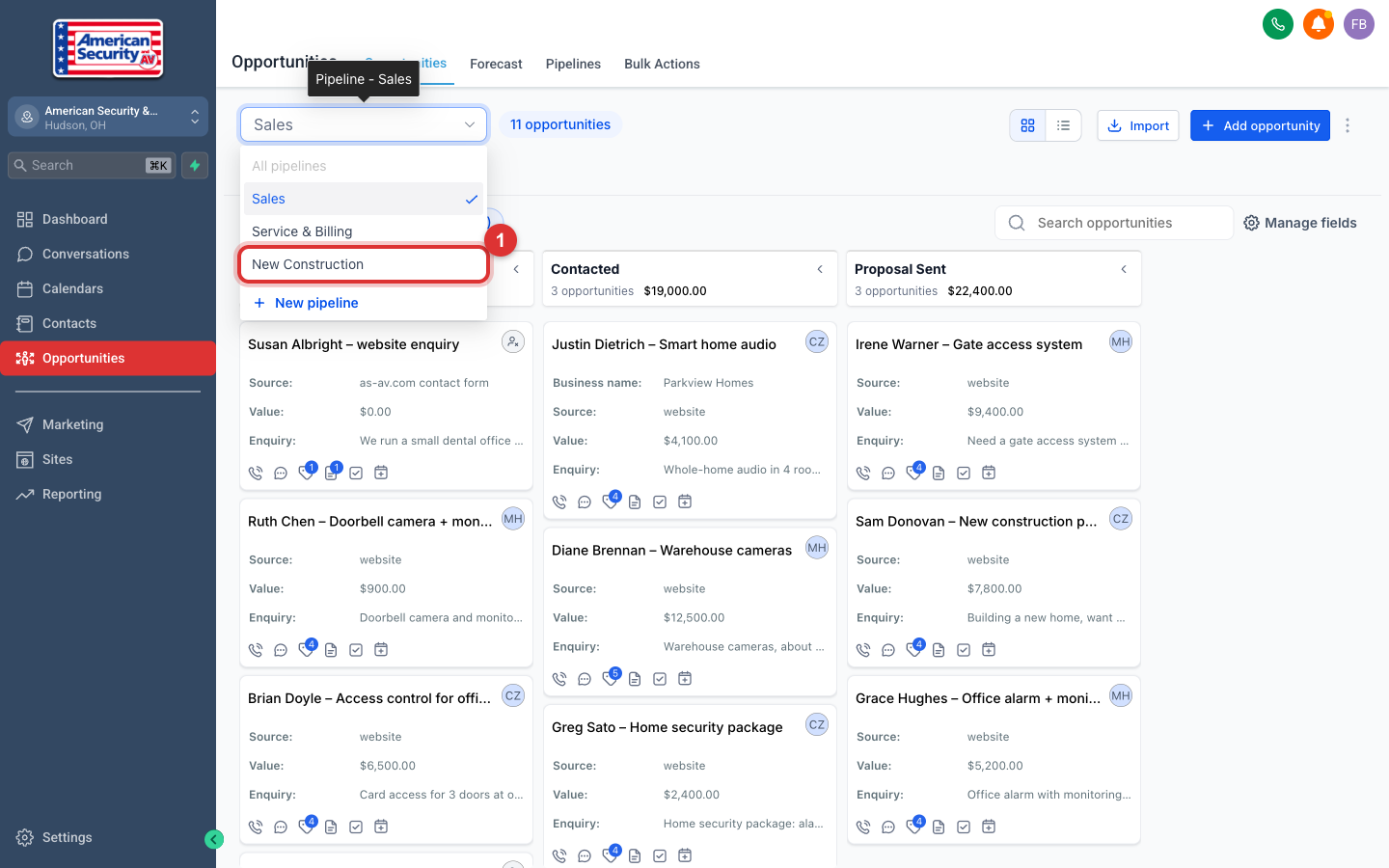
Native Builders

Open your board

1
Pick your board from the list at the top left.
Open your board
1 Menu2 Enquiries3 Customers4 Sales board5 Service6 Boards7 Email8 Mailchimp9 Monday10 Every day
Step 51 of 62
121
Part 9 · Import the jobs
American Security & AV logo
×
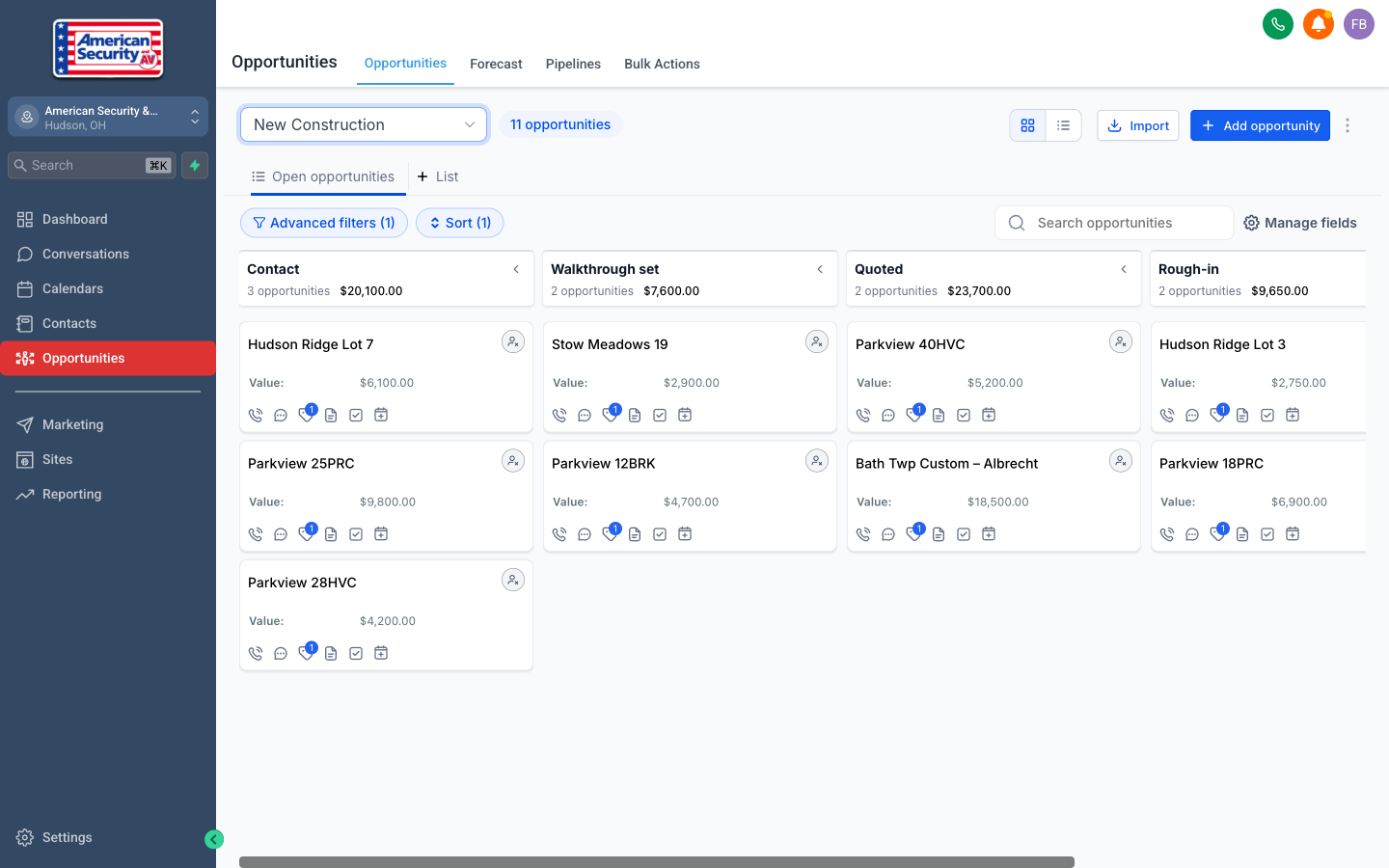
Native Builders

Your jobs are in

Every job is in the column that matches its Monday group.
Missing one? It had no name, phone or email (the converter warned you).
Your jobs are in
1 Menu2 Enquiries3 Customers4 Sales board5 Service6 Boards7 Email8 Mailchimp9 Monday10 Every day
Step 52 of 62
122
Part 9 · Add the prints
American Security & AV logo
×
Native Builders

Prints go on one job at a time

Why
The CRM import can bring jobs and customers, but not files. So the drawings are added to each job by hand.
How long
About a minute a job: open it, choose all its drawings at once, save.
Where the drawings are
In the prints sorted by job folder from the converter (B), or downloaded from the job in Monday (C).
Lots of jobs?
Send us Frank’s Monday .zip (B) and we will attach every drawing for you.
1 Menu2 Enquiries3 Customers4 Sales board5 Service6 Boards7 Email8 Mailchimp9 Monday10 Every day
Step 53 of 62
123
Part 9 · Add the prints
American Security & AV logo
×
Native Builders

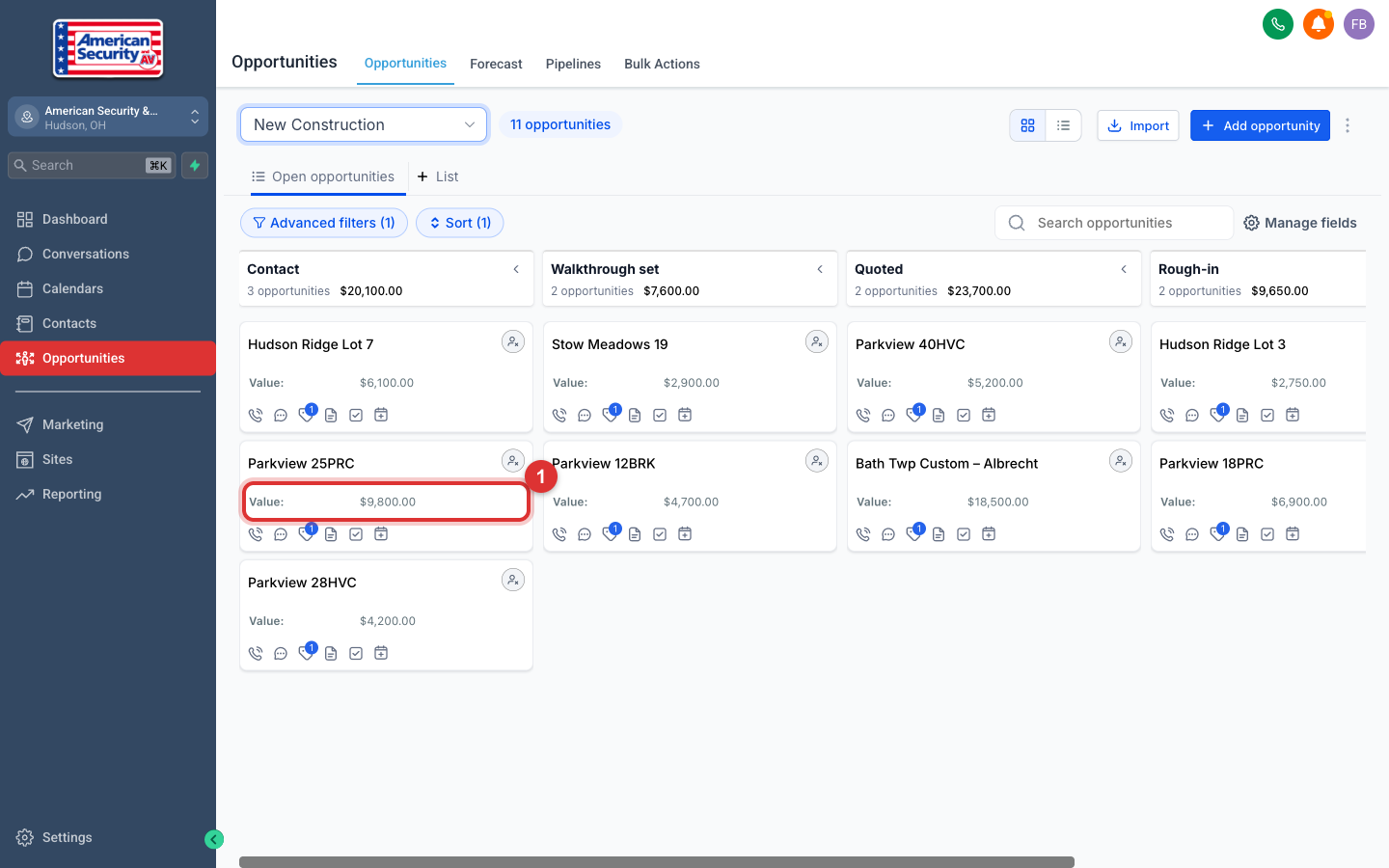
Open the job

1
Click the card, away from the name.
Open the job
1 Menu2 Enquiries3 Customers4 Sales board5 Service6 Boards7 Email8 Mailchimp9 Monday10 Every day
Step 54 of 62
124
Part 9 · Add the prints
American Security & AV logo
×
Native Builders

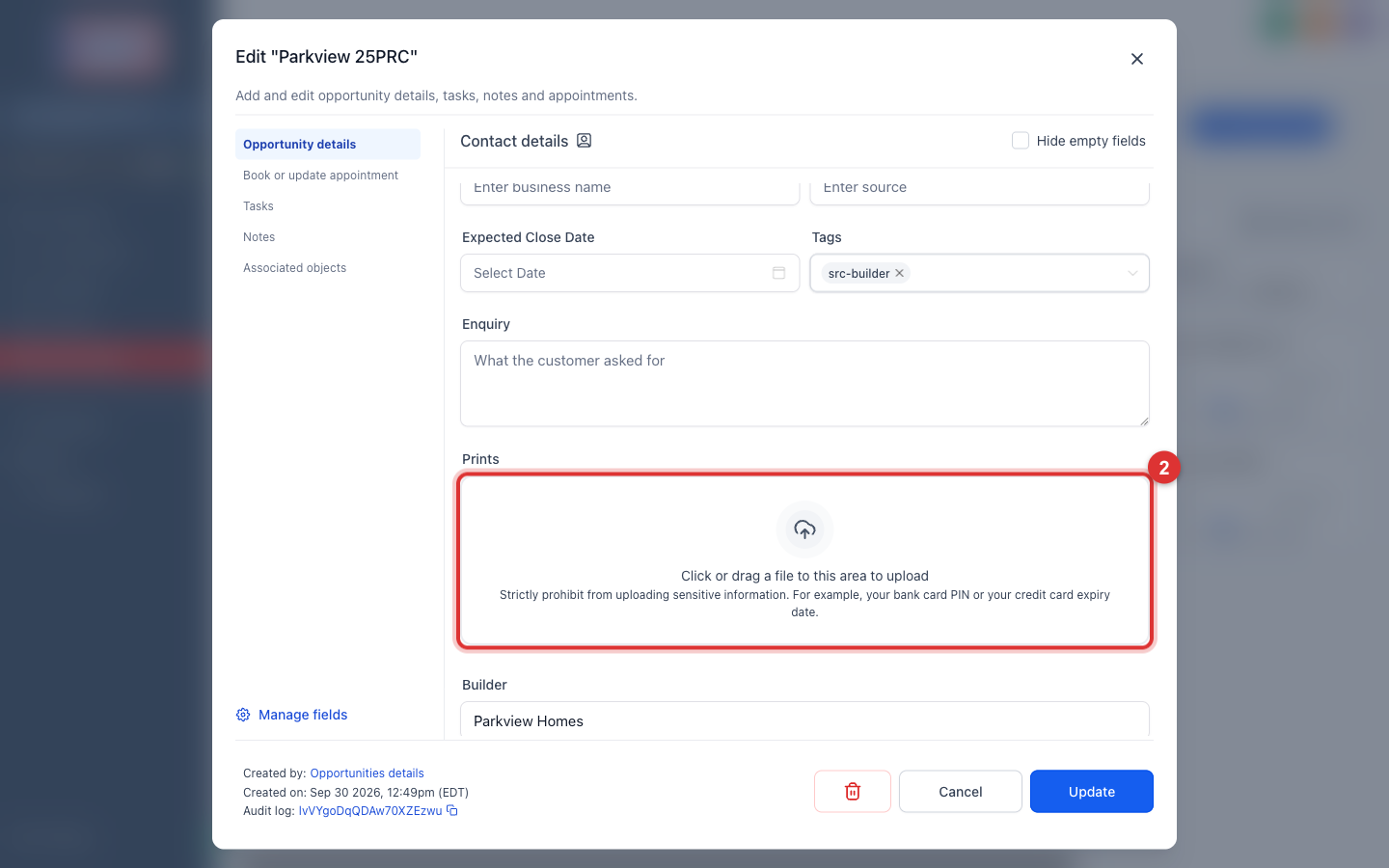
Find Prints

Scroll down to Prints.
2
Click the box. A window to choose files opens.
Find Prints
1 Menu2 Enquiries3 Customers4 Sales board5 Service6 Boards7 Email8 Mailchimp9 Monday10 Every day
Step 55 of 62
125
Part 9 · Add the prints
American Security & AV logo
×
Native Builders

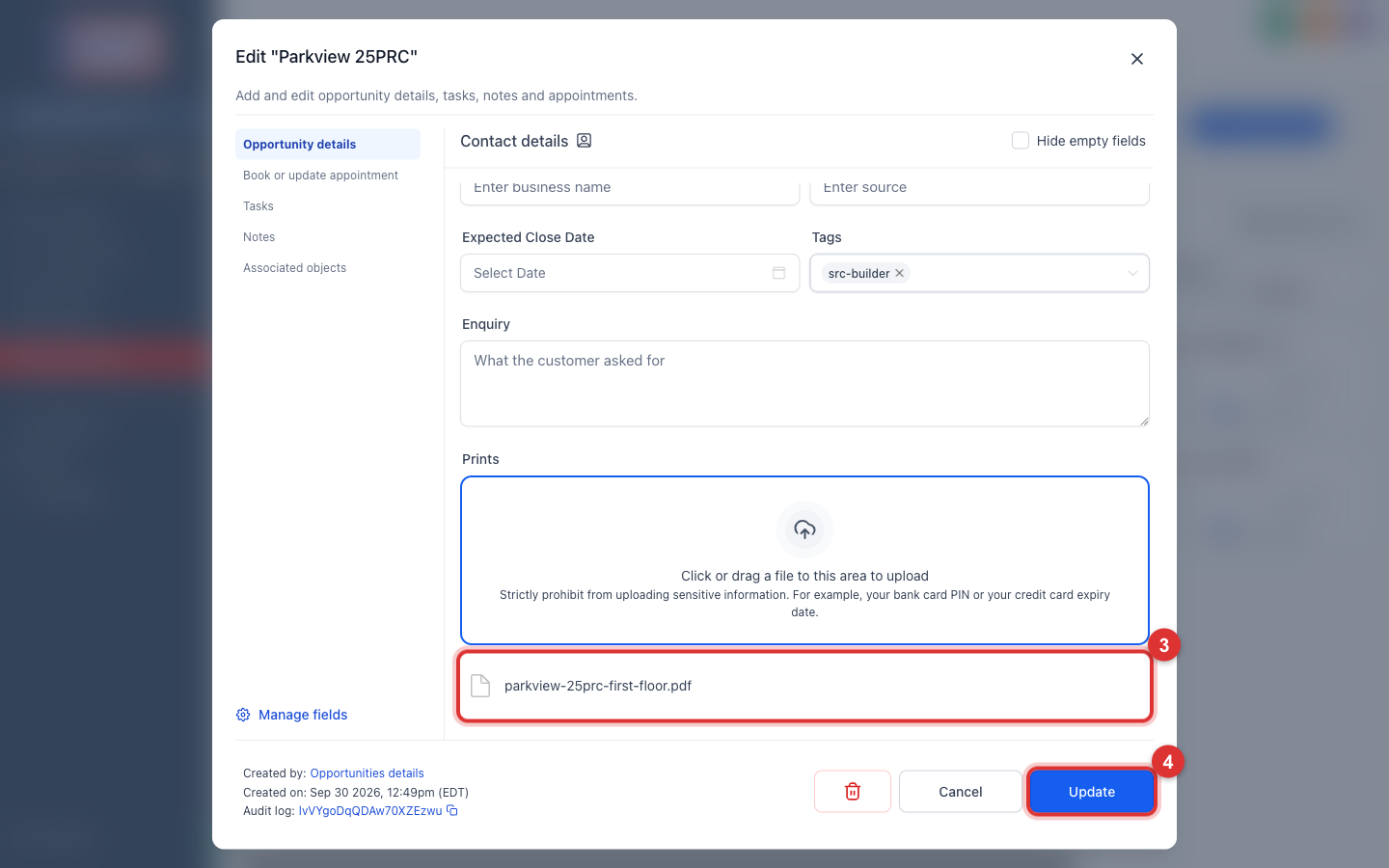
Choose the drawings and save

Open the job’s folder and select all its drawings at once (click the first, then Shift-click the last).
3
They appear under the box.
4
Click Update.
Careful
Nothing is saved until you click Update.
Choose the drawings and save
1 Menu2 Enquiries3 Customers4 Sales board5 Service6 Boards7 Email8 Mailchimp9 Monday10 Every day
Step 56 of 62
126
Part 9 · Add the prints
American Security & AV logo
×
Native Builders

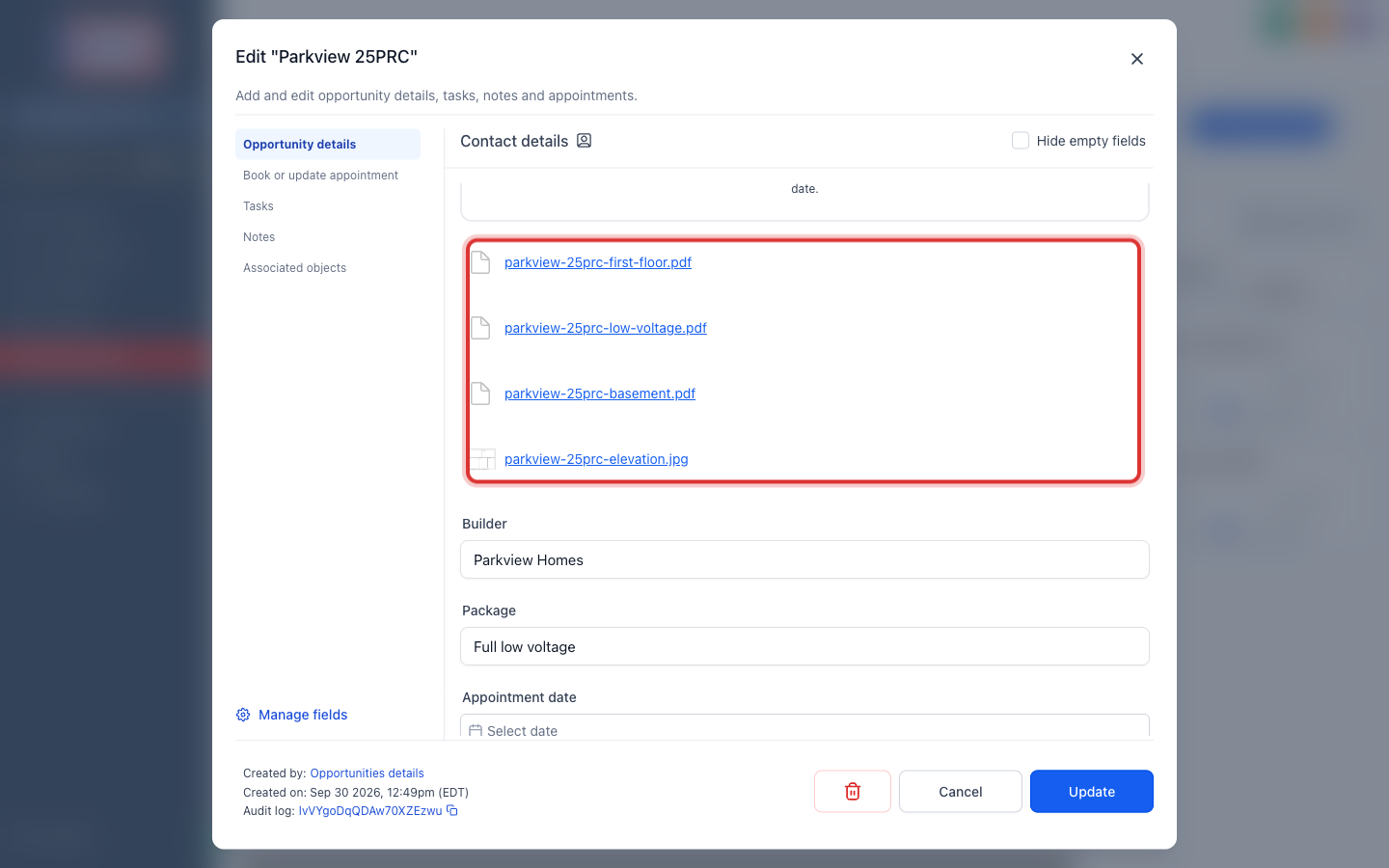
The drawings are on the job

Open the job again: every drawing is listed under Prints.
Click a name to open the drawing.
The drawings are on the job
1 Menu2 Enquiries3 Customers4 Sales board5 Service6 Boards7 Email8 Mailchimp9 Monday10 Every day
Step 57 of 62
127
Part 9 · Add the prints
American Security & AV logo
×
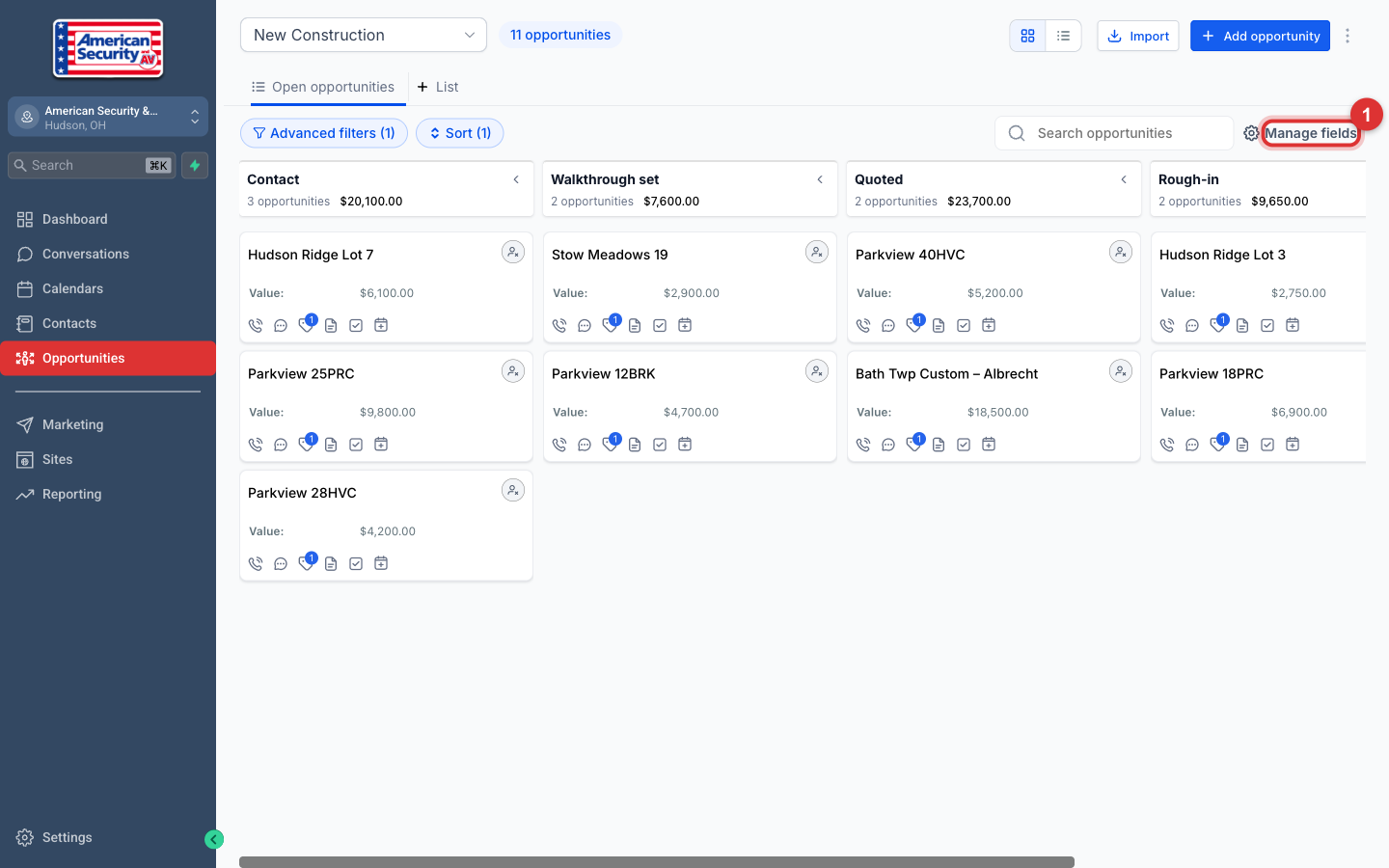
Native Builders

Show prints on the cards

1
Click Manage fields at the top right of the board.
Good to know
Do this once on each board. Each person does it on their own login.
Show prints on the cards
1 Menu2 Enquiries3 Customers4 Sales board5 Service6 Boards7 Email8 Mailchimp9 Monday10 Every day
Step 58 of 62
128
Part 9 · Add the prints
American Security & AV logo
×
Native Builders

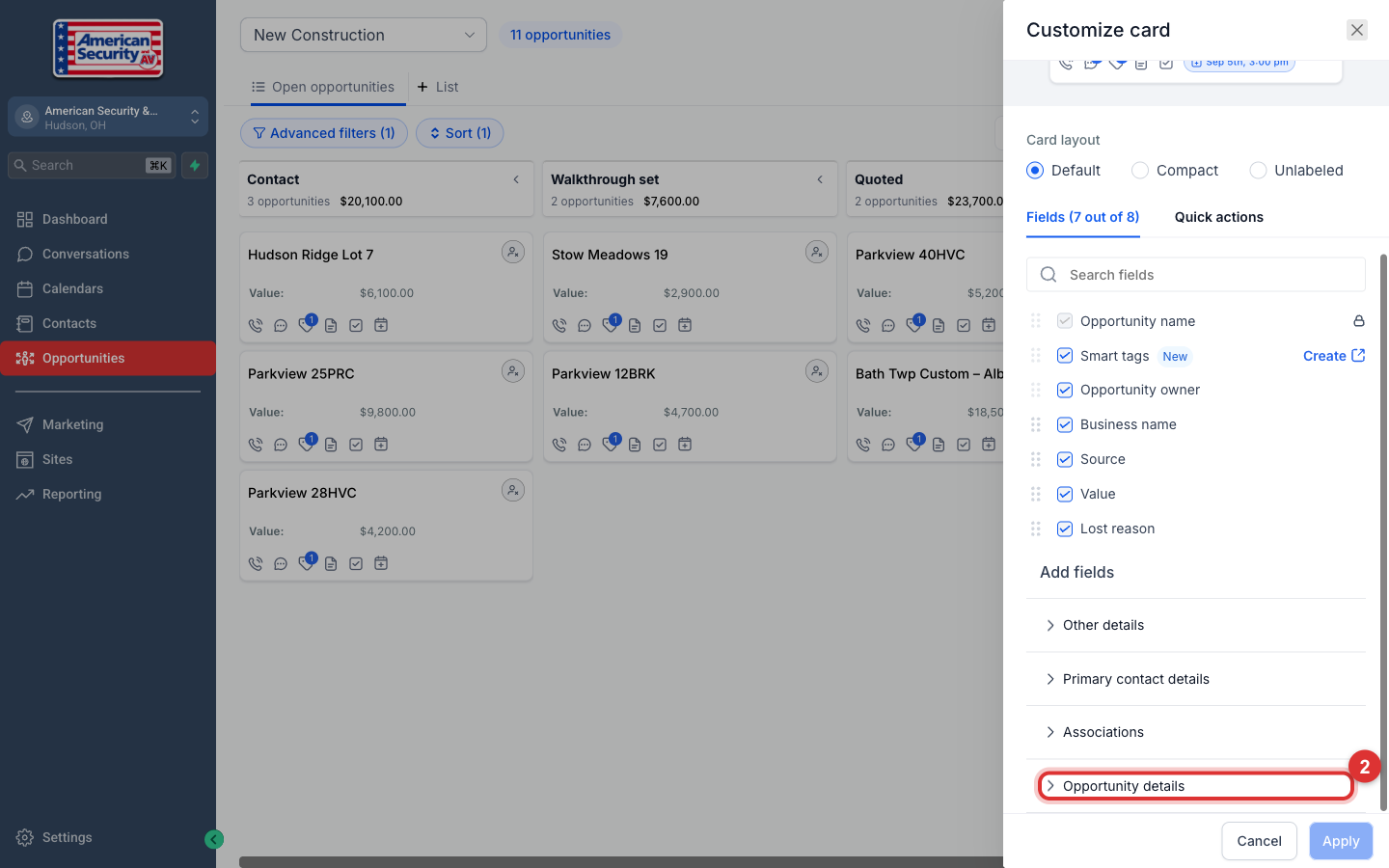
Open the job fields

2
Scroll down and click Opportunity details.
Open the job fields
1 Menu2 Enquiries3 Customers4 Sales board5 Service6 Boards7 Email8 Mailchimp9 Monday10 Every day
Step 59 of 62
129
Part 9 · Add the prints
American Security & AV logo
×
Native Builders

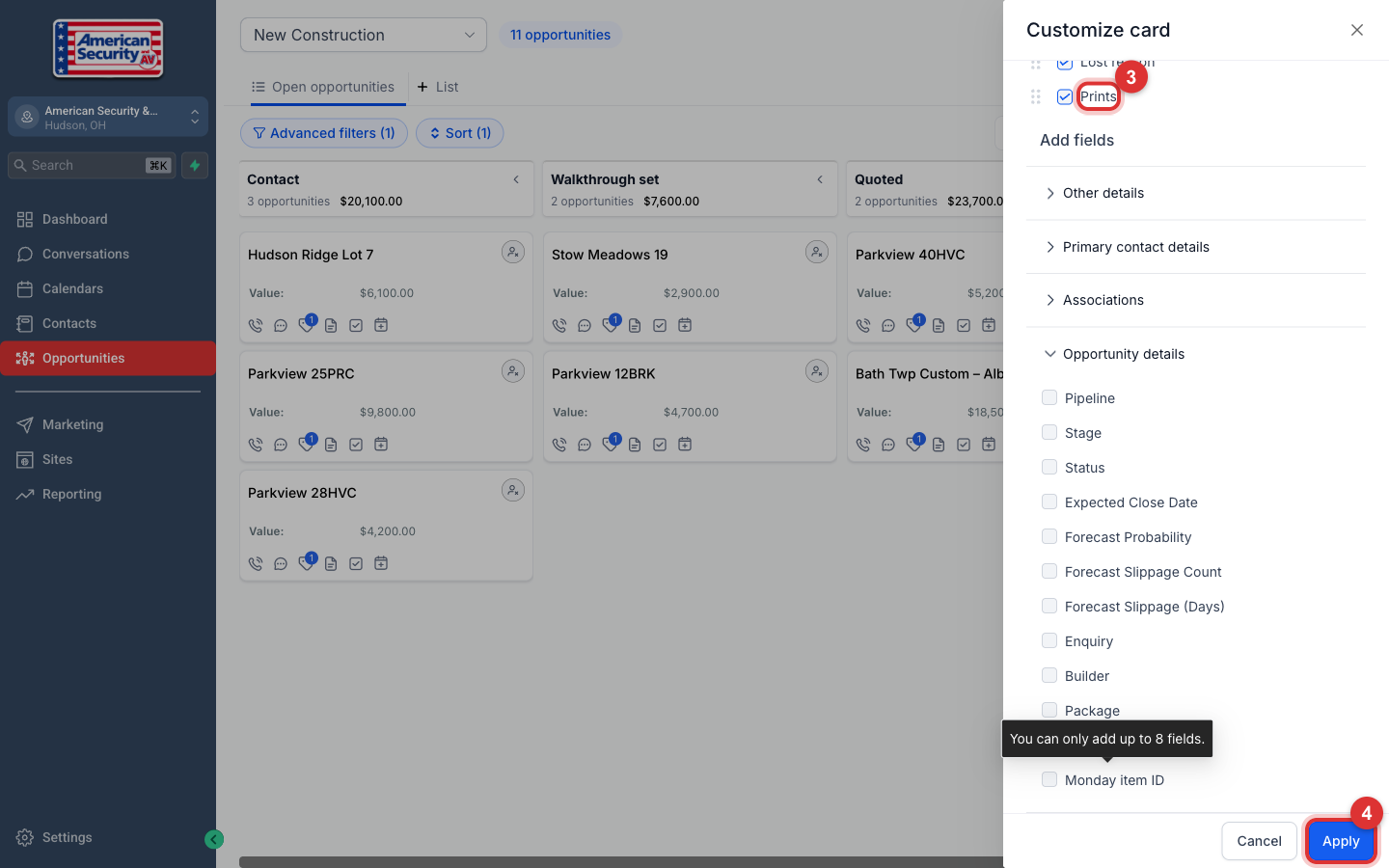
Tick Prints

3
Tick Prints.
4
Click Apply.
Good to know
An orange Unsaved changes button may appear. You can ignore it.
Tick Prints
1 Menu2 Enquiries3 Customers4 Sales board5 Service6 Boards7 Email8 Mailchimp9 Monday10 Every day
Step 60 of 62
130
Part 9 · Add the prints
American Security & AV logo
×
Native Builders

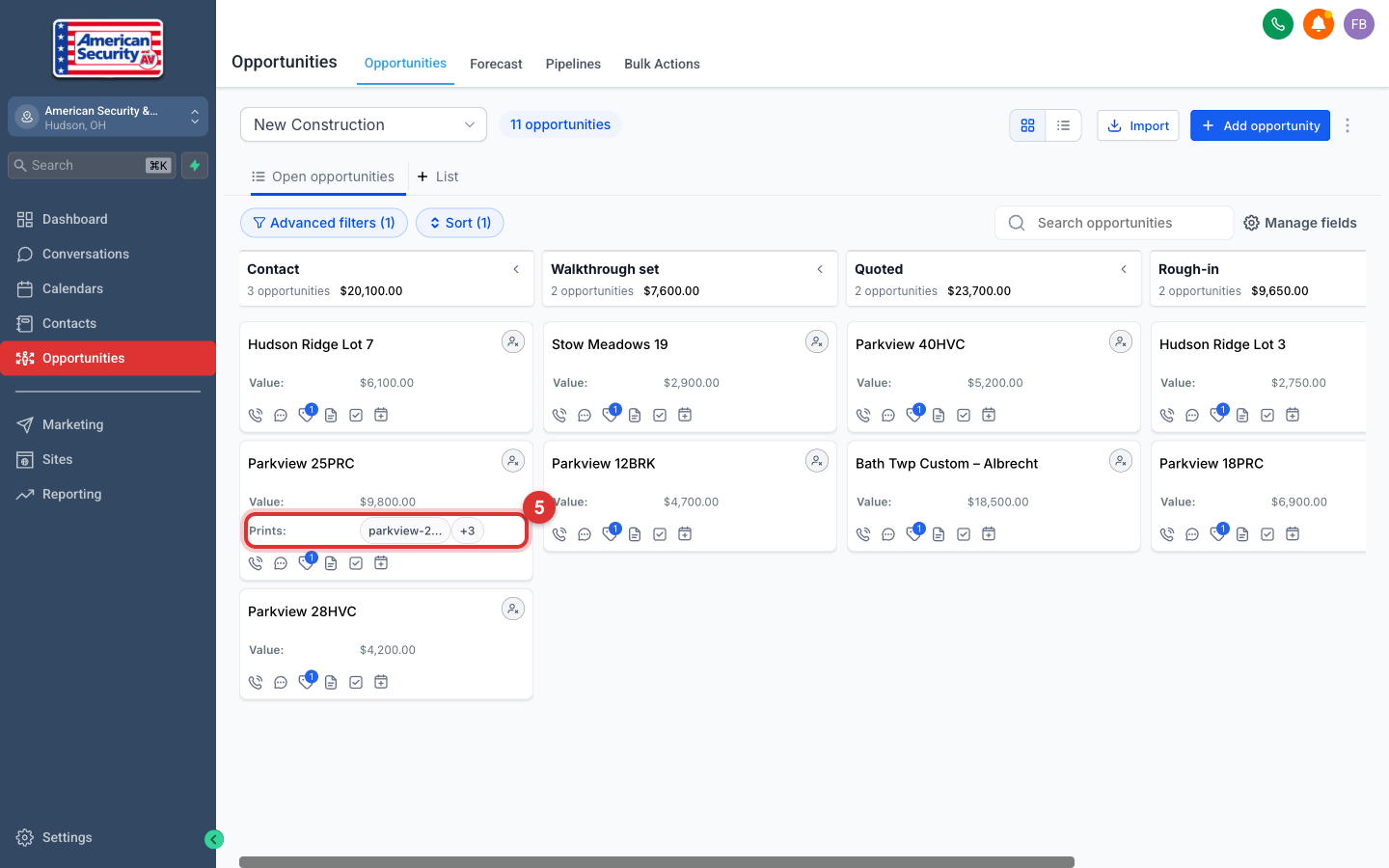
Prints on the card

5
Each card shows its prints. +3 means three more.
Prints on the card
1 Menu2 Enquiries3 Customers4 Sales board5 Service6 Boards7 Email8 Mailchimp9 Monday10 Every day
Step 61 of 62
131
Part 9 · Add the prints
American Security & AV logo
×
Native Builders

Check your move

Count the jobs
Same number on the CRM board as in Monday? (Skipped ones had no name, phone or email.)
Owners
Every card should show a salesperson. If not, open the job and set Owner.
Prints
Open a few jobs and click a drawing to be sure it opens.
Keep Monday for now
Do not cancel Monday until every board is checked.
1 Menu2 Enquiries3 Customers4 Sales board5 Service6 Boards7 Email8 Mailchimp9 Monday10 Every day
Step 62 of 62
132
American Security & AV logo
×
Native Builders
10
Part 10

Every day & getting help
A short routine, the words to know, and who to call.
1 Menu2 Enquiries3 Customers4 Sales board5 Service6 Boards7 Email8 Mailchimp9 Monday10 Every day
Part start
133
Part 10 · Every day
American Security & AV logo
×
Native Builders

Your 10-minute routine

Morning
Open Conversations → All. Answer new enquiries and customer replies.
Tasks
Open Contacts → Tasks → Due today. Do them, then tick them off.
Sales board
Move cards that changed. Mark jobs Won or Lost.
Service
Open Service & Billing. Anything in New request? Move it on today.
Friday
Look at Proposal Sent: who needs a follow-up call?
1 Menu2 Enquiries3 Customers4 Sales board5 Service6 Boards7 Email8 Mailchimp9 Monday10 Every day
Step 1 of 4
134
Part 10 · Words to know
American Security & AV logo
×
Native Builders

Words you will see

Contact
A customer or possible customer.
Conversation
All messages with one customer, in one place.
Opportunity
A job on a board (a “card”).
Stage
A column on a board. Some call it a “bucket”.
Board (pipeline)
A set of columns: Sales, or Service & Billing.
Enquiry
What the customer asked for, shown on the card.
Prints
The drawings for a job, attached to its card.
Tag
A label on a customer, like “type-residential”.
Smart list
A saved list of customers you use often.
Campaign
One email sent to many customers.
1 Menu2 Enquiries3 Customers4 Sales board5 Service6 Boards7 Email8 Mailchimp9 Monday10 Every day
Step 2 of 4
135
Part 10 · If something goes wrong
American Security & AV logo
×
Native Builders

If something goes wrong

Wrong tag or owner?
Just change it back. Nothing is lost.
Card in the wrong column?
Drag it back to the right one.
Card on the wrong board?
Open it and change Pipeline.
Sent an email by mistake?
Emails cannot be taken back. Tell us, and we will help you send a short correction.
Can’t find something?
Check you clicked All, and clear the search box.
1 Menu2 Enquiries3 Customers4 Sales board5 Service6 Boards7 Email8 Mailchimp9 Monday10 Every day
Step 3 of 4
136
Part 10 · Getting help
American Security & AV logo
×
Native Builders

Who to call

Native Builders support
Martin
+389 72 270 342
martin@nativebuilders.ai
When you call, tell us
Your name, what you were trying to do, and what you see on the screen. A photo of the screen helps.
1 Menu2 Enquiries3 Customers4 Sales board5 Service6 Boards7 Email8 Mailchimp9 Monday10 Every day
Step 4 of 4
137